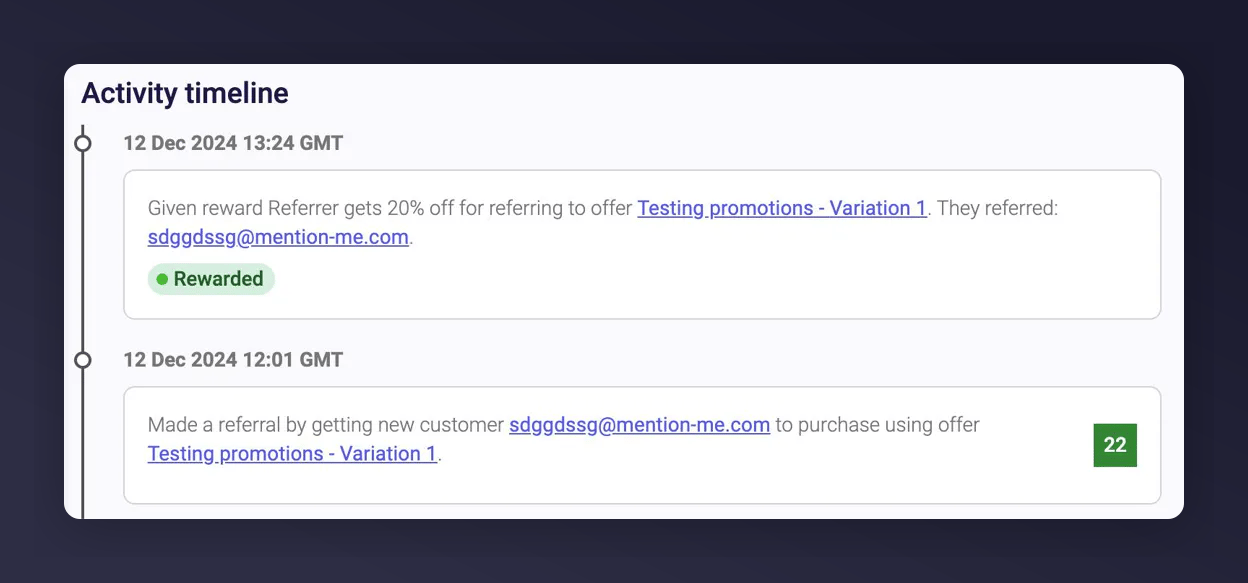
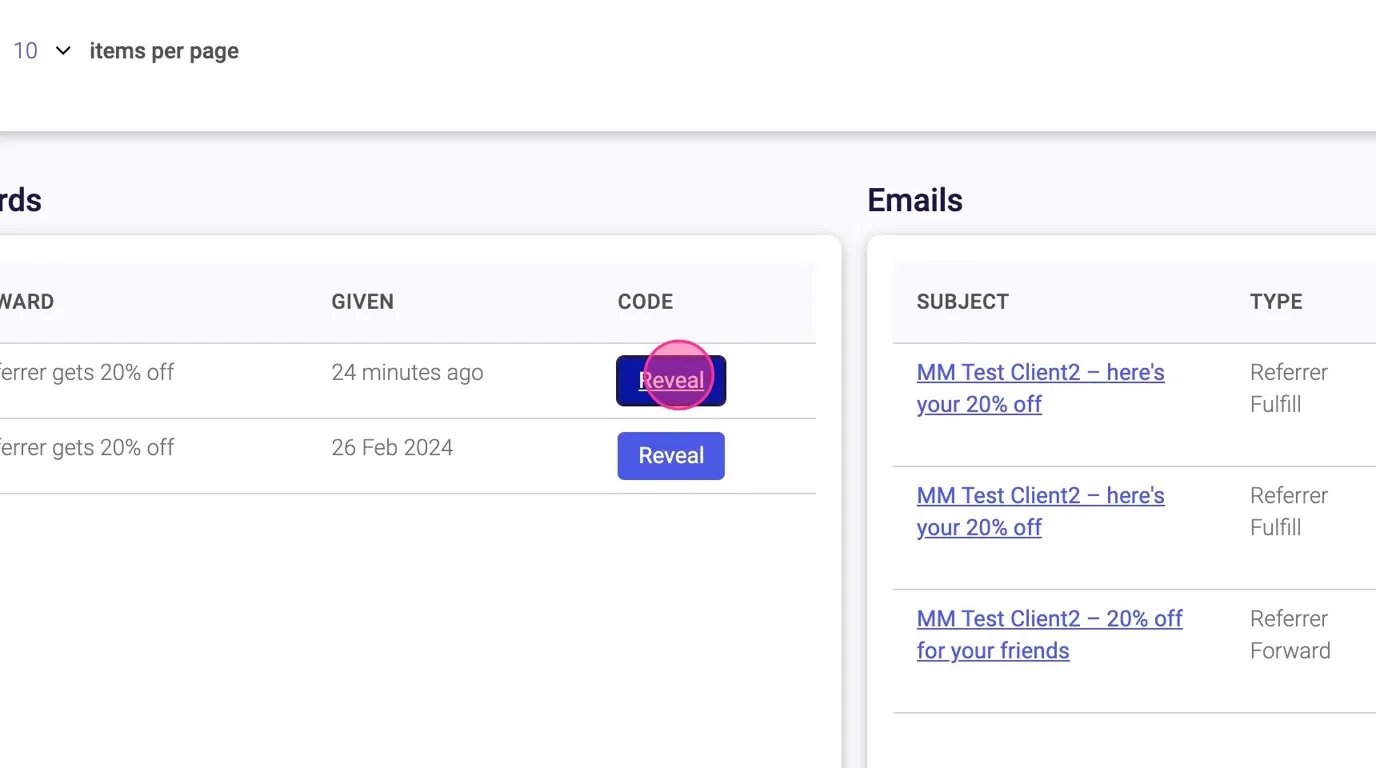
Confirming a purchase sends a reward to the referrer. If the offer includes an “after purchase” reward, the referee also receives one.
Mention Me usually confirms a qualifying purchase automatically. You may need to confirm one manually if:
  • The referee used a different email for their purchase than the one they used to sign up
  • Your integration isn’t sending orders with the correct email

Steps to Confirm a Purchase

1

Open the Customer Search

Go to mention-me.com/merchant and click Customers.
Customers tab in Mention Me dashboard

The Customers tab in the Mention Me dashboard navigation.

2

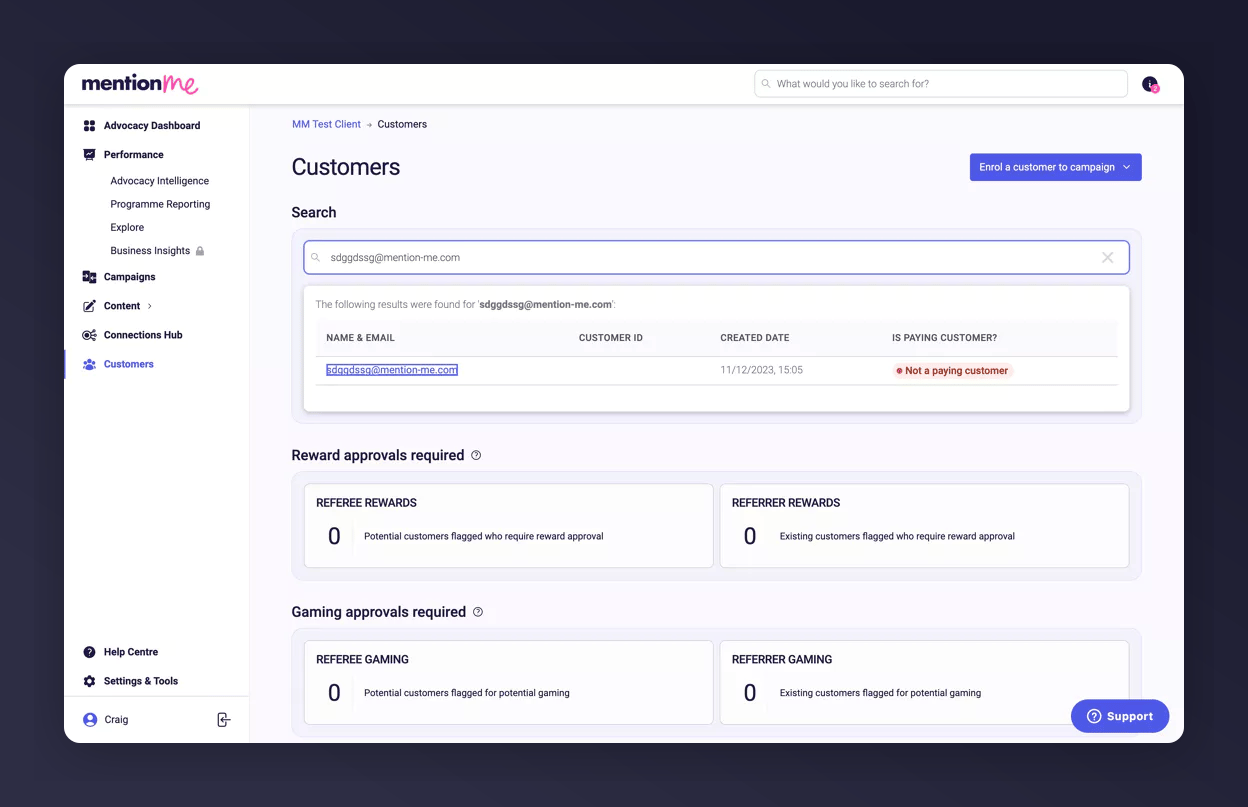
Search for the Referee

You must search for the referee (the new customer), not the referrer, to confirm a purchase.
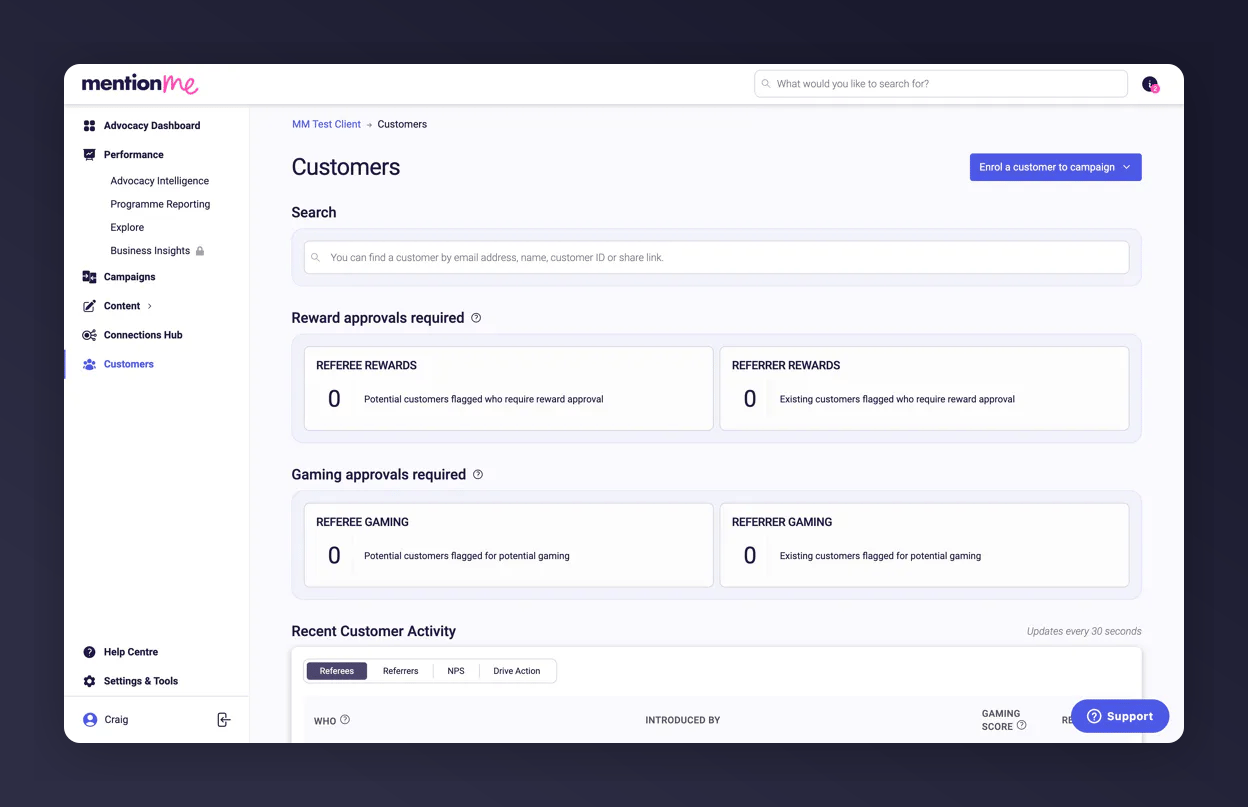
Search using the referee’s email, name, customer ID, or share link.
Customer lookup bar for search

Searching for the referee in the customer lookup bar.

3

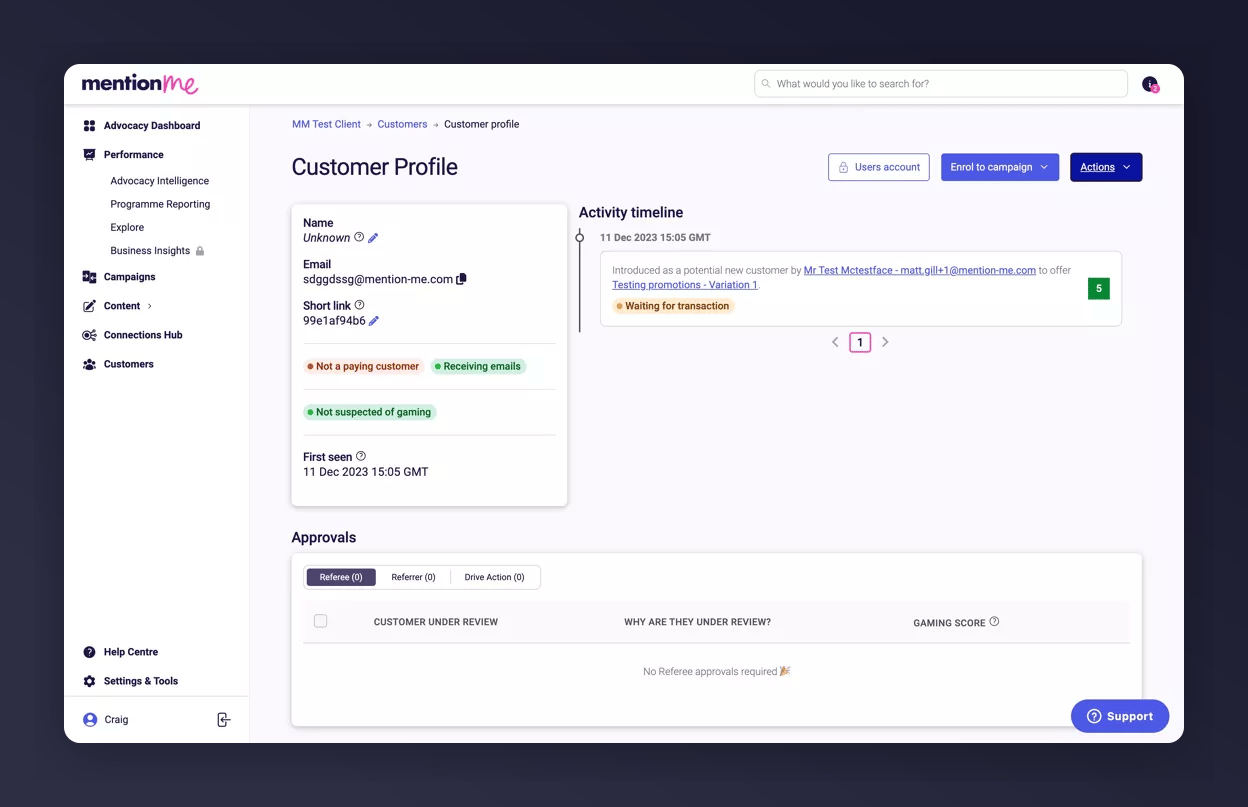
Open Their Record

Click the customer’s profile to open their record.
Opening customer account details in Mention Me

Opening the customer's account record.

4

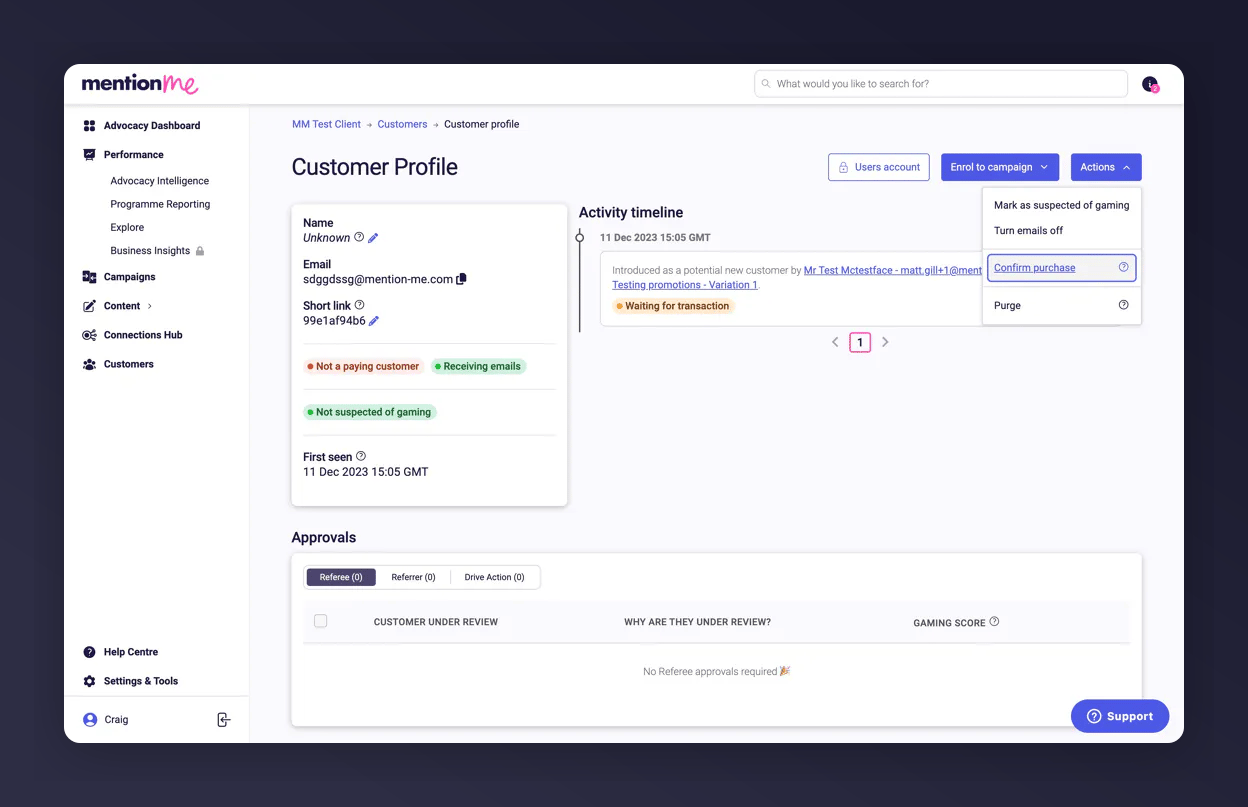
Open the Actions Menu

Click Actions.
Actions menu on customer profile

The Actions menu on the customer profile.

5

Click Confirm Purchase

Click Confirm Purchase.
Confirm purchase button popup

The Confirm purchase option in the Actions menu.

6

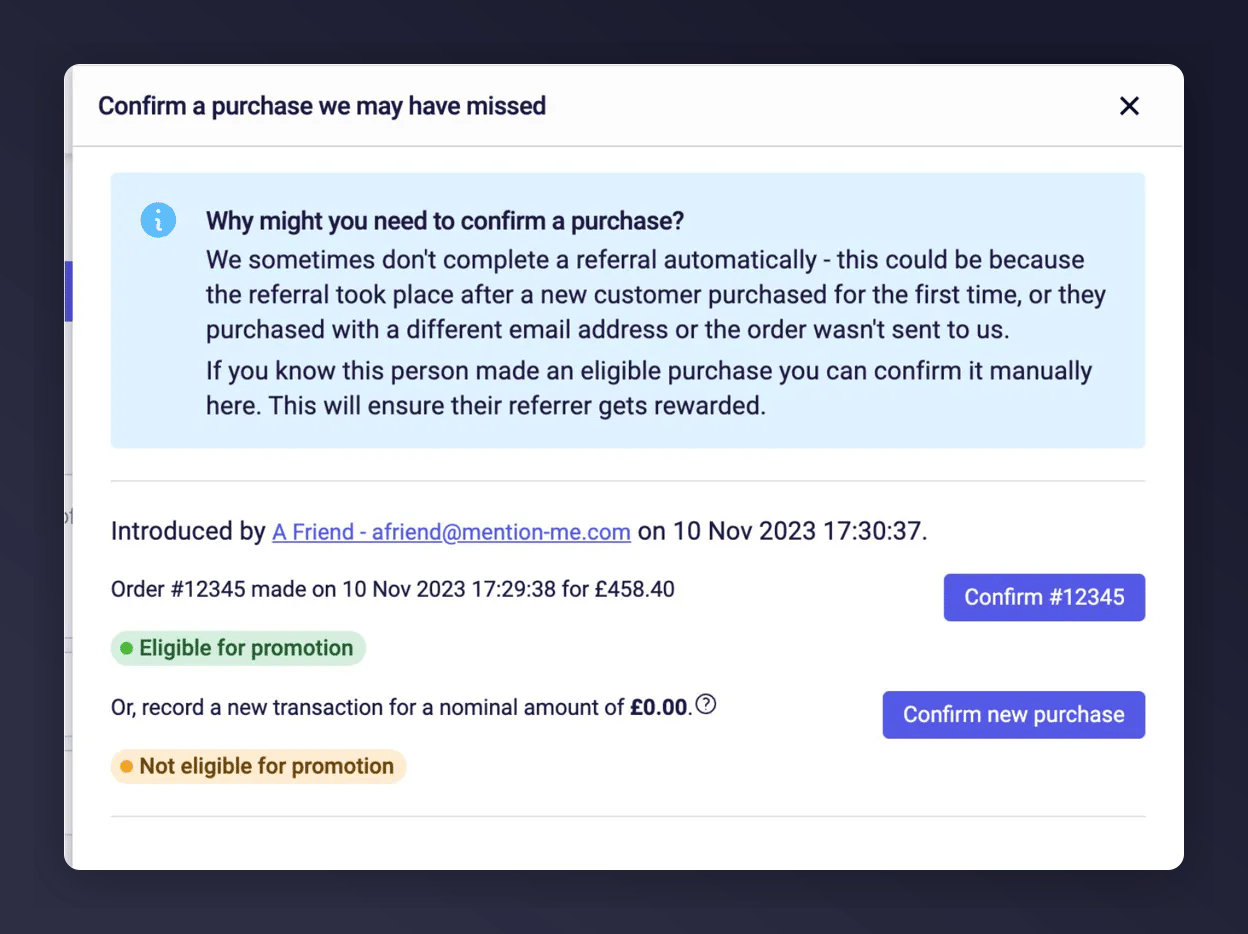
Confirm Despite Minimum Spend (if Applicable)
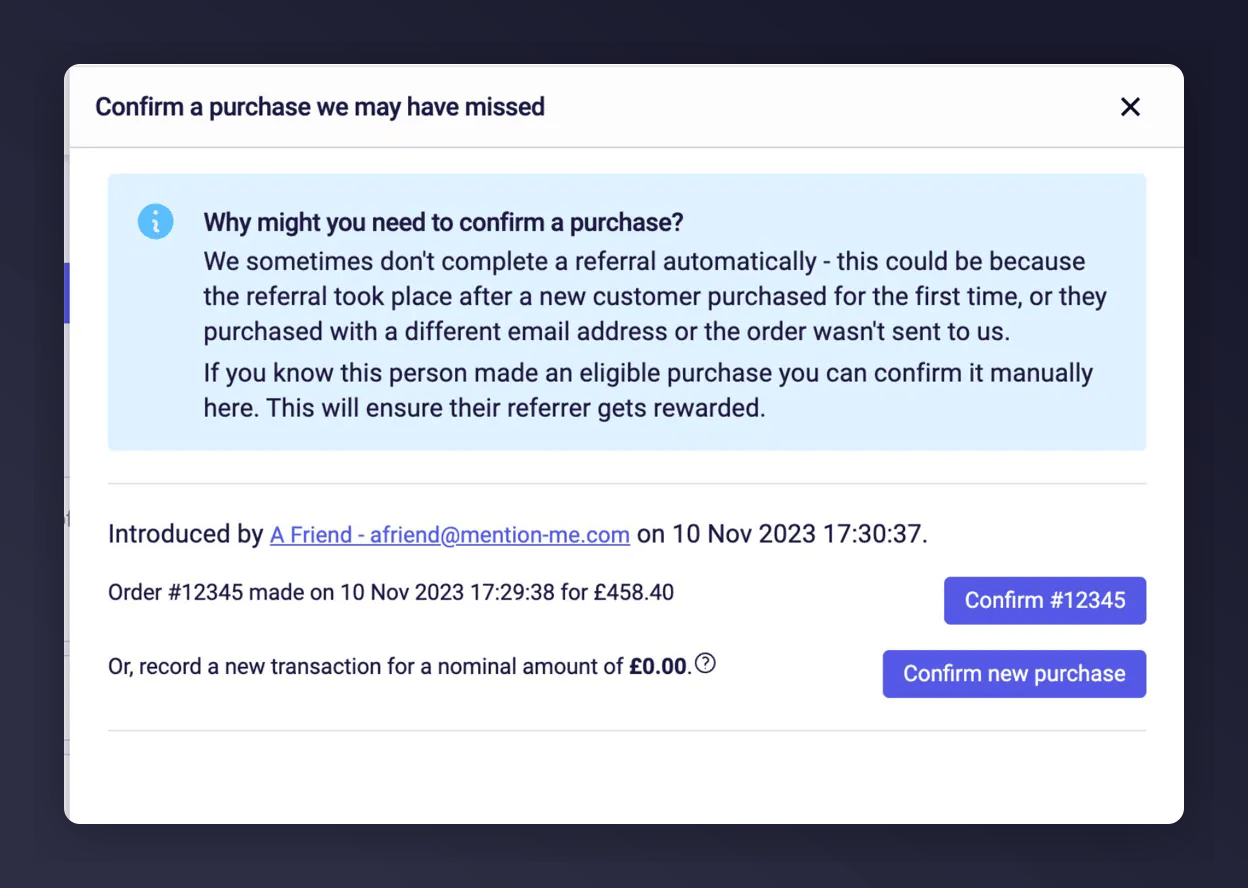
There are two ways this step can proceed, depending on the order.
If the purchase was below the minimum spend, you can still confirm it to issue rewards.
Confirm for minimum spend not met

Confirming a purchase that didn't meet the minimum spend.

7

Confirm the Promotion (if Applicable)

If the purchase is part of a promotion, you’ll see whether confirming it applies to that promotion.
Promotion selection confirmation option

Choosing whether the confirmation applies to an active promotion.

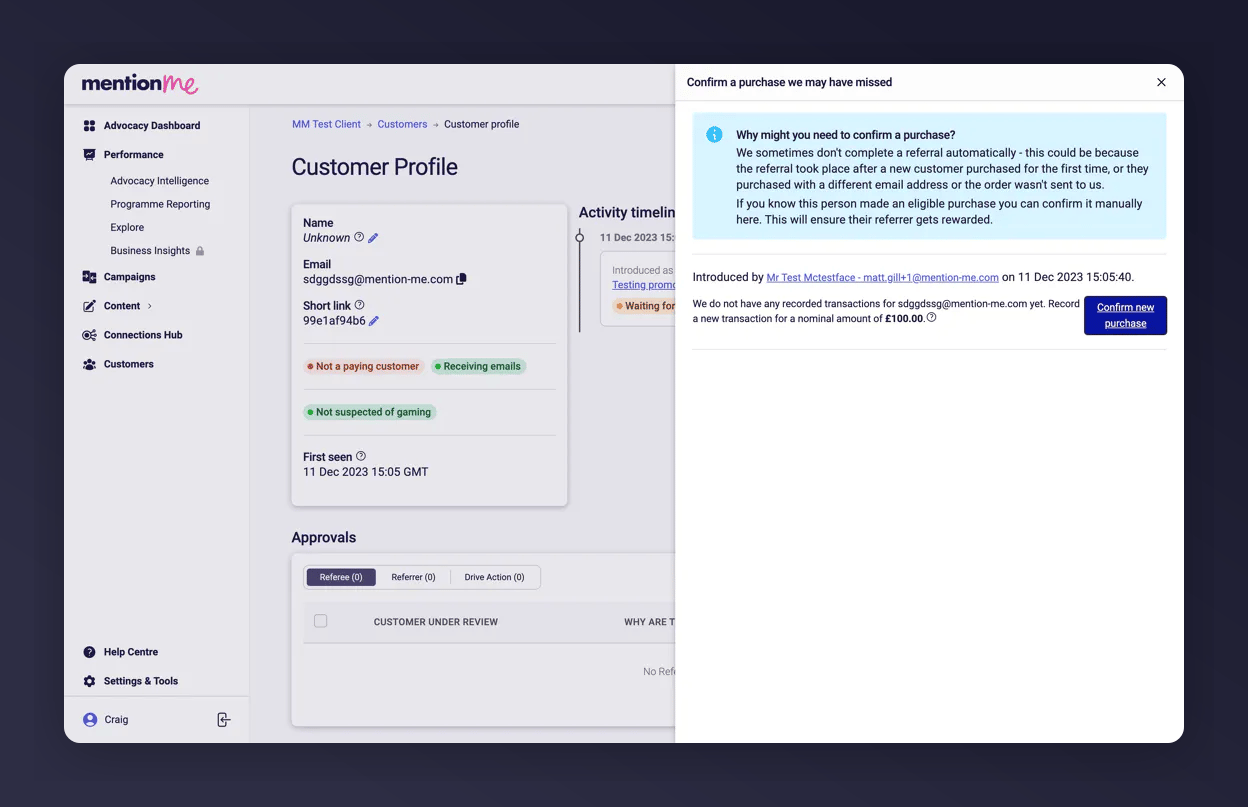
8

Click Confirm New Purchase

Click Confirm New Purchase to proceed.
Final confirmation button

The final confirmation button for the new purchase.

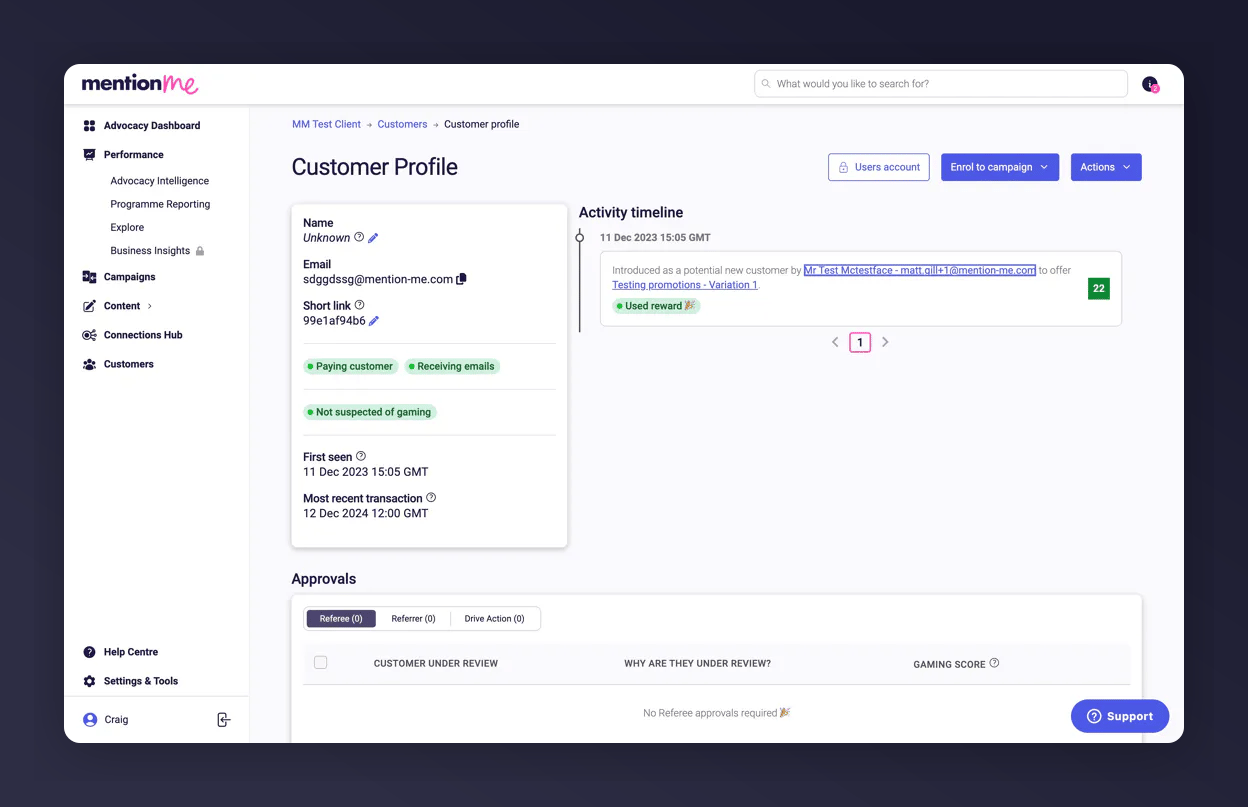
9

Refresh and Verify

Refresh the page and find the customer’s record again to confirm it was successful.
Account refresh to see updated status

The customer account after refreshing the page.

10

Check the Activity Timeline

The referral now appears as linked under the customer’s Activity Timeline.
Verified referral in timeline of Mention Me customer details

The confirmed referral shown in the customer's activity timeline.

11

Reveal the Reward Code

Under the Rewards section, you’ll see the code that was issued. If you have the right permissions, click Reveal to display it.
Animation showing reward code reveal on Mention Me

Revealing the issued reward code.

Last modified on July 21, 2026