

Why Use the Debug Dashboard?
- Confirm your orders and customer details are being received
- Spot issues like missing data or duplicate orders
- Share examples with your Mention Me contact if something looks wrong
Accessing the Debug Dashboard
Find the Debug Dashboard under Settings & Tools > Tools > Debug Dashboard, or search for “Debug Dashboard” in the search bar.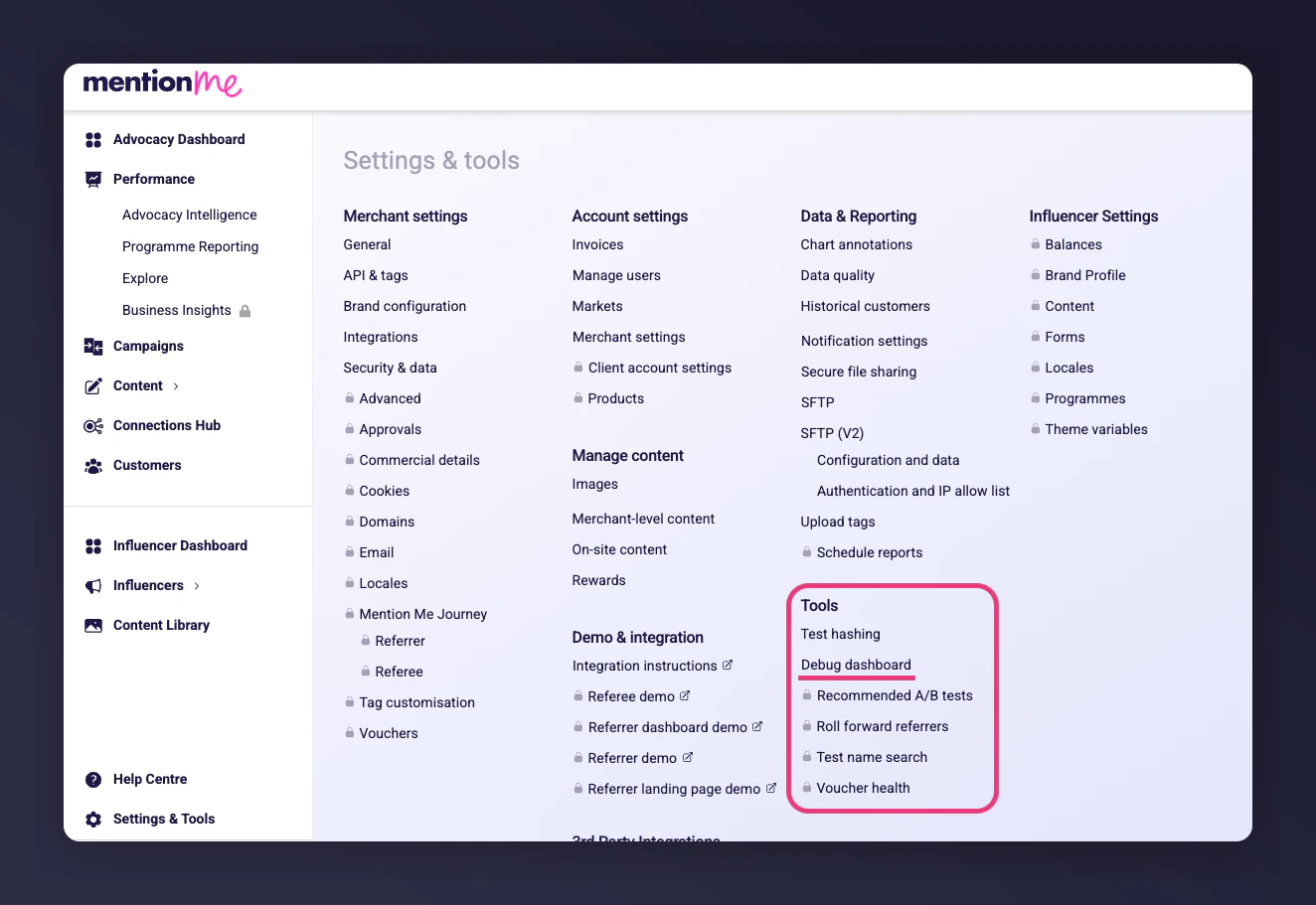
Debug Dashboard location in Settings and Tools
What Is Debug Mode?
By default, the Debug Dashboard refreshes on a short delay. Clicking Enable debug mode (at the top of the dashboard) switches it to real-time monitoring, so you see tag data the moment it’s received — useful when you’re actively testing and want instant feedback rather than waiting for the next refresh. Debug mode also matters if you’re testing tags on your live site before your integration is approved to go live: without it enabled, live tag requests can return a403 Forbidden response. See Testing Your Integration for the full testing workflow.
At a Glance
The top of the dashboard gives you a quick health check:- Found: All records received
- Valid: Records successfully processed
- Duplicate orders: Orders sent more than once (e.g. duplicate tag firing)
- Warnings: Data was accepted, but something is missing or unusual
- Errors: Data could not be processed (requires attention)
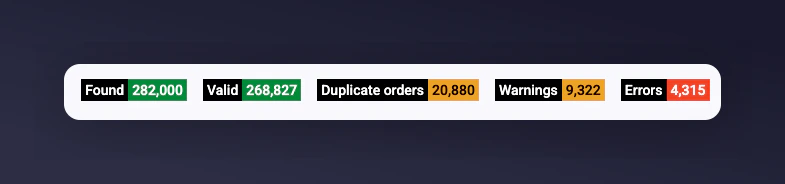
Summary stats: Found, Valid, Duplicates, Warnings and Errors
Exploring the Data
Beneath the summary stats are “Top 5” lists showing the most common data sources:- Transactions: Currencies of received orders
- Sources: How data reached Mention Me (e.g., tag, webhook, API)
- Situations: Where the tag fired (e.g. thank-you page)
- Tag types: What kind of tag (order, referral, dashboard)
- Locales: Site or language the data came from
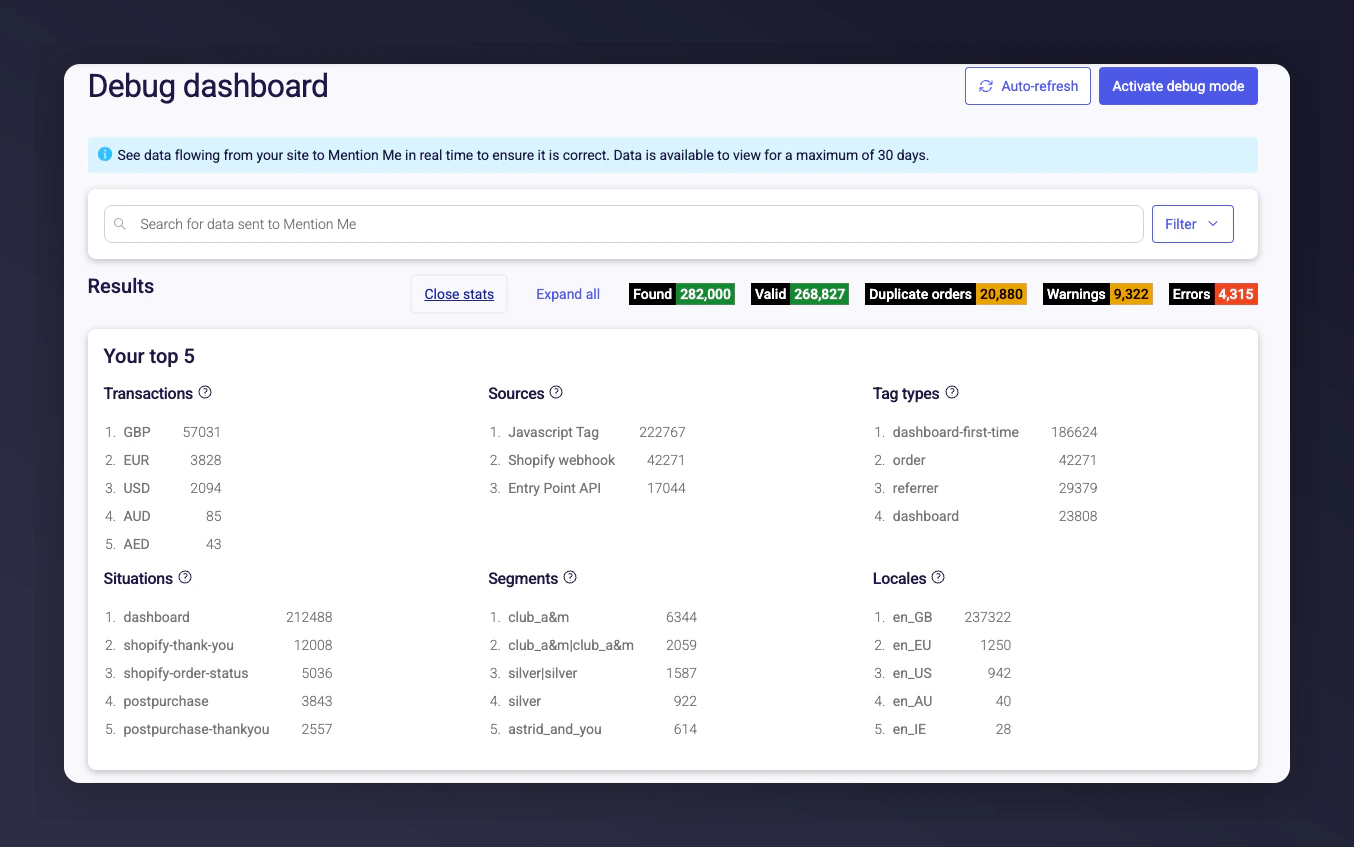
Top 5 lists for transactions, sources, situations, tag types and locales
Filtering the Debug Dashboard
Use filters at the top of the dashboard to focus your view:- Search bar: Search by order ID, email, etc.
- Has warnings?: Filter records with warnings
- Parameter filters: Filter on situation, locale, currency, type, etc.
- Clear filters: Reset all filters for a full view
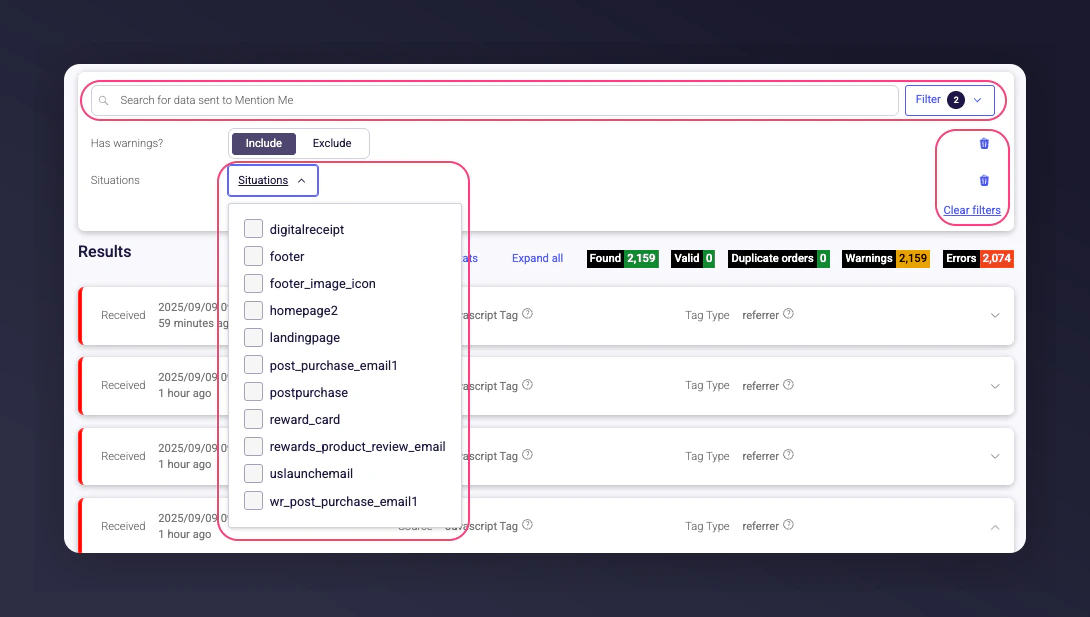
Debug Dashboard filter controls
When to Use Filters
- Troubleshoot errors: See if errors come from a specific situation (e.g., postpurchase)
- Validate a campaign: Check that data is being received from the right source
- Investigate warnings: Look for patterns
- Check a case: Search by known values like email or order ID
Looking at Individual Records
Click a row to expand details:- Customer: Email, ID, and name
- Transaction: Order and purchase details
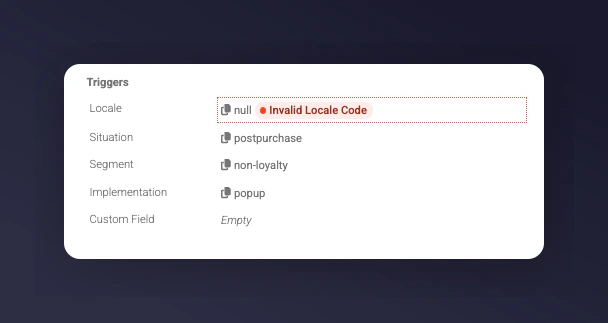
- Triggers: Locale, situation, segment, and type (e.g., popup, embed)
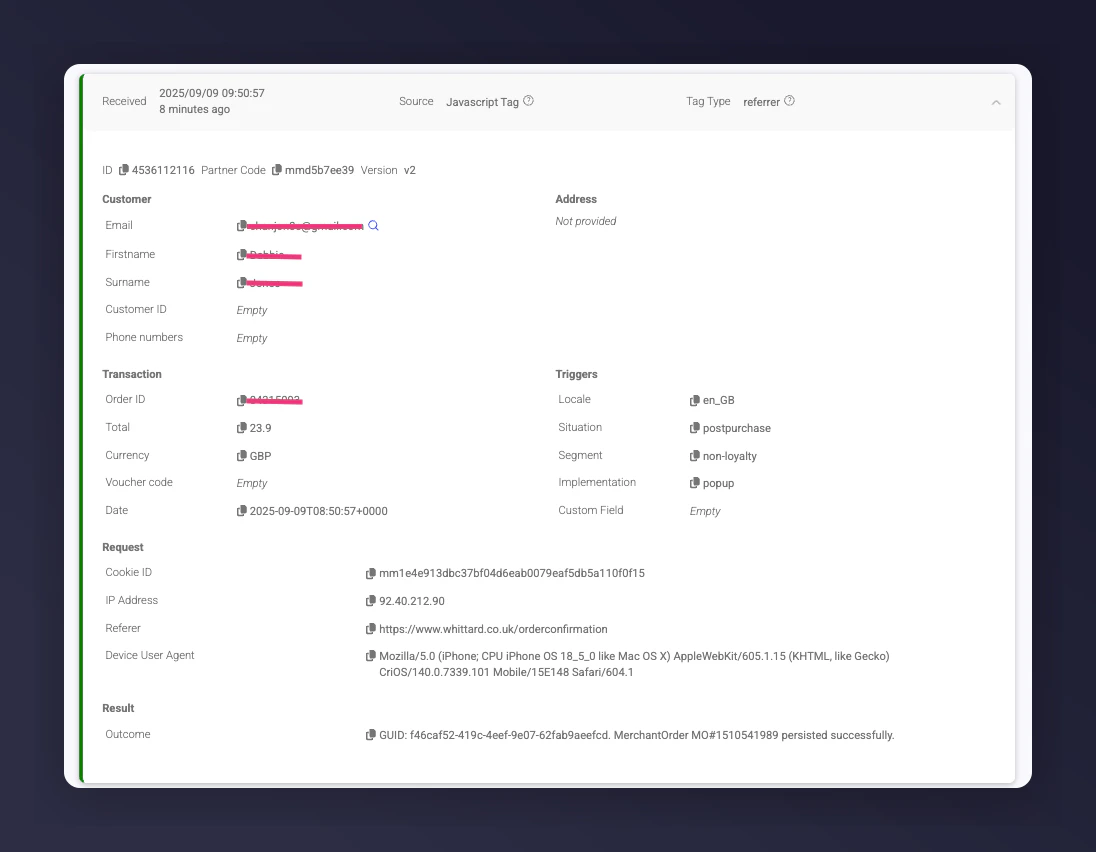
Expanded record showing customer, transaction and trigger details
What to Do If You Spot Issues
- A few warnings: Normal, no action needed
- Lots of duplicate orders: Check your postpurchase tag or your order API integration
- Errors: Note the affected rows and share them with the Mention Me team or submit via the Help with Tech form. Include the page URL with filters applied.
Empty Values
Empty values aren’t always a concern:- A landing page referral tag may not capture data until the form is completed
- A transaction total marked as “empty” might just be a dispatch update, not a real order
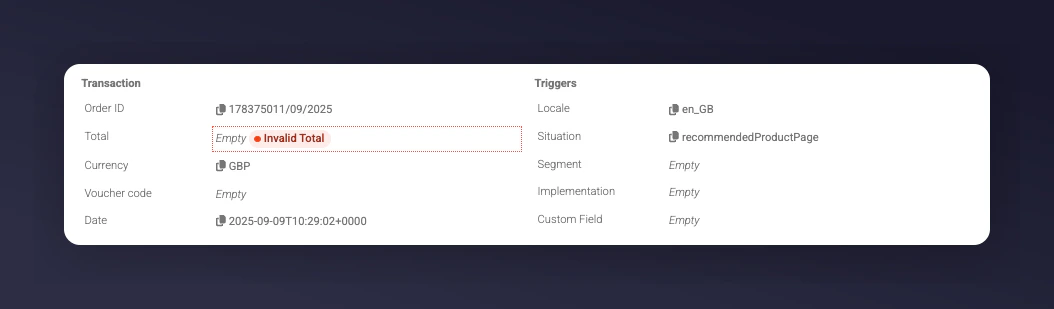
A debug dashboard record showing empty values that are not necessarily a concern.
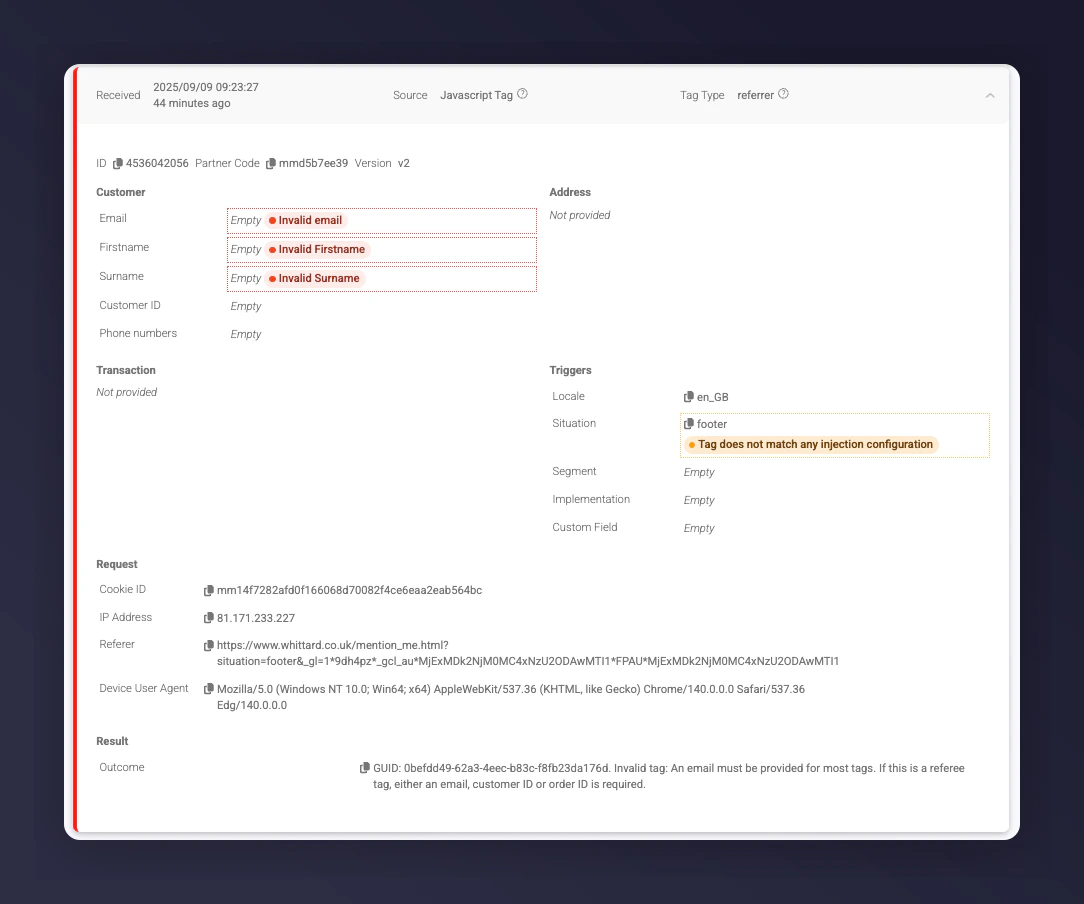
Empty values appearing as errors in the debug dashboard, though they are often just warnings.
Undefined Values
Undefined means the data should be there but isn’t. This may indicate a problem with your data layer. Confirm you’re referencing the correct object or variable to pull values into the tag.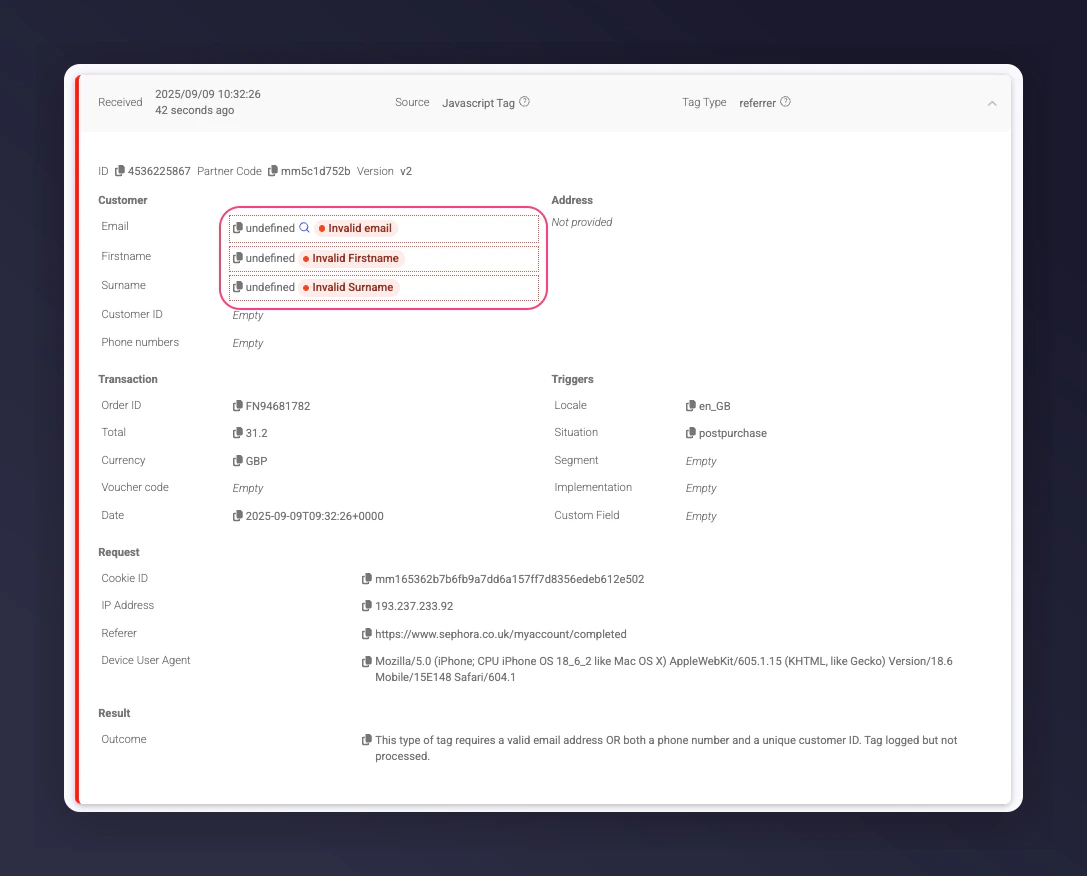
A debug dashboard record showing undefined values that may indicate a data layer issue.
A warning for undefined customer details shown in the debug dashboard.