

Start a New Campaign
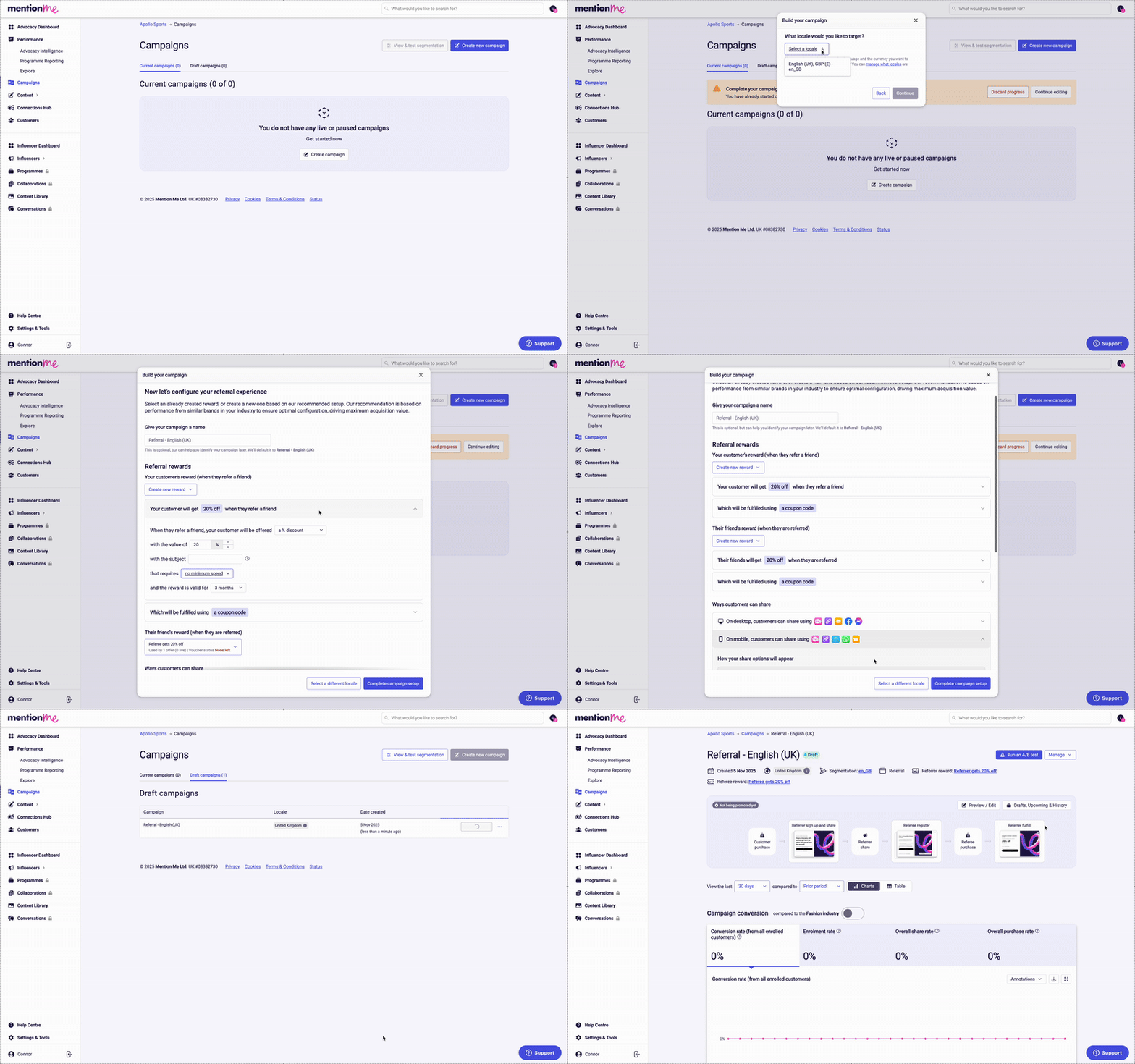
The new referral campaign creation wizard.
1
Navigate to campaigns
Follow the link provided during onboarding or navigate to the Campaigns section in the Mention Me platform.
2
Create a new campaign
Click Create new campaign in the top right-hand corner.
3
Complete the setup wizard
Work through the onscreen wizard:
- Select a campaign type — for onboarding, choose Referral.
- Choose a locale — this defines where your campaign runs and the campaign language.
- Define the rewards — pick what incentives you want to offer. Select from existing rewards or create a new one. Different reward types work better for different businesses, products, and price points. See our advice for choosing rewards.
- Review share methods — recommended sharing methods are set by default based on industry best practice. Learn more about Name Share and Native Share.
- Complete the remaining setup steps as guided by the wizard.
Set Up an A/B Test
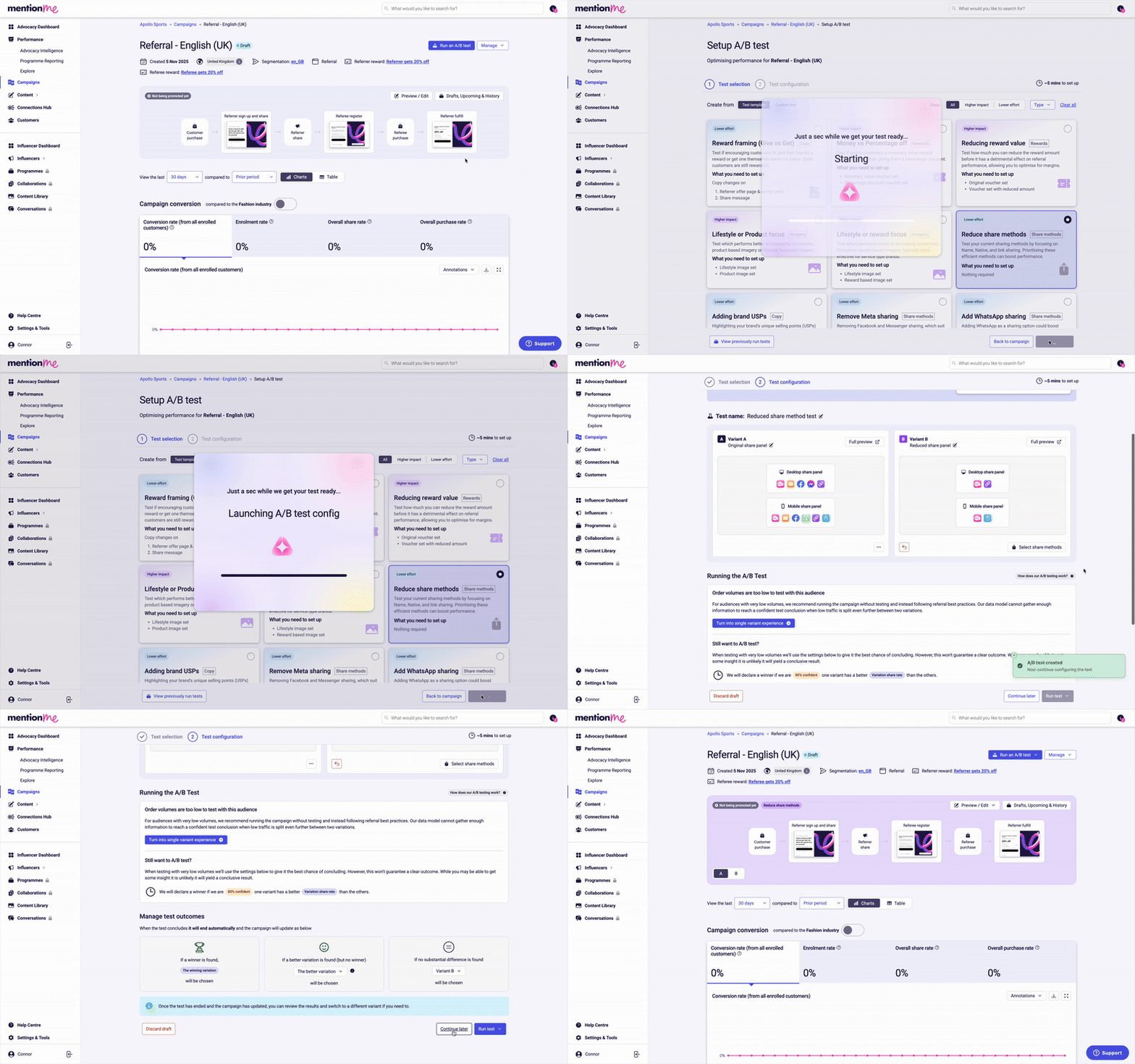
Setting up an A/B test on a newly created campaign.
1
Open your campaign
Once your campaign is created, click through to Manage your new campaign.
2
Start an A/B test
Select Run an A/B test.
3
Configure the test
Follow the onscreen wizard to set up your first A/B test. We recommend starting with the suggested A/B test template to get insights quickly.
4
Save for later
Click Continue later on the A/B test configuration step — do not click Run test.