

When to manage fulfilment yourself
You may choose manual fulfilment if:- You want to include an additional item in a referee’s first order
- You need to apply credit to a referrer’s account internally
- You already use an in-house reward fulfilment process
- You’re running a one-off campaign or competition where you manually select winners
How to change the fulfilment method
Step 1: Navigate to the draft offer
- Go to Campaigns
- Select the relevant campaign
- Click Drafts, upcoming and history
- Click View and edit
- Click Design & Settings → Rewards
Step 2: Choose or create a reward
Select an existing reward that uses your desired fulfilment method, or click Create a new reward.Step 3: Define reward details
When creating a new reward, set:- Type (percentage discount, fixed amount, or free item)
- Value
- Minimum spend, if applicable
- Validity period (recommended: use default)
Step 4: Set the fulfilment method
- Default: Coupon code
- Other options: Coupon link, Webhook, or Shopify
- If using Webhook, ensure the connection is set up beforehand
- If using Shopify, you can choose to have the discount created in Mention Me automatically, or link to a discount you pre-created in Shopify. See the Shopify fulfilment guide for details.
- For custom fulfilment (e.g. external gift cards), contact your Client Success Manager or Operations Team
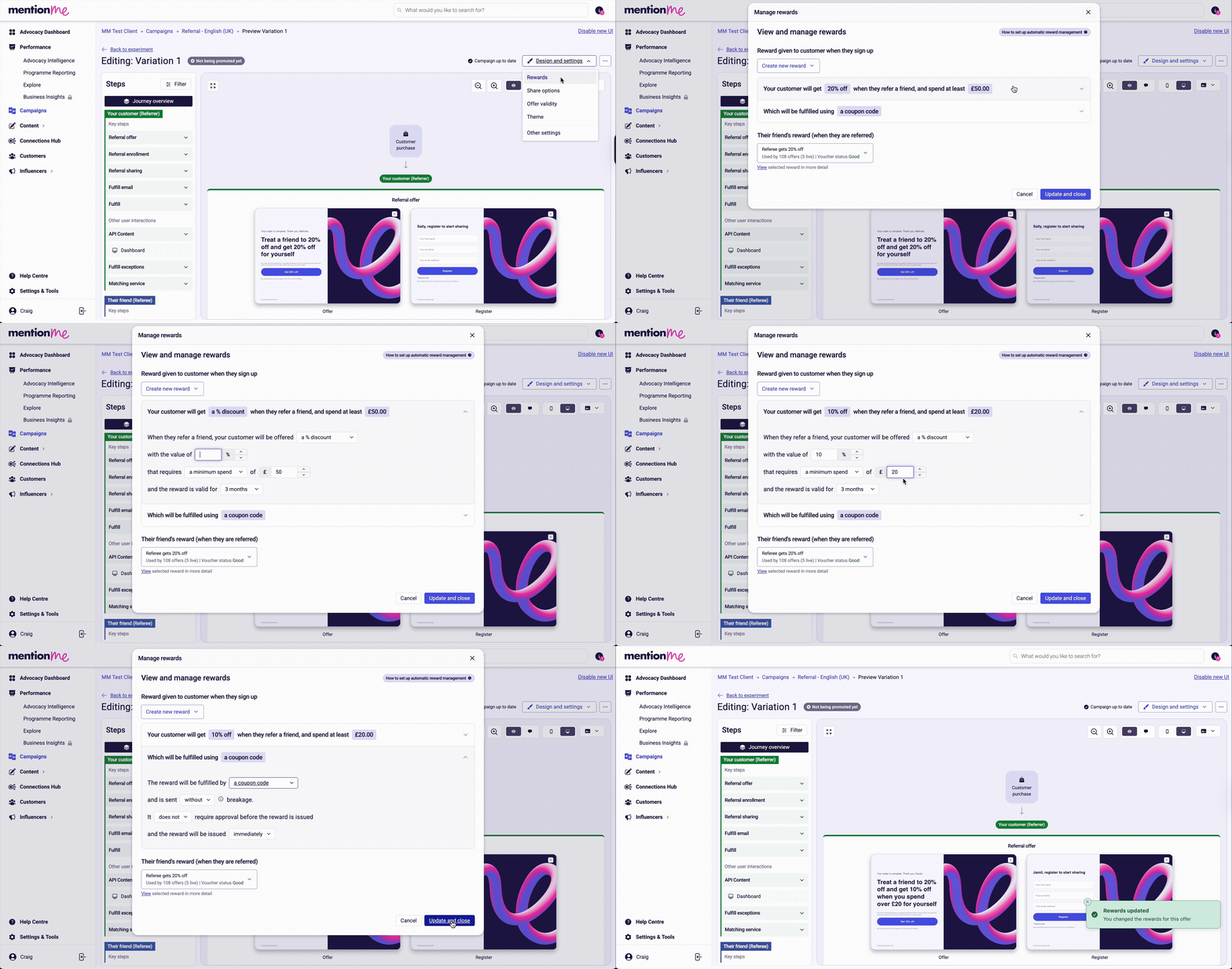
The reward fulfilment method selection showing coupon code, link, and webhook options.
Step 5: Upload vouchers
Once the reward is created, upload your voucher file to complete configuration. Follow the voucher upload guide.Referee Eligibility and Reward Approval
Eligibility settings control when and how rewards are approved. They only affect reward approval and do not override gaming protection - a customer flagged for gaming stays ineligible for a reward regardless of any eligibility tag.Approve a Referee Reward (After Purchase)
If a referee’s reward is awaiting approval, an eligibility tag confirms that the referee has met your criteria and their reward can be approved. This is the most common scenario, used when a reward is only issued once a referee’s purchase or sign-up is verified.Approve a Referrer Reward (Before Purchase)
If the referee’s reward is already approved (or doesn’t require approval) but the referrer’s reward does, the tag confirms that the referee is valid and the referrer can be rewarded. This setup is typical when the referee receives their reward upfront and the referrer becomes eligible separately, for example once a voucher is fulfilled.Both Referee and Referrer Need Approval
If both rewards require approval, Mention Me only acts on the referee’s approval first. You then approve the referrer separately. This is typically used where the referee’s reward (such as a subscription credit) is auto-approved, and the referrer’s reward (such as a voucher) is held for manual approval. If you want both rewards approved together automatically, turn off approval for the referrer’s reward. This makes the setup follow the first scenario above. You can confirm referee eligibility manually, via SFTP, or using the Batch Tag Upload tool.
For guidance on setting up eligibility tags for your referral journey, contact your Client Success Manager or Operations Team.
Managing emails from Mention Me
By default, Mention Me sends automated emails to referrers and referees about reward status, next steps, and fulfilment details. If you prefer to manage these communications yourself, you can disable Mention Me emails.How to manage email communications
- Open your Draft Experiment
- Go to Design & Settings → Other Settings → Email
- Deselect the email options you wish to disable
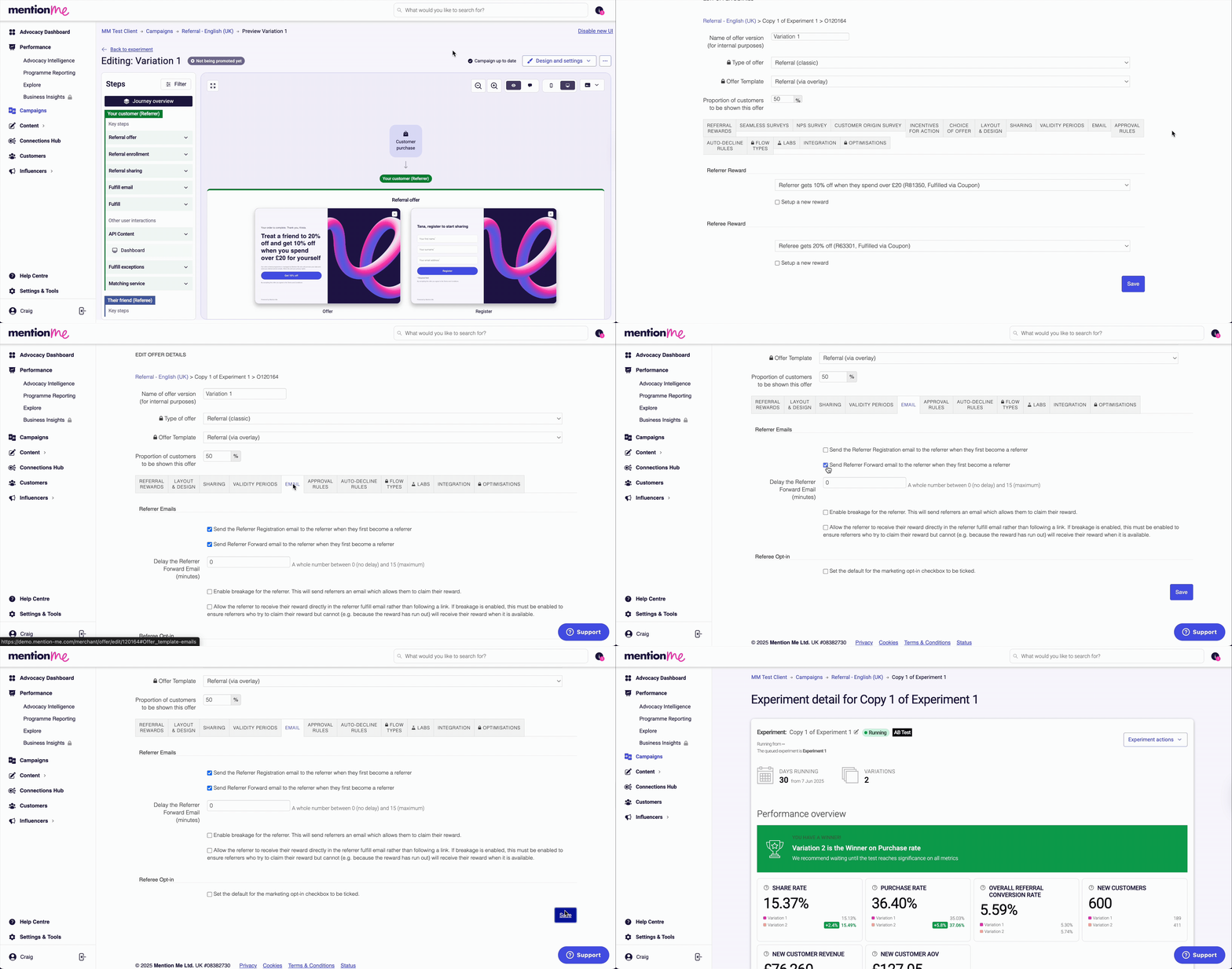
The email communication settings for managing reward notifications.