How to upload eligibility data and other tags to the Mention Me platform using the Upload Tags tool.
Using Mention Me? See Upload a CSV instead.
The page below describes the legacy Upload Tags tool. Concepts are unchanged,
only the UI is different.
The Upload Tags tool lets you upload data directly to the Mention Me platform. If SFTP isn’t an option for transferring data such as an eligibility feed, this feature processes eligibility data with a simple file upload and field mapping.
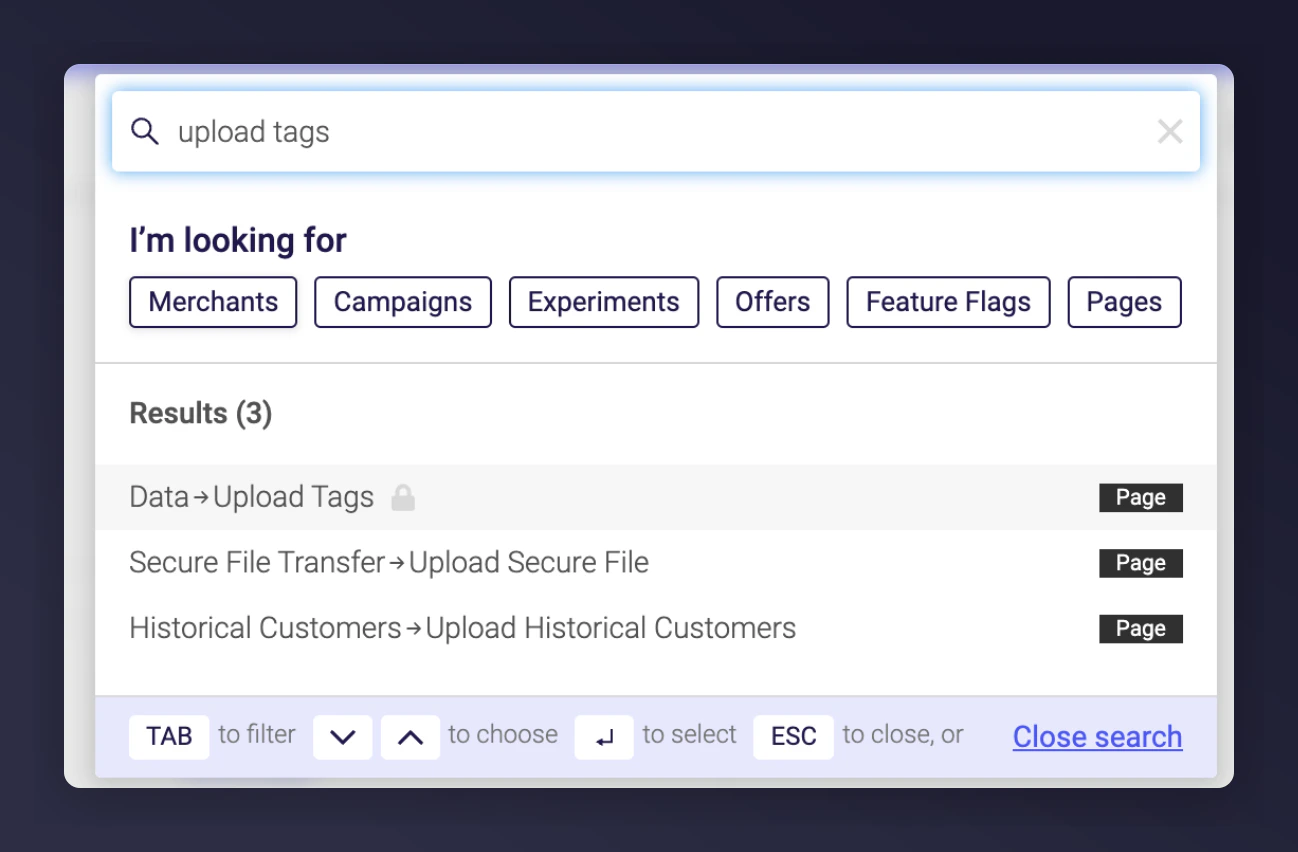
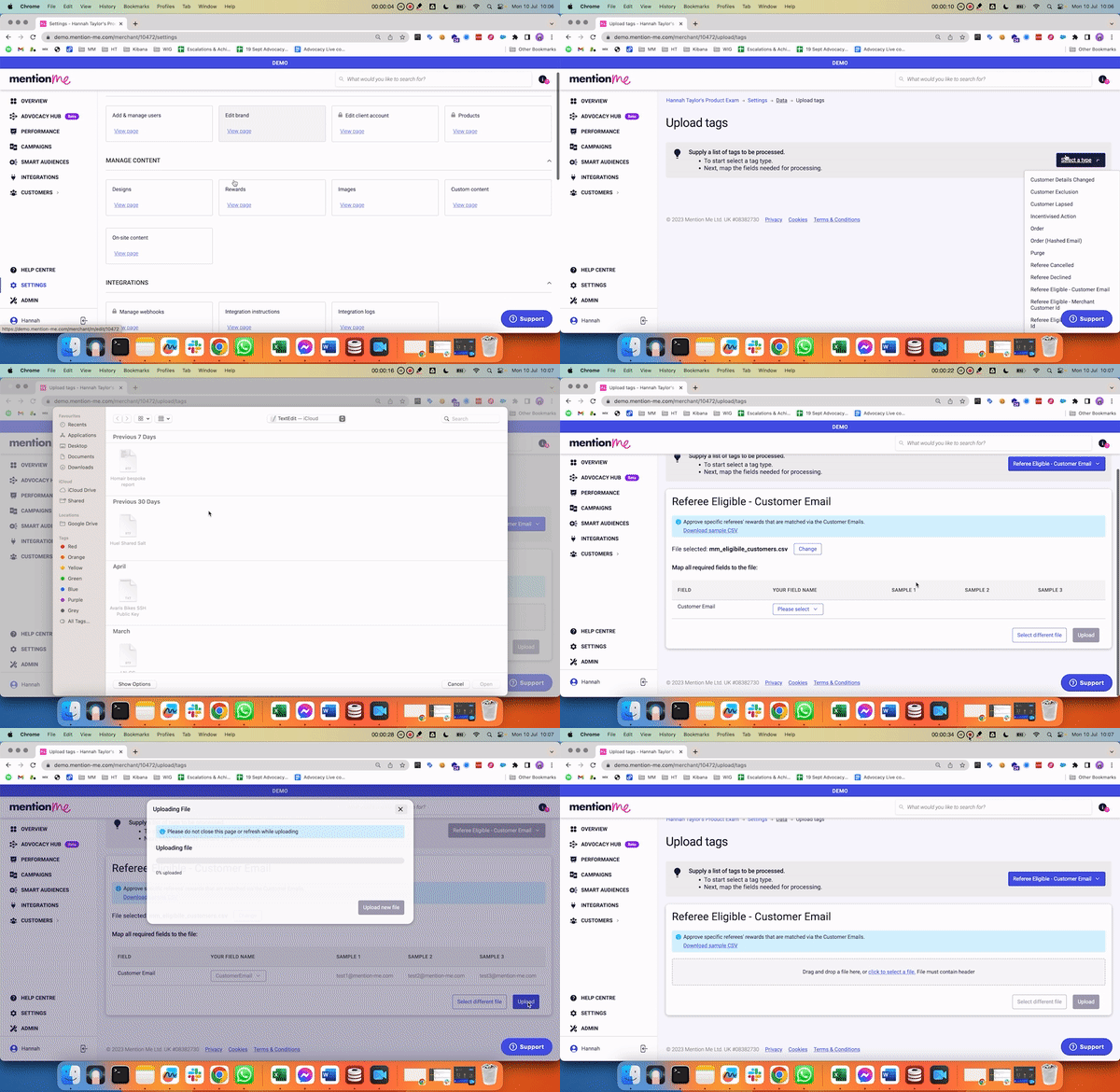
Log into your dashboard, go to Settings & Tools > Upload tags, or search for “Upload tags” and select the first option.
The Upload tags option within Settings and Tools.
2
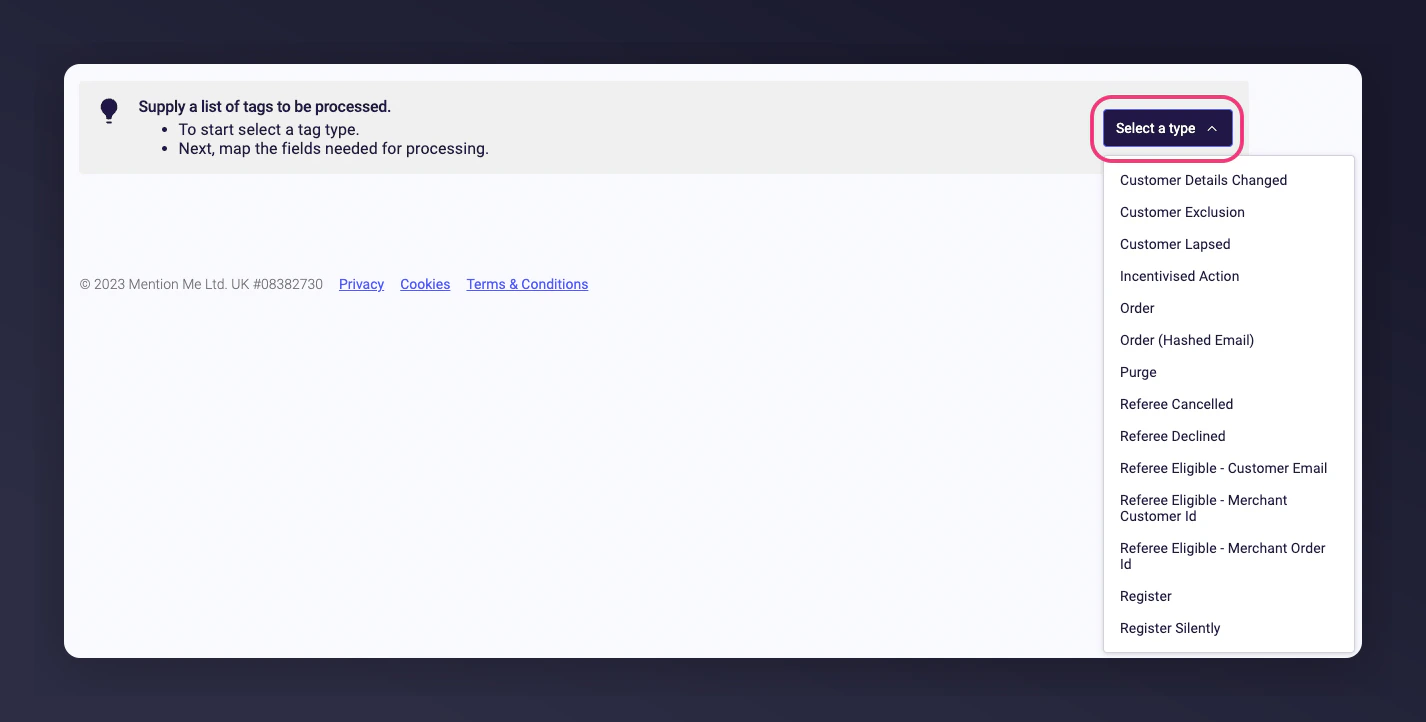
Select a Tag Type
You’ll see a list of possible tags to upload.
The list of available tag types to upload.
3
Prepare Your CSV
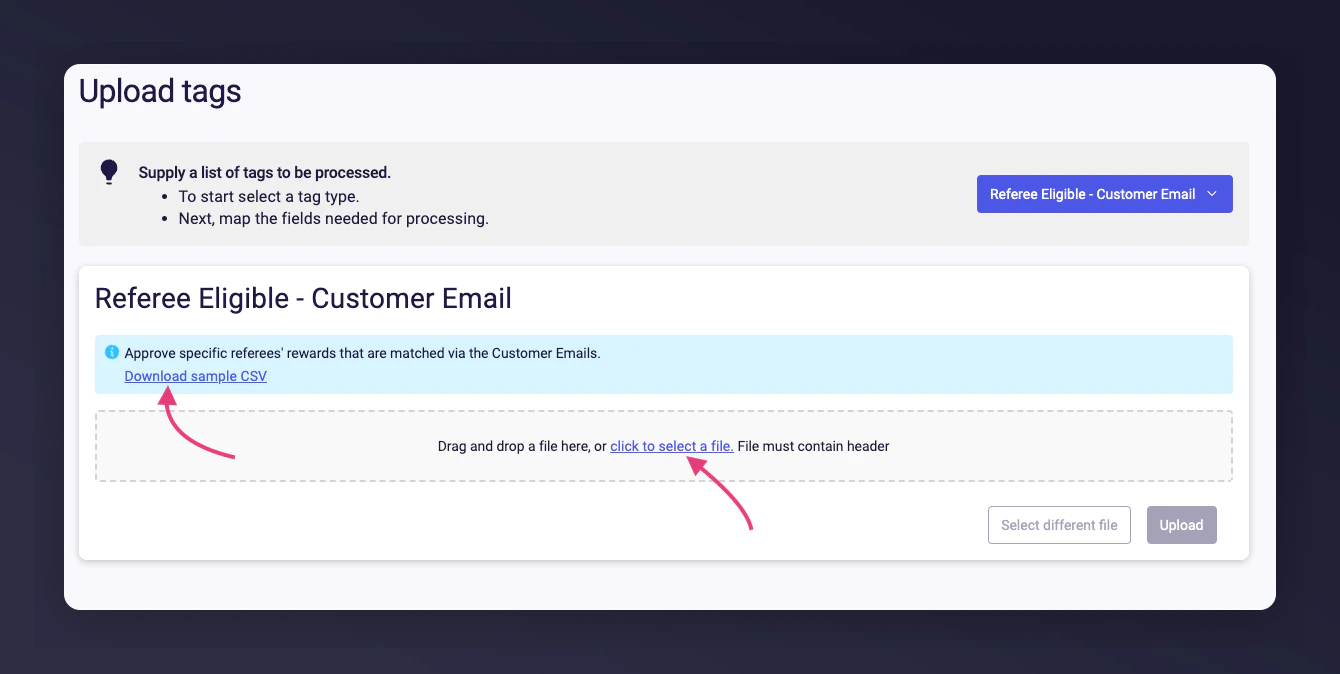
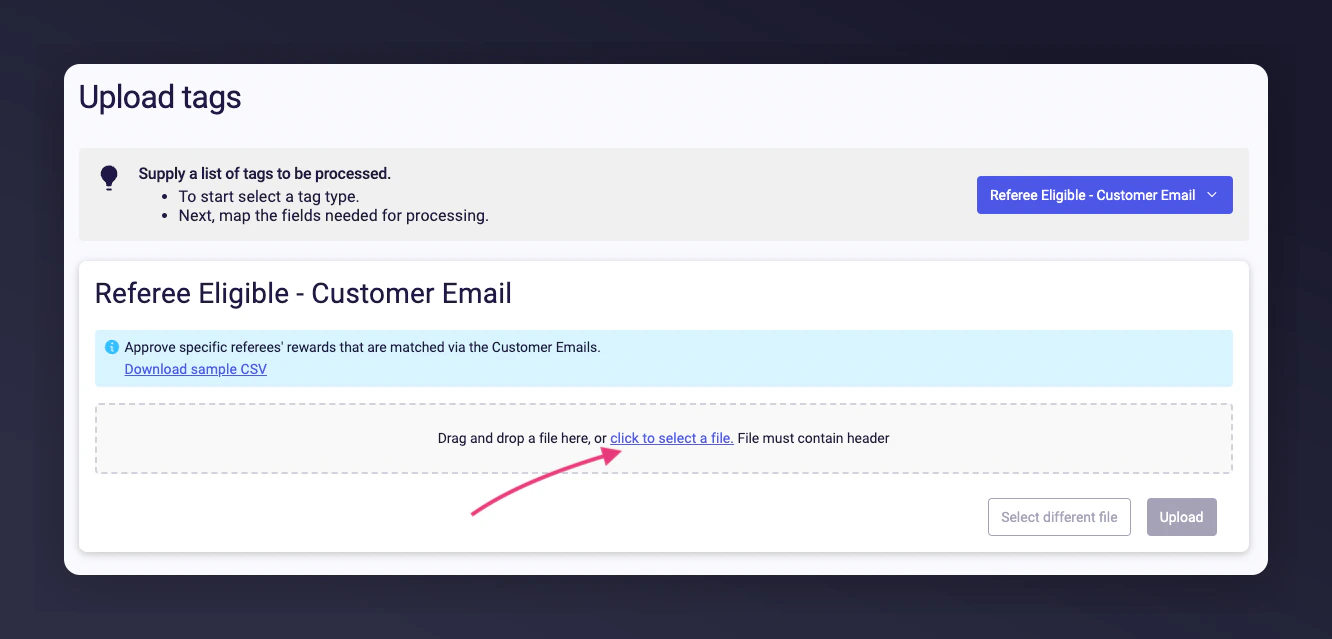
The document to upload must be a CSV file. The first row should always include the required headers. For a list of emails (e.g., new customers who qualified for a reward), select the option from the dropdown and download the sample document.
The dropdown used to select a tag type and download the sample CSV.
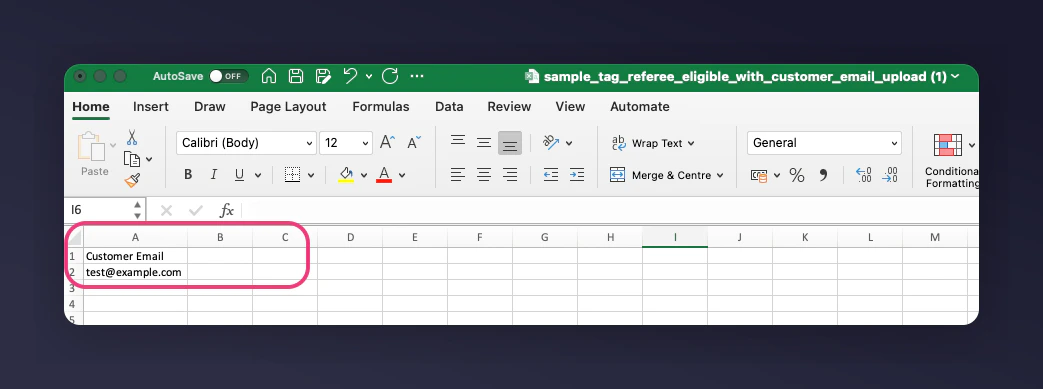
The sample file contains all required headers and one example under each for your reference.
A sample CSV file showing the required headers and example data.
4
Map Your Fields
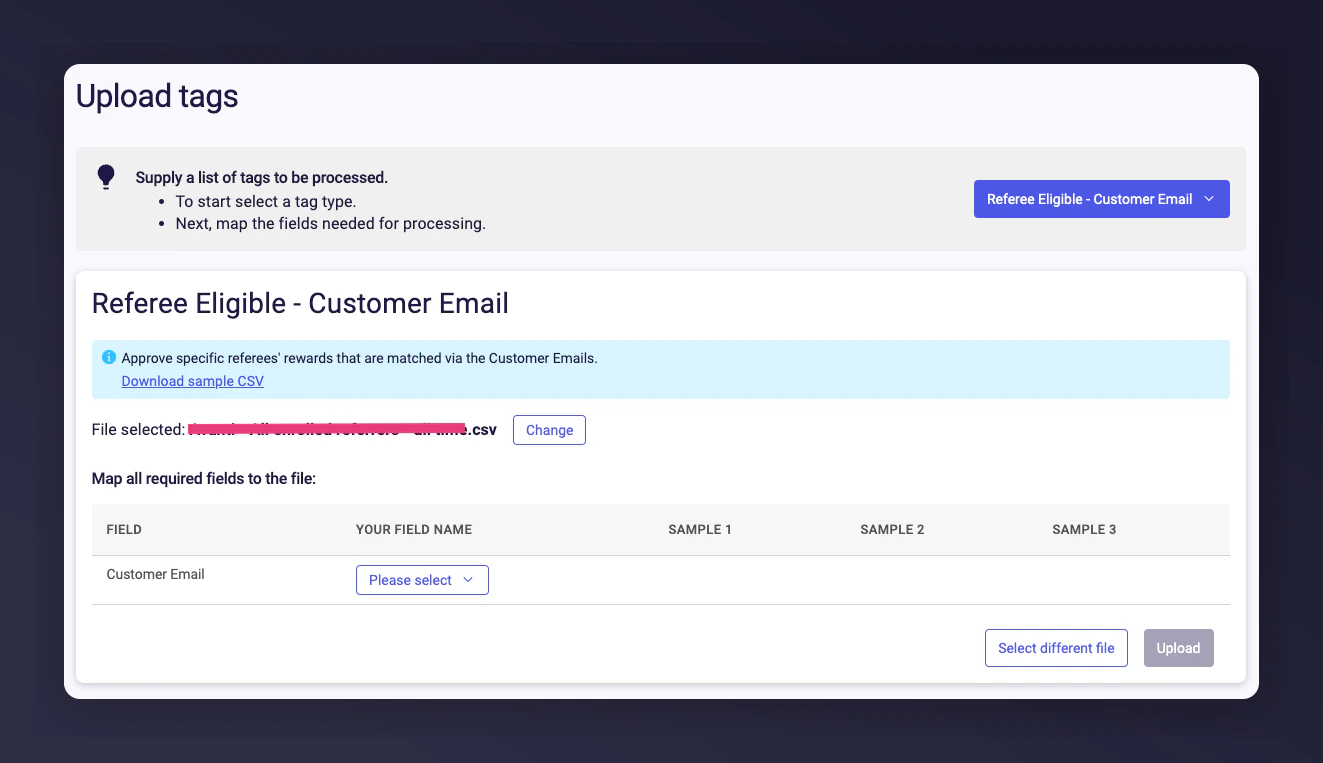
You can map your own headers to mandatory and optional fields before each upload. This step appears right after dropping your file onto the page.
The field mapping interface shown after a file upload.
Mandatory fields are always visible during mapping. Optional fields might be available depending on your upload choice, but these are hidden by default. Click the Optional fields bar to see and map these.
The optional fields section expanded during mapping.
5
Fix Any Validation Errors
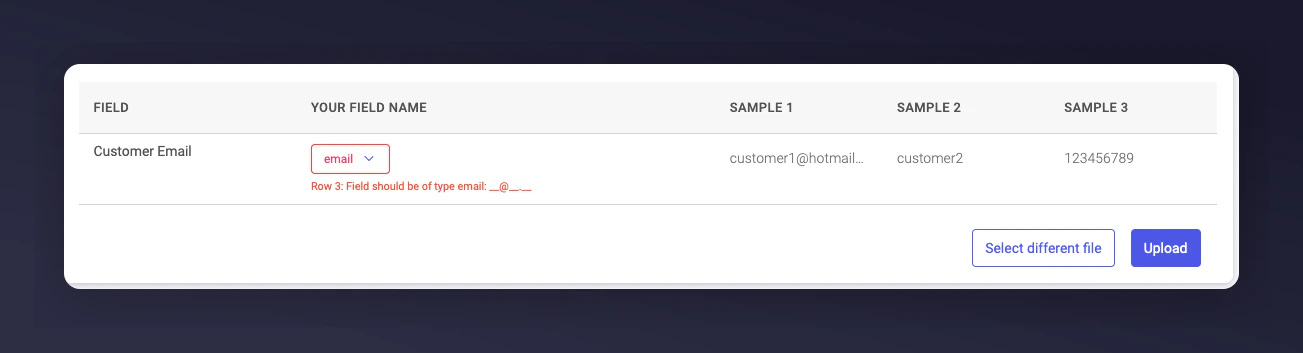
Mapping fields triggers the first stage of validation. If your data format is incorrect, you’ll see a red error message straight away.
A validation error shown during field mapping.
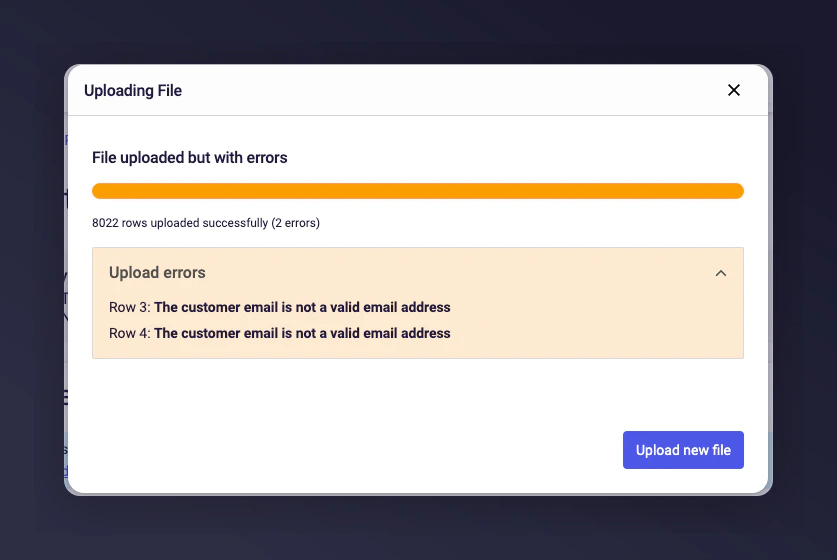
The tool checks the first ~100 rows in your file and shows you any errors, like an invalid email address. If you continue, the rest of the rows are validated on our servers. Any row with an issue will be skipped during processing.
6
Upload
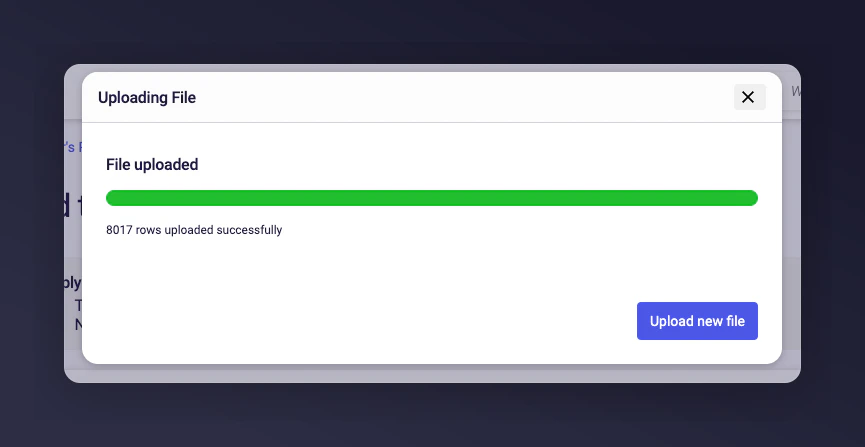
When all fields are mapped and there are no validation errors, click Upload to start processing your file.