

What Native Share Does
Native Share lets mobile users share your referral offer through any app installed on their device, including Instagram. It works on both iOS and Android.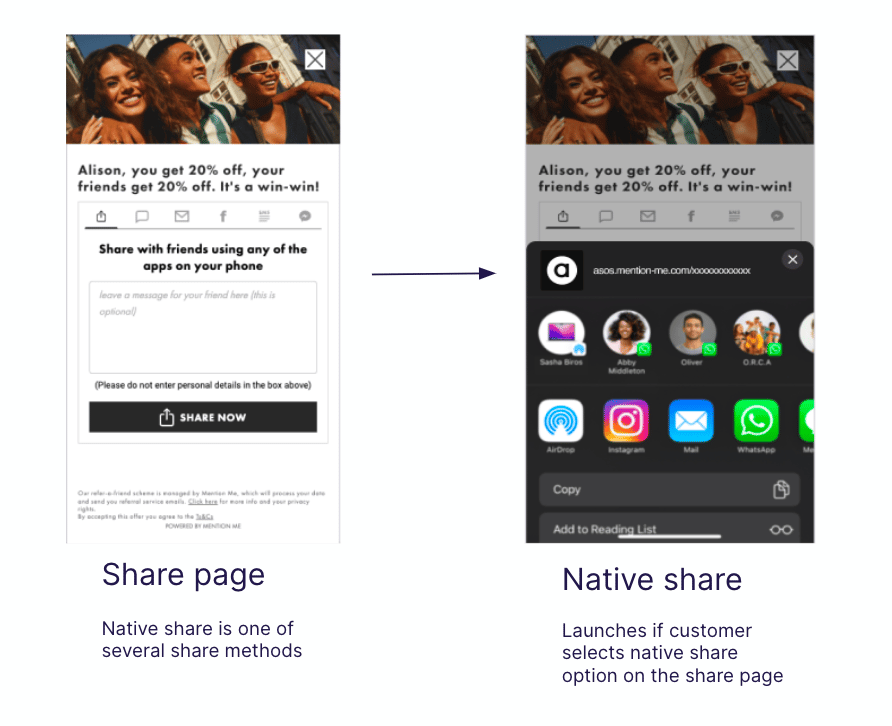
The share page transitioning into the native share sheet on a mobile device.
Native Share is available on mobile devices only. It cannot be used on desktop.
- Boost sharing and conversions, with a typical lift of 5-15%
- Give referrers a personal message option to make shares more compelling
- Use built-in AI to analyse shared messages for customer insights and brand sentiment, see Understanding How We Use AI
Why Test Native Share
- It improves shareability on mobile, delivering 5-15% increases in share and conversion rates
- It supports all apps, expanding share channels to include Instagram and others
- It enables sentiment analysis through captured share messages, see Understanding Sentiment Analysis
How to Set Up Native Share in a Campaign
1
Open the campaign
Click Campaigns in the main navigation, then click the name of the campaign you want to edit.
2
Open draft history
Click Drafts, Upcoming & History.
3
Open experiment actions
Click experiment actions (the three dots menu).
4
Duplicate or create a test
Duplicate the current experiment to a draft, or create a new A/B test using one of the variations.
5
Open offer actions
Click offer actions (the three dots menu).
6
View offer settings
Select View Offer Settings and choose the variation you want to edit.
7
Open sharing settings
Click Sharing.
8
Add Native Share with Message Capture
Drag Native Share with Message Capture into the active sharing options panel.
9
Move Link share
Move Link share into the inactive list.
10
Save your changes
Click Save to confirm your changes.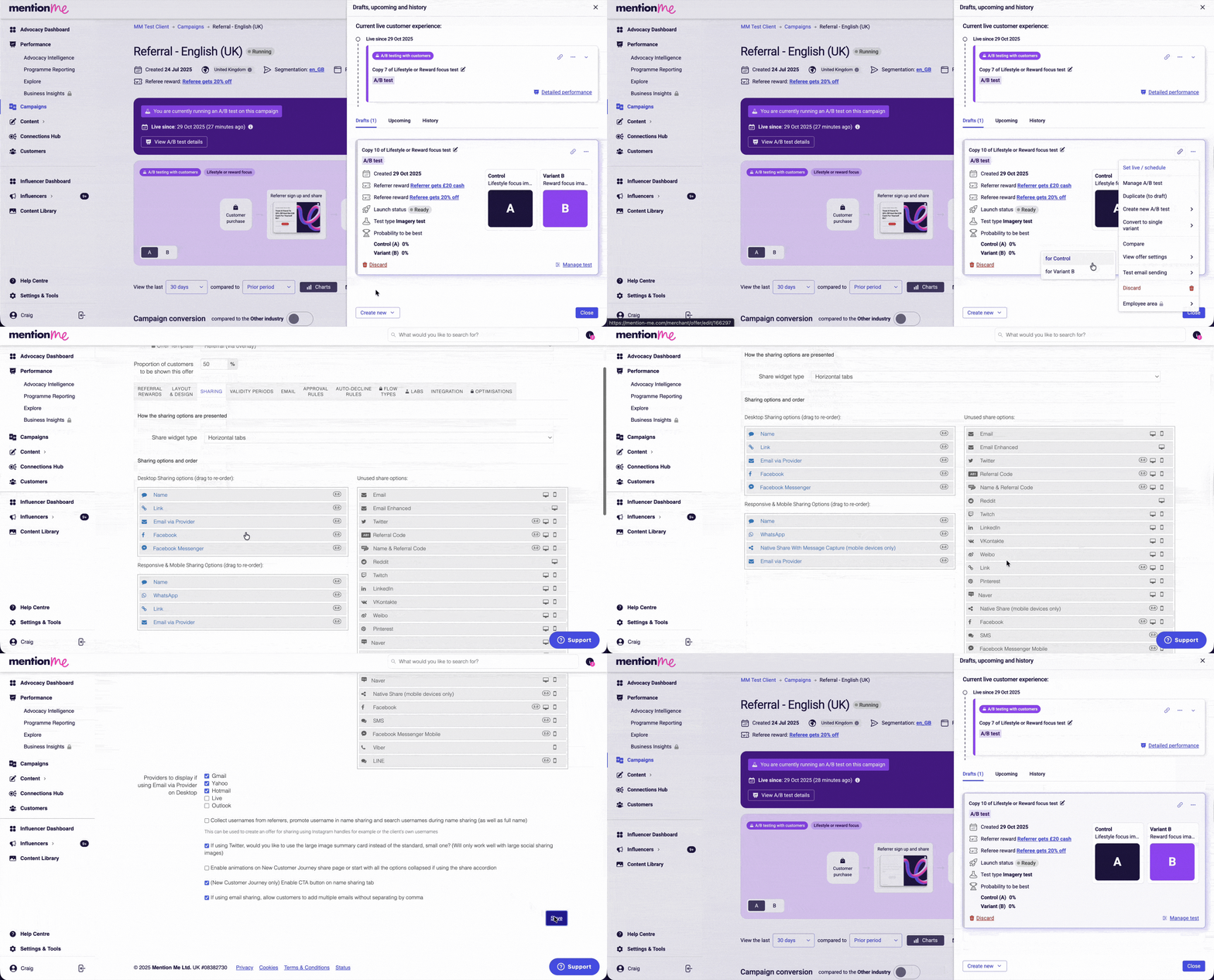
Enabling Native Share in the campaign's sharing settings.
Preview and Verify Your Changes
Preview the Changes
- Click Manage Test
- On the edited variation with Native Share applied, click Full Preview
- Expand and verify the share module
- Native Share automatically applies your current design
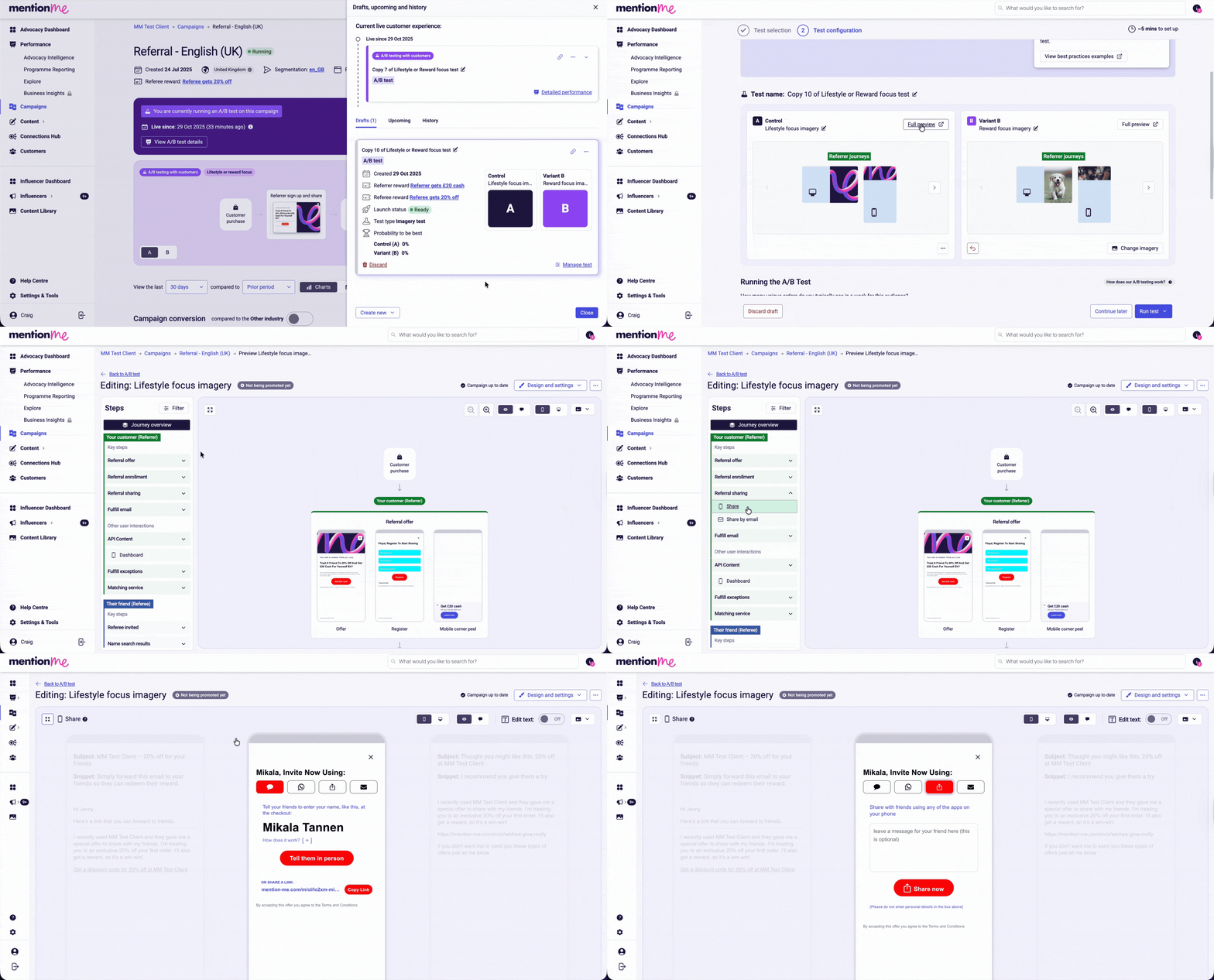
The Native Share preview screen within the campaign preview.
Verify Styling
- Check the mobile appearance in the preview
- Contact Support if anything looks incorrect
Launch the Experiment
- Return to the draft overview
- Select Run Test and either set the experiment live immediately or schedule it for a later date and time
Recommended Test Plan
FAQs
What’s the Difference Between Native Share and Native Share with Message Capture?
- Native Share: lets users share through any app on their phone
- Message Capture: adds a prompt for the referrer to write a message, which can improve engagement and conversion
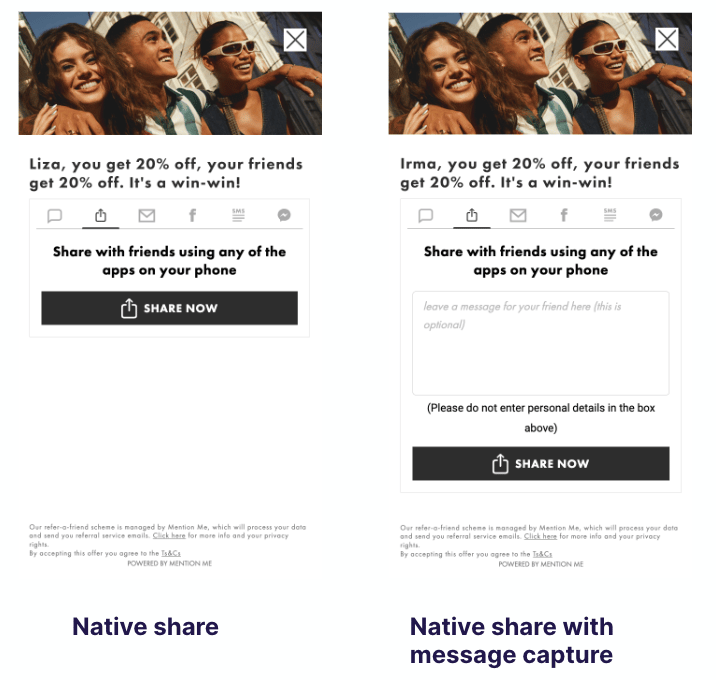
Comparison of the Native Share and Native Share with Message Capture options.
What About Link Share?
We recommend removing Link Share and using Native Share as outlined in the test plan above.Which Version Should I Use if There’s No Difference in Conversion?
Use Native Share with Message Capture. It offers more flexibility for future enhancements.I’ve Tested Native Share but Didn’t See Good Results. What Can I Test?
- Set Name Share to position 1 and Native Share to position 2
- Switch from the Message Capture version to standard Native Share, or vice versa
- Test a more engaging default message, for example “Tell me the best thing about brand”
I Saw a Higher Share Rate but a Lower Purchase Rate. What Now?
This can happen. If total conversions are up, it may still be worth it. Otherwise:- Prioritise Name Share in position 1
- Switch Native Share versions
- Test different default share messages
What’s the Default Share Message with Native Share?
It’s blank by default, which typically performs best. You can try alternatives on the Referee “Invited by Link” configuration page.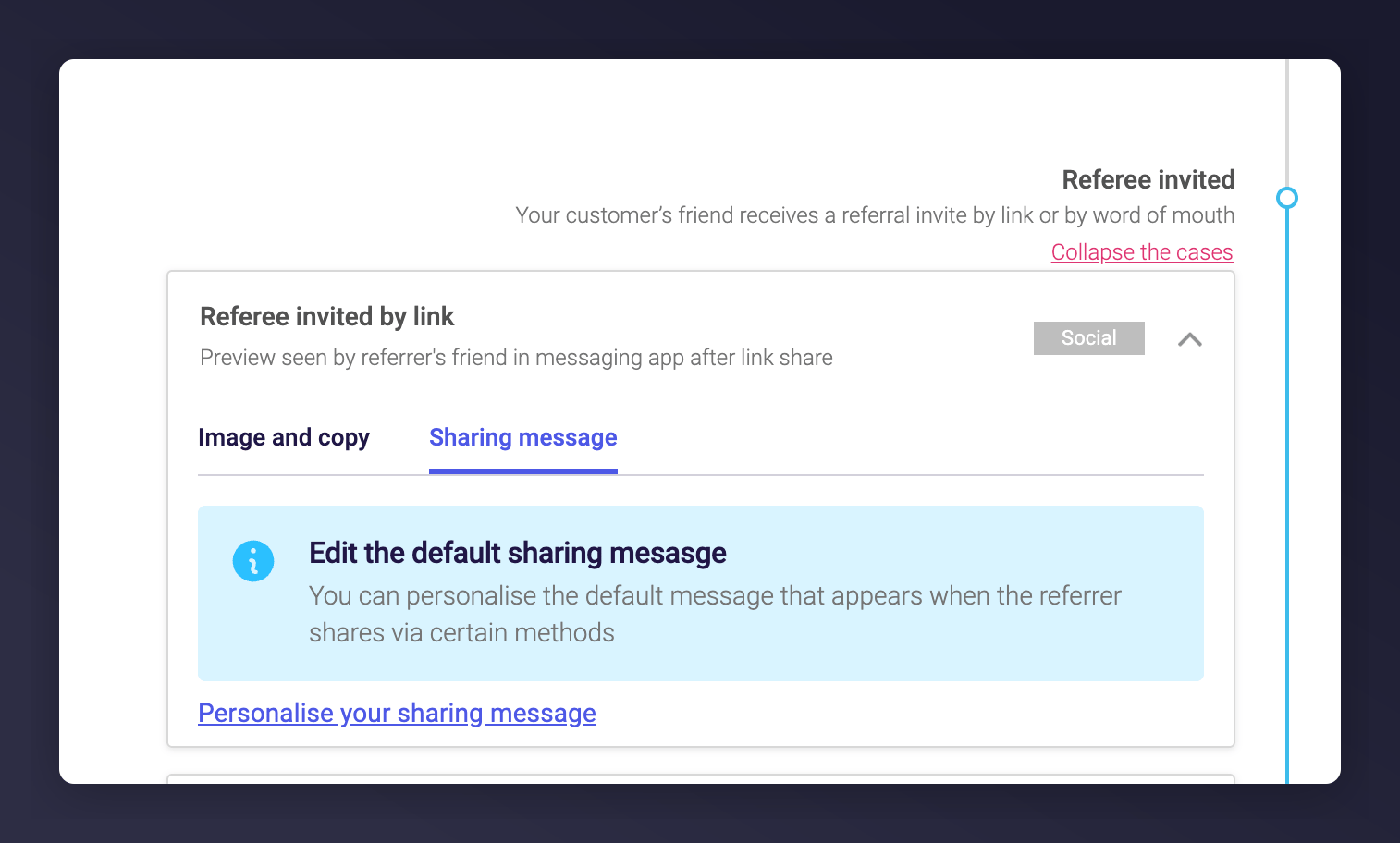
The Referee Invite configuration page where you can set a default share message.
Are There Restrictions on Native Share?
Native Share is mobile only. It cannot be used on desktop.Does Native Share Work on Both iOS and Android?
Yes, it’s fully supported on both platforms.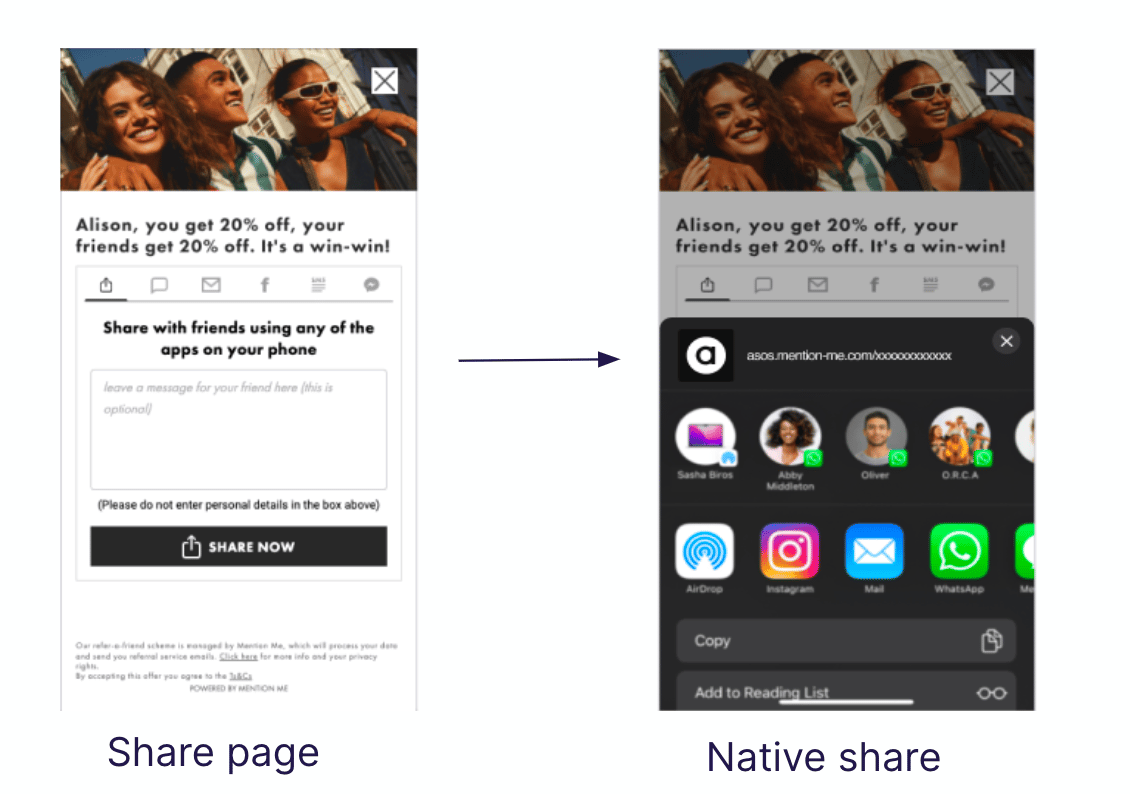
Native Share on iOS.
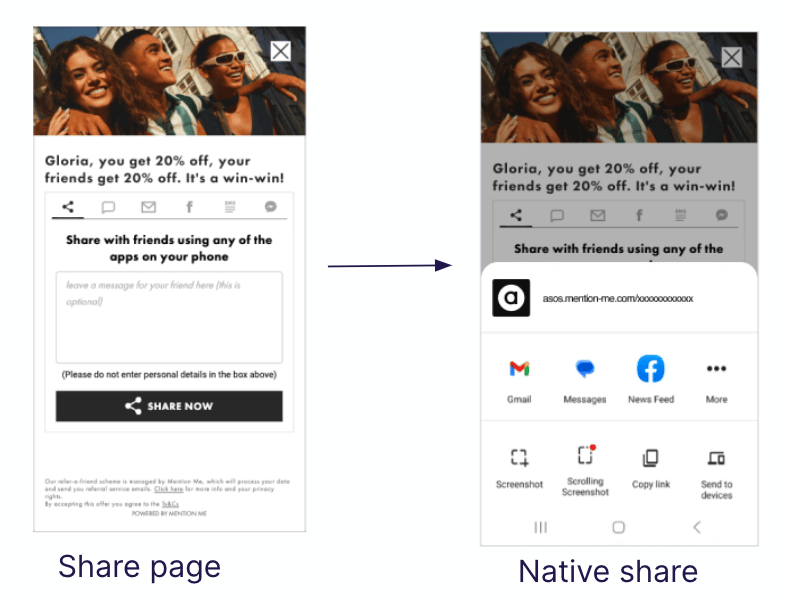
Native Share on Android.