The share message is the message that the referee or friend will receive on their sharing channel (for example WhatsApp). It includes both a personalised share image and accompanying text.We have seen as high as 17% increase in purchase rate and 14% increase in overall referral conversion when using personalised share images.
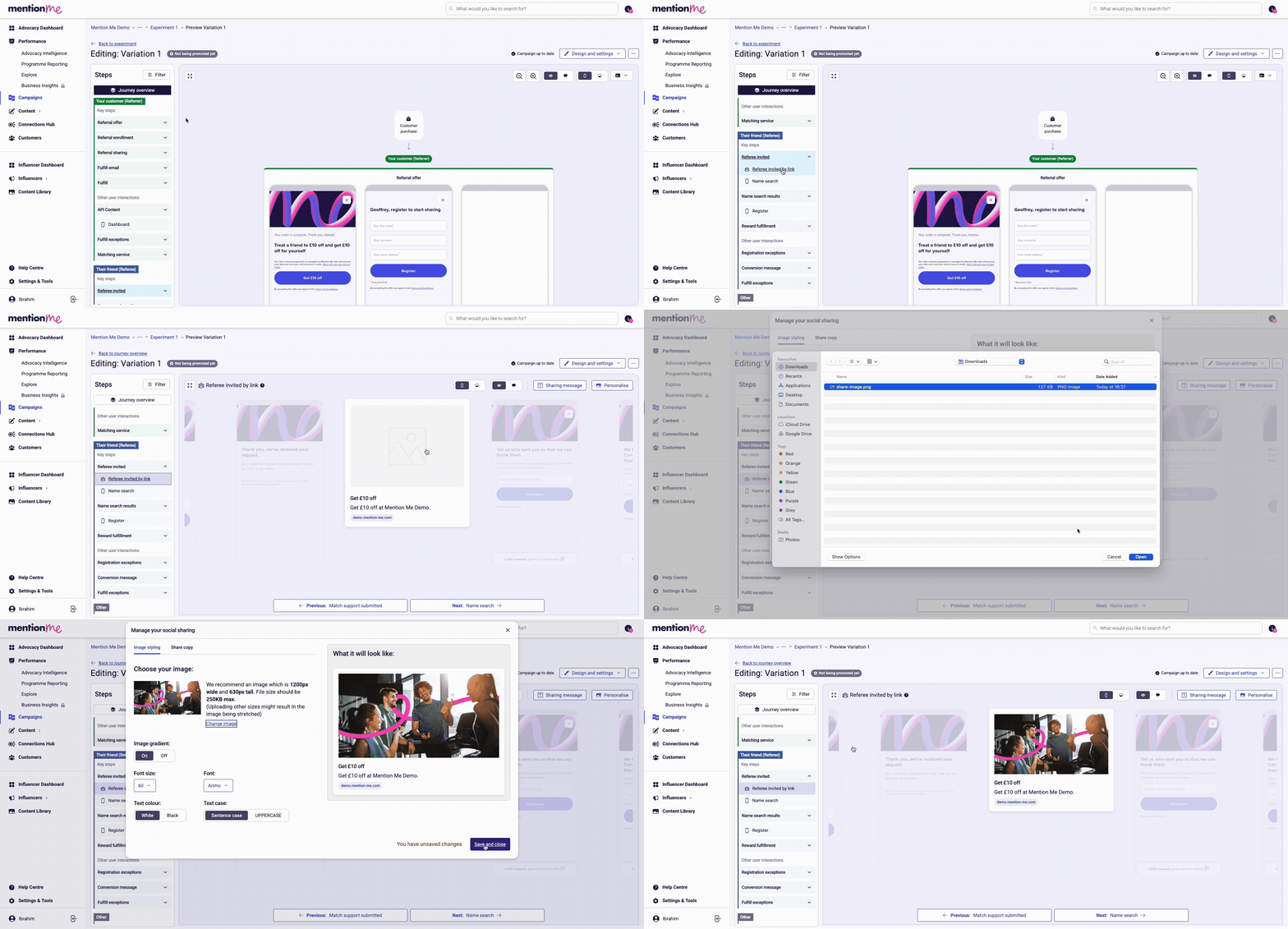
Go to the variation you wish to change the image for. In the left Steps menu, scroll down to the Referee invited step and click Referee invited by link.
2
Upload your image
Click into the picture to open the pop-up, click the Change image button and select your image from your device, then click save and close.
Uploading or changing the share image in the offer preview.
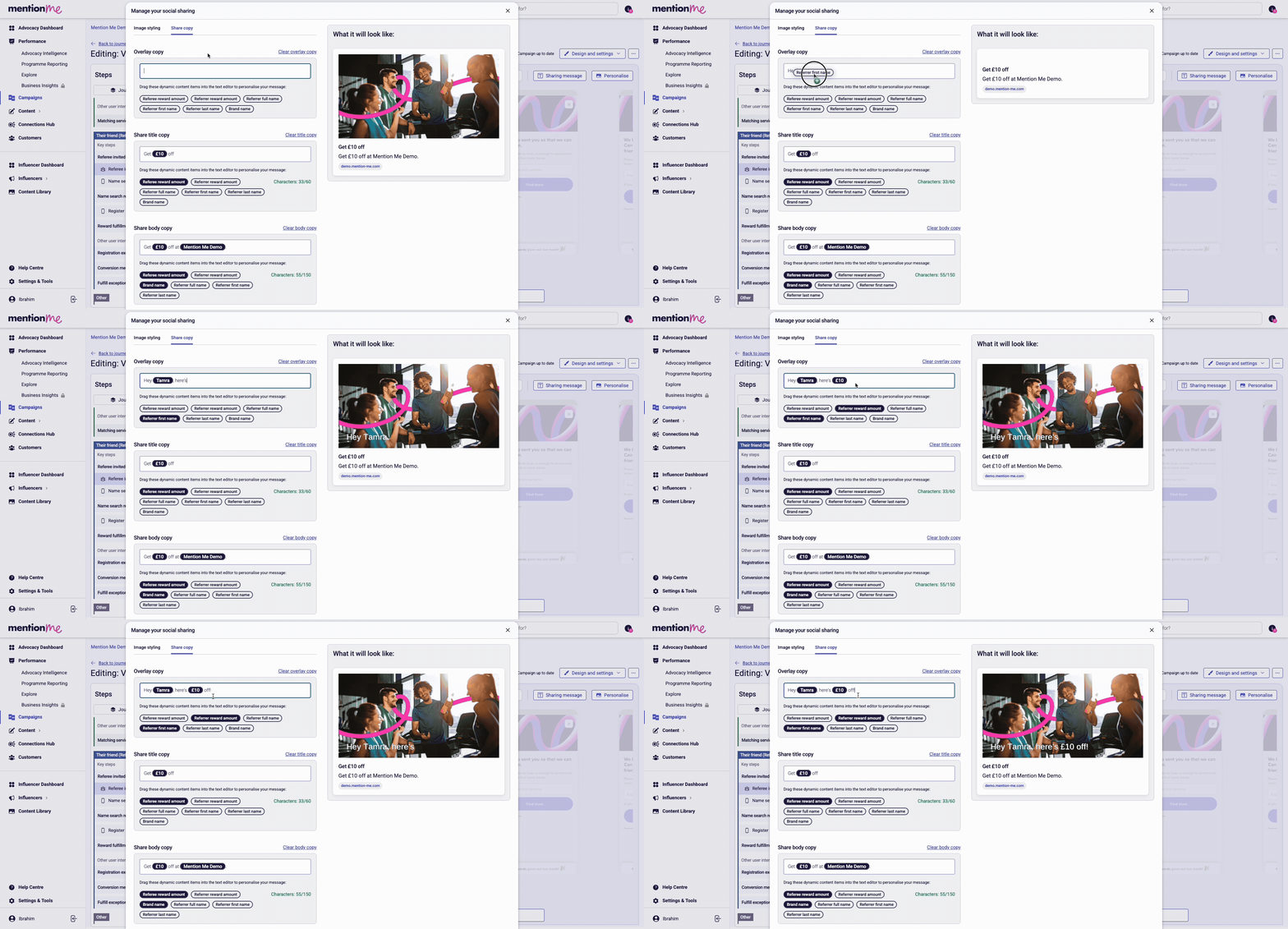
The overlay copy is the text that sits on top of the image, which gets rendered as part of the image when sent to the referee. You can style this copy to be on brand.
Editing overlay copy with dynamic content placeholders.
In the same pop-up, click the Share Copy tab and use the Overlay copy section. You can select from different dynamic content to pull in real user or brand data when the image is generated.
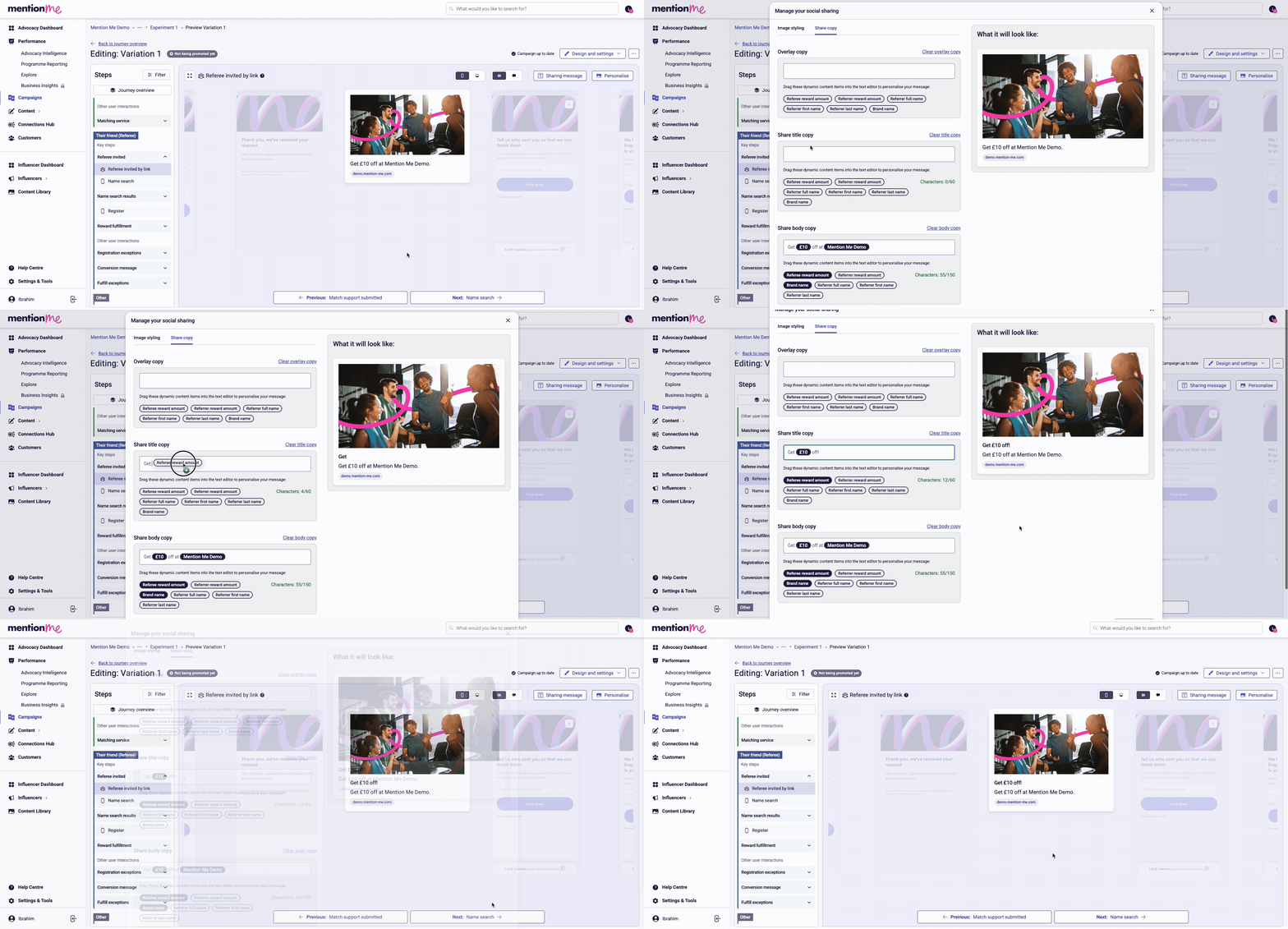
The share copy is the message that gets sent with the image as plain text.
Editing share title and body copy with dynamic content.
In the same pop-up, click the Share Copy tab and use the Share title copy and Share body copy sections. You can select from different dynamic content to pull in real user or brand data.
Log into your dashboard, go to the campaign section and select one of your live campaigns. Create a draft experiment (the easiest way is duplicating an existing experiment).
2
Navigate to sharing message settings
Go to the preview section for the offer. In the preview section, go to the Referee invited by link section, select the Sharing message tab, then Personalise your sharing message.
3
Edit per channel
Click on the different tabs to edit the message for different sharing channels. Click Save and close when done.
Why are there only 5 sharing channels I can edit the share message for?
Native Share, WhatsApp, X (formerly Twitter), Line, and SMS are the only channels where we have a share message. Email is handled in the Share by email part of the preview page.
Last modified on July 10, 2026
Was this page helpful?
Assistant
Responses are generated using AI and may contain mistakes.