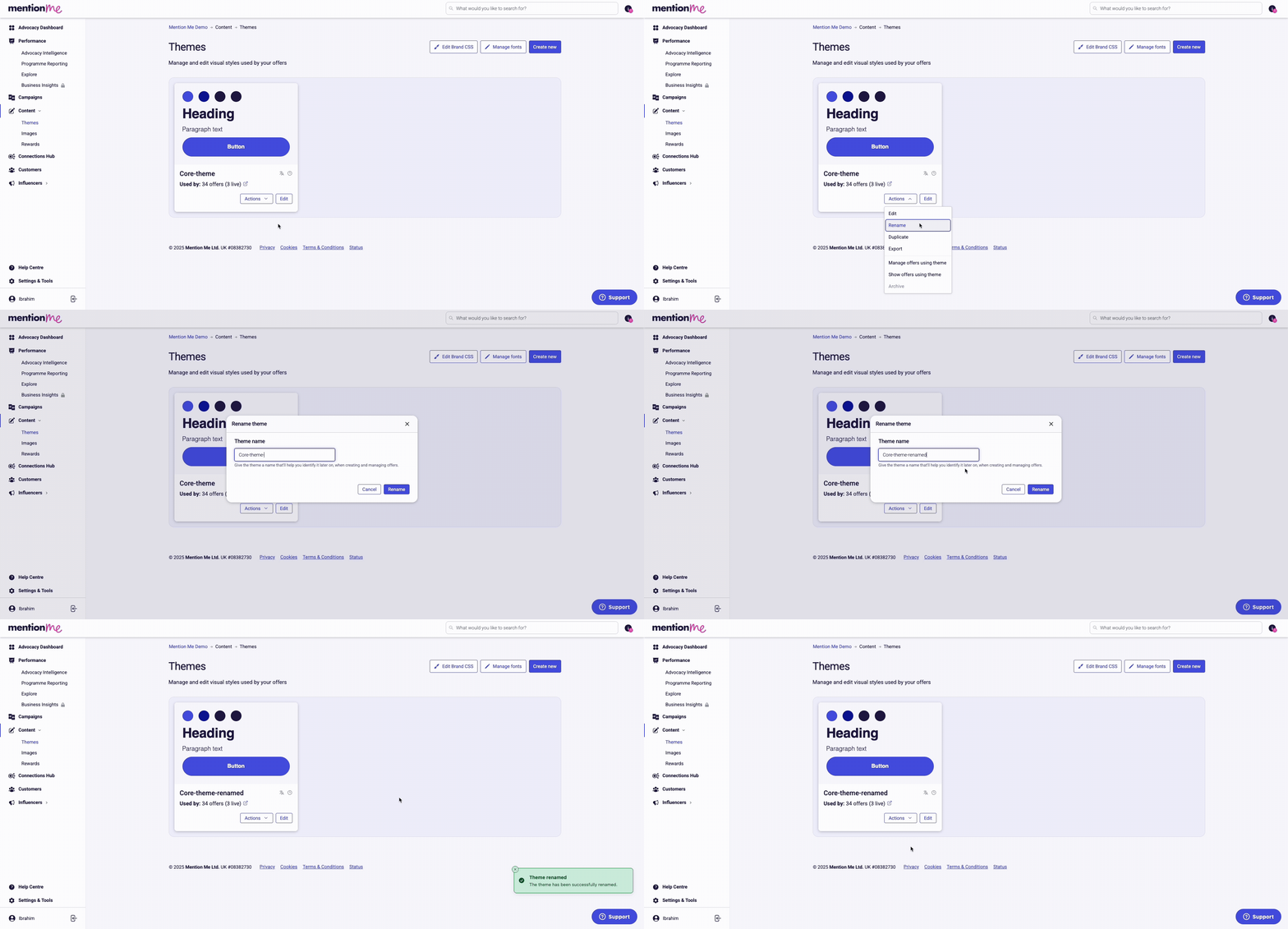
To change the way your offers look, click Edit on the theme you want to change. This opens the theme editor where you can customise and preview changes in real time.
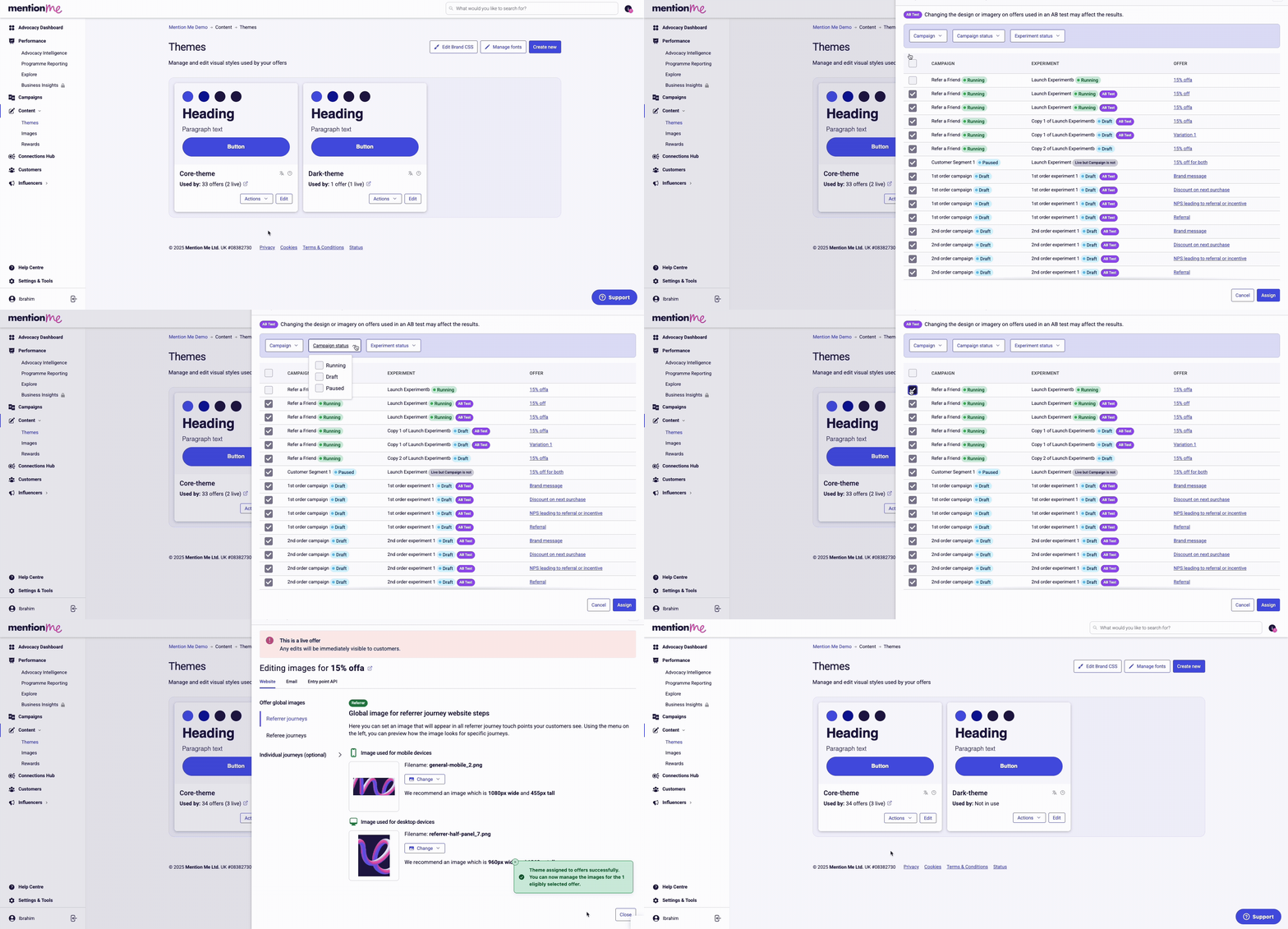
You can assign your theme to multiple offers at once:
1
Open the Assign Option
Click Actions on the theme you want to assign.
2
Filter and Select Offers
Using the filter toolbar, select Campaign, Campaign status, or Experiment status to filter by. Click the checkbox on the offer or offers you want the theme applied to.
3
Confirm the Assignment
Click Assign in the bottom right to confirm.
Assigning a theme to multiple offers at once.
You can also view the offers using a theme via Show offers using theme under Actions.
The edit mode toggle and publish button in the theme editor.
Edit mode: must be switched on to make any edits. All edits are autosaved but not put live. If you close the page and return, toggle edit mode back on to see your edits.Publish: clicking Publish pushes your changes live across all offers linked to the theme.
Touchpoint navigation adjusting based on the offer type being previewed.
Depending on which offer you’re previewing, the navigation adjusts to show the touchpoints in use. Click the touchpoint you want to edit and the styling controls will update accordingly.
Comment mode and view mode toggle for leaving feedback on preview screens.
Switching to Comment mode allows you to click anywhere on the screens and leave a comment to request an amend from your design team or leave a note for a colleague. Switching back to View mode hides the comments.
Not all settings are the same for each touchpoint. Some are unique to specific touchpoints, and some touchpoints have reduced styling options as they inherit the screen styling for consistency.
The email touchpoint has no styling controls. Email styling must be done via custom CSS. We recommend requesting the Mention Me design team to style this for you.
Page and layout styling controls for the background and container of a touchpoint.
Controls the main container or iframe of the selected touchpoint. This most commonly includes background colour styling and master controls which cascade across the touchpoint.
Text styling controls for headings, body copy, and terms and conditions.
Style headings, body copy, and terms and conditions. Where appropriate, you can differentiate between mobile and desktop settings. Terms and conditions inherits most styling and therefore has limited settings.
Button styling controls for states, types, and width.
All buttons for the touchpoint can be styled here. Switch between button types with the tab menu at the top. Different button states can be styled, and you can adjust how the button width sits in the touchpoint.
The custom CSS editor for adding touchpoint-specific stylesheets.
For further customisation, you can add or edit CSS for all touchpoints on separate stylesheets. We recommend only editing this if you are competent in CSS and LESS CSS, as custom CSS can potentially break parts of your journey.
Last modified on July 10, 2026
Was this page helpful?
Assistant
Responses are generated using AI and may contain mistakes.