

Editing Your Offer Copy
Select Your Campaign
Open the Editor
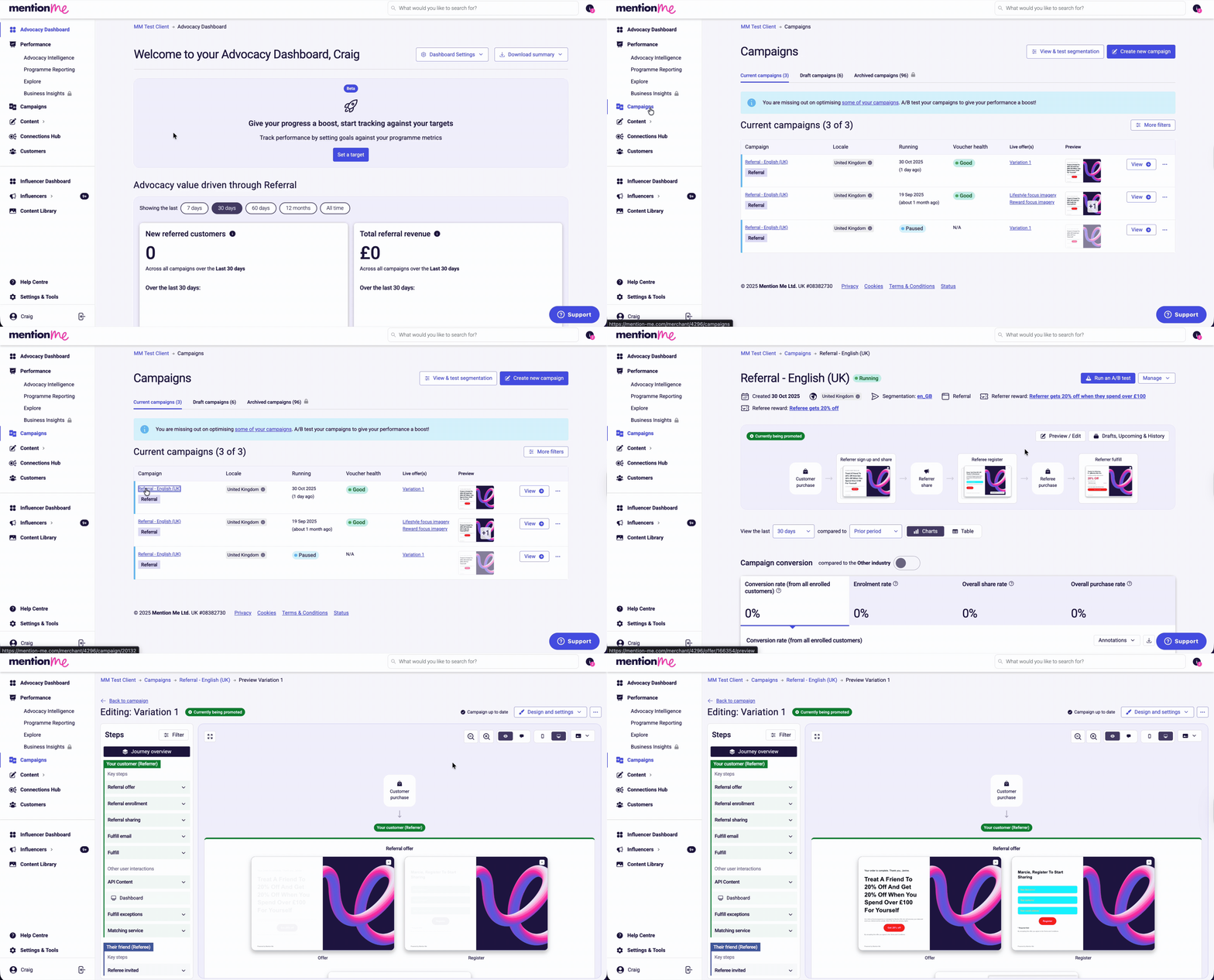
Clicking Preview / Edit on the live experience.
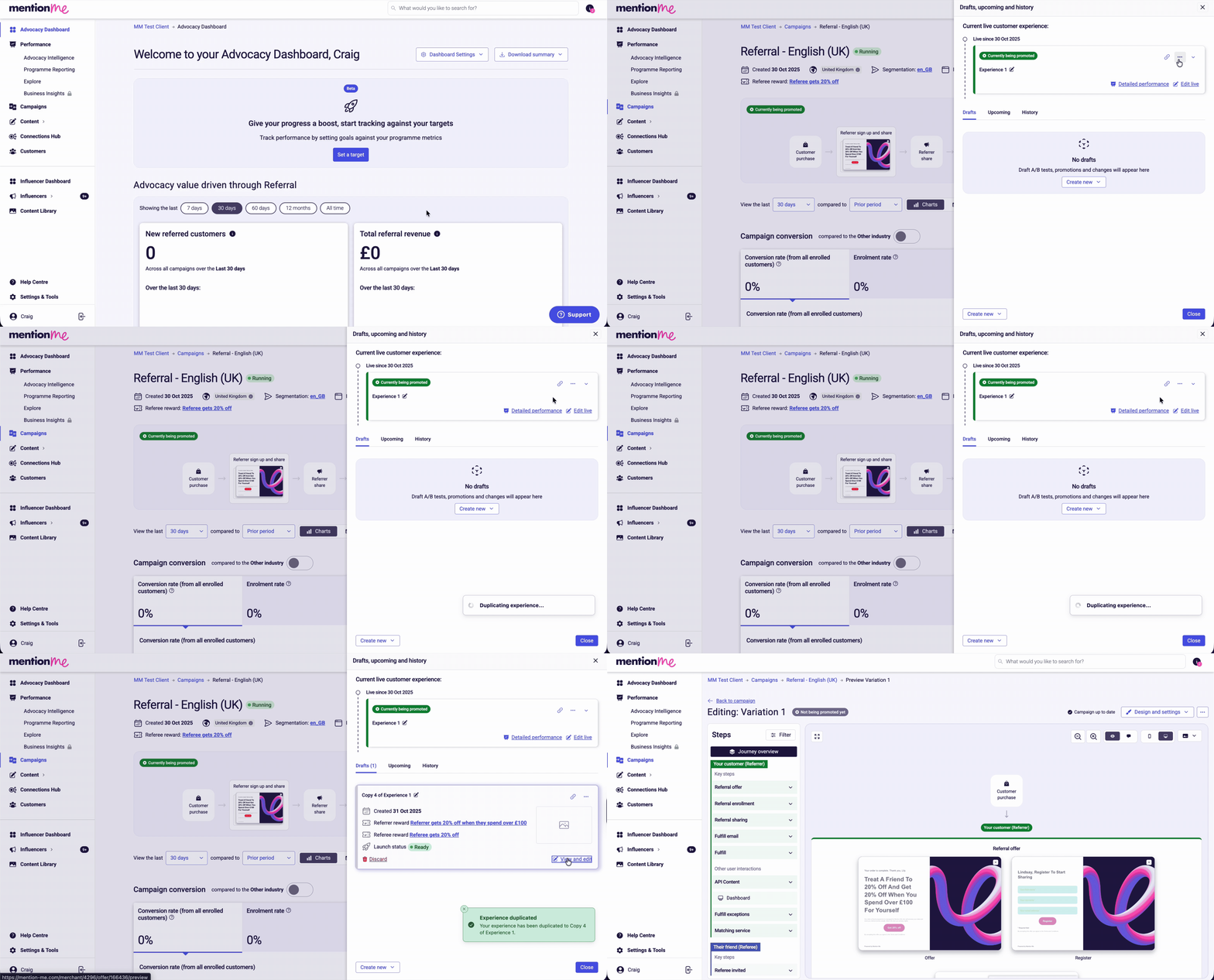
Duplicating to draft and clicking View and edit.
Choose Your Editing Mode
Edit the Copy
Save Your Changes
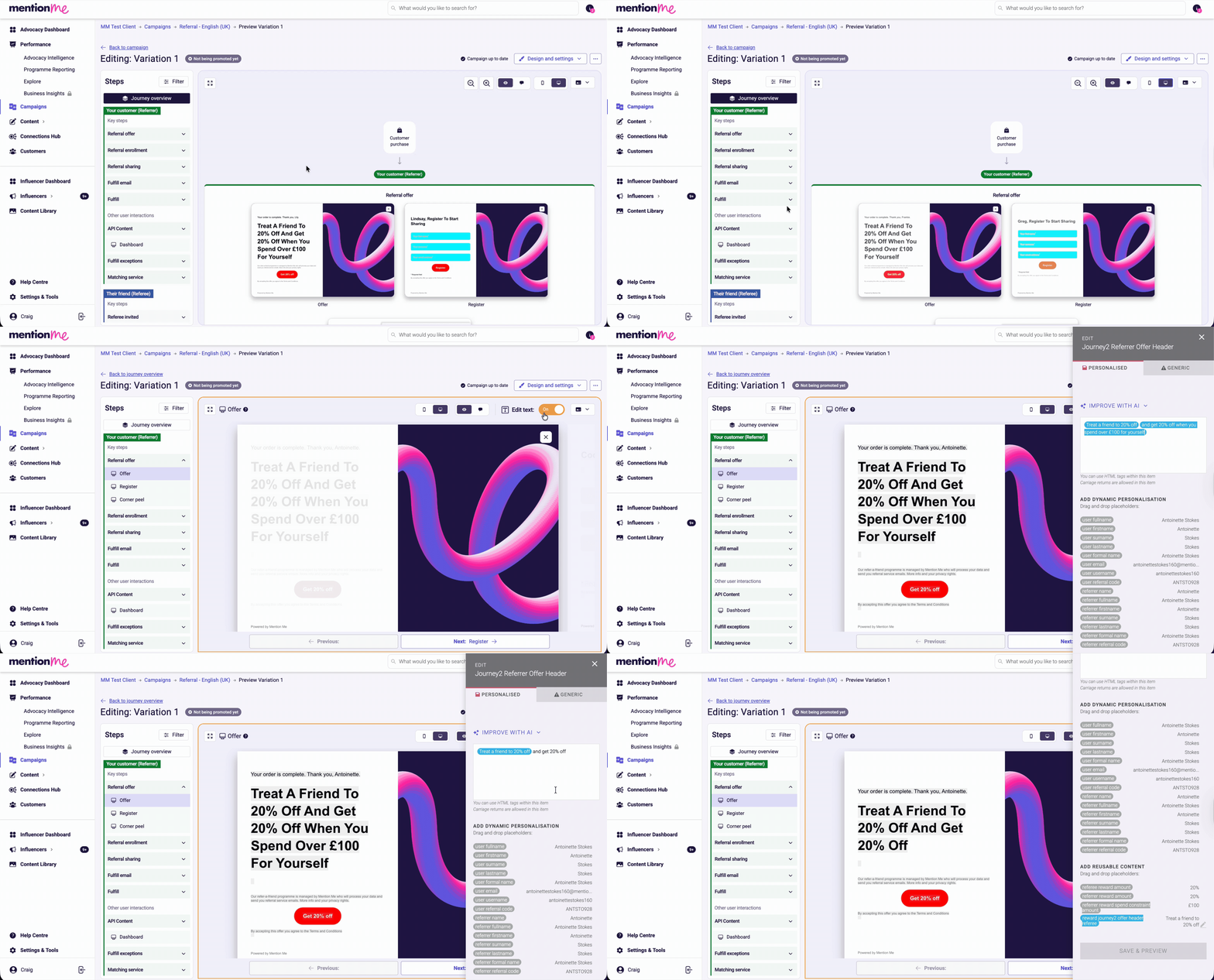
Editing text with the Edit text mode toggle and dynamic placeholders.
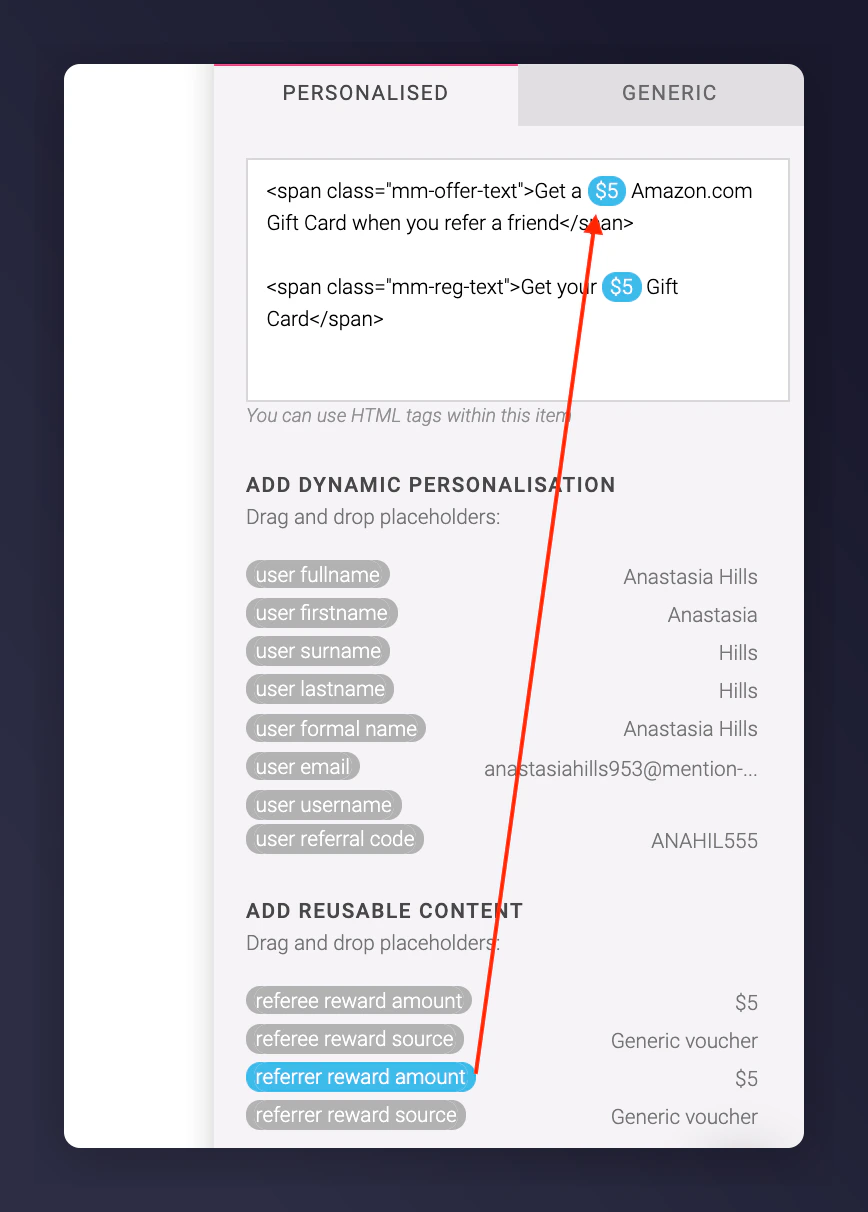
Dynamic personalisation and reusable content placeholders.
/edit to the end of the preview URL manually. For example: https://mention-me.com/merchant/4544/offer/113436/preview/edit?device=mobile
Leaving Comments for Content You Can’t Edit
Some content is not editable in the front end. In those cases, leave a comment directly on the preview page.Enter Comment Mode
Place Your Comment
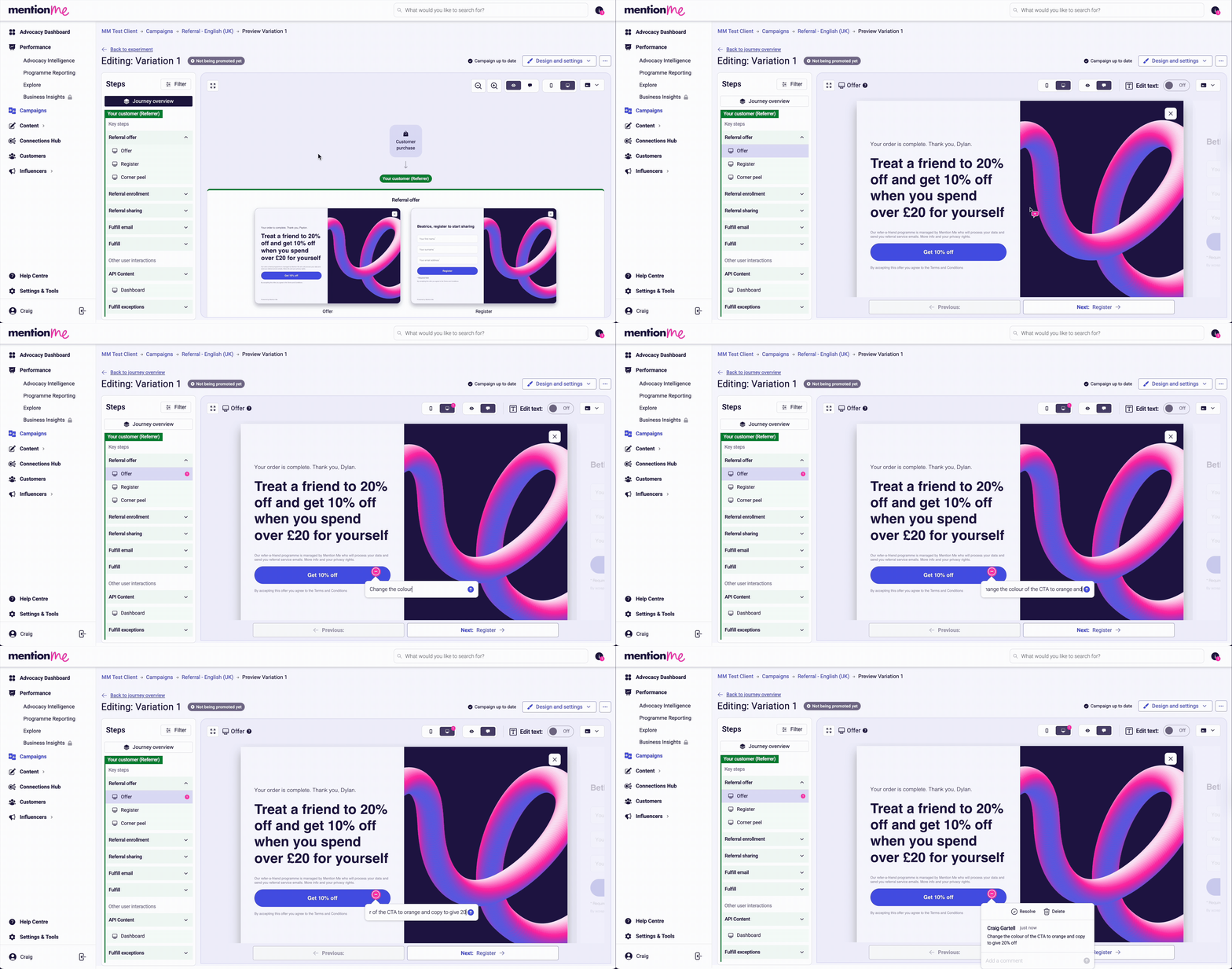
Leaving a comment in comment mode on the preview page.
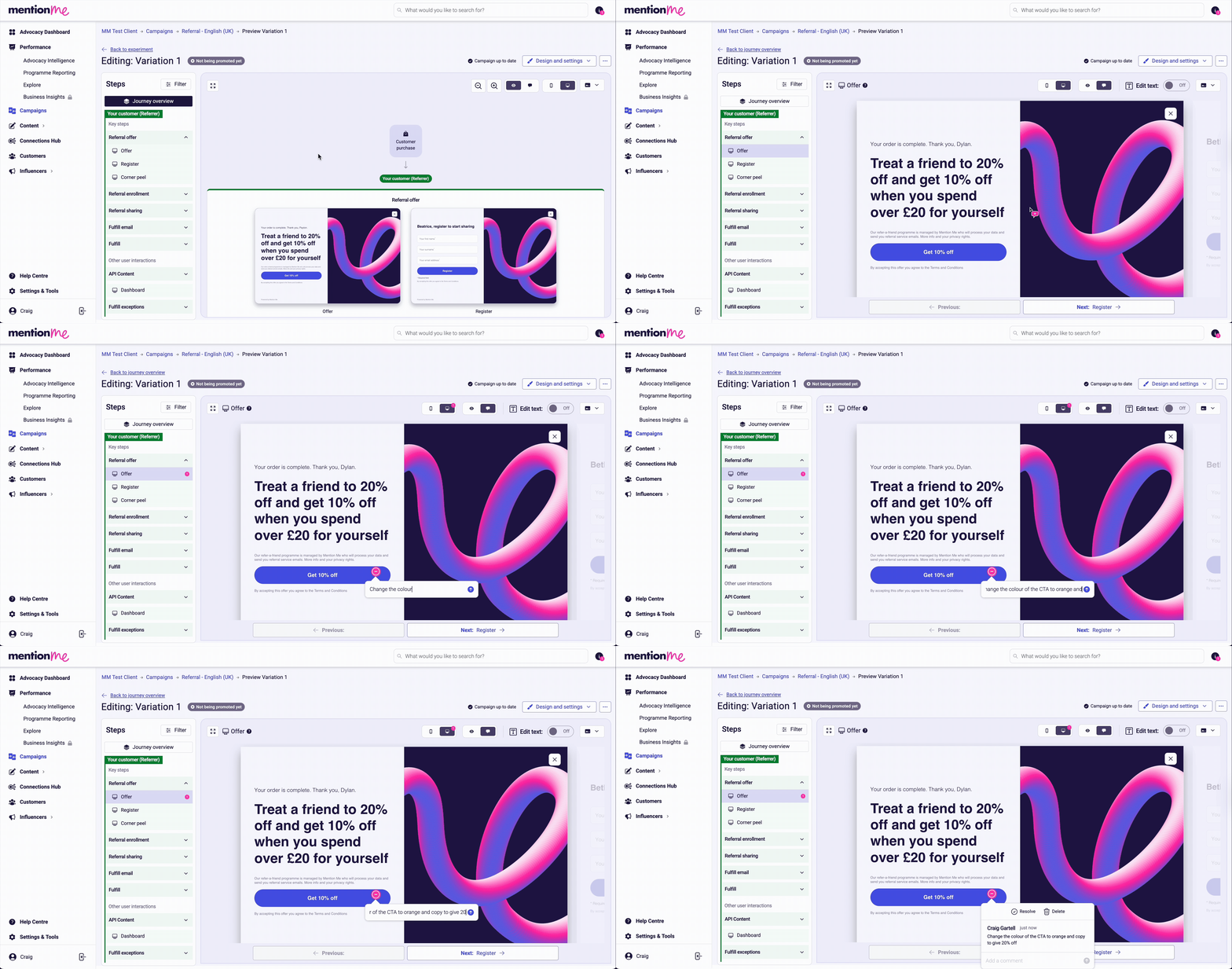
Comment notification sent to Mention Me Support for review.
Pages with the Highest Impact on Conversion
The following pages are editable and have the greatest effect on referral conversion:- Referrer - Offer page: The first view after purchase, which encourages sharing.
- Referrer - Sharing screen: Controls the share message text seen by others.
- Referee - Registration page: The first brand interaction for new customers.
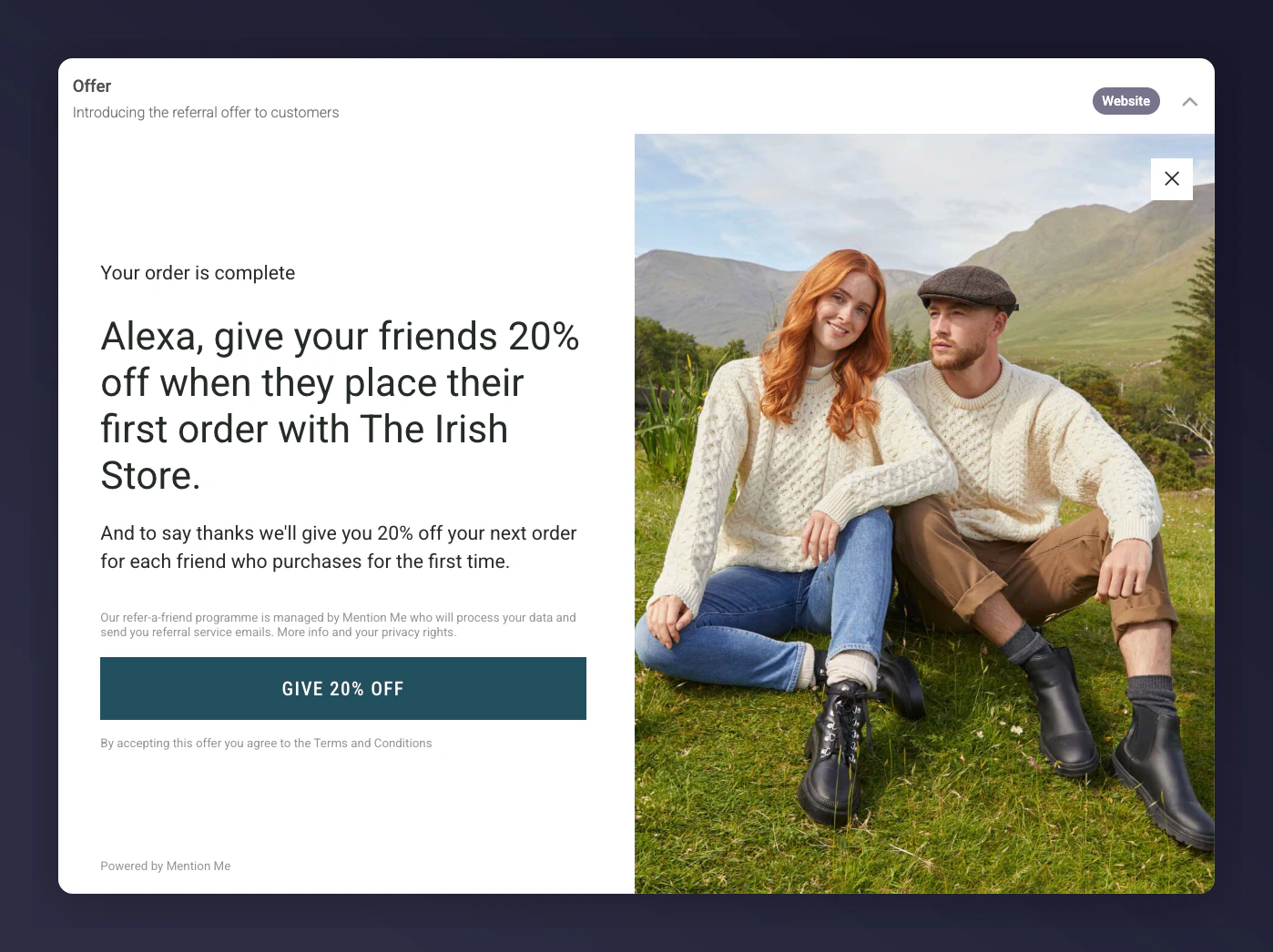
Referrer offer page and sharing screen with editable copy.
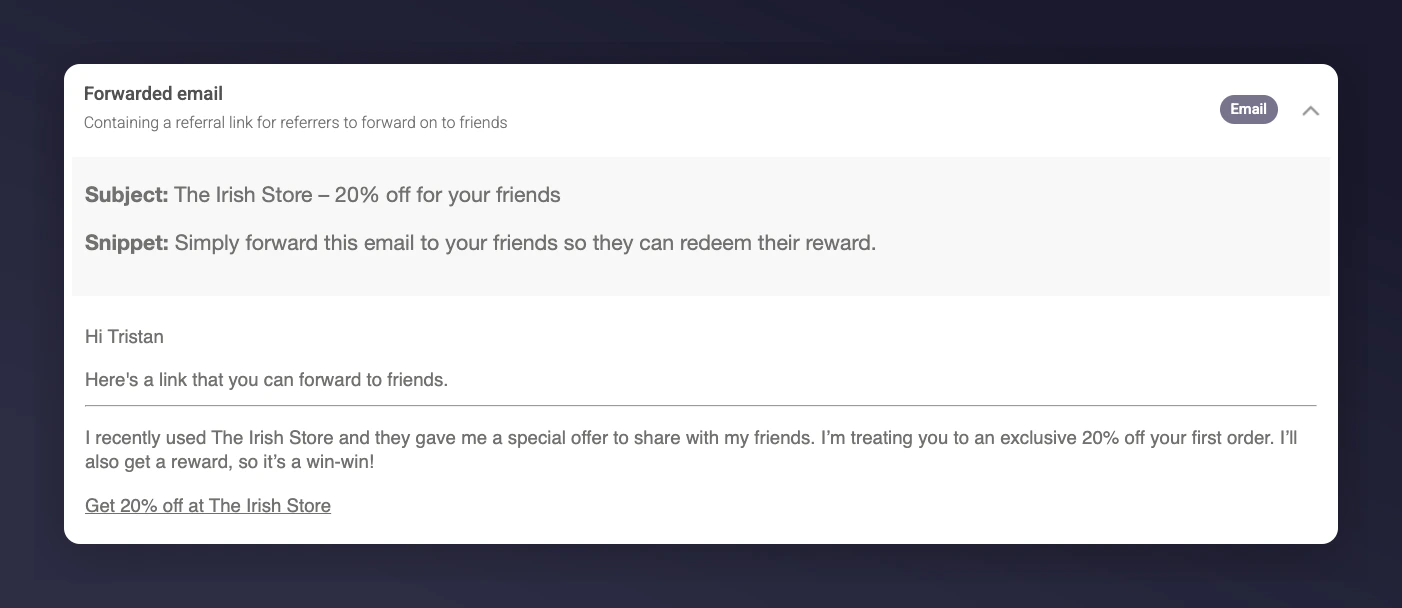
Forwarded email copy showing subject line and snippet.
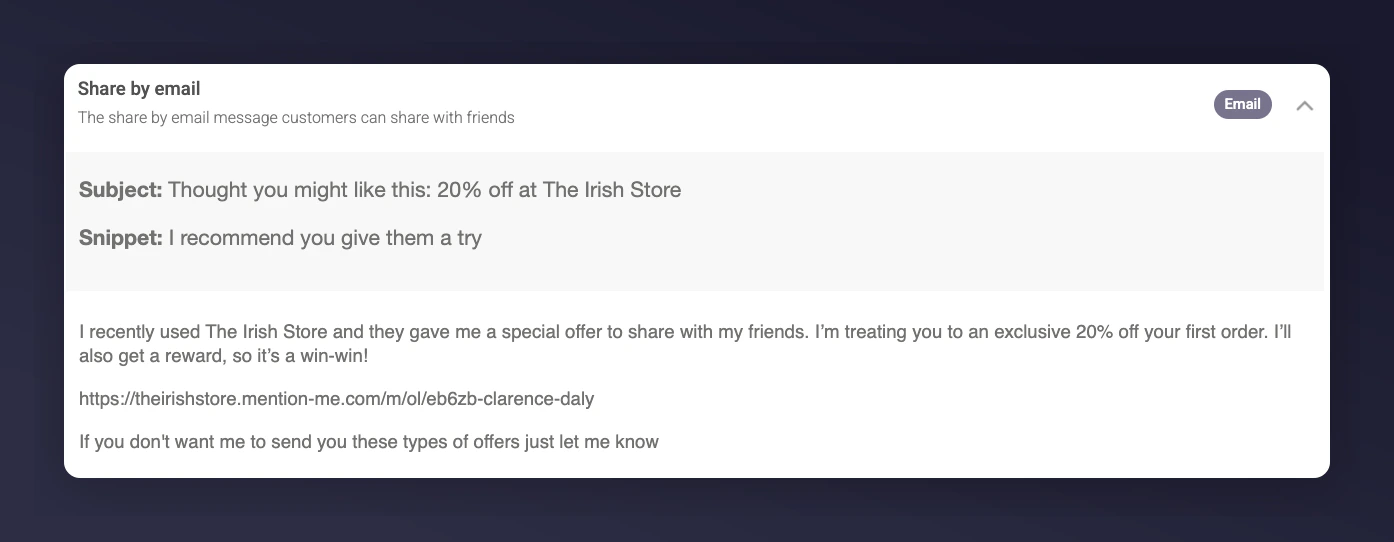
Share by email referral message copy.
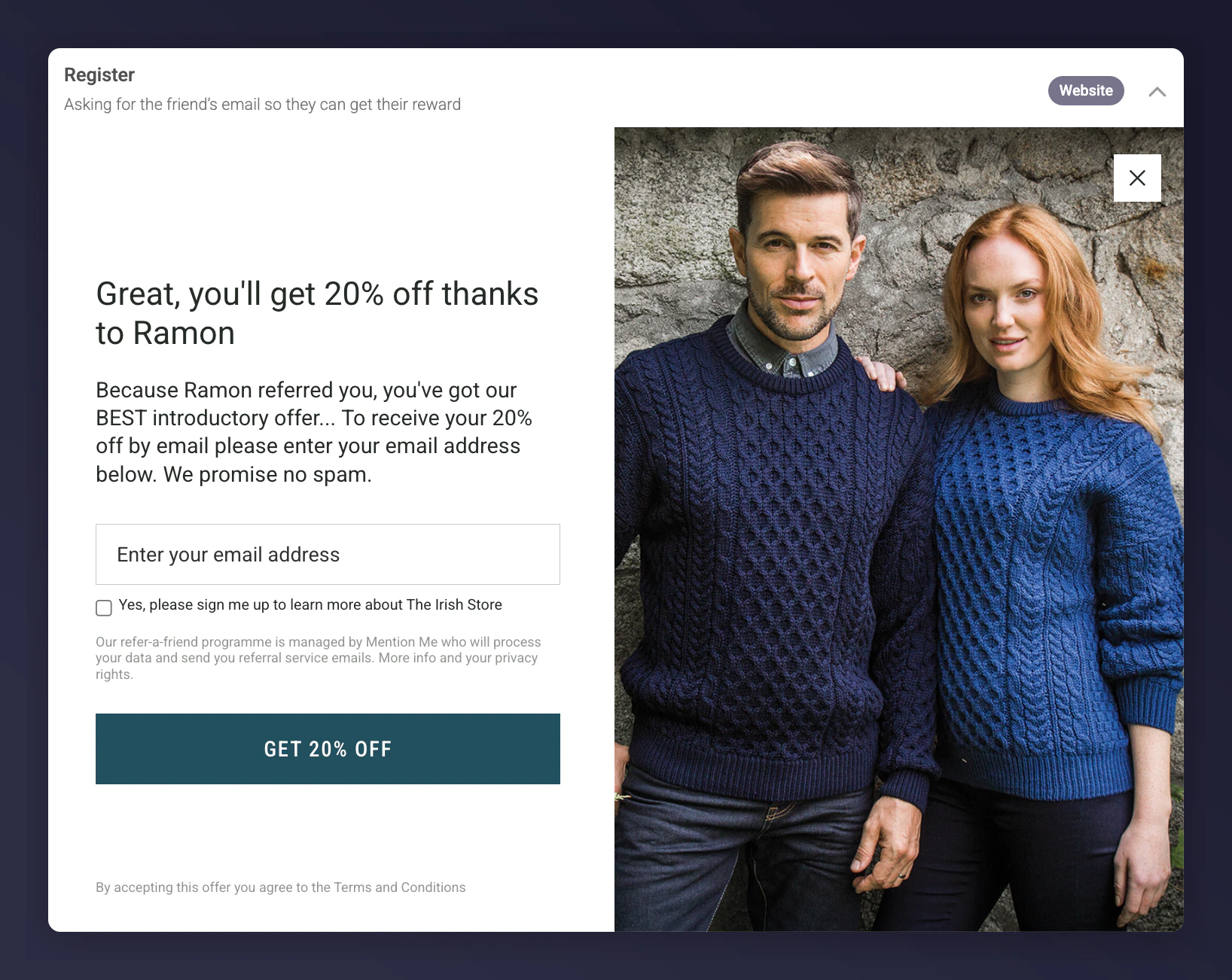
Referee registration page with editable copy.
Using HTML in Copy
You can use HTML where enabled, such as on Terms & Conditions pages. Look for areas labelled “You can use HTML tags within this item”.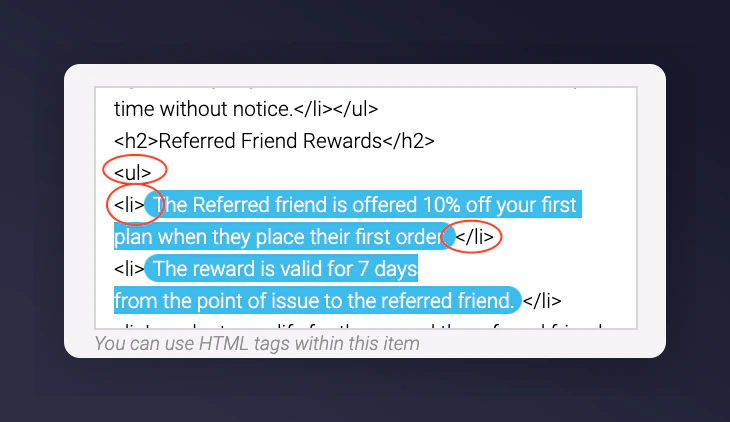
HTML editing in terms and conditions with highlighted editable areas.
Finding and Fixing Hardcoded Placeholders
Sometimes reward values such as “$50” get hardcoded instead of using dynamic placeholders. To find and fix these:- Duplicate an existing offer and use text editing mode to locate and replace outdated references.
- Use Command+F (or Ctrl+F) to search for legacy reward amounts in preview screens.
- Replace static text with the appropriate dynamic content items to future-proof your campaigns.
Requesting a Copy Change
We always recommend customising generic copy in-house to align with your brand’s tone of voice using the steps above. If you need help, you can request a copy change in two ways:- Use the comments tool - leave a comment directly on the offer preview as described above.
- Fill in our dedicated form - select the Help button in the bottom right corner of your dashboard, or visit the request form.
Need Help?
Start a conversation with the in-platform Support widget in the bottom-right corner of your dashboard - it can usually answer this straight away. If it can’t, raise a request via the request form.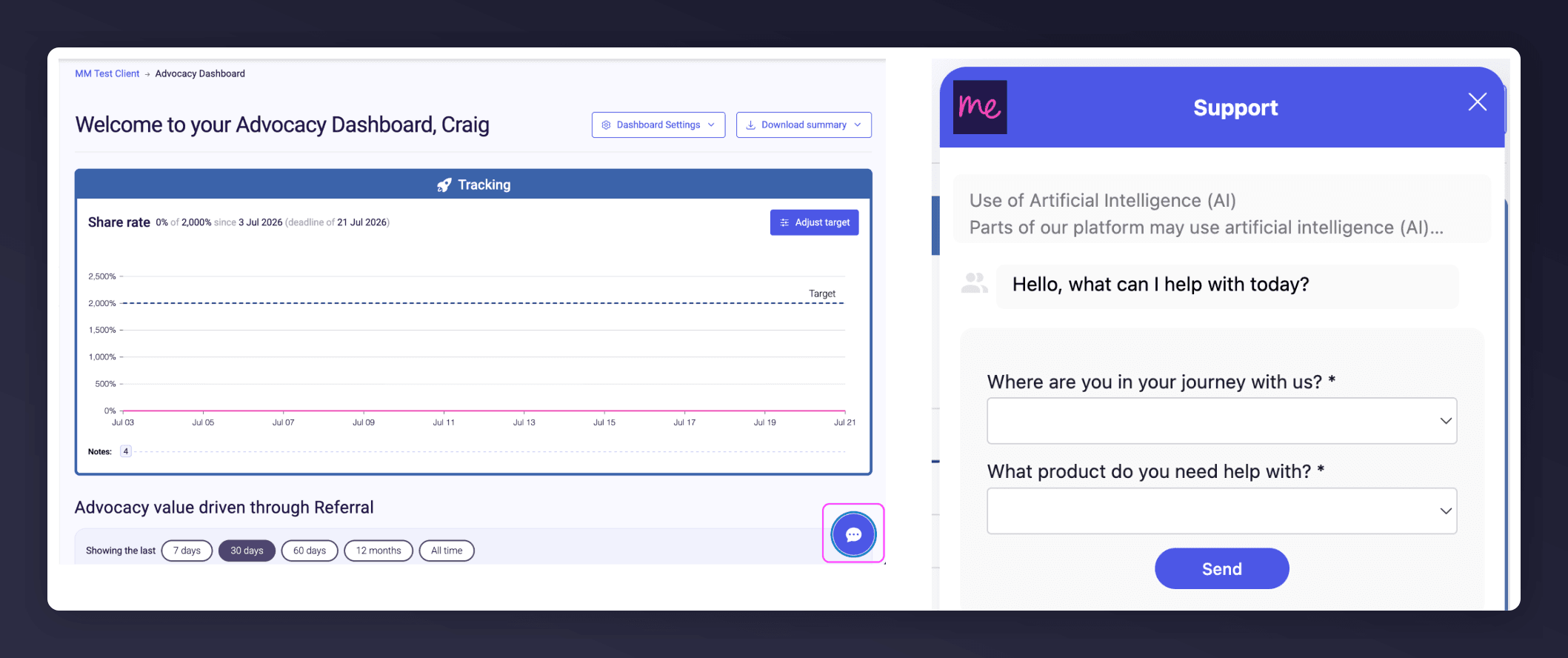
The in-platform Support widget starting an AI-assisted conversation.