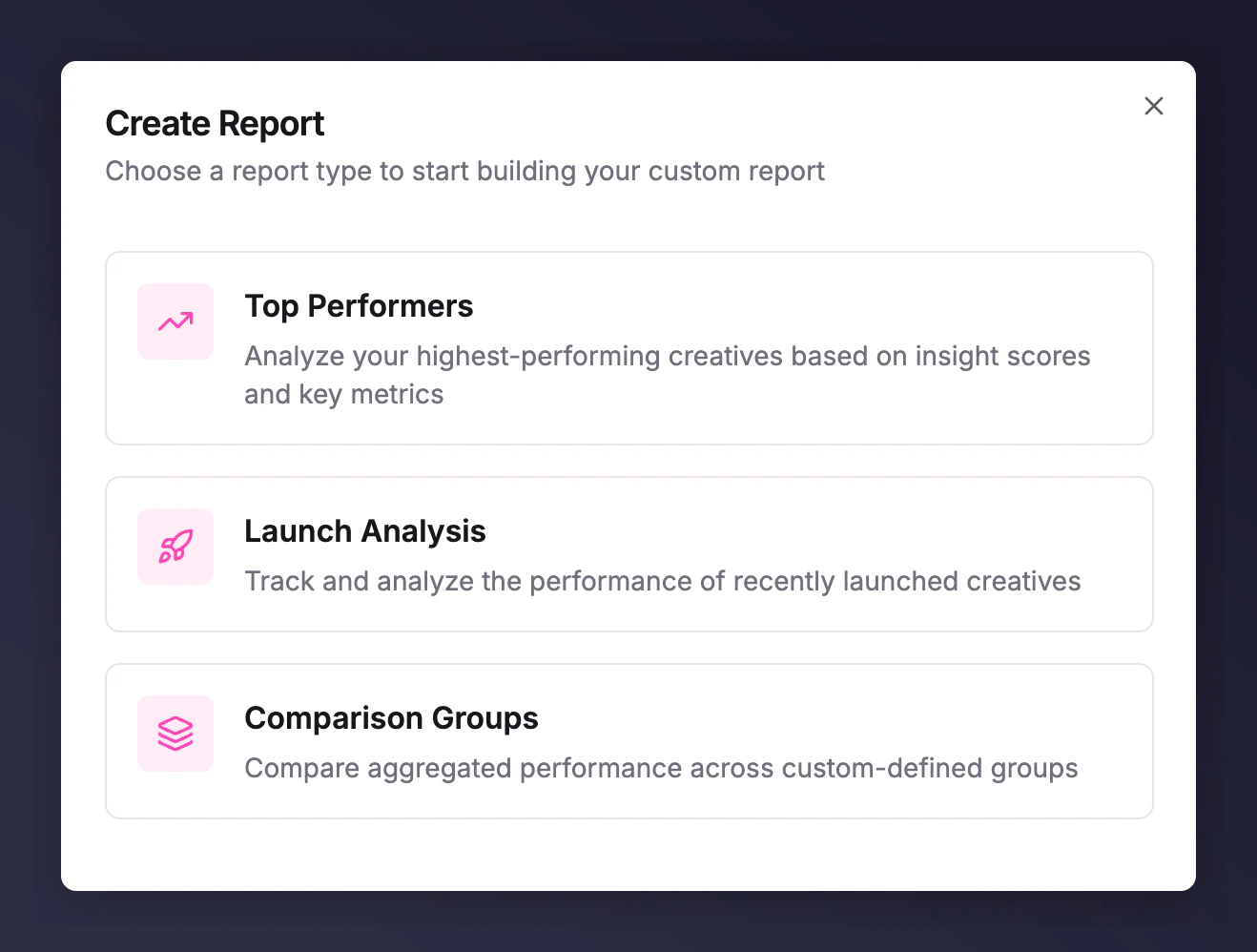
How to use the Comparison Groups report to build and compare custom segments of ads in Creative Insights.
The Comparison Groups report enables you to construct individual segments of ads using advanced filters and compare them against each other. Use it to build hypotheses, evaluate A/B test results, or define your next creative approach.
Once you’ve defined your segments, the reporting UI below the segment editing section provides the same tools as the Top Performers report:
Choose a visualisation: Grid view (default), bar chart, or time series.
Scroll down to see a data table.
Click into any group in Grid view to see a side panel of the ads in that group.
Add or change metrics at the top of the visualisation.
As with the Top Performers report, you can save and share your report using the buttons at the top right. For more on the reporting UI features, see the Top Performers Report.
Last modified on July 10, 2026
Was this page helpful?
Assistant
Responses are generated using AI and may contain mistakes.