Top Performers Report: Find your top performing segments of ads with visual reports and advanced filters that help you drive meaningful insights in seconds.
Launch Analysis Report: Instantly see which ads are scaling, winning, or need attention, so you can amplify what’s working whilst mitigating wasted spend before it becomes an issue.
Comparison Groups Report: Build segments of ads with any filter you like so you can evaluate hypotheses, A/B tests, and use these to drive improvements in your creative briefs.
Once you’ve made changes to your report, hit the save button at the top right of your screen. Saved reports appear in the left side panel and are visible to other users in your workspace.To share a specific report with a colleague who has access to Creative Insights, copy the URL from the address bar and send it to them. They will be able to review and manipulate the report.Alternatively, you can share a static snapshot (see below).
You can share a Report Snapshot with anyone, whether or not they have access to Creative Insights. This is useful for collaborating with external agencies or sharing an insight without requiring a login. Report Snapshots are fixed views that cannot be filtered or manipulated.
1
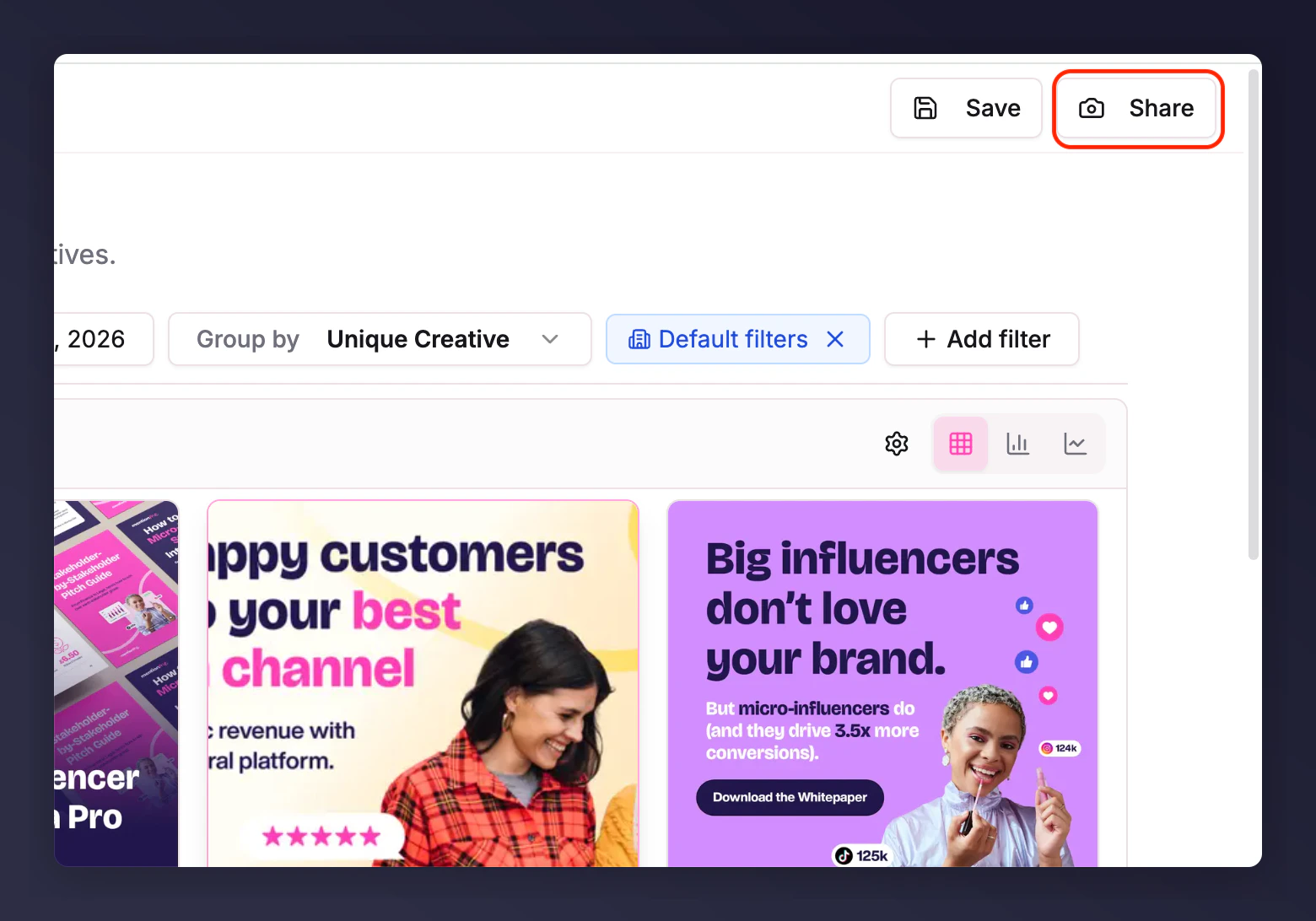
Click Share
Click Share in the top right of the report you want to snapshot.
The Share button.
2
Create the snapshot
Give your snapshot a name and click Create snapshot.
3
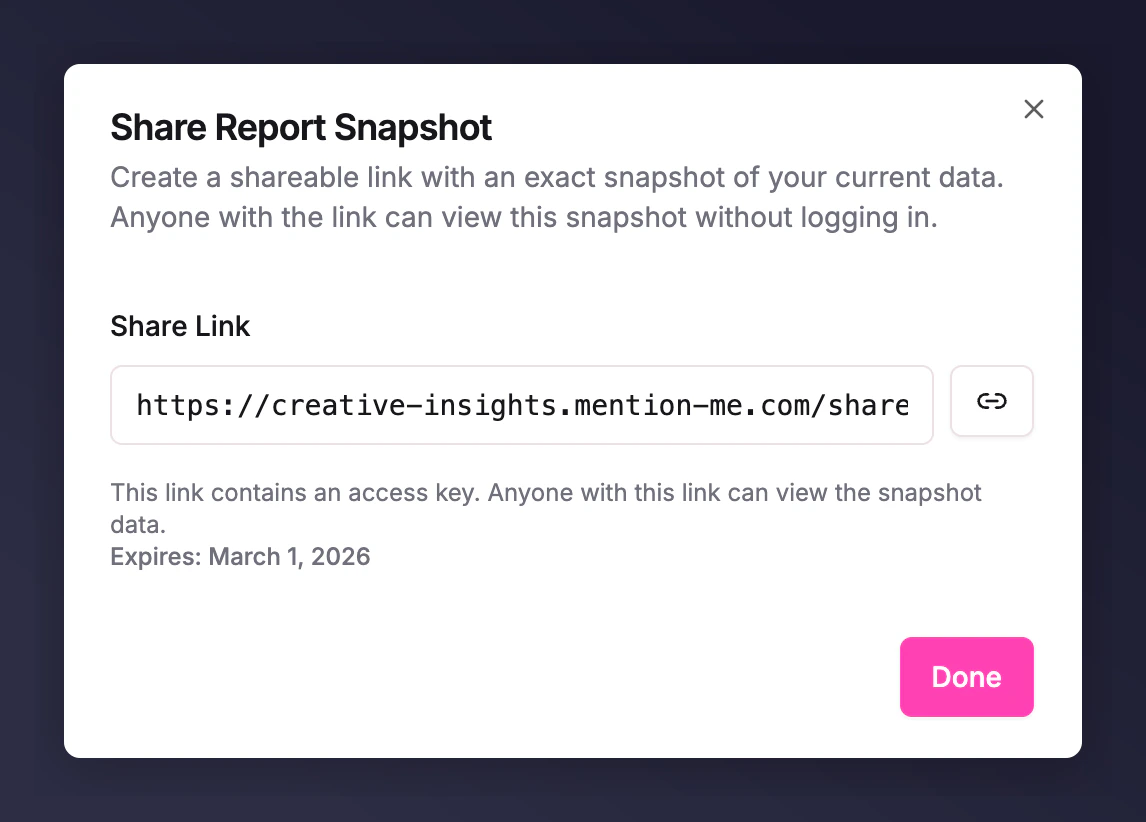
Copy the link
You will be provided with a shareable link. Click the icon next to it to copy and share with your colleague.
The snapshot creation dialog.
Last modified on July 10, 2026
Was this page helpful?
Assistant
Responses are generated using AI and may contain mistakes.