

Prerequisites
You must have an existing referral landing page implemented on your website with the Mention Me referral tag included.Types of Emails to Consider
- Dedicated referral emails (recommended sending 1 every 2-3 months)
- Inclusion within newsletters or regular campaign emails
- Always-on placement in header/footer of all marketing emails
- Dedicated email in lifecycle journeys (e.g. welcome, post-purchase)
How It Works
- You promote the referral programme in an email and add a CTA link to the personalised referral landing page.
- The customer clicks the link and lands directly on their personalised landing page.
- The page is pre-filled with their personal information from Bloomreach, and they are auto-registered upon clicking the referral button.
- They share the referral offer with a friend using their preferred method.
How to Add the Personalised Landing Page Link
1
Add a CTA
In your campaign, add a CTA link or button.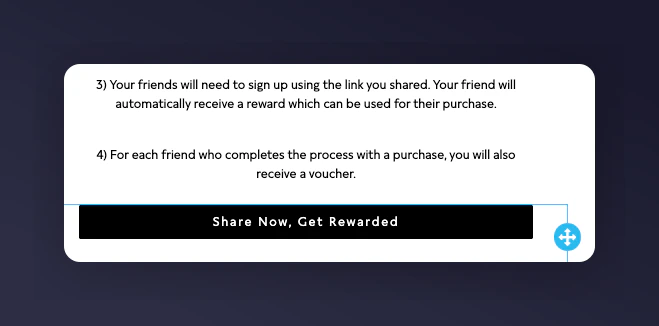
Adding a CTA link in the Bloomreach email editor.
2
Set the base URL
In the button/link settings, input the base URL of your referral landing page, followed by a 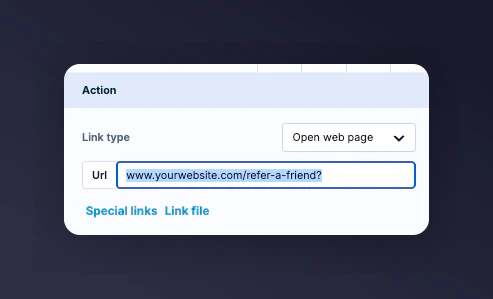
?. Example: https://www.yourwebsite.com/refer-a-friend?Adding the referral landing page URL to the CTA.
3
Append the parameters
Append the following personalisation parameters to the end of the URL. Separate each with
&:Final Example URL
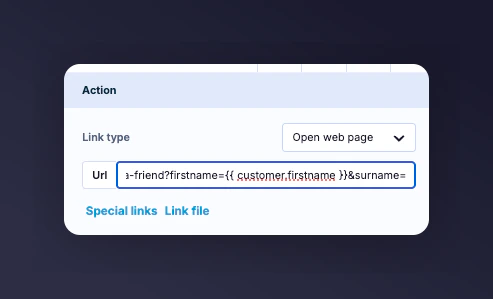
A final personalised referral URL with parameters in Bloomreach.
Installing Pre-Built Initiatives
With Bloomreach Initiatives and Mention Me’s integration, you can access pre-built scenarios and segments to quickly activate advocacy data and target your fans with personalised messaging.Pre-Built Scenarios
These ready-to-go scenarios contain suggested copy and personalised variables from Mention Me events:- Boost New Customer Acquisition: Automatically remind referred users to make their first purchase.
- Drive Repeat Purchases: Remind referrers to return and use their earned rewards.
- Increase Customer Engagement: Encourage brand advocates to share referral links with more friends.
Pre-Built Segments
These segments help identify actionable referral cohorts, ideal for future campaigns and analysis:- Shares: Identify your top sharers, medium sharers, and customers who haven’t yet shared.
- Referrals: Spot your top referrers, average performers, and those yet to refer.
Prerequisites for Initiatives
- An active Mention Me referral programme
- Mention Me / Bloomreach integration is activated
- Your Bloomreach account must be integrated with your ESP
- Basic understanding of Bloomreach Jinja
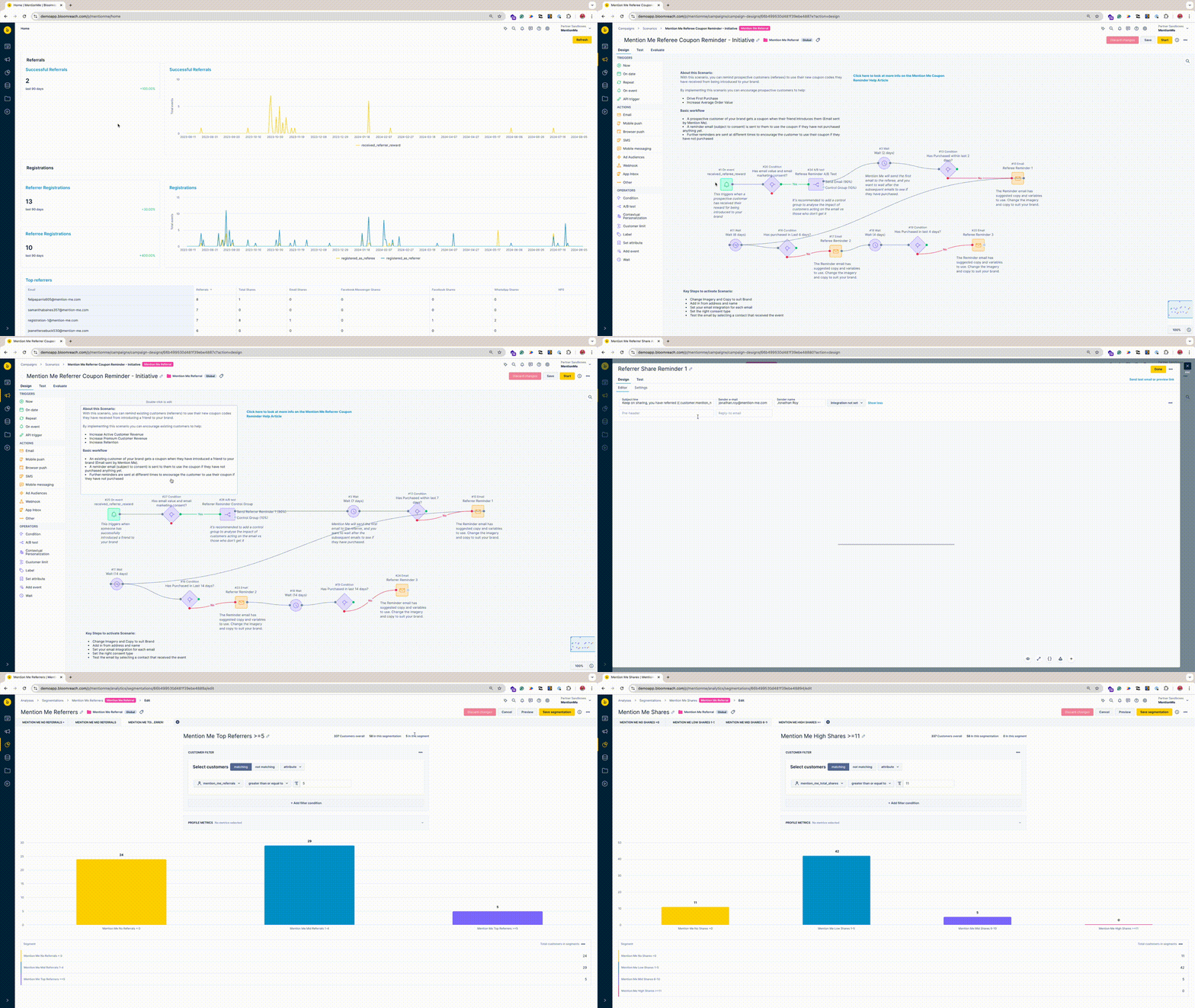
An overview of the pre-built initiatives available in Bloomreach.
Step 1: Download the Initiatives
Download the JSON file attached at the bottom of this guide.Step 2: Import into Bloomreach
1
Log in to Bloomreach
Log in at Bloomreach.
2
Open Initiatives
Click on Initiatives.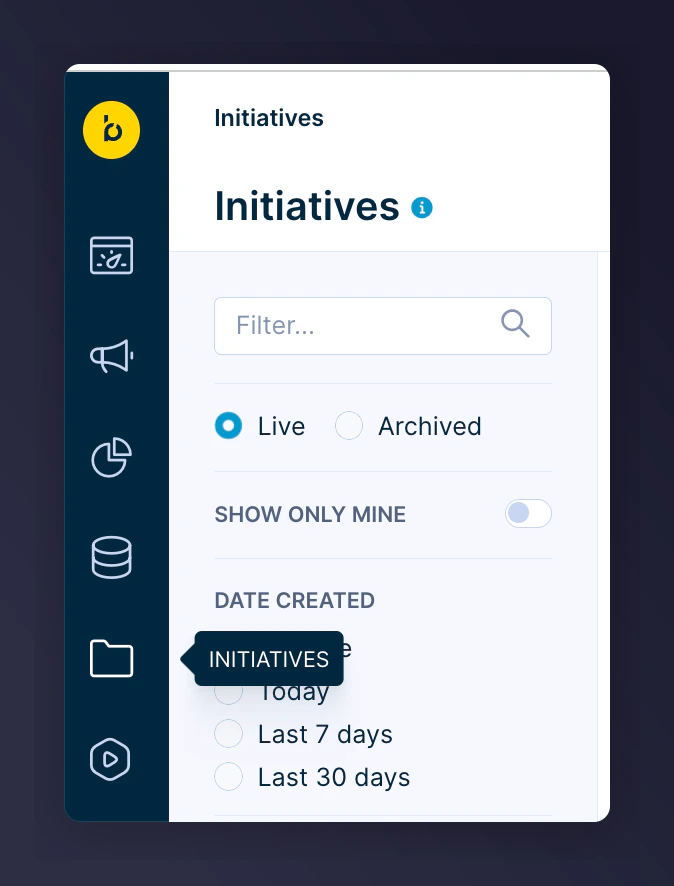
The Initiatives page in Bloomreach.
3
Click Import
Click Import at the top right.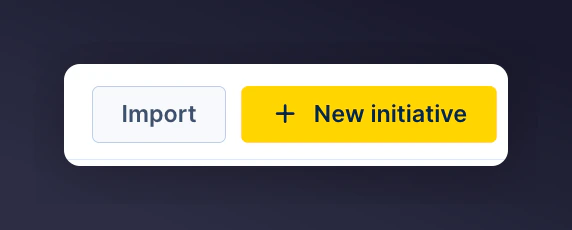
The Import button in Bloomreach Initiatives.
4
Upload the JSON file
Upload your JSON file and click Import.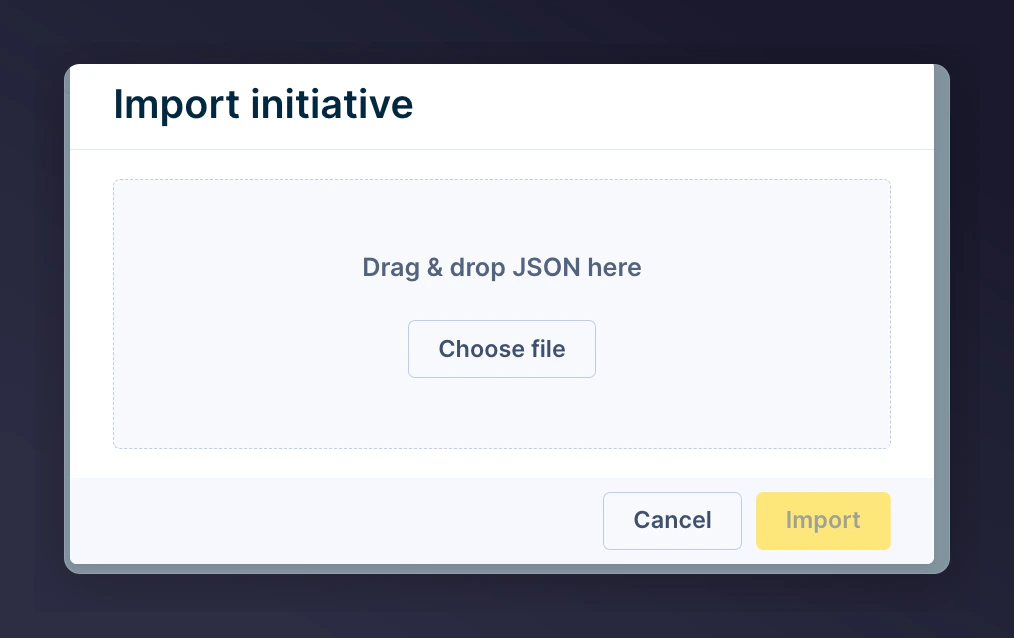
Uploading the JSON file for the initiative import.
Troubleshooting: Incompatible Version Error
If you receive the error"Imported JSON definition has incompatible version":
1
Open the JSON file
Open the JSON file in a text editor like Notepad or TextEdit.
2
Find the version line
Scroll to the end and find the line that includes 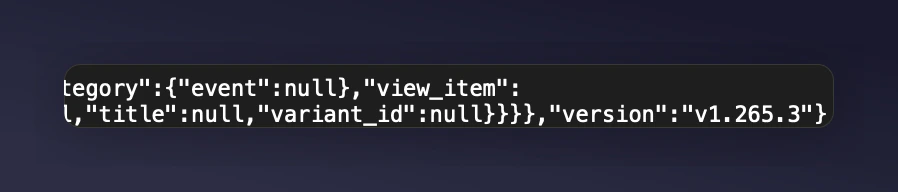
"version": "1.265.3".The version number line in the JSON file.
3
Check your Bloomreach release version
In Bloomreach, click the Help icon in the top toolbar and locate your Release Notes version number.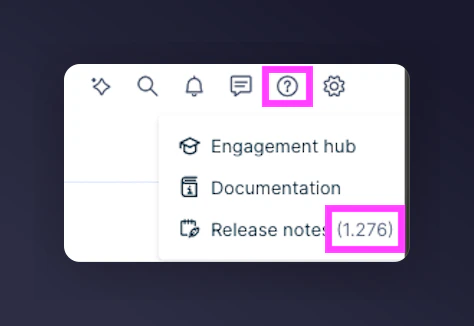
Finding the Bloomreach release version in the Help menu.
4
Update the version number
Update the version number in the JSON to match your current Bloomreach platform version (e.g. 1.276).
5
Save and re-upload
Save the file without changing its name or extension, then re-upload and import.
Step 3: Configure Scenarios
With your initiatives imported, finalise by configuring them:- Update imagery and copy to match your brand.
- Set the “From” email name and address.
- Assign the correct ESP integration to emails.
- Define the correct consent type for each email journey.
- Test each flow with a contact who has the relevant event triggers.