

About These Scenarios
These Bloomreach scenarios remind customers to use their Mention Me coupon codes. The referee scenario targets prospective customers, while the referrer scenario targets existing customers who earned a reward for referring a friend. Built using Mention Me data and Bloomreach’s Scenarios functionality.Prerequisites
- Active Mention Me referral programme
- Mention Me / Bloomreach integration enabled
- ESP integrated with your Bloomreach environment
- Basic understanding of Bloomreach Jinja
Supported Channels
Referee Scenario
Remind prospective customers (referees) to use the coupon codes they received after being introduced to your brand. Goals:- Drive first purchase
- Increase average order value
Basic Workflow
- The referee receives a coupon via Mention Me’s initial email.
- If no purchase is made, follow-up reminder emails encourage them to redeem.
- More reminders are sent if the referee still hasn’t completed a purchase.
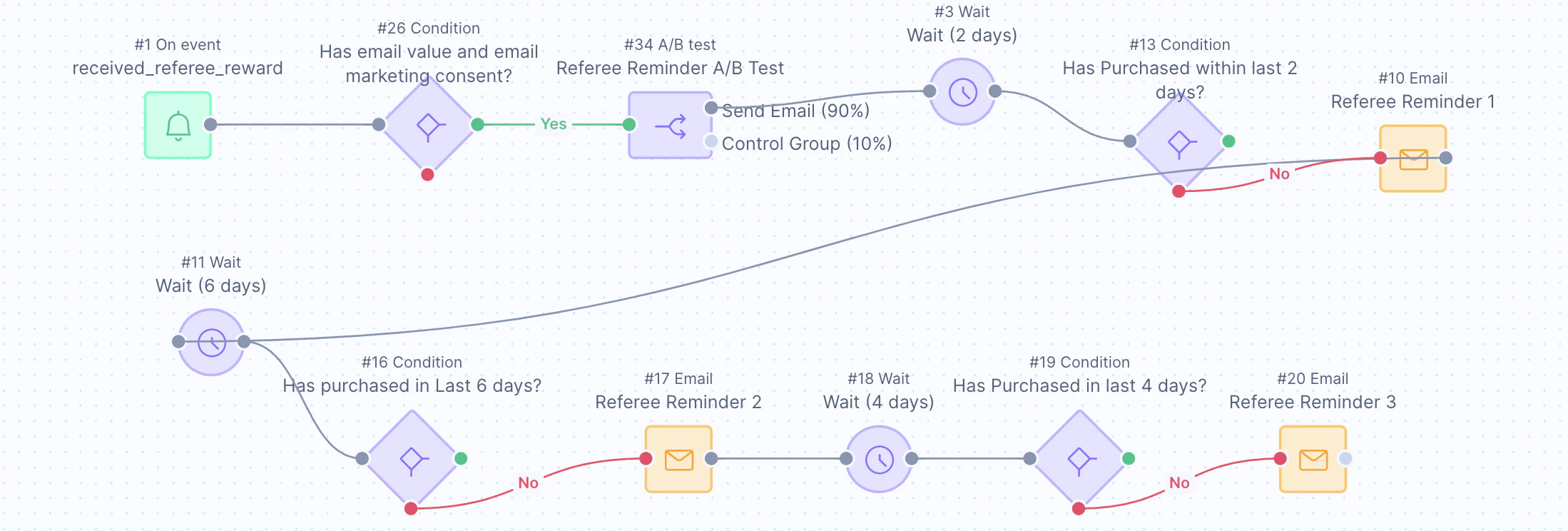
The referee coupon reminder scenario flow in Bloomreach.
Step 1: Create the Scenario Flow
Set the trigger
received_a_referee_reward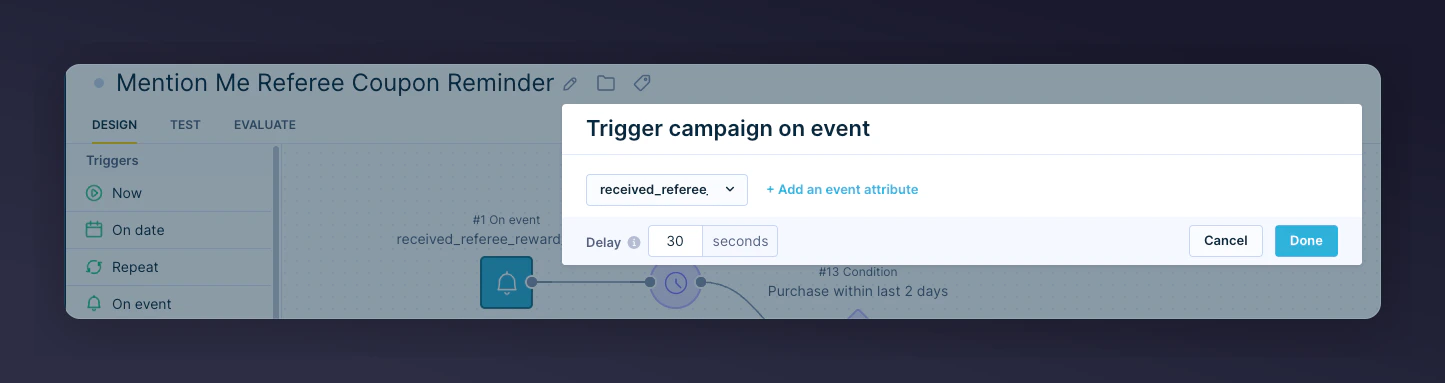
The On Event trigger set to received_a_referee_reward.
Segment the audience
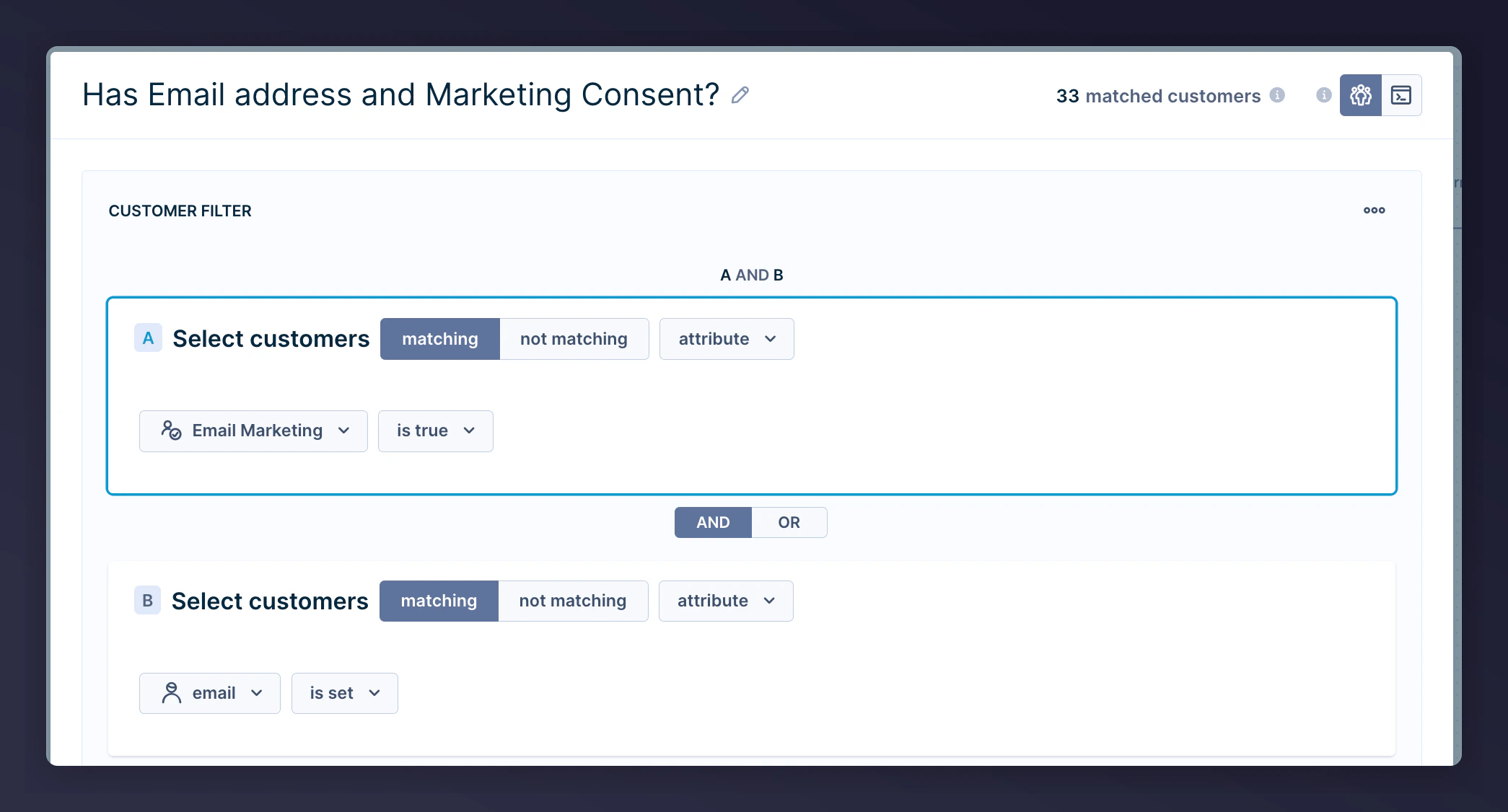
The segmentation filter for contacts with email and consent.
Add an A/B test
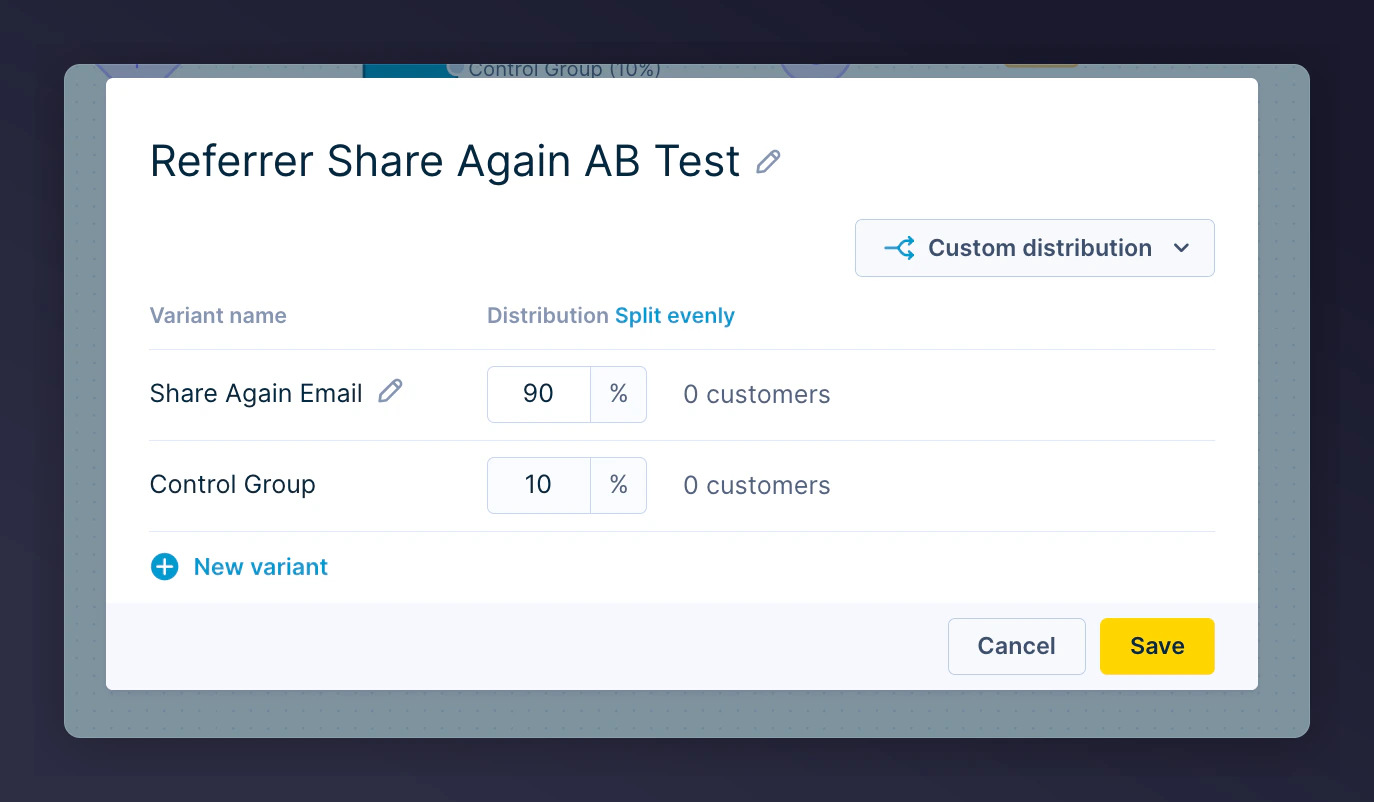
The A/B test configuration with a 90/10 split.
Add wait periods
- 1st email - 2 days after event trigger
- 2nd email - 6 days after 1st email
- 3rd email - 4 days after 2nd email
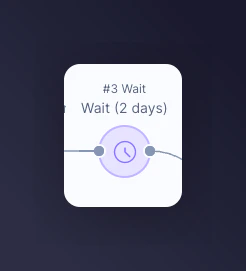
The wait period configuration between referee emails.
Add a conditional split
- 1st email - check for purchases within 2 days
- 2nd email - check within 6 days
- 3rd email - check within 4 days
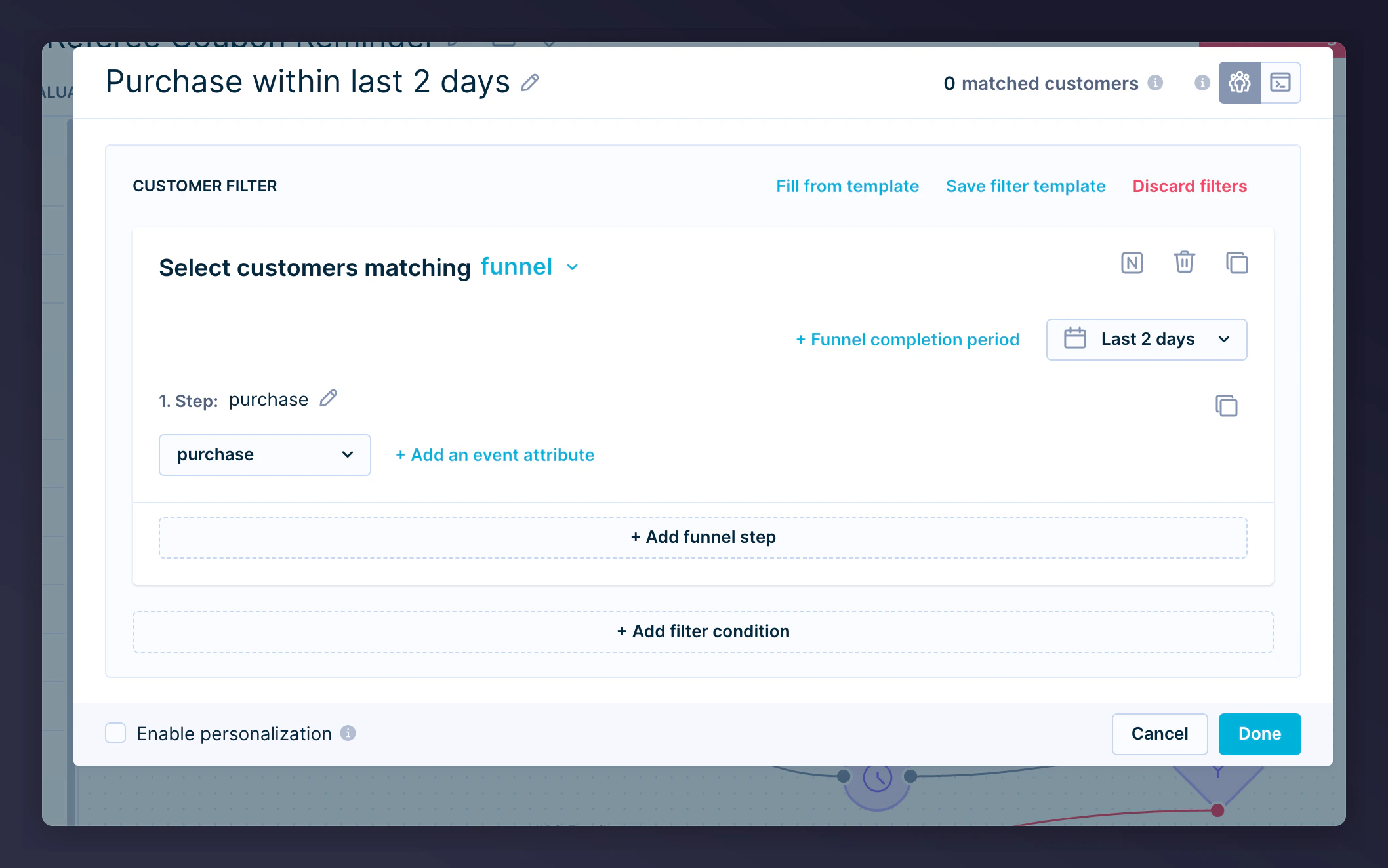
The conditional split to check for purchases.
Add the email action
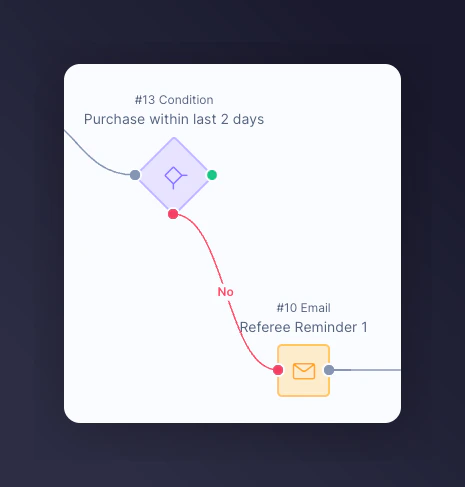
The Email Action added on the No branch for unpurchased contacts.
Step 2: Add Email Content
- Update content and styling for brand consistency
- Add product recommendations to increase conversion
- Under Email Settings, set correct consent category

The consent category setting in the referee email settings.
Preview Images
Reminder 1:
Referee coupon reminder email 1 preview.
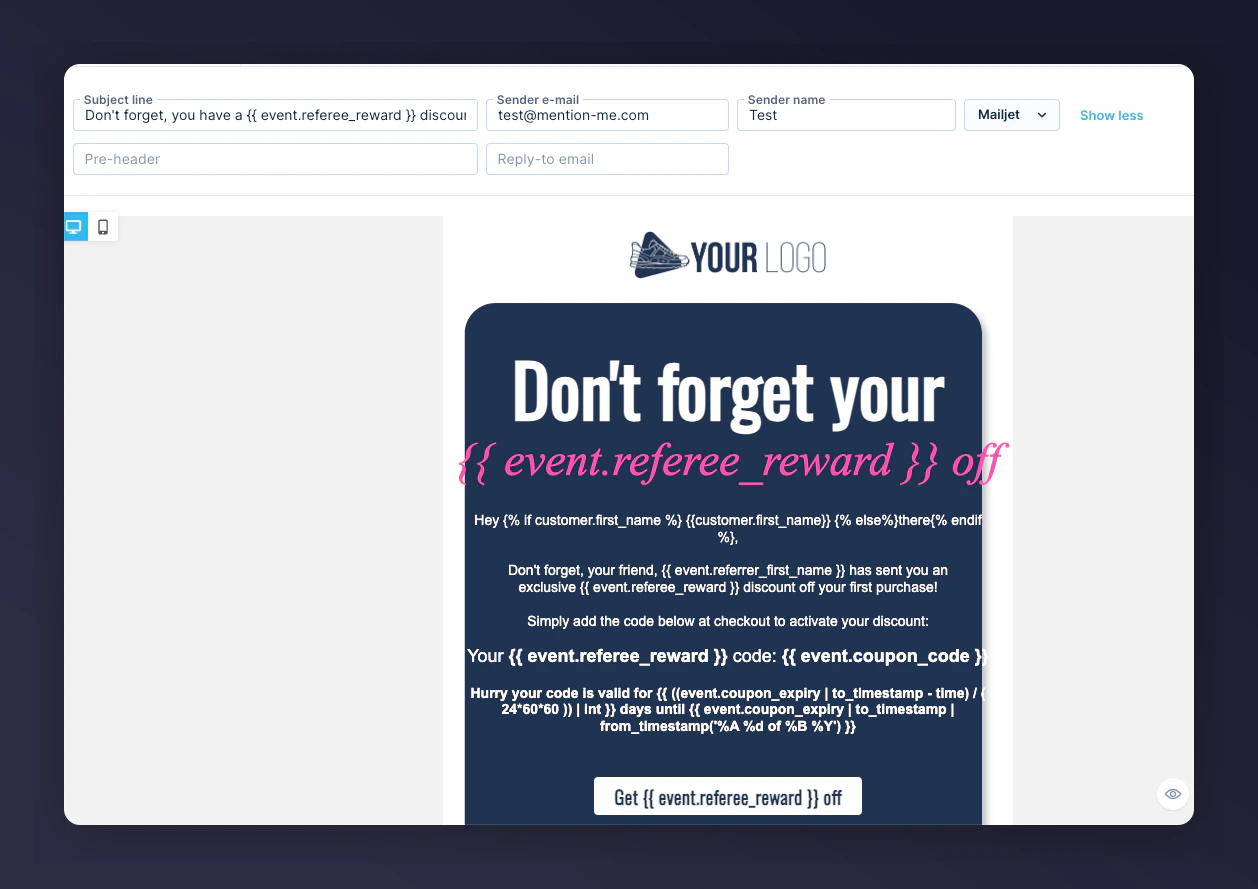
Referee coupon reminder email 2 preview.
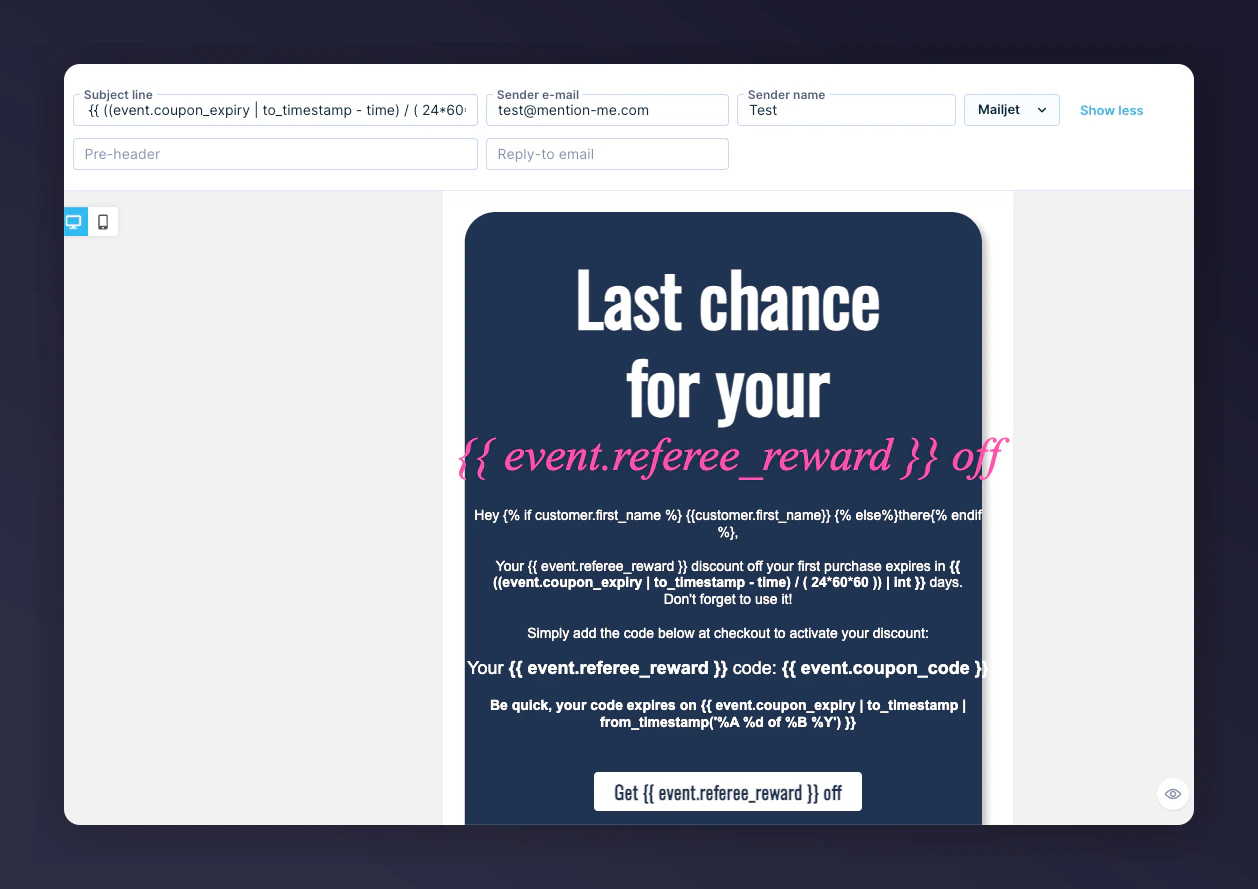
Referee coupon reminder email 3 preview.
Jinja Variables
Step 3: Preview the Email
Open the Design Test tab

The Design Test tab for the referee email preview.
Select a test contact
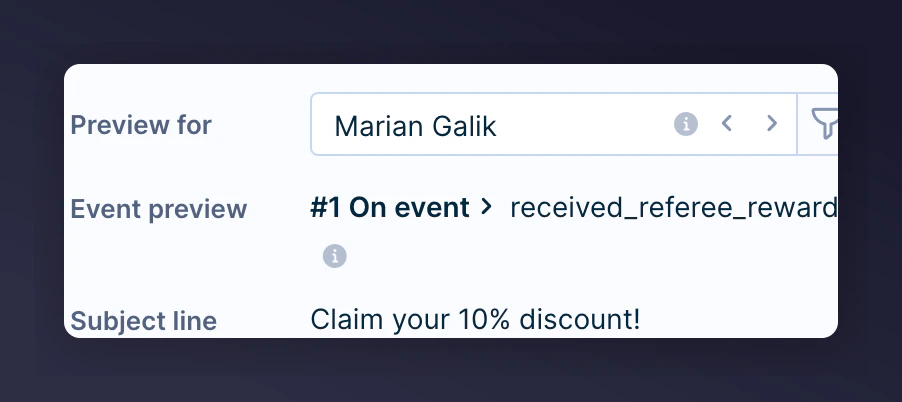
Selecting a test contact for the referee email preview.
Preview the email
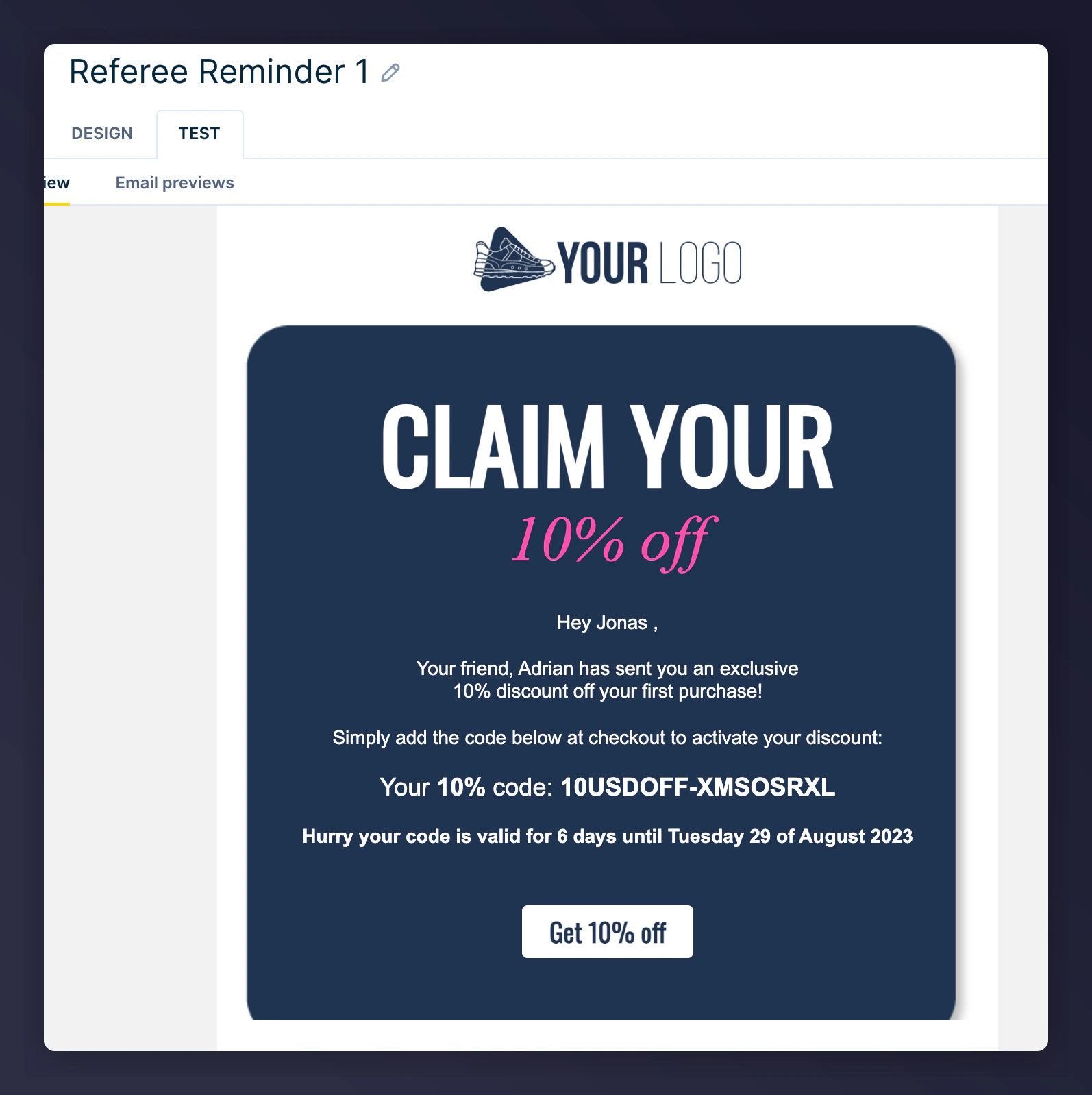
Referee reminder 1 preview with populated data.
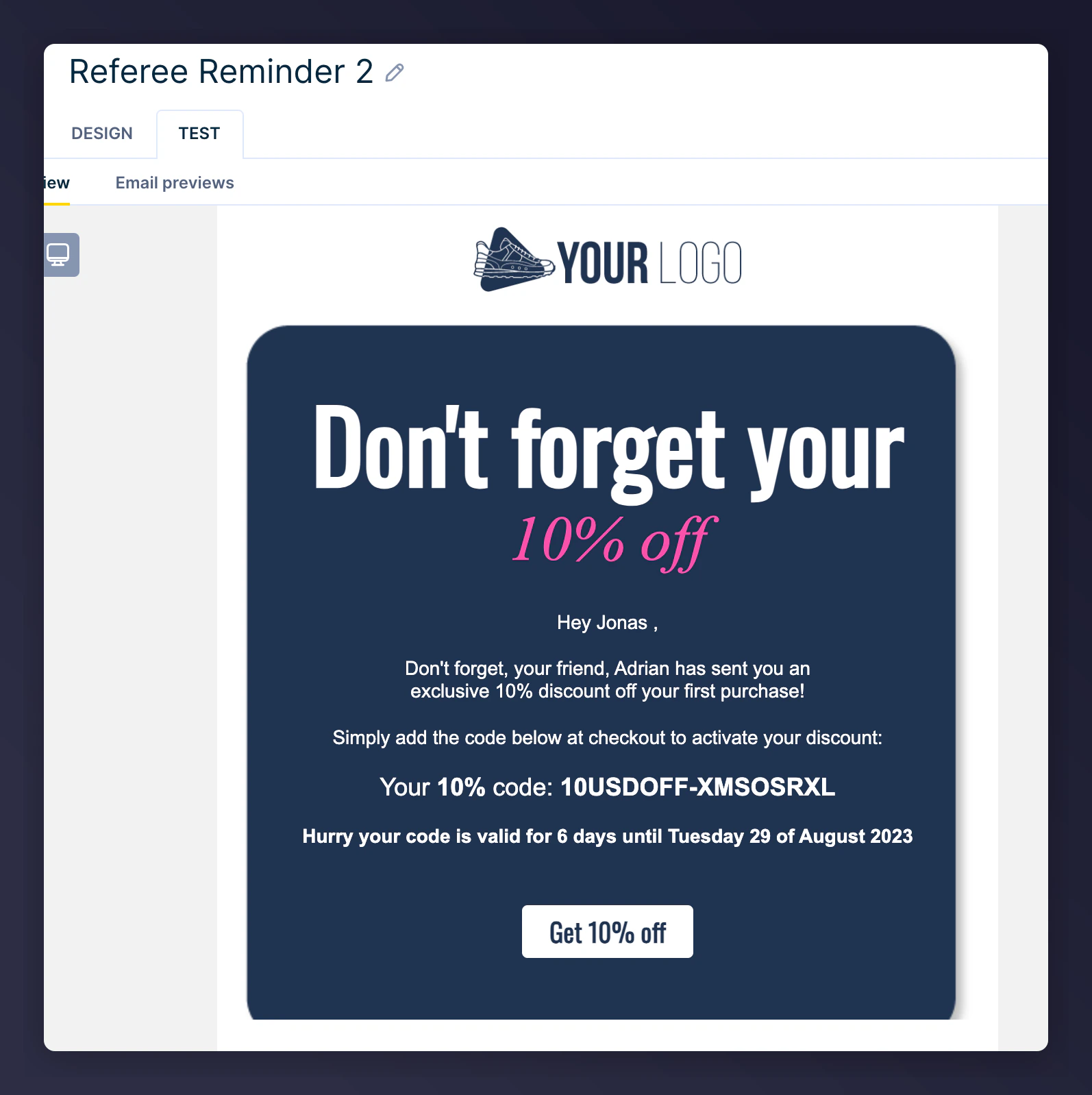
Referee reminder 2 preview with populated data.
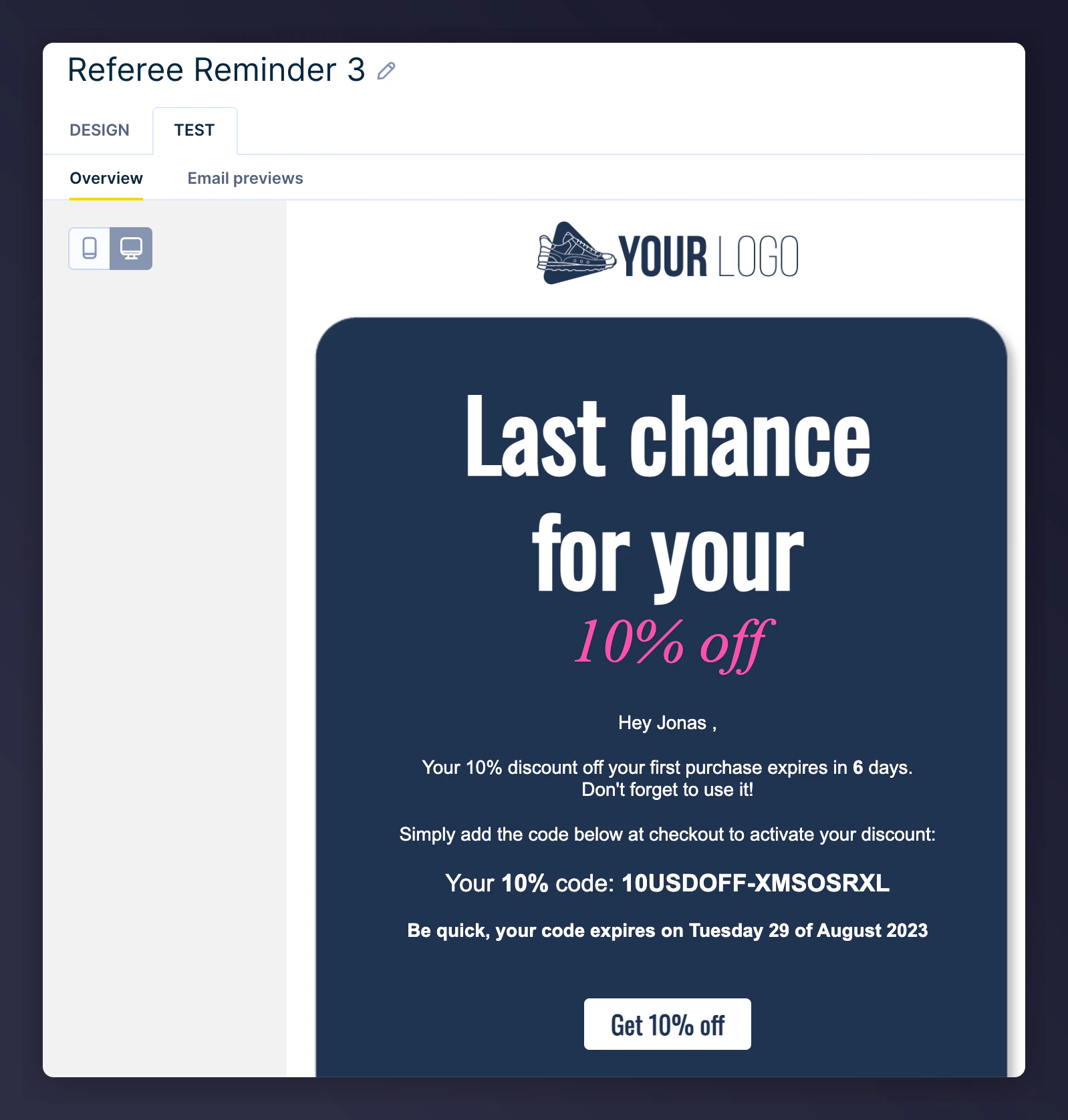
Referee reminder 3 preview with populated data.
Step 4: Activate the Scenario
Once testing is complete, click Start to activate the Scenario.
The Start button to activate the referee scenario.
Referrer Scenario
Remind existing customers (referrers) to use the coupon codes they received after referring a friend. It uses Mention Me referral data integrated within Bloomreach Scenarios. Goals:- Increase active customer revenue
- Drive premium customer revenue
- Improve retention
Basic Workflow
- Referrers automatically receive a coupon (sent by Mention Me).
- Reminder email is sent (if opt-in + no purchase).
- Further reminders are sent at scheduled intervals.
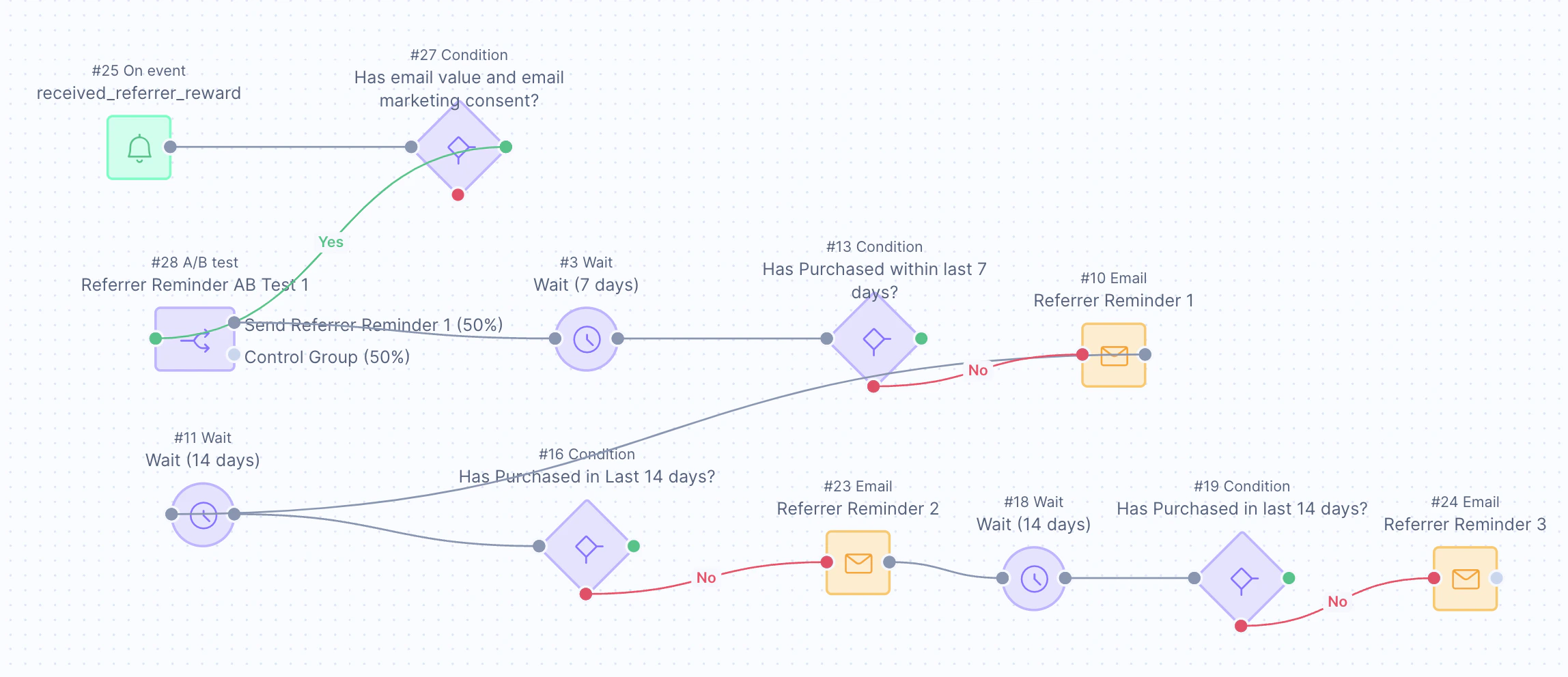
The referrer coupon reminder scenario flow.
Step 1: Build the Scenario Flow
Set the trigger
received_a_referrer_reward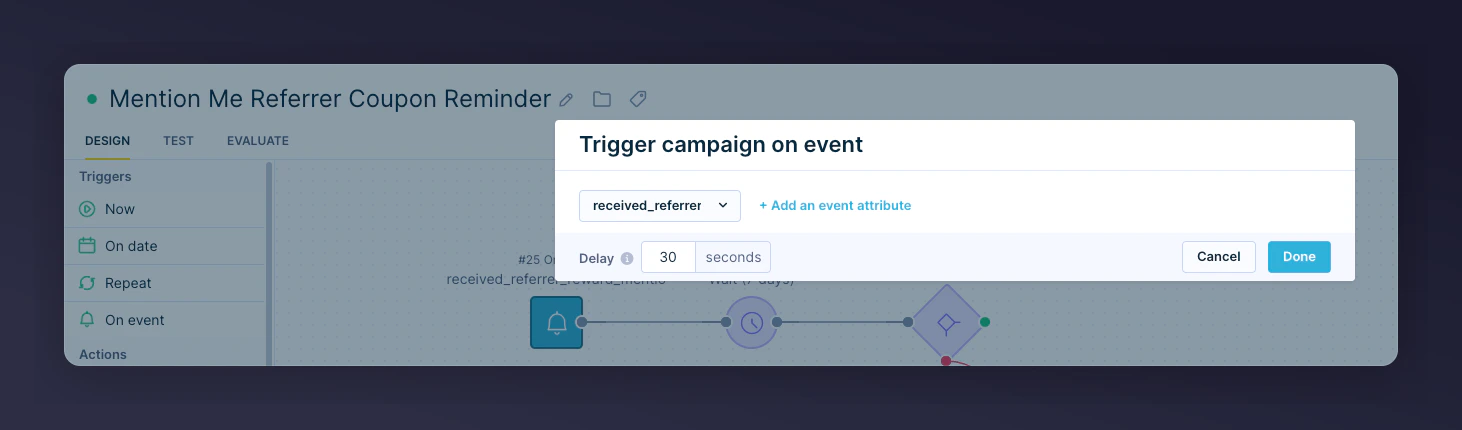
The On Event trigger set to received_a_referrer_reward.
Add segmentation
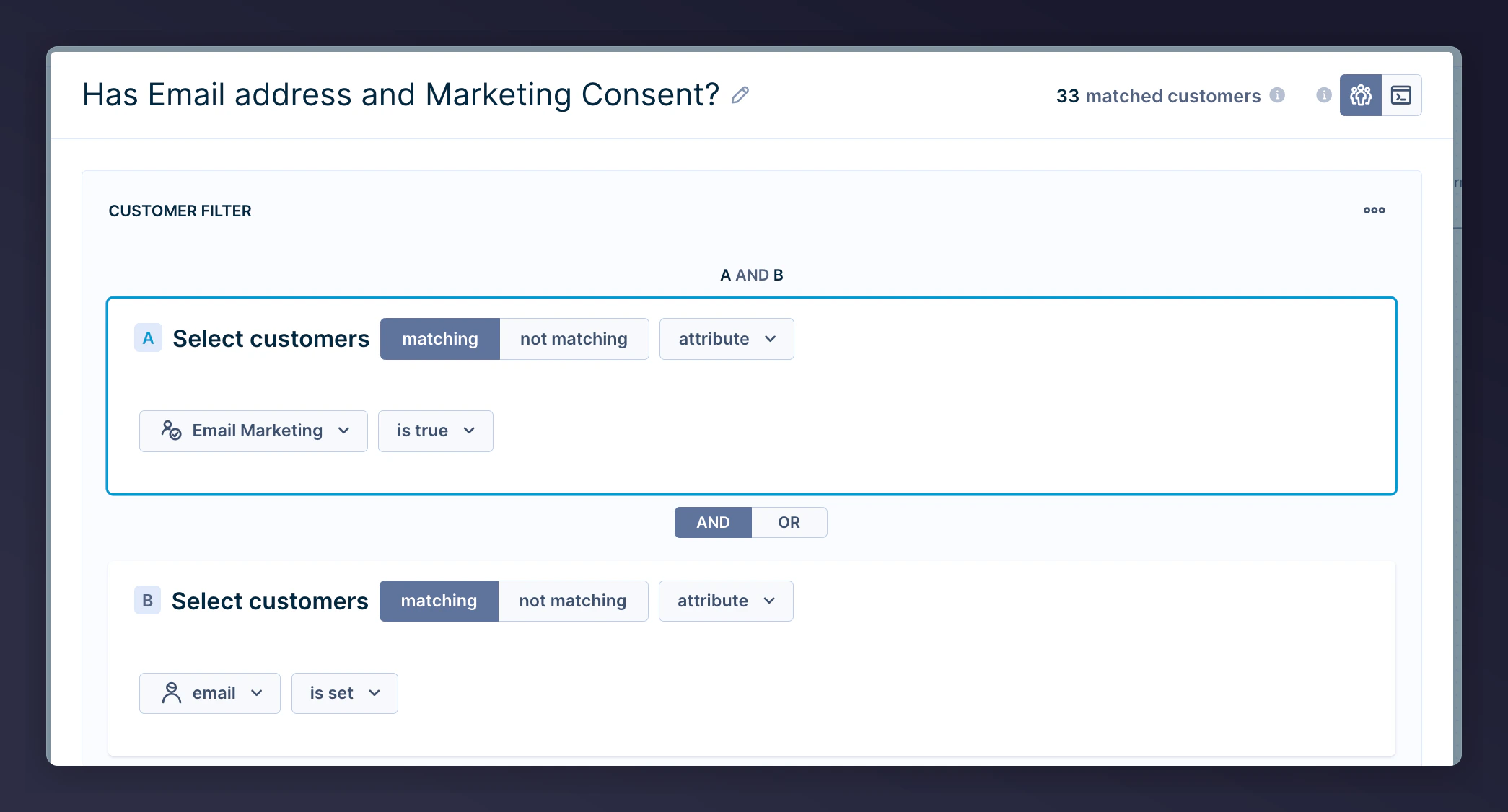
The segmentation filter for referrer contacts.
Add an A/B test

The A/B test configuration for the referrer scenario.
Insert wait periods
- 1st email - wait 7 days after coupon sent
- 2nd email - wait 14 days after 1st email
- 3rd email - wait 14 days after 2nd email
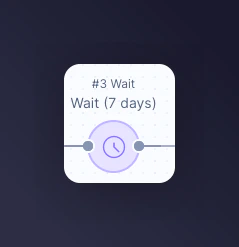
The wait period configuration between referrer emails.
Add a conditional split
- 1st email - purchased in the last 7 days
- 2nd email - purchased in the last 14 days
- 3rd email - purchased in the last 14 days
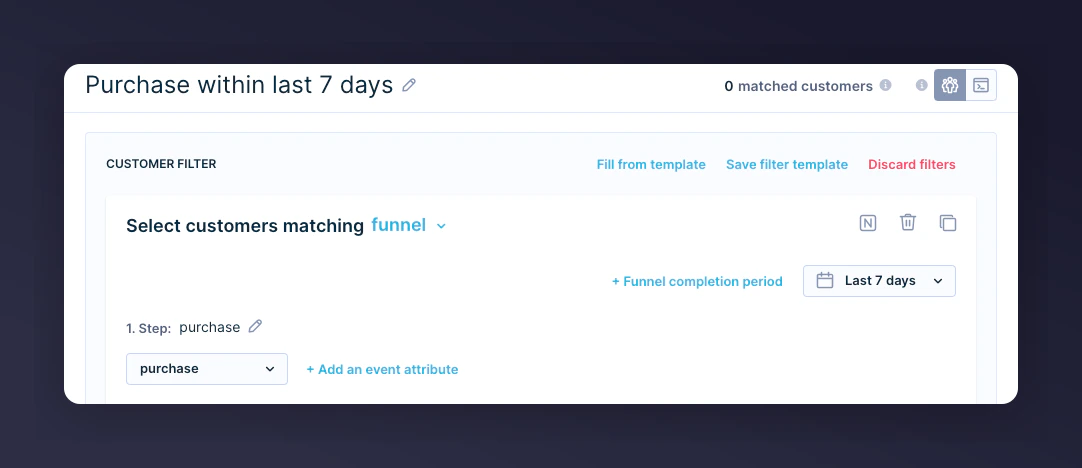
The conditional split for referrer purchase checking.
Add the email action
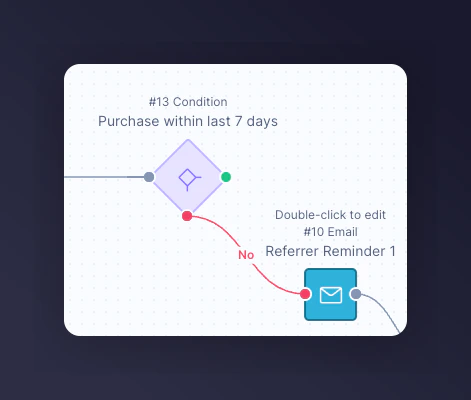
The Email Action added on the No branch for referrers.
Step 2: Add Email Content
- Customise imagery and styling to align with your brand
- Include optional product recommendations
- Set the appropriate consent category in the email Settings
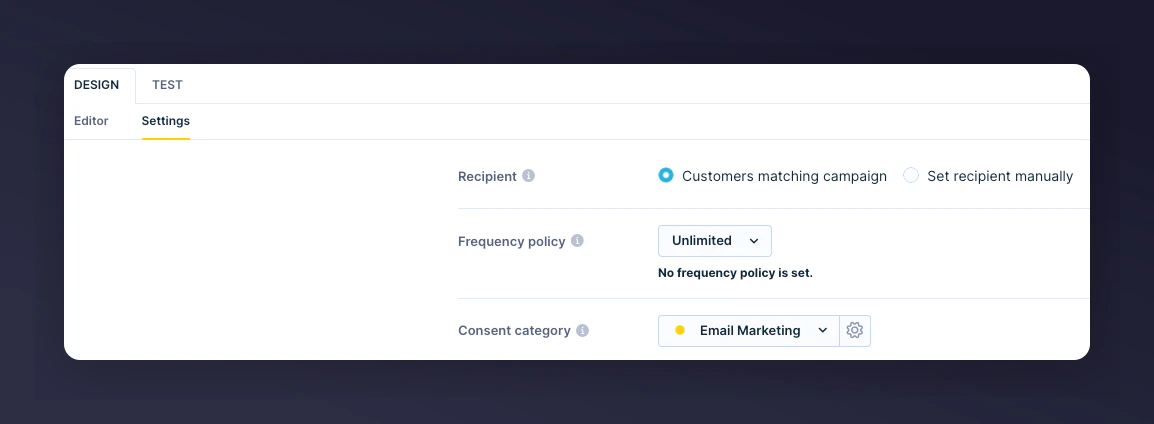
The consent category setting in the referrer email settings.
Live Email Previews
Reminder 1: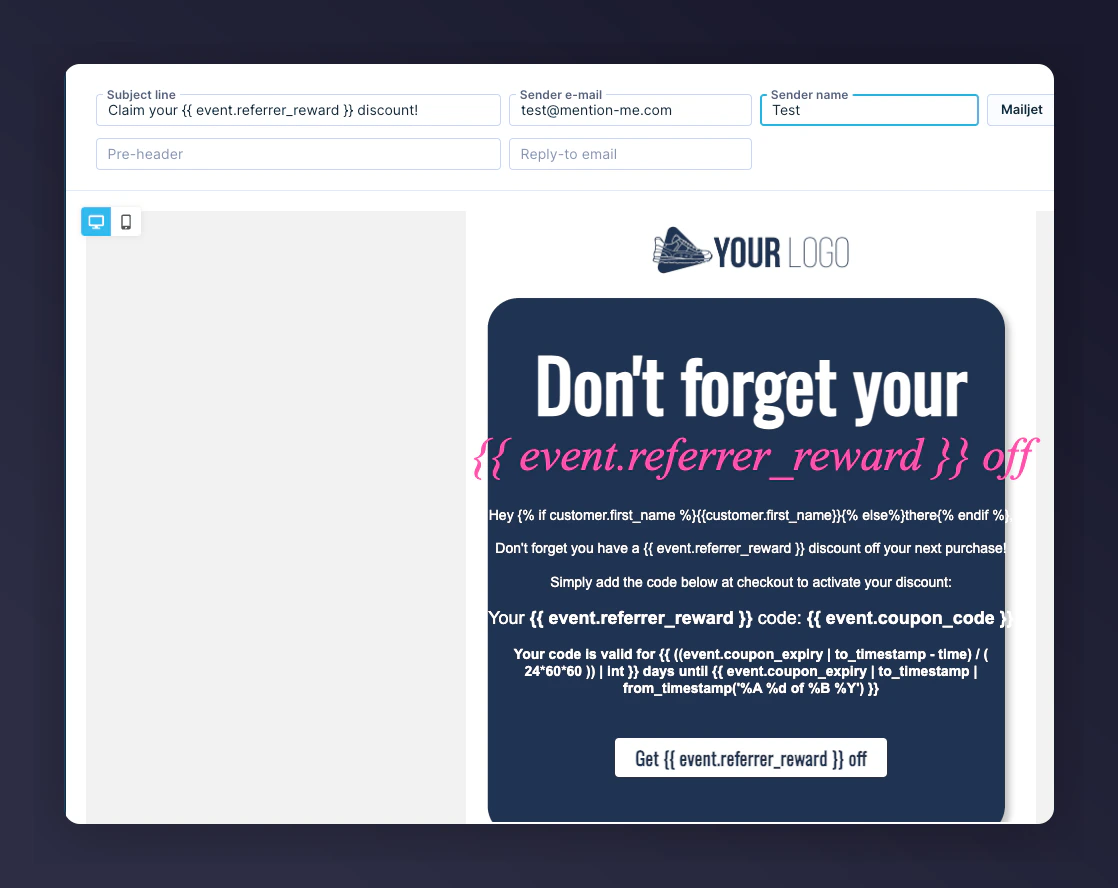
Referrer coupon reminder email 1 preview.
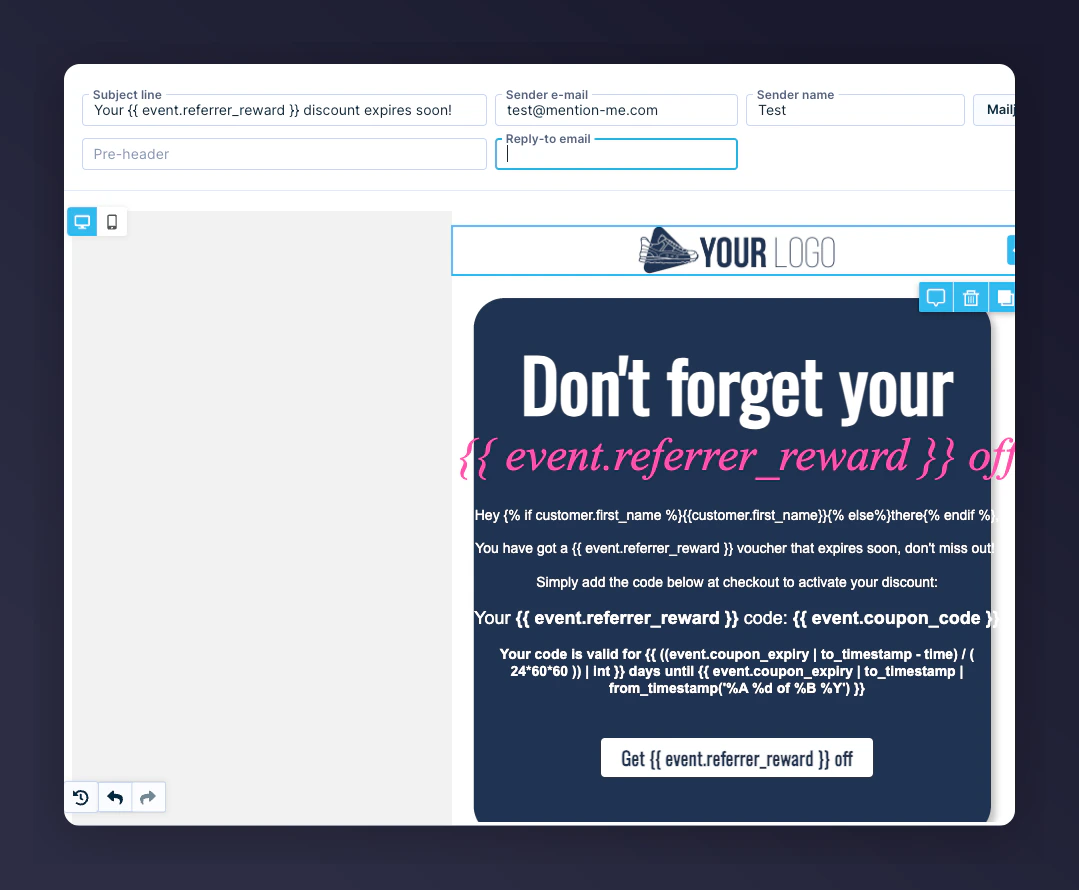
Referrer coupon reminder email 2 preview.

Referrer coupon reminder email 3 preview.
Useful Jinja Variables
Step 3: Test the Email
Open the Design Test tab
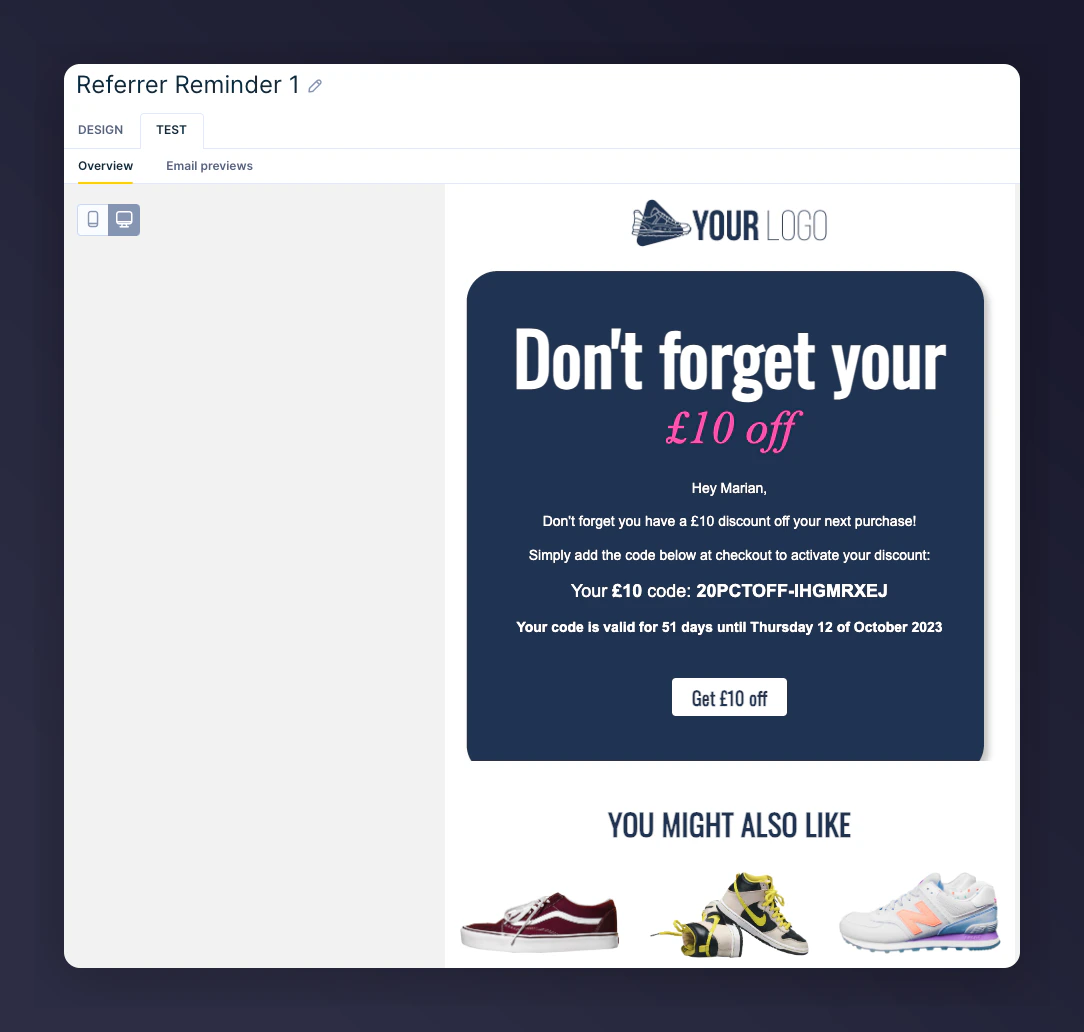
The Design Test tab for the referrer email preview.
Select a test customer
Preview with live values

Referrer reminder preview 1 with live data.
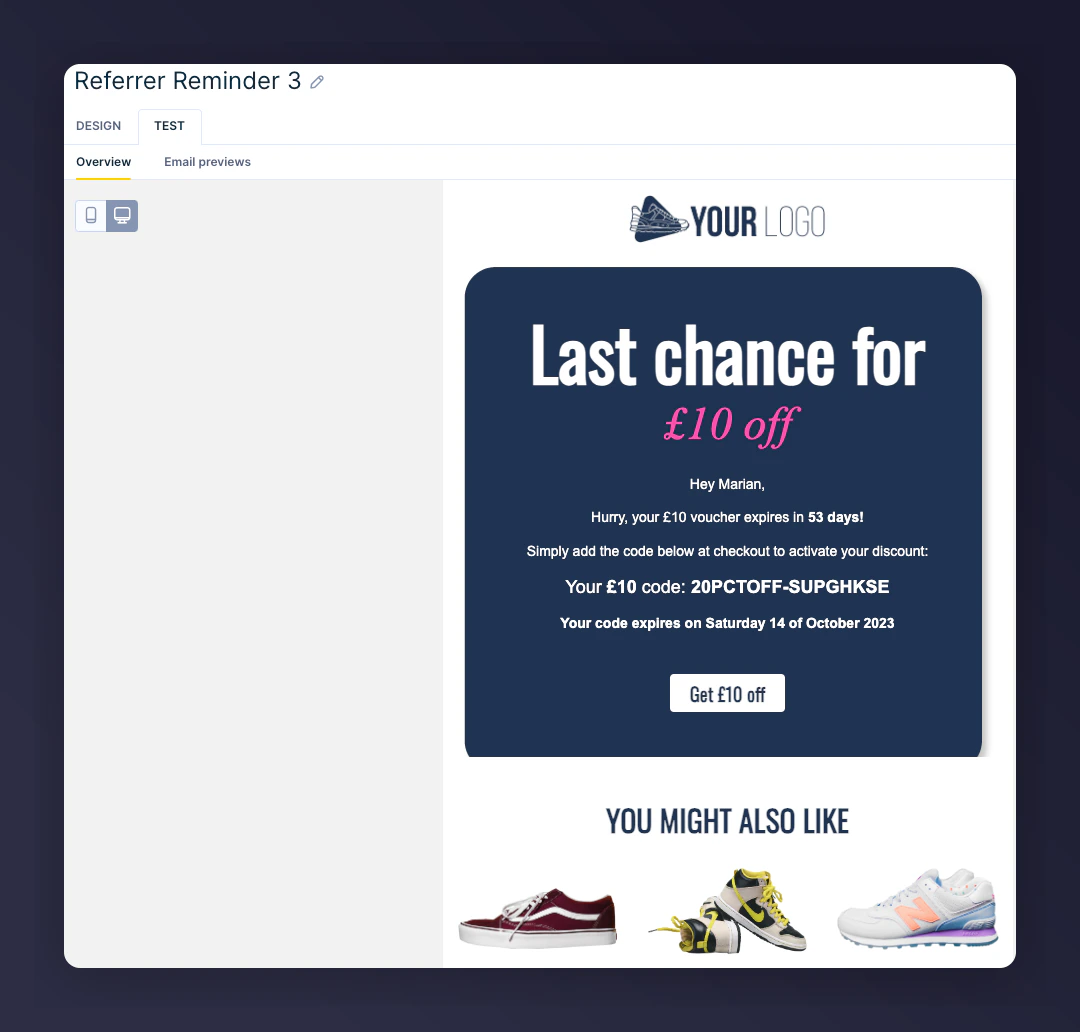
Referrer reminder preview 2 with live data.
Step 4: Activate the Scenario
Once you’ve reviewed and finalised your designs, click Start to activate the scenario.
The Start button to activate the referrer scenario.