Documentation Index

Fetch the complete documentation index at: https://docs.mention-me.com/llms.txt

Use this file to discover all available pages before exploring further.

How does Global-e integrate with websites?

Using Global-e as your checkout provider means your brand hosts specific pages (such as checkout or order confirmation) that contain a Global-e iframe. You cannot modify this iframe or use unsupported variables, but you can hook into Global-e functionality using their API to integrate Mention Me. There are two tags to implement: the Referrer tag and the Referee tag.

Implementing the Referrer Tag

This tag collects customer information and serves referral offers post-purchase.

Step 1: Add the Tag

Paste the following script on the page containing your Global-e iframe:
<script type="text/javascript">
var glegem = glegem || function() { (window["glegem"].q = window["glegem"].q || []).push(arguments); };

glegem("OnCheckoutStepLoaded", checkoutHandlerMentionMe);

function checkoutHandlerMentionMe(data) {
  if (data.StepId === "undefined" || data.StepId !== data.Steps.CONFIRMATION) return;
  if (data.IsSuccess !== true || data.IsPageReload === true) return;

  var script = document.createElement("script");
  var url = "https://tag.mention-me.com/api/v2/referreroffer/<PARTNER-CODE>?locale=<Locale>&situation=postpurchaseglobale";
  url += "&email=" + encodeURIComponent(data.details.customerEmail);
  url += "&fullname=" + encodeURIComponent(data.details.customerName);
  url += "&order_number=" + encodeURIComponent(data.details.OrderReference);
  url += "&order_total=" + encodeURIComponent(data.details.totalPriceExclVAT);
  url += "&order_currency=" + encodeURIComponent(data.details.customerCurrency);

  script.src = url;
  document.head.appendChild(script);
}
</script>

Step 2: Add Partner Code and Locale

  • Replace <PARTNER-CODE> with your Mention Me Partner Code (ask your Client Manager).
  • Set the locale:

Step 3: Update Demo to Live URL

  • Use tag-demo.mention-me.com when testing.
  • Switch to tag.mention-me.com for live use.
The live tag URL is disabled by default. Activate it via your Client Manager before customer-facing use. You can preview functionality using the Debug Tool.

Additional Help

Required Mention Me variables: Integration instructions Global-e variables: Full Global-e variable list

Referrer Tag in Global-e + Shopify

If using Shopify with Global-e, locate your globale-tracking.liquid snippet. It should include the following inside the OnCheckoutStepLoaded callback:
var script = document.createElement("script");
var url = "https://tag.mention-me.com/api/v2/referreroffer/<PARTNER-CODE>?locale=<Locale>&situation=postpurchaseglobale";
url += "&email=" + encodeURIComponent(data.details.customerEmail);
url += "&fullname=" + encodeURIComponent(data.details.customerName);
url += "&order_number=" + encodeURIComponent(data.details.OrderReference);
url += "&order_total=" + encodeURIComponent(data.details.totalPriceExclVAT);
url += "&order_currency=" + encodeURIComponent(data.details.customerCurrency);

script.src = url;
document.head.appendChild(script);
Ensure you:
  • Only run the tag when data.StepId == data.Steps.CONFIRMATION and data.IsSuccess is true.
  • Include your Partner Code and a valid locale.
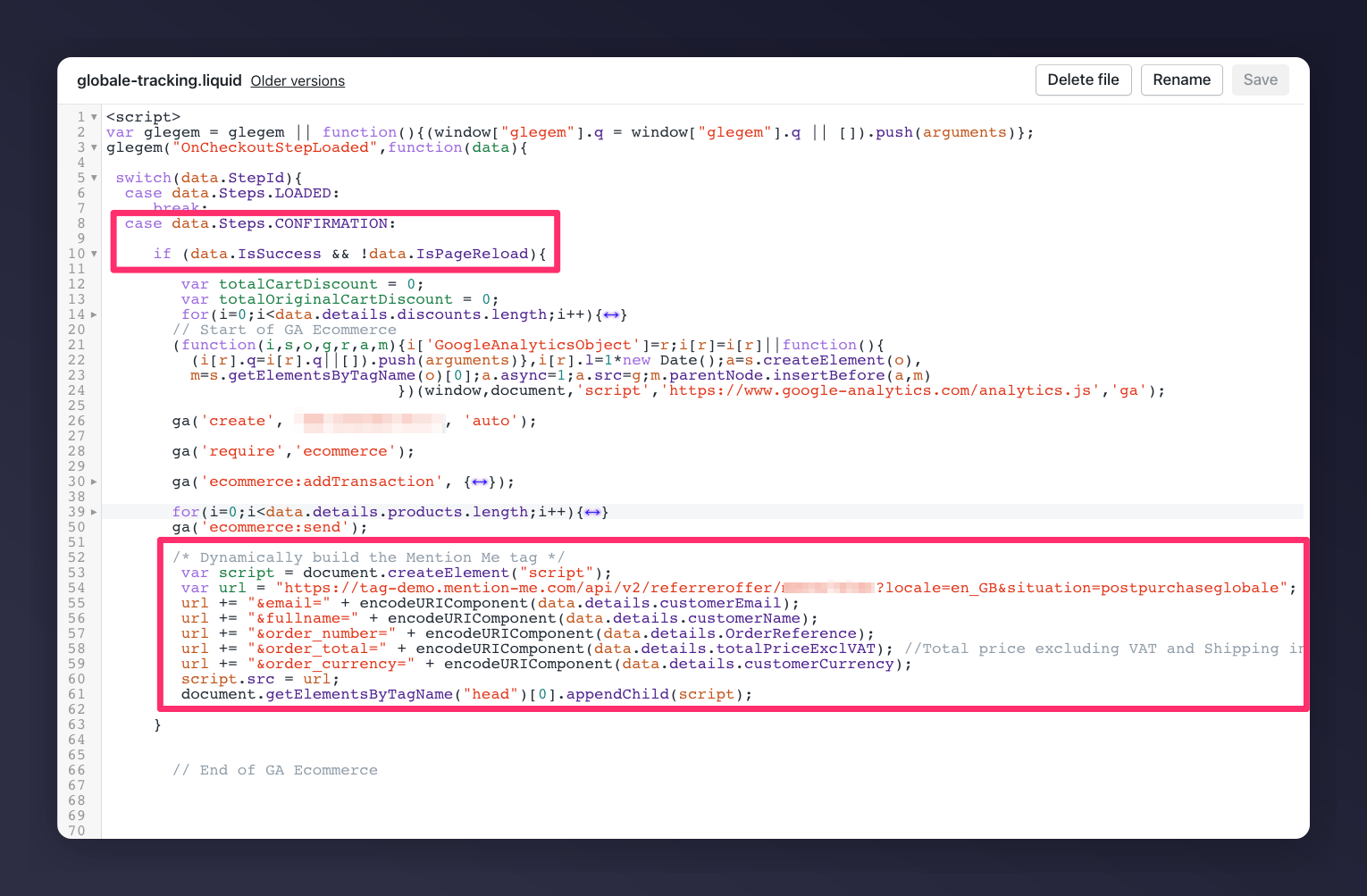
Shopify globale-tracking.liquid snippet with Mention Me referrer tag Include this in theme.liquid to load the Global-e script at checkout:
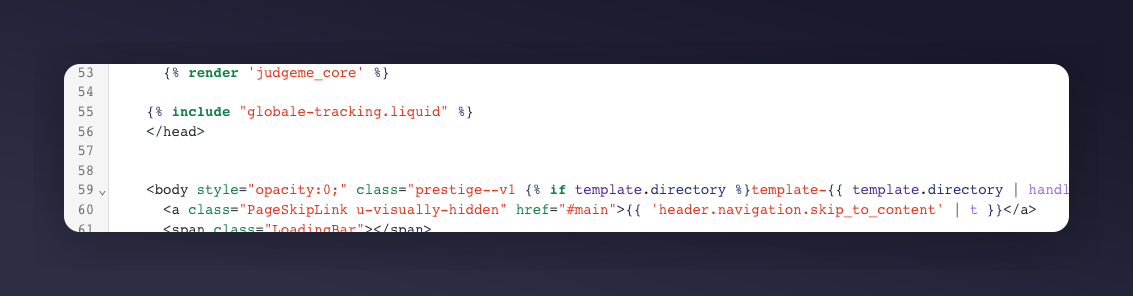
{% include "globale-tracking.liquid" %}
This should go inside the <head> tag in your layout. Shopify theme.liquid include for globale-tracking snippet

Implementing the Referee Tag

Add the referee tag outside of the Global-e checkout (such as on the cart or side cart) so users can enter who referred them. Referee tag integration instructions The referee tag cannot be used within the Global-e checkout environment.
Last modified on March 31, 2026