

About the Integration
Seamlessly integrate high-quality, first-party referral data into Salesforce Marketing Cloud (SFMC) to enhance customer segmentation and campaign performance. Use Mention Me data - like next-best action, propensity to refer, and Extended Customer Revenue - to target high-value customer segments more effectively. The integration is self-serve, requires no major IT effort, and can be fully set up in under 10 minutes.Integration Capabilities
- Send contact data and opt-ins from Mention Me referred customers to SFMC in real time
- Create coupon email reminders using referral data
- Use referral data to boost targeting across other marketing channels
Prerequisites
- Salesforce Marketing Cloud - You must have Administrator or Marketing Cloud Administrator roles.
- Mention Me - Access to the Mention Me platform. Contact your Mention Me CSM if needed.
Step 1: Create a Mention Me App in Salesforce Marketing Cloud
Log in to your Salesforce Marketing Cloud admin account to set up a Mention Me App integration:Verify permissions
Navigate to Installed Packages
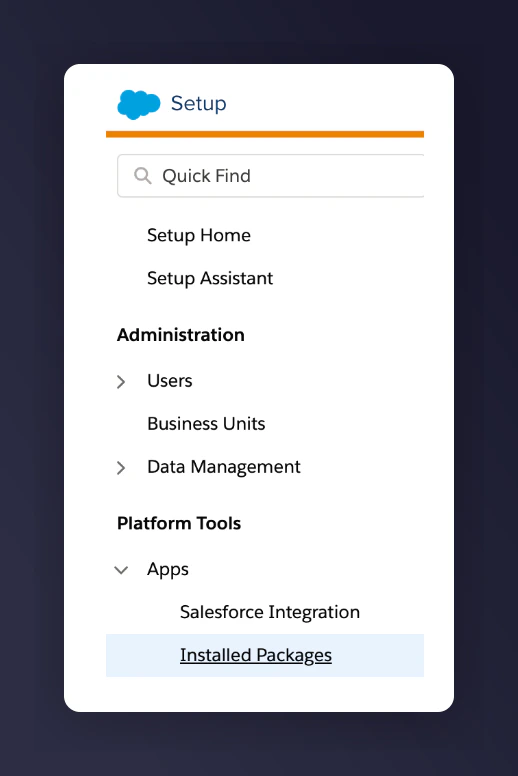
The SFMC Setup Installed Packages navigation.
Create a new package
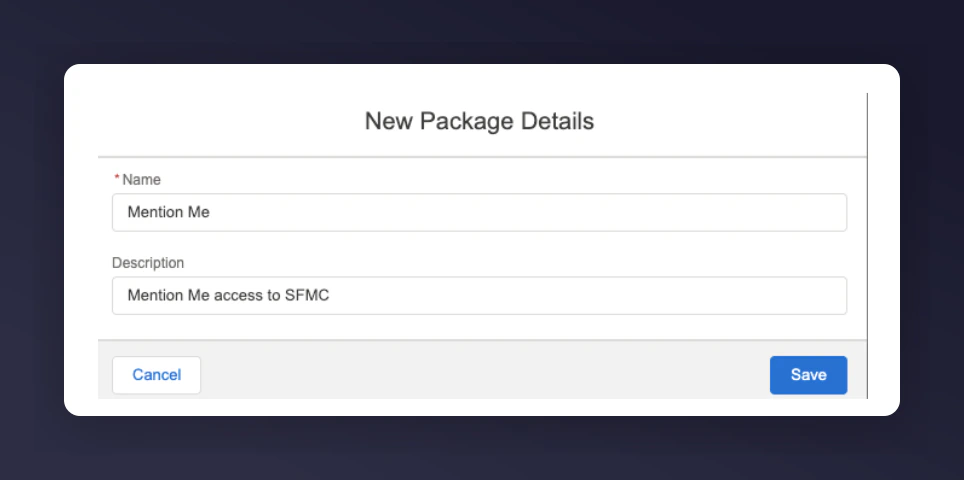
Creating a new Mention Me package in SFMC.
Save the package
Add a component
Configure API Integration
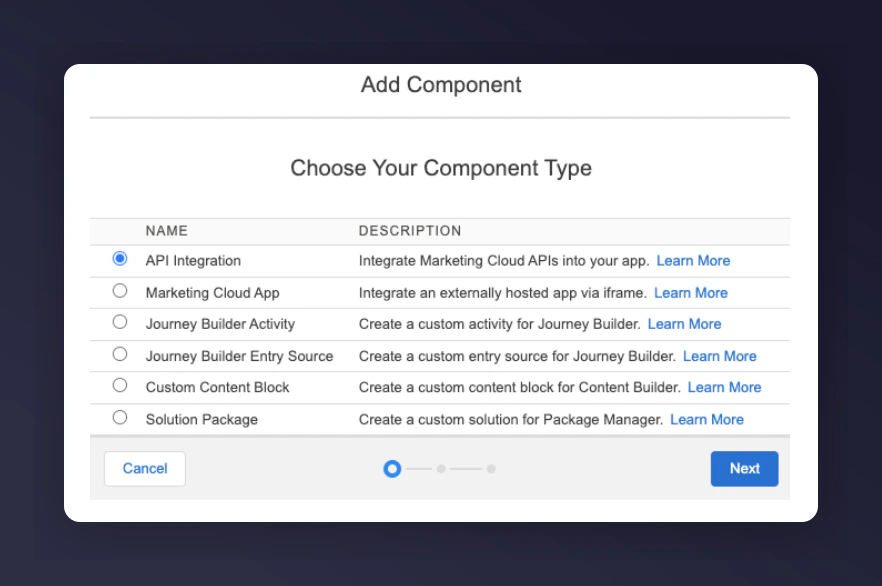
Selecting the API Integration component type in SFMC.
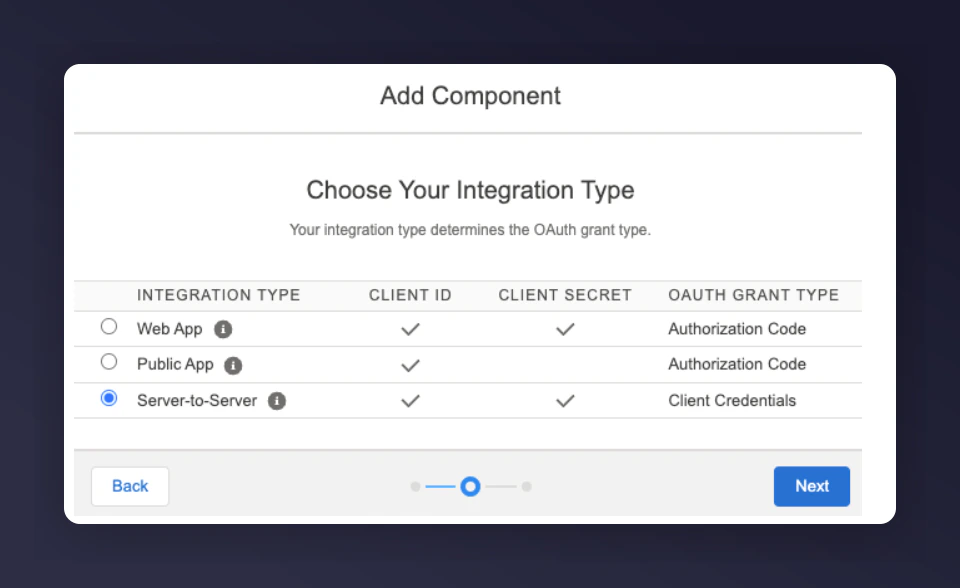
Setting the Server-to-Server integration type in SFMC.
Enable required permissions
- Journeys > Read & Write
- List and Subscribers > Read & Write
- Data Extensions > Read & Write
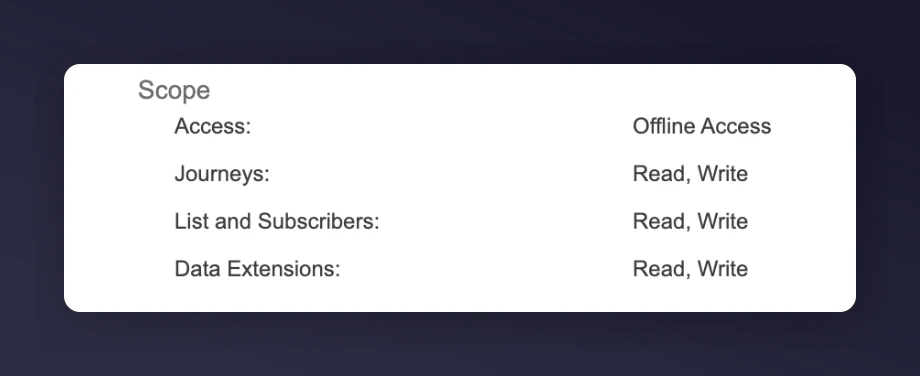
Enabling required API permissions in SFMC.
Save permissions
Note down app credentials
- Client ID
- Client Secret
- Subdomain (from the REST Base URI, between
https://and.rest)
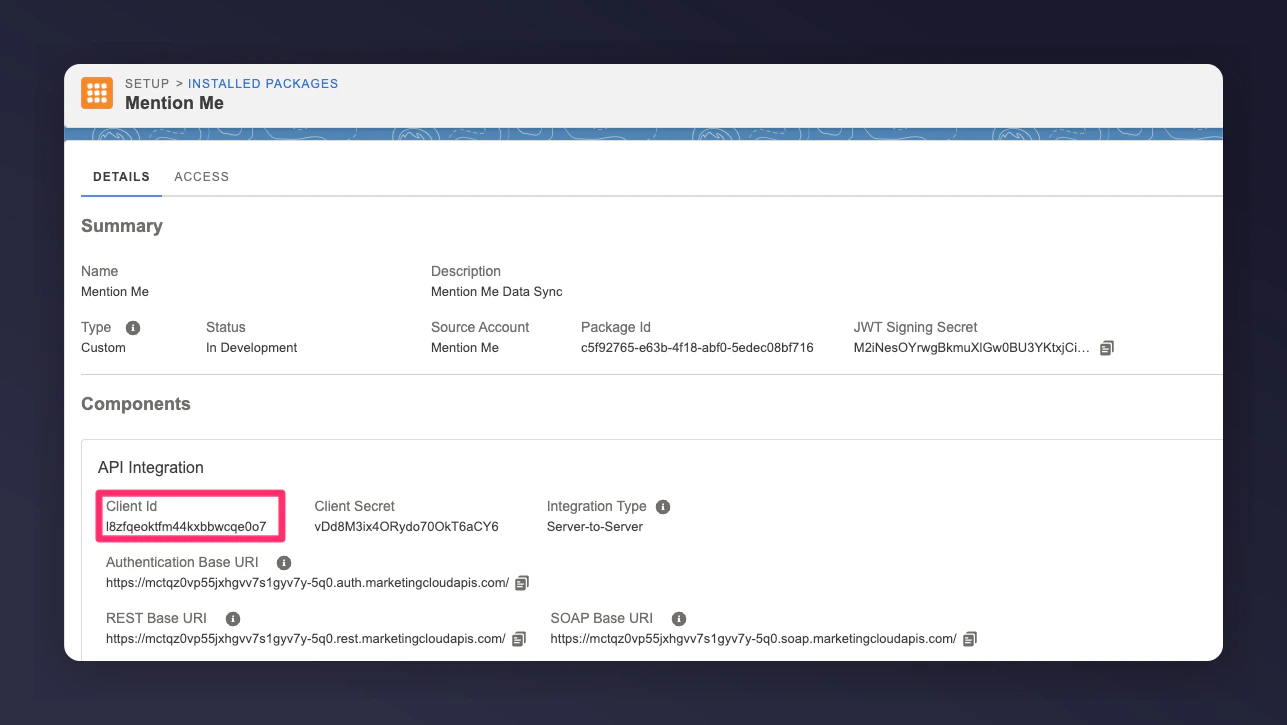
The SFMC app showing the Client ID.
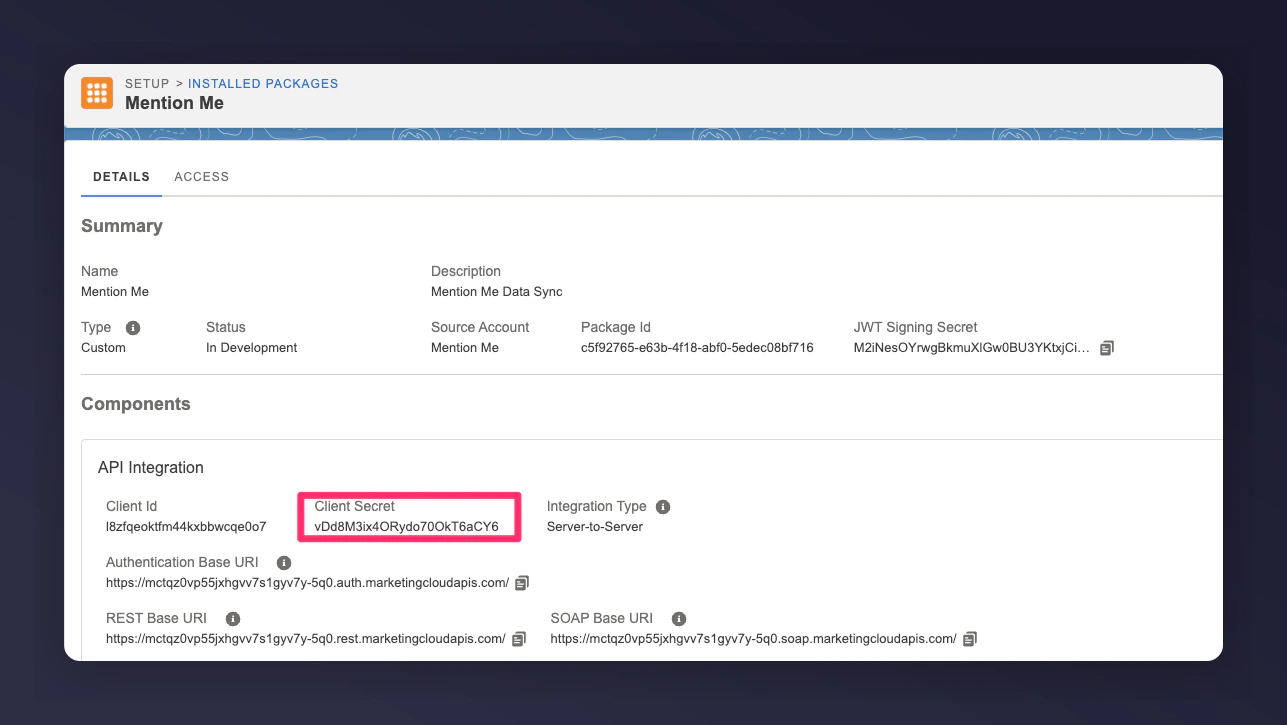
The SFMC app showing the Client Secret.
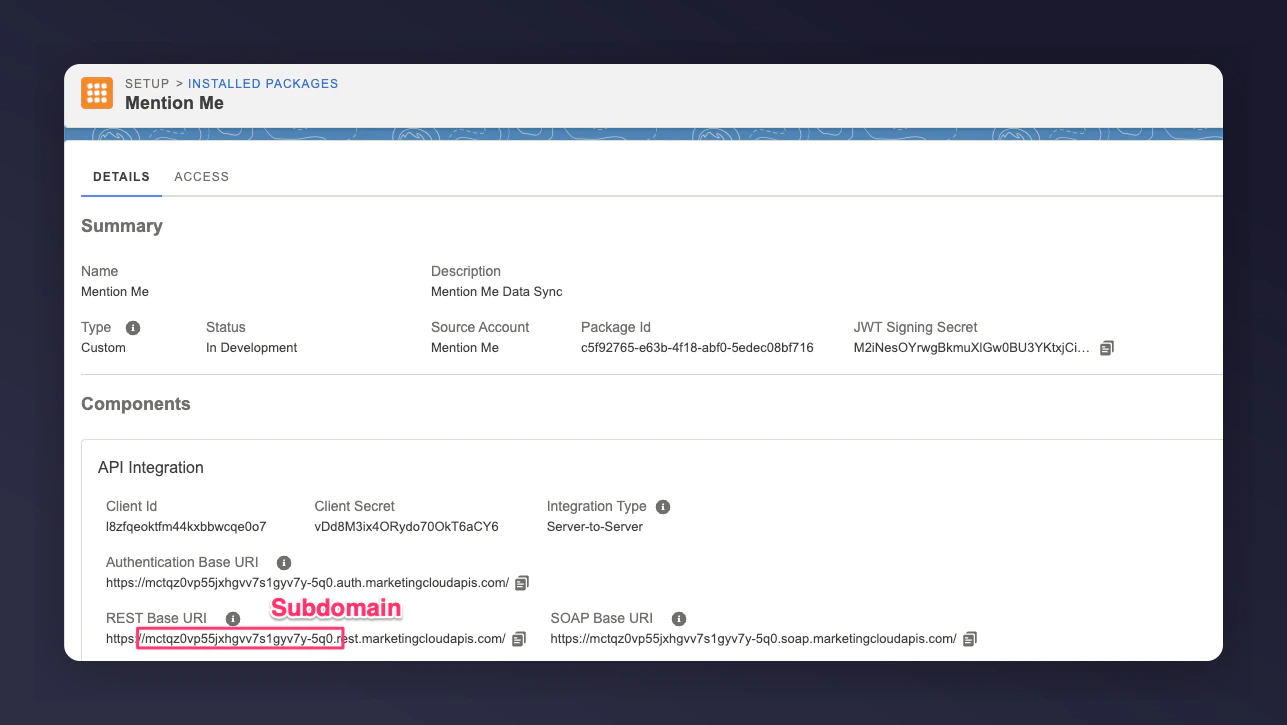
The SFMC app showing the REST Base URI used to identify the Subdomain.
Step 2: Set Up the Integration in Mention Me
Connect on Mention Me platform
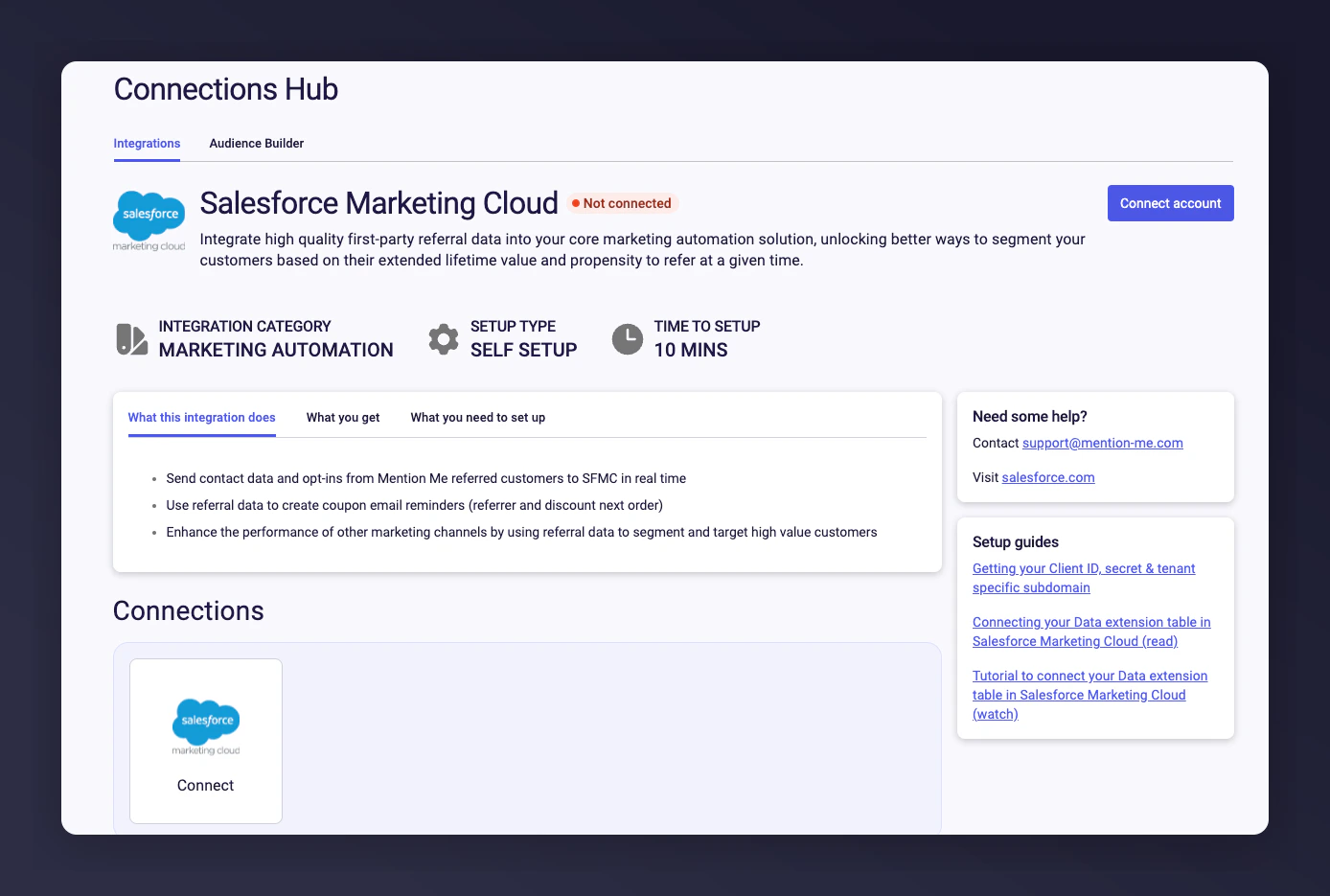
The Mention Me SFMC integration connect page.
Accept terms and conditions
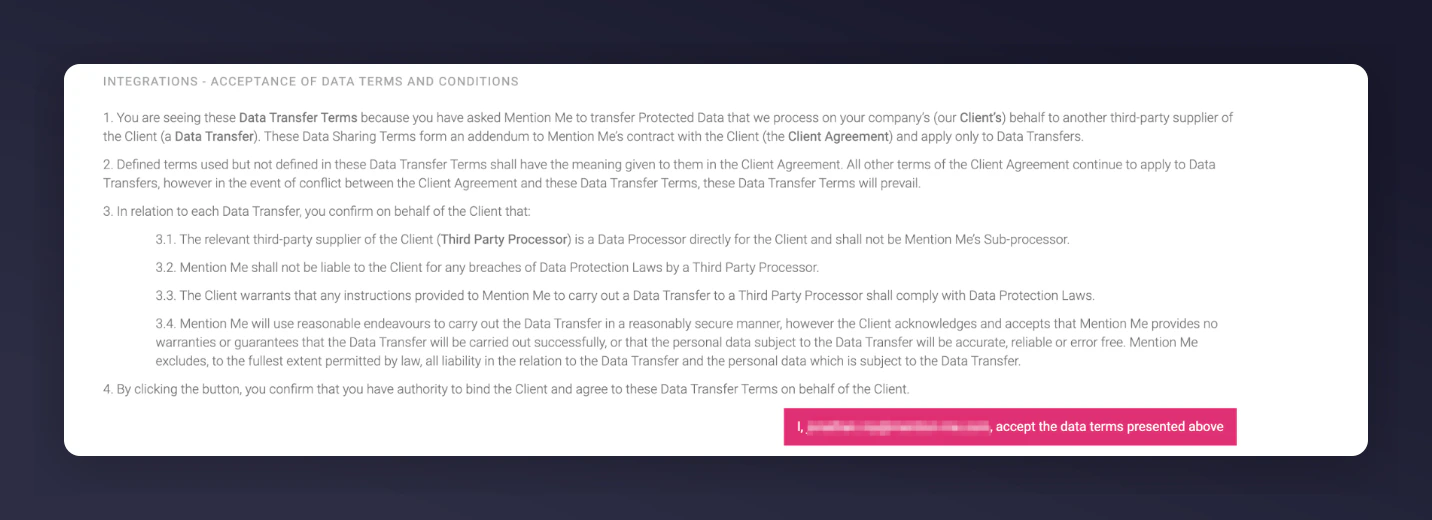
The terms and conditions acceptance screen for the SFMC integration.
Click New authentication
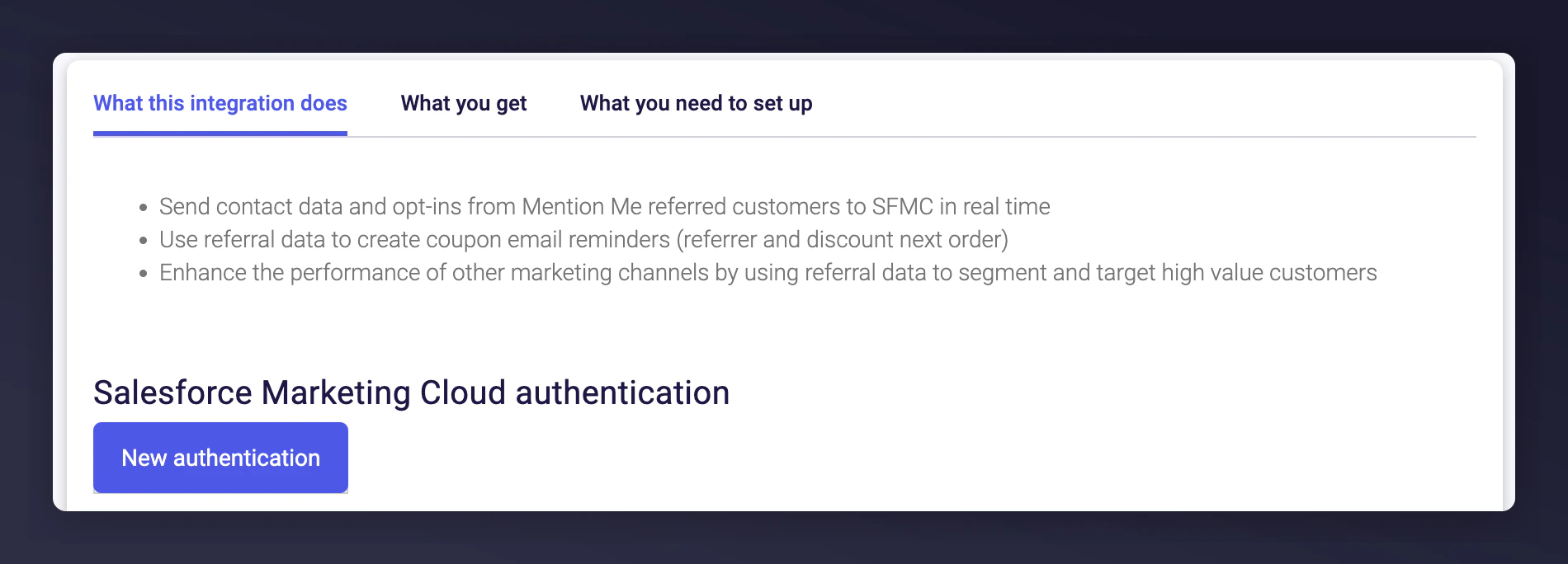
The New Authentication button in Mention Me.
Enter API credentials
- Client ID
- Client Secret
- Subdomain
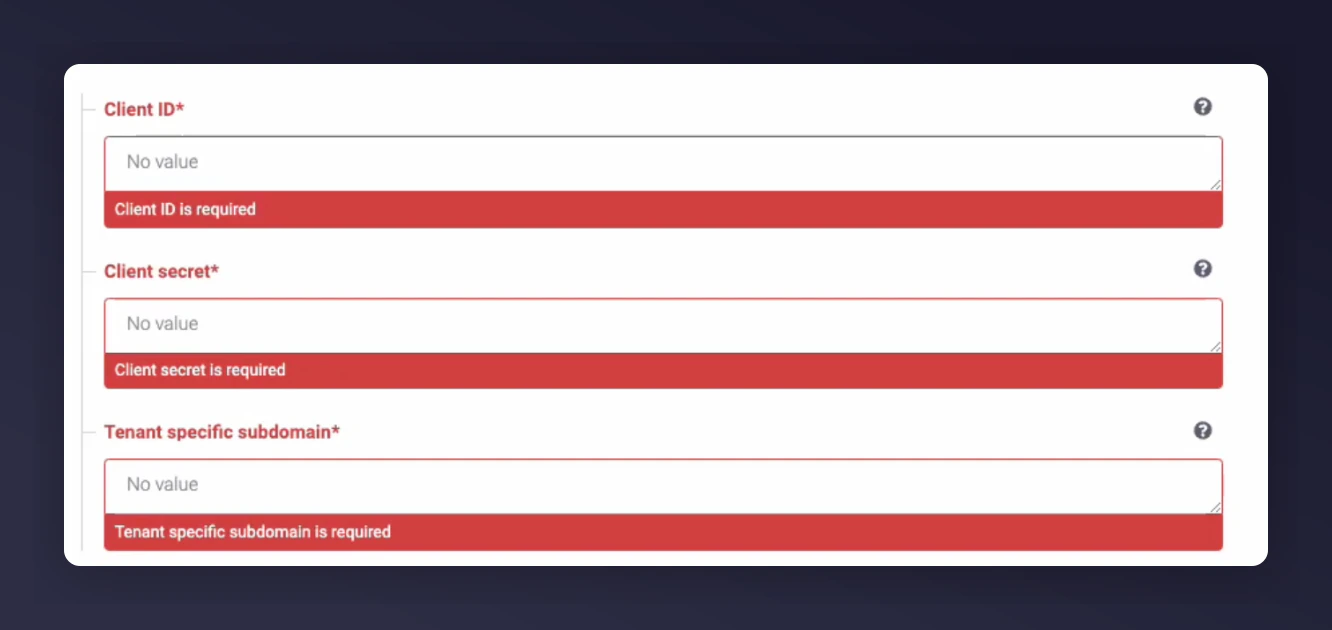
Entering SFMC API credentials in Mention Me.
Create the authentication
Configure Contact Key setting
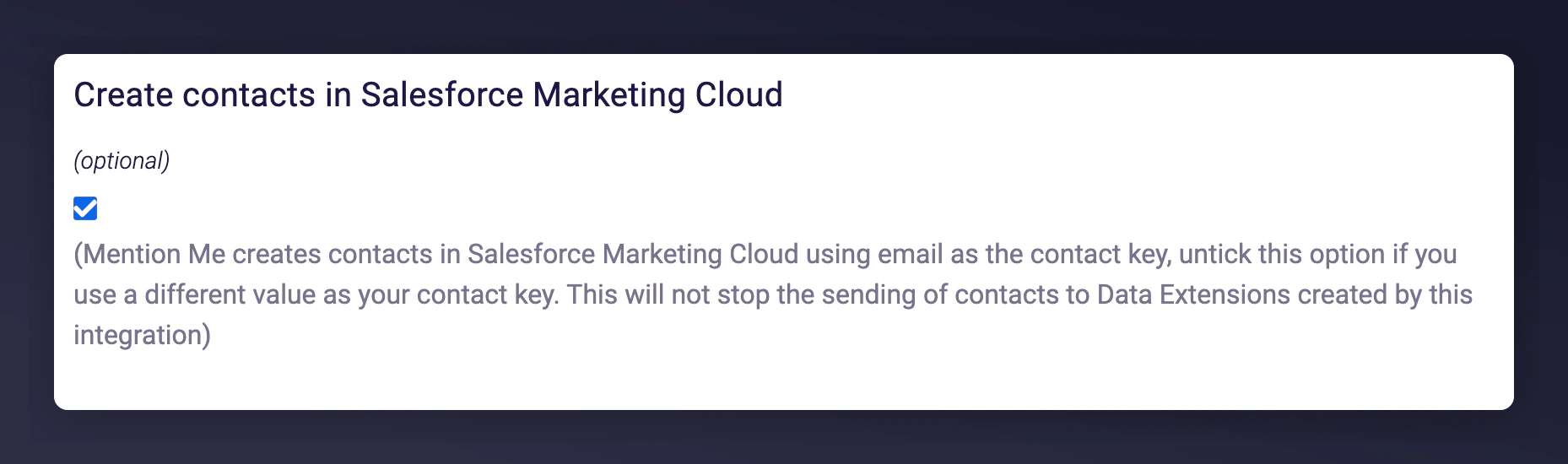
The Contact Key email option in the SFMC integration.
Authorise the integration
Select countries to sync
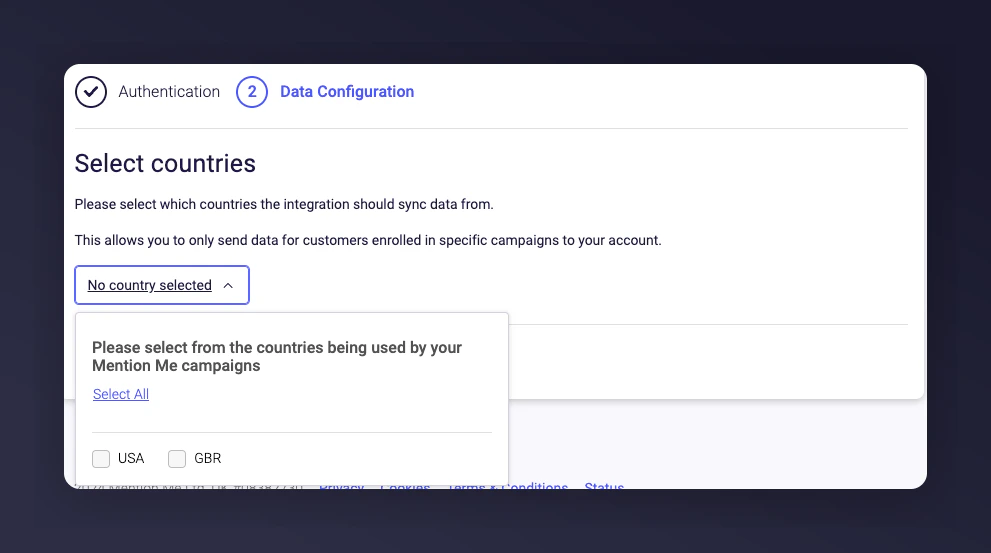
Selecting countries to sync with SFMC.
Finalise the connection
Step 3: Link the Mention Me Data Extension
Once the integration is set up, you need to link the data extension that Mention Me created to your email contact data. This enables Mention Me customer attributes to sync with your contacts for use across Marketing Cloud journeys and campaigns.Navigate to Contact Builder
Log in to SFMC
Open Contact Builder

Navigating to Contact Builder in SFMC.
Click Email Data
Link the Data Extension
Go to Data Extensions
Click Link
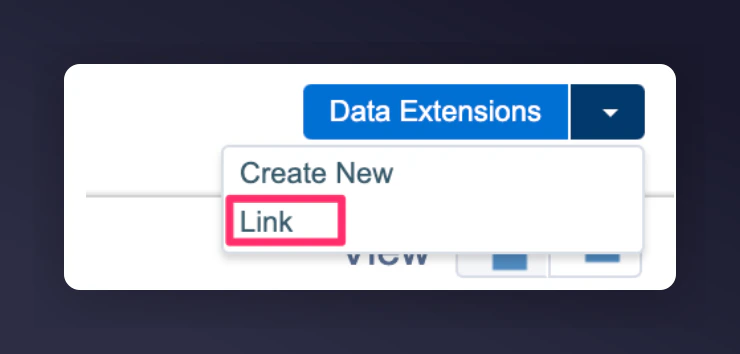
The Link Data Extension button in Contact Builder.
Expand Data Extensions folder
Select Mention Me Custom Fields
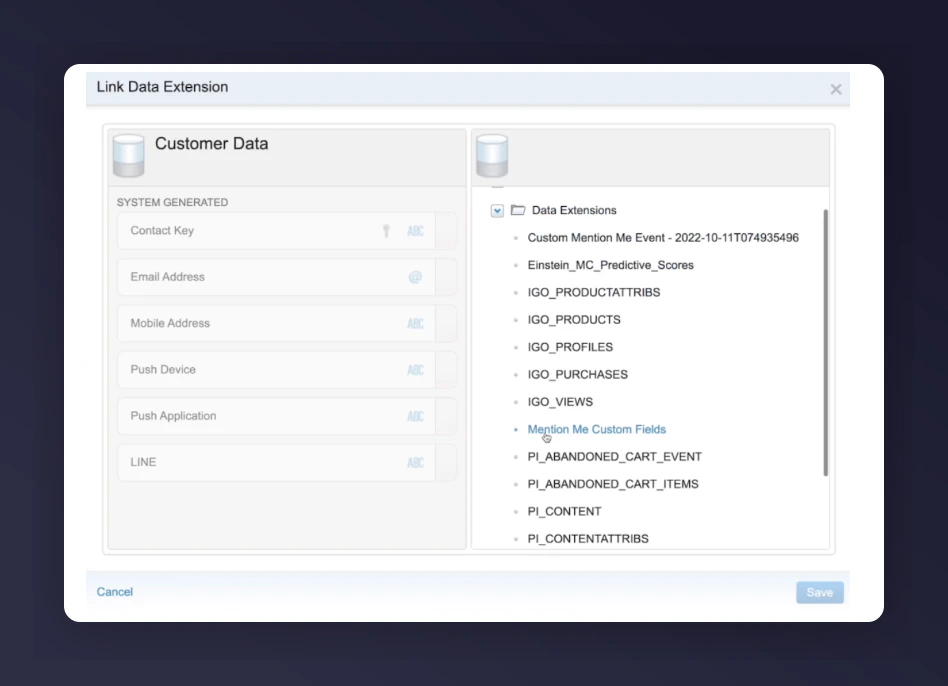
Selecting the Mention Me Custom Fields data extension.
Map the Email field
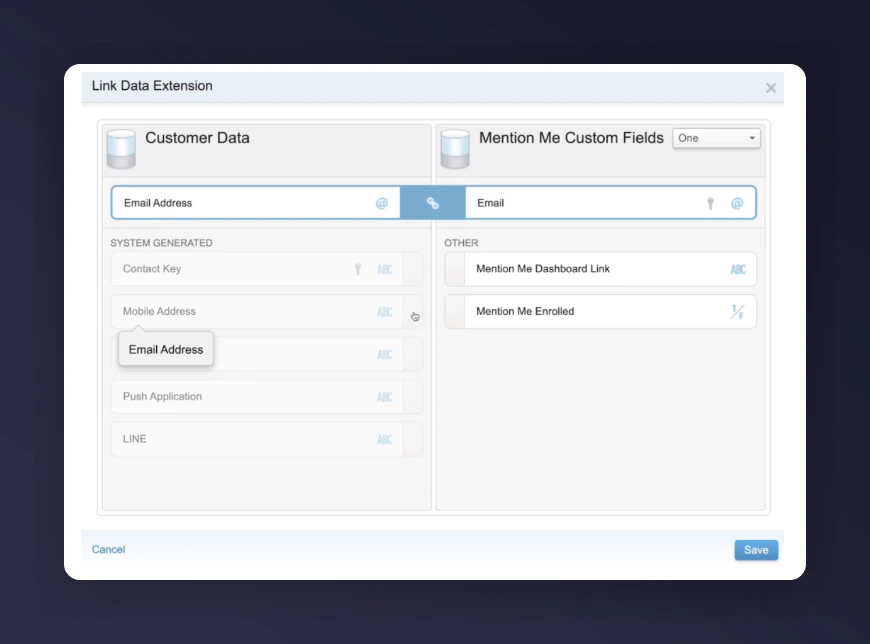
Mapping the Mention Me Email field to the Email Address field.
Save the link
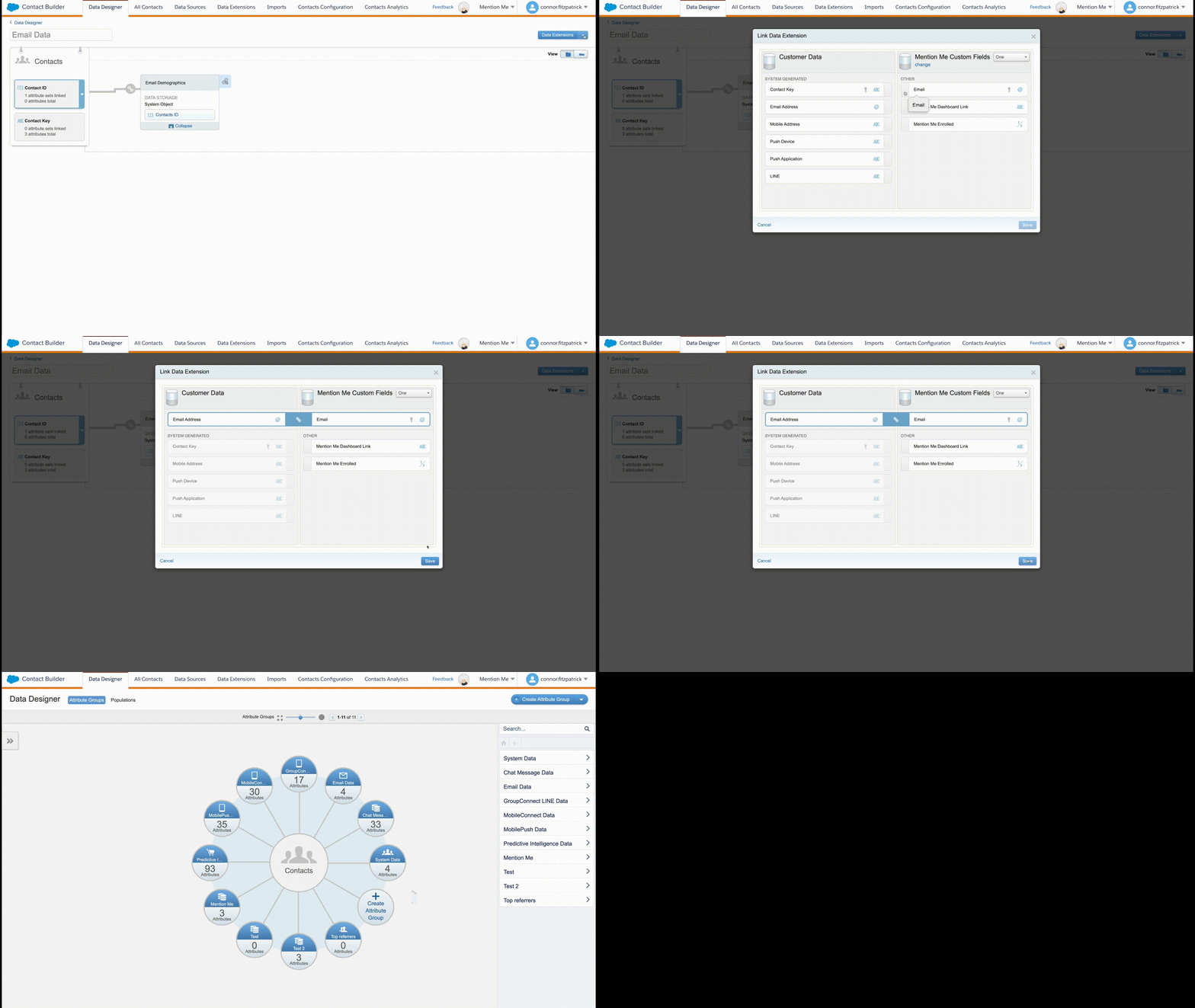
Saving the data extension link in SFMC.