

About These Programs
These Dotdigital programs remind customers to use their Mention Me coupon codes. The referee program targets prospective customers, while the referrer program targets existing customers who earned a reward for referring a friend. The programs utilise data sent from Mention Me to Dotdigital through the integration and the Program builder functionality of Dotdigital.Prerequisites
- An active Mention Me referral program
- A Mention Me / Dotdigital enabled integration
- Knowledge of Liquid Scripting
Supported Channels
Referee Program
Remind prospective customers (referees) to use their coupon codes received from being introduced to your brand. Goals:- Drive first purchase
- Increase average order value
Basic Workflow
- A prospective customer gets a coupon when their friend introduces them (email sent by Mention Me).
- A reminder email (subject to consent) is sent to use the coupon if they have not purchased yet.
- Further reminders are sent at different times to encourage coupon usage.

Referee coupon reminder program flow
Step 1: Create the Program Flow
Set the enrolment schedule
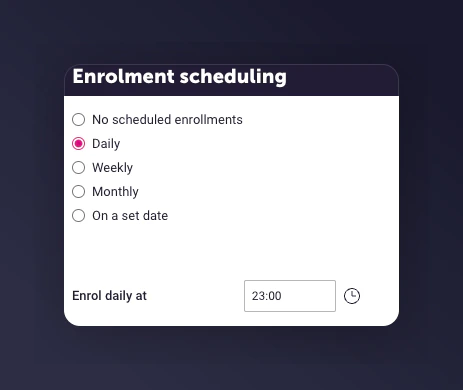
The enrolment schedule set to run daily at 23:00.
Set the enrolment rule
mm-received_referee_reward.
An enrolment rule based on the MM Referee Rewarded segment.
Set enrolment limits

Enrolment limits set to first time only.
Add wait delays
- Before 1st send: Mention Me sends the first email immediately, so include a delay to avoid duplicate emails.
- After each send: Wait to check if they have purchased.
- 1st email - 2 days after the segment trigger
- 2nd email - 6 days after the 1st email
- 3rd email - 4 days after the 2nd email
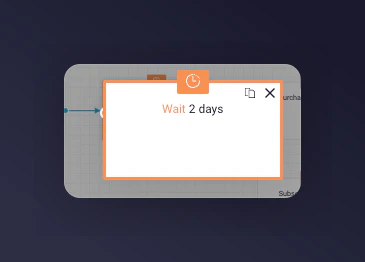
Wait delay configuration between emails.
Add a decision split
- 1st email - Purchased in last 2 days
- 2nd email - Purchased in last 6 days
- 3rd email - Purchased in last 4 days
- Add an Exit Program node on the Yes branch
- Referees meeting the No criteria move to the next step

A decision split to check for recent purchases.

Decision split configuration details in Dotdigital.
Add the email campaign

Pre-configured triggered emails created by Mention Me.
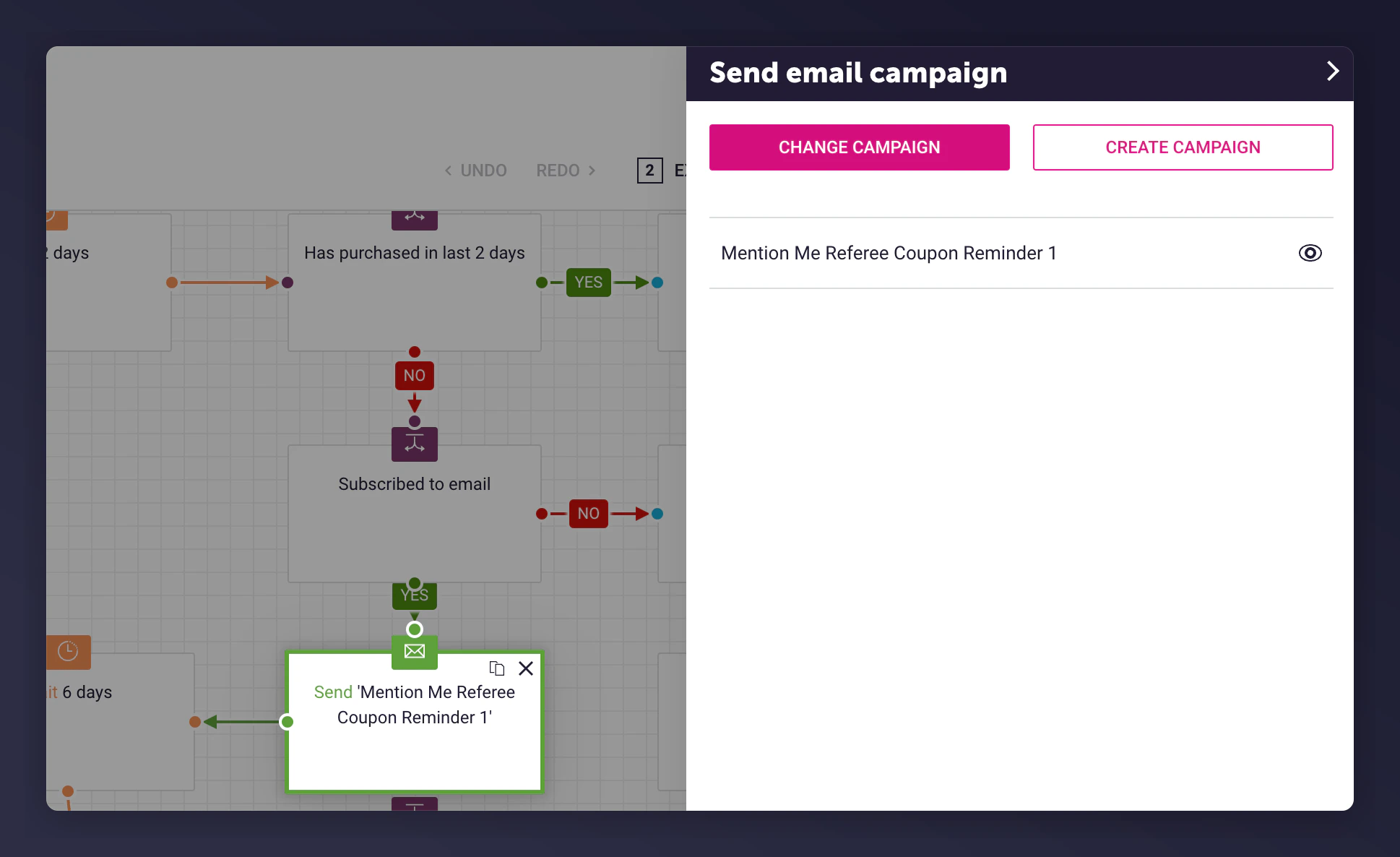
Selecting a pre-configured triggered email campaign.
Add an exit program node
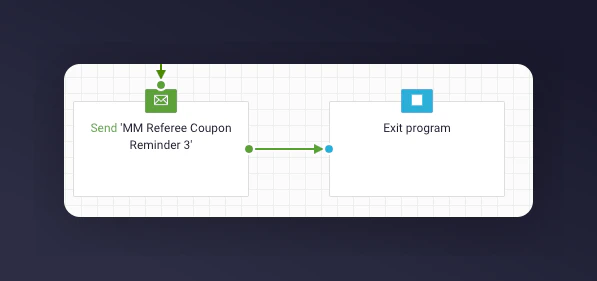
An Exit Program node placed after the last email.
Step 2: Add Content to Each Email
As part of the Mention Me Dotdigital integration setup, 3 pre-configured triggered email campaigns are created. The templates use data from the Insights collectionmm-received_referee_reward.
The Mention Me data creates a personalised email experience using Liquid Scripting.
Pre-configured triggered emails created by Mention Me.
Step 3: Test the Preview
Open the preview
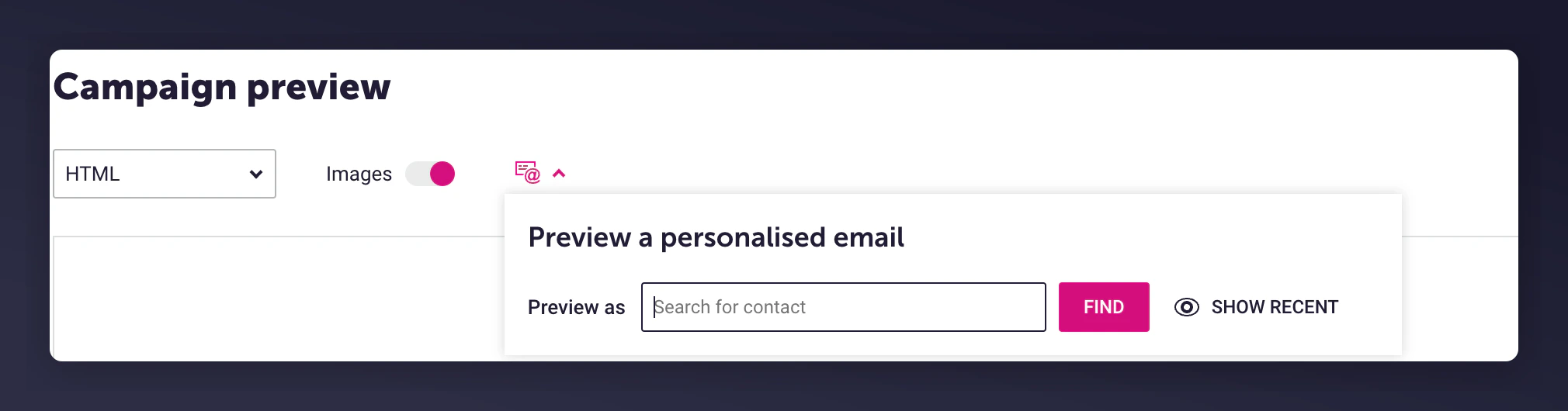
The Preview button in the Dotdigital email editor.
Select a test customer
An enrolment rule based on the MM Referee Rewarded segment.
Review the populated email

A previewed email populated with event data.
Step 4: Activate the Program
Once you are happy with the content and have tested the emails, activate the program.
The Activate program button in Dotdigital.
Referrer Program
Remind existing customers (referrers) to use their coupon codes received from introducing a friend to your brand. Goals:- Increase active customer revenue
- Increase premium customer revenue
- Increase retention
Basic Workflow
- An existing customer gets a coupon when they successfully introduce a friend (email sent by Mention Me).
- A reminder email (subject to consent) is sent to use the coupon if they have not purchased yet.
- Further reminders are sent at different times to encourage coupon usage.
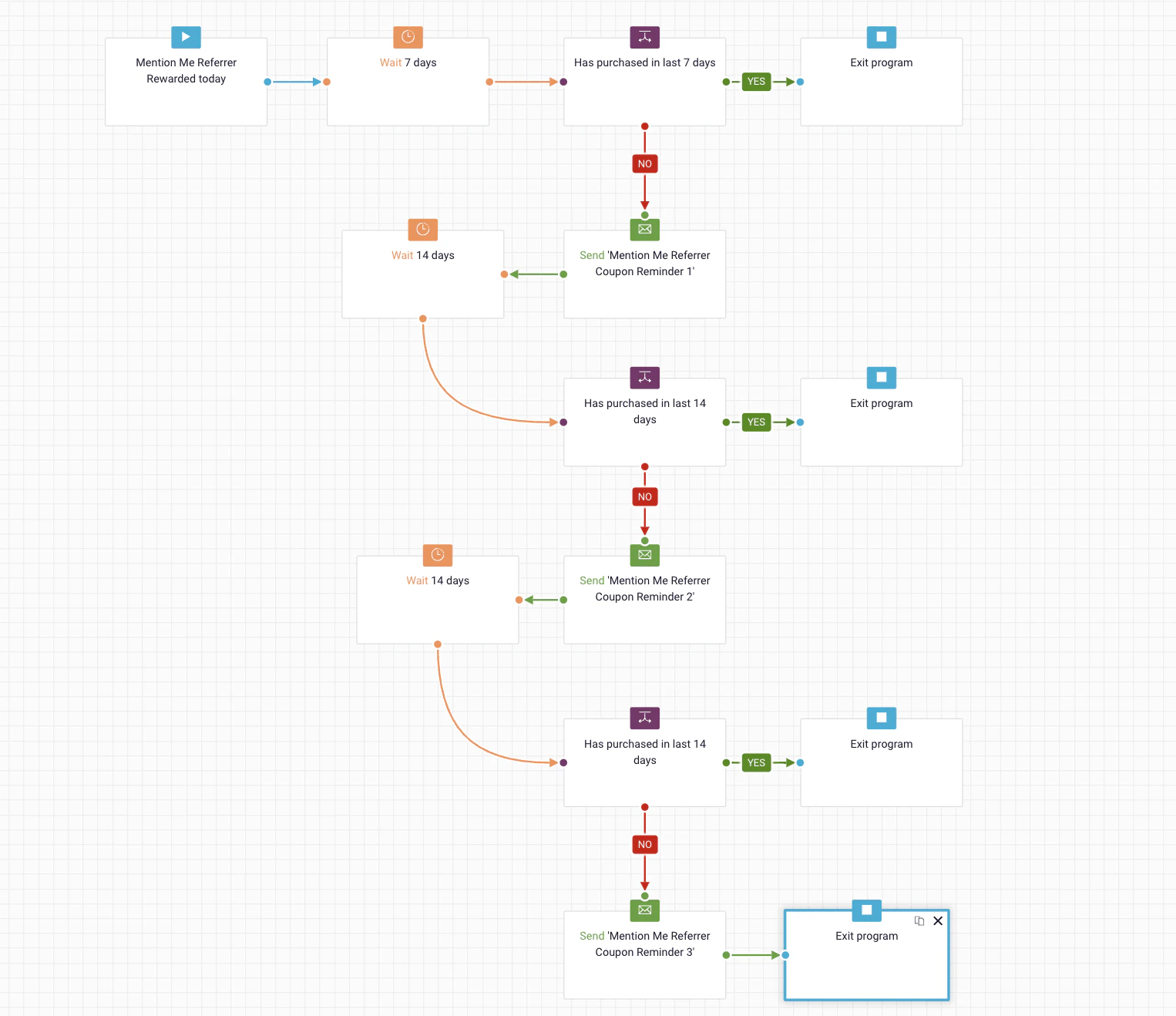
Referrer coupon reminder program flow
Step 1: Create the Program Flow
Set the enrolment schedule

The referrer enrolment schedule configuration.
Set the enrolment rule
mm-received_referrer_reward.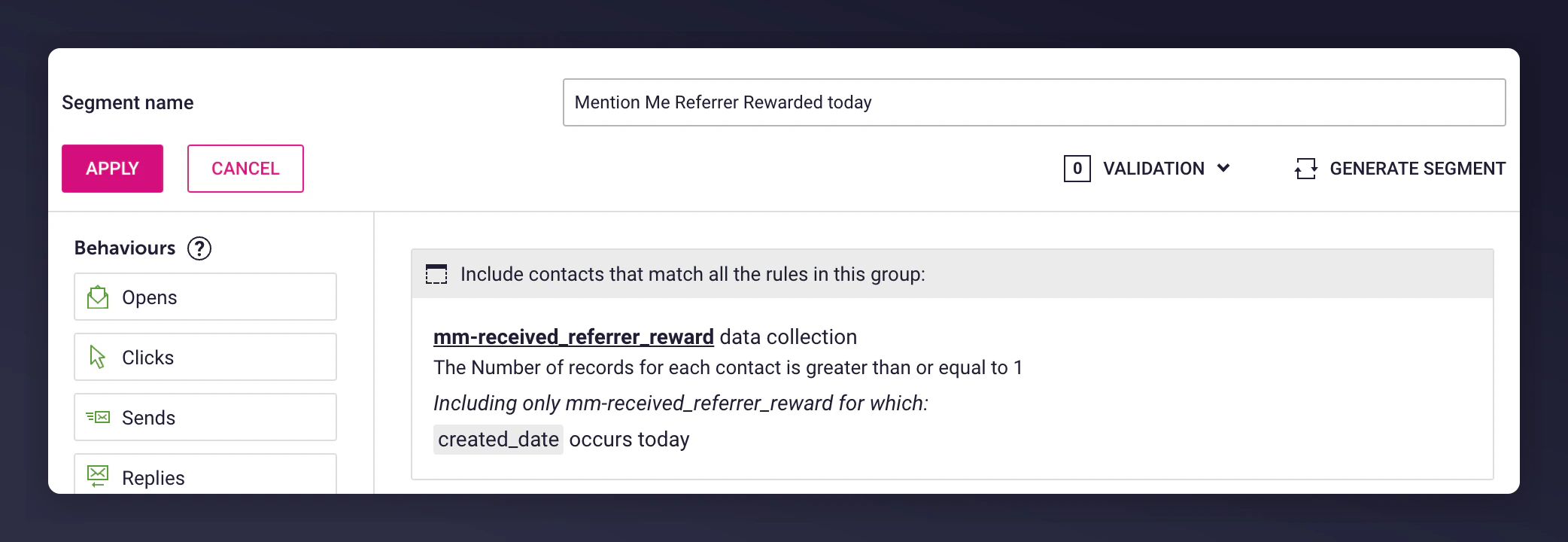
The enrolment rule for the referrer rewarded segment.
Set enrolment limits
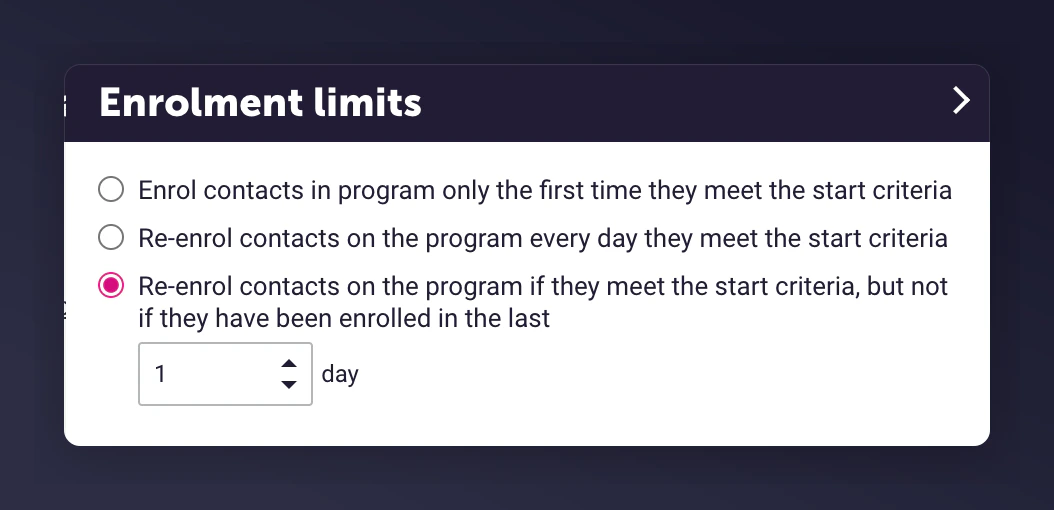
The re-enrol contacts after 1 day setting.
Add wait delays
- Before 1st send: Mention Me sends the first email immediately, so delay slightly.
- After each send: Check if the user already purchased.
- 1st email - 7 days after the segment trigger
- 2nd email - 14 days after the 1st email
- 3rd email - 14 days after the 2nd email
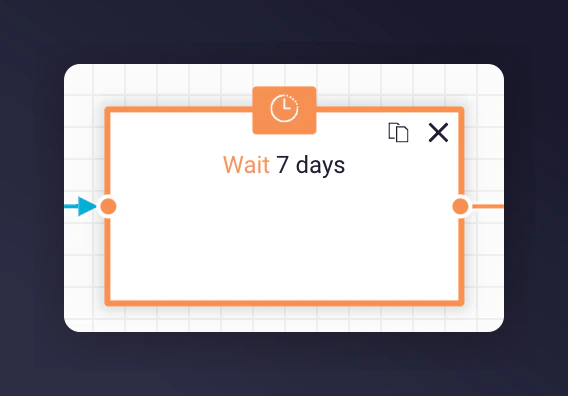
Wait delay settings for referrer reminders.
Add a decision split
- 1st email - Purchased in last 7 days
- 2nd email - Purchased in last 14 days
- 3rd email - Purchased in last 14 days
- Add an Exit Program node on Yes branch
- Referrers who didn’t purchase (No branch) continue to next emails
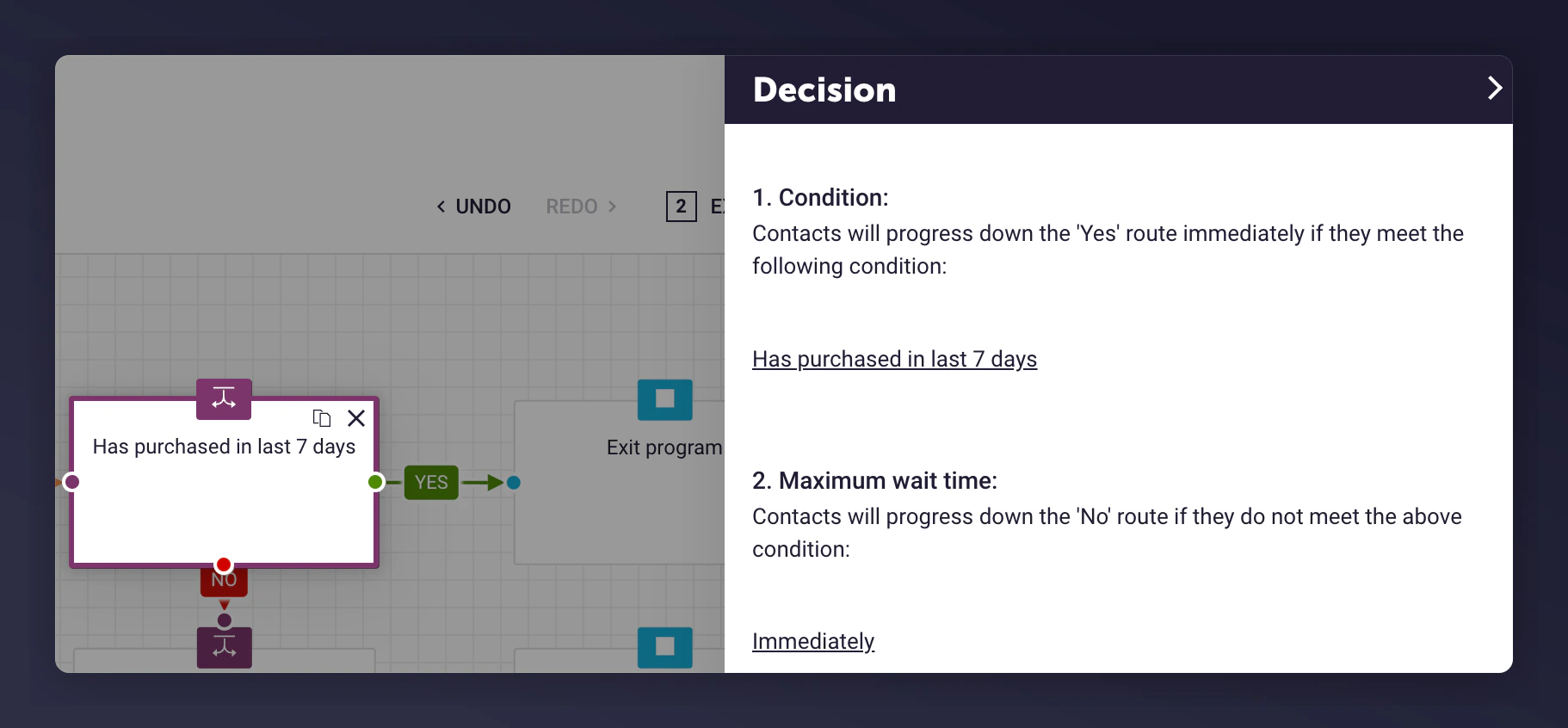
The referrer decision split for purchase checking.
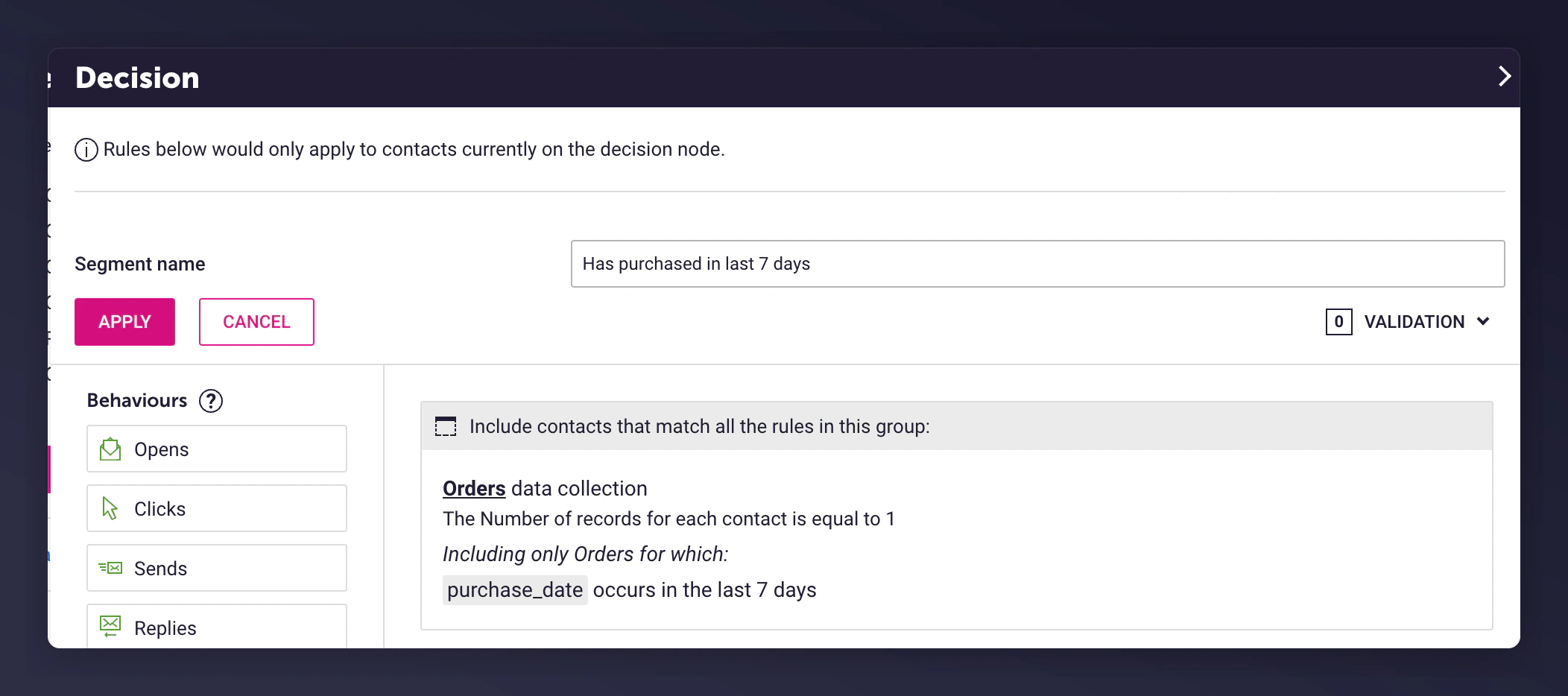
Referrer decision split configuration details in Dotdigital.
Add the email campaign
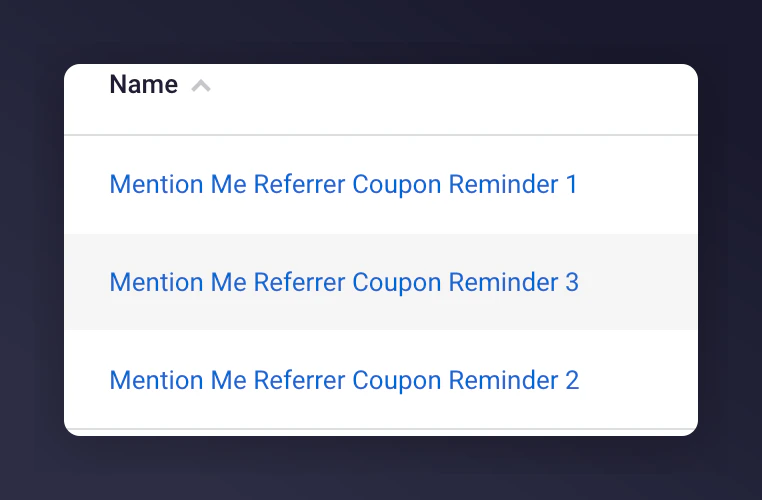
Selecting the referrer triggered email campaign.

Referrer email campaign selection details.
Add an exit program node
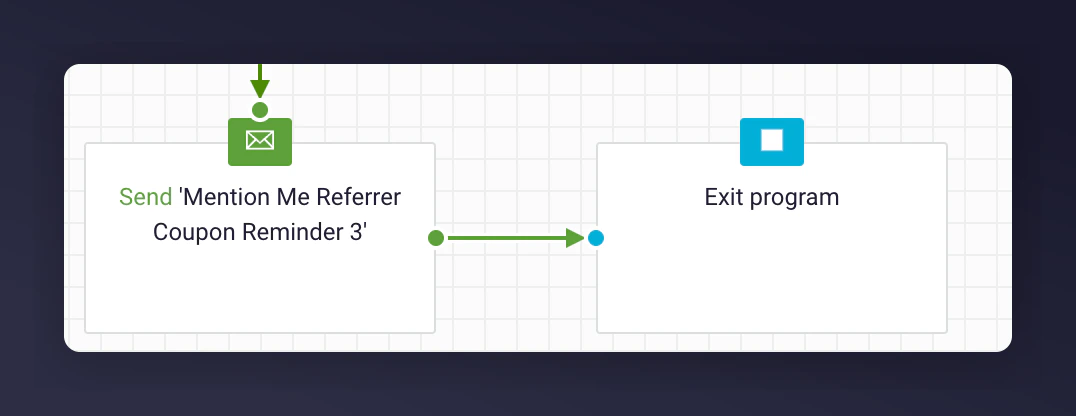
An Exit Program node placed after the last referrer email.
Step 2: Add Content to Each Email
As part of the Mention Me Dotdigital integration setup, 3 pre-configured triggered email campaigns are created. The templates use data from the Insights collectionmm-received_referrer_reward.
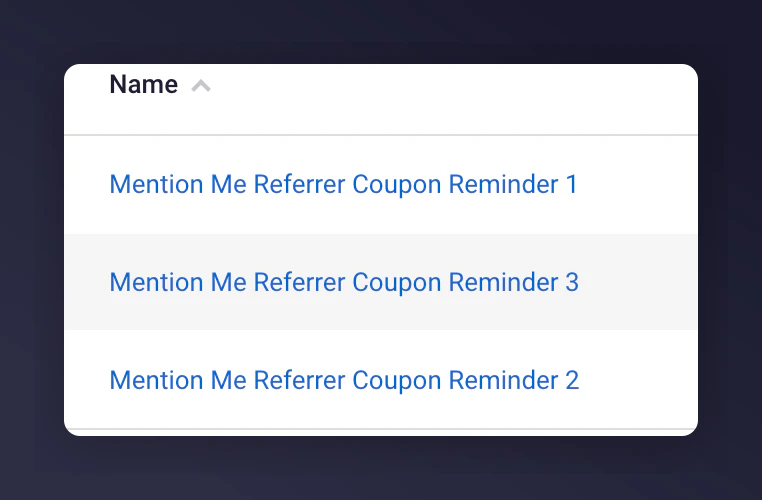
The pre-configured referrer triggered emails.
Update the imagery and styling
Adjust the tone of voice
Add product recommendations
Template Content
Each email includes a Liquid markup block:
The Liquid markup block used in the email template.
Reminder Examples Using Liquid Variables
Liquid Variables
Step 3: Test the Preview
Open the preview
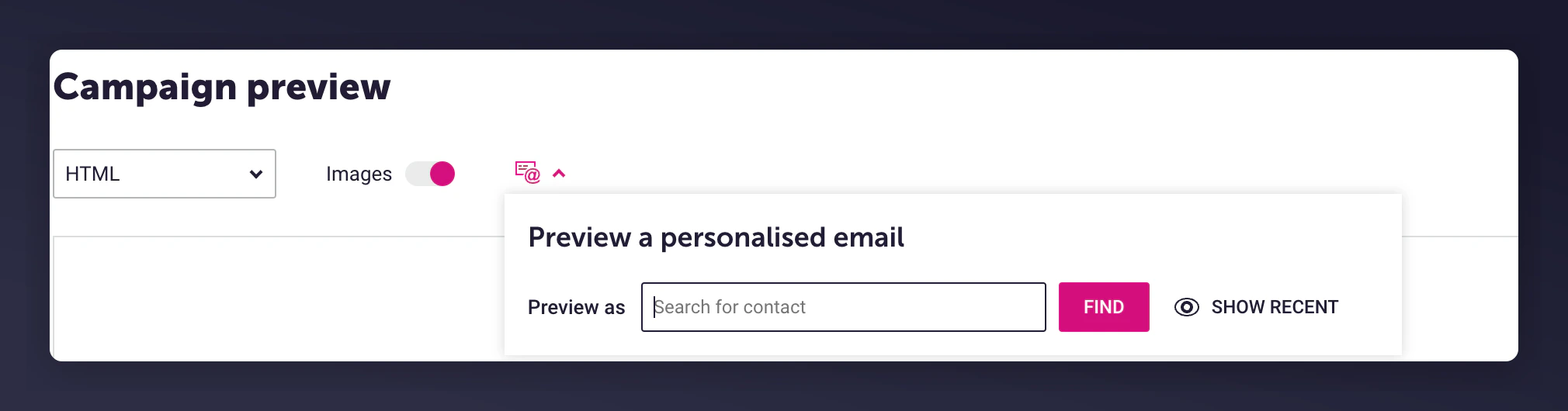
The Preview button in the referrer email editor.
Select a test customer
The enrolment rule for the referrer rewarded segment.
Review the populated email
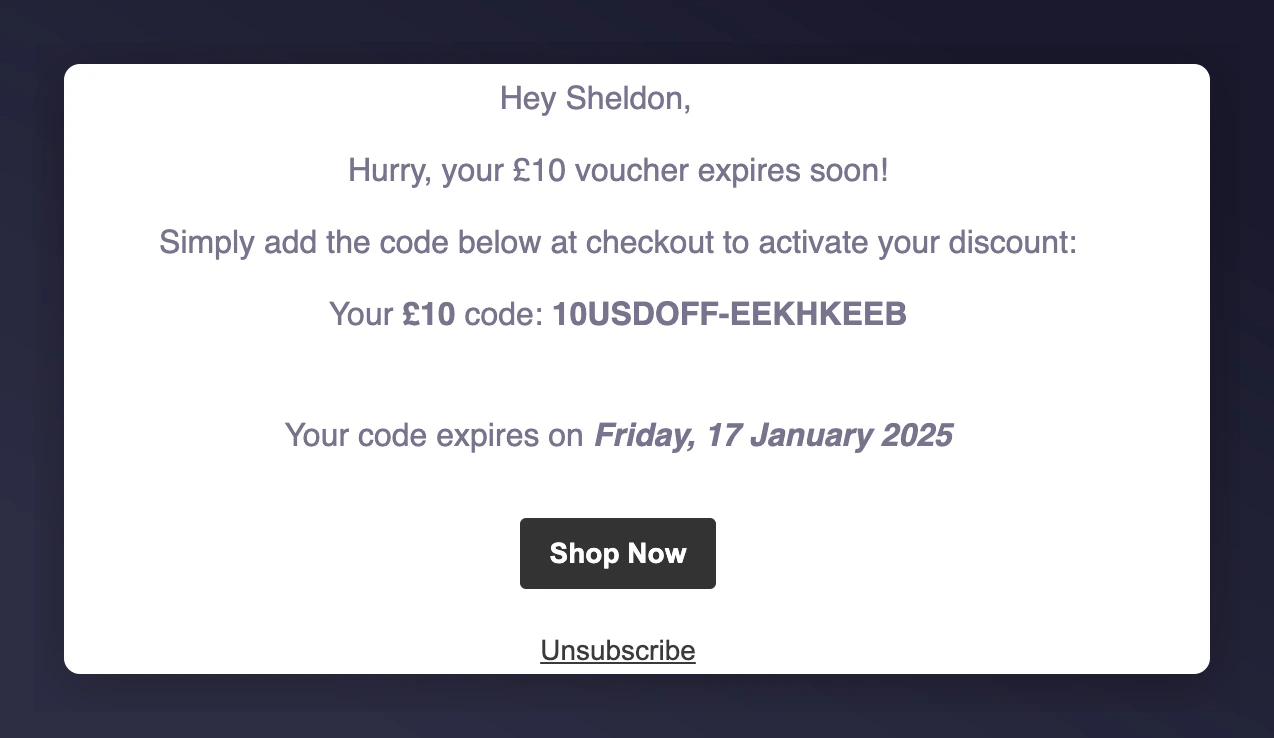
A referrer preview email with populated data.
Step 4: Activate the Program
Once you are satisfied with the content and test previews, activate the program.
The Activate referrer program button in Dotdigital.