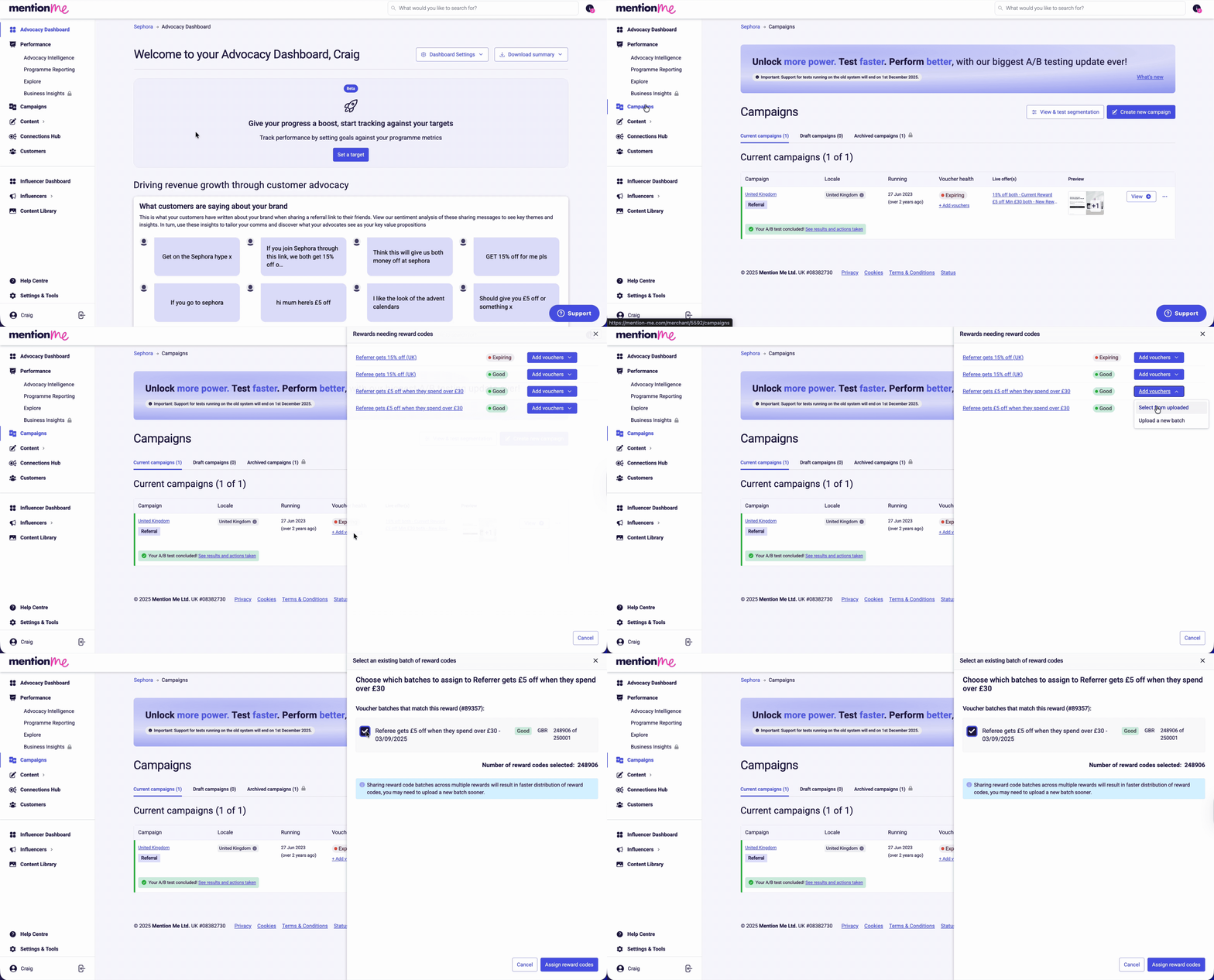
Click Campaigns. The overview displays voucher health per campaign and highlights which ones need updates.
2
Select and assign batches
Click + Add vouchers > Add vouchers > Select from uploaded. Select all the relevant voucher batches that apply to this offer and click Assign reward codes.
Assigning a listed voucher batch to a campaign reward.
Use this approach when a batch doesn’t appear in the “Select an existing batch” sidebar - for example, if vouchers were uploaded to the wrong offer or an old batch is being re-purposed.
1
Find the voucher batch ID
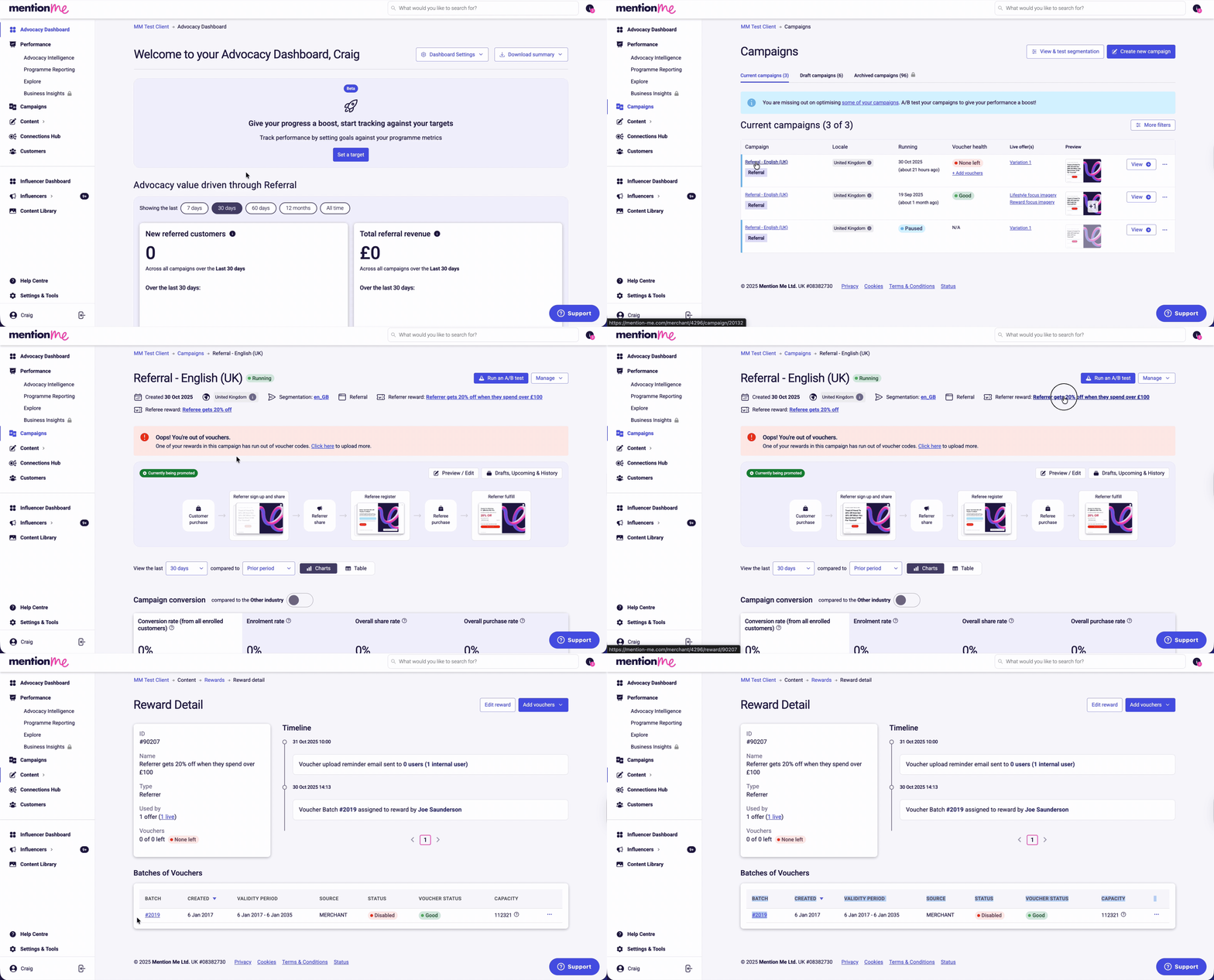
Click Campaigns, click the relevant campaign name, then click the name of the relevant reward. Make a note of the batch ID.
Finding the voucher batch ID in the reward view.
2
Assign the batch to the reward
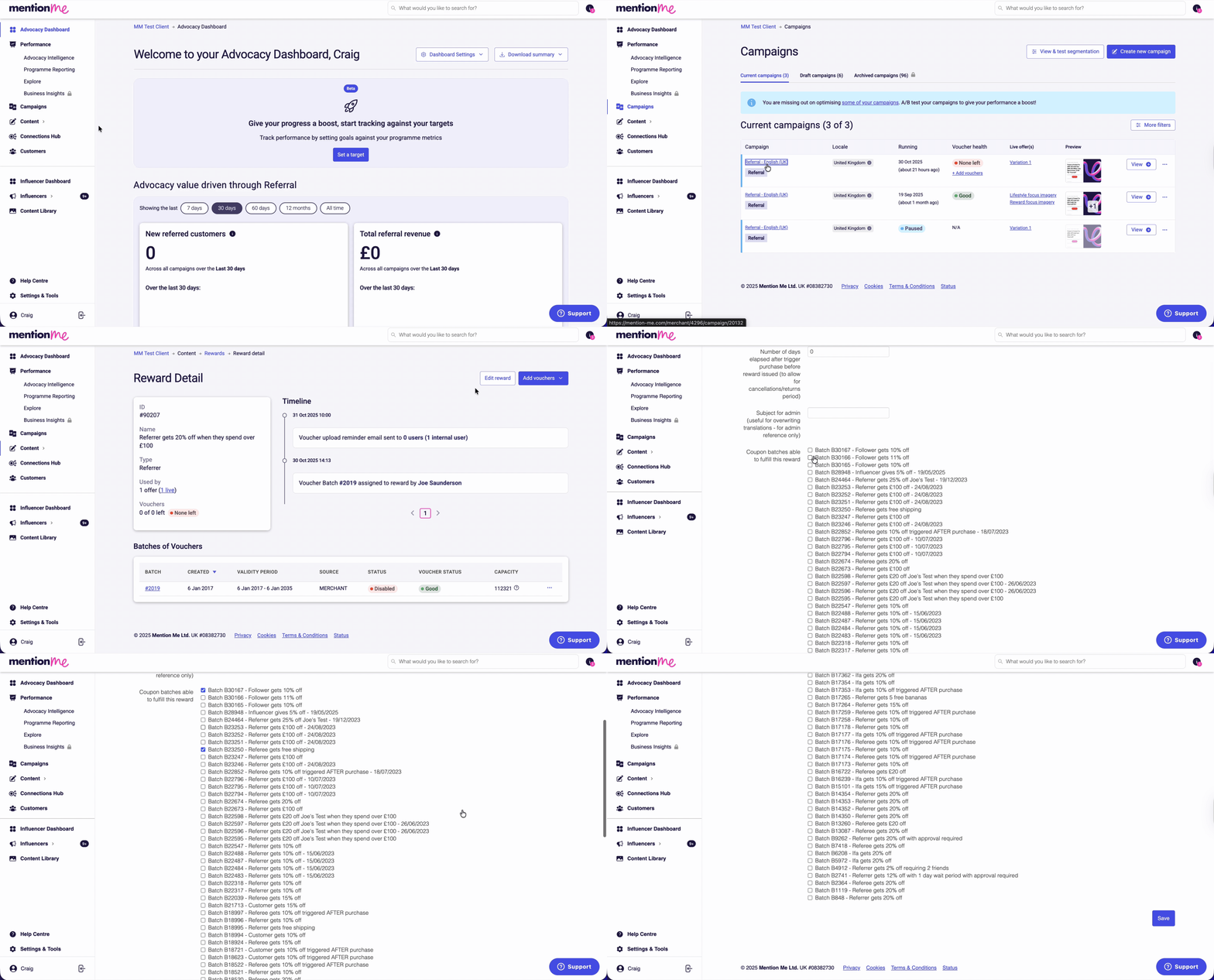
Click Campaigns, click the name of the relevant campaign you want to assign the vouchers to, then click the relevant reward name. Click Edit reward, tick and untick the batches that you want to apply to the offer, and press Save.
If you need to locate the reward from the Content page:
1
Locate the Reward
Go to Content > Rewards. Locate the matching reward using its reward ID code (typically 5 digits, visible on the experiment overview page). Use Ctrl/Cmd+F to search, or filter by:
Reward Type (who the reward is for)
Fulfilment Type (how rewards are distributed)
Voucher Status (Good or None Left)
Used By (Live, Draft, or Previous experiments)
Amount (the value of the reward)
2
Edit the Reward
Click Manage on the reward, then click Edit reward in the top right corner.
3
Assign the Batch
Find the batch by its Batch ID, tick the checkbox, and click Save.
Go to your Draft campaign section. Click the campaign name, then the experiment name.
2
Open the reward
Click the notification under the preview: “Referrer reward / Referee reward has no means of fulfilment”. This takes you to a filtered view of Content > Rewards for the specific reward.
3
Assign voucher batches
Click Add vouchers > Select from uploaded. Select applicable batches and click Assign reward codes.
Repeat this process for each campaign or territory as needed.
Last modified on July 10, 2026
Was this page helpful?
Assistant
Responses are generated using AI and may contain mistakes.