Documentation Index

Fetch the complete documentation index at: https://docs.mention-me.com/llms.txt

Use this file to discover all available pages before exploring further.

Mention Me supports two ways to bring influencers into your programme: inviting discovered influencers from the Suggested section, and directly inviting influencers by email (bypassing the application process entirely).

Inviting discovered influencers

Once Mention Me has reviewed your potential influencers, they appear in your Suggested section.

Review and manage

  • Save influencers to review them later.
  • Reject influencers to improve discovery recommendations.
  • Invite influencers to send an invitation email asking them to register.

Suggested influencers with Save, Reject, and Invite actions

Single and bulk invitations

  • Single invite: Click Invite next to a specific influencer.
  • Bulk actions: Select multiple influencers, then choose Invite or Reject. The bulk invite option works if you have only one active programme.
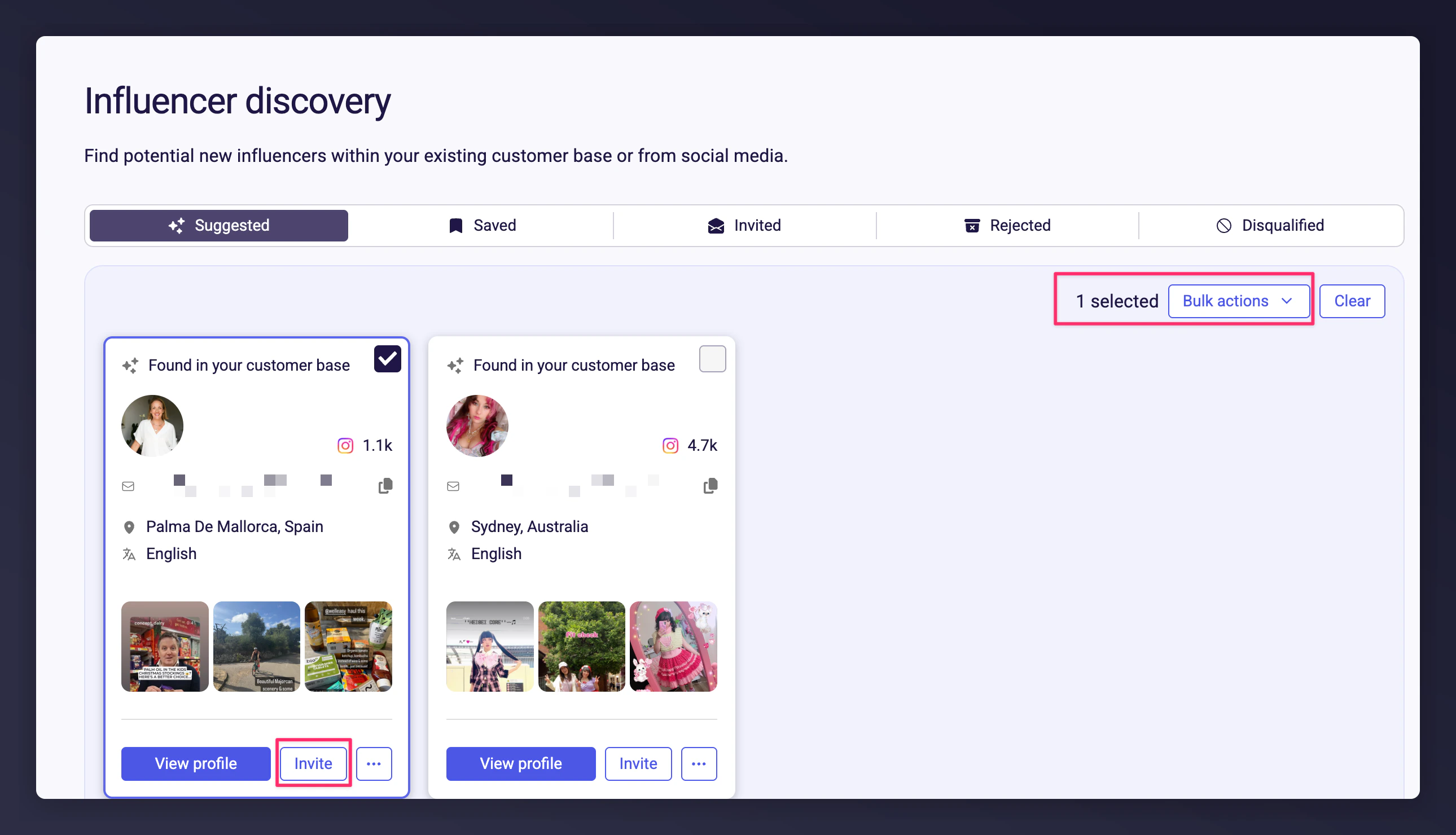
Bulk invite and reject options for multiple influencers

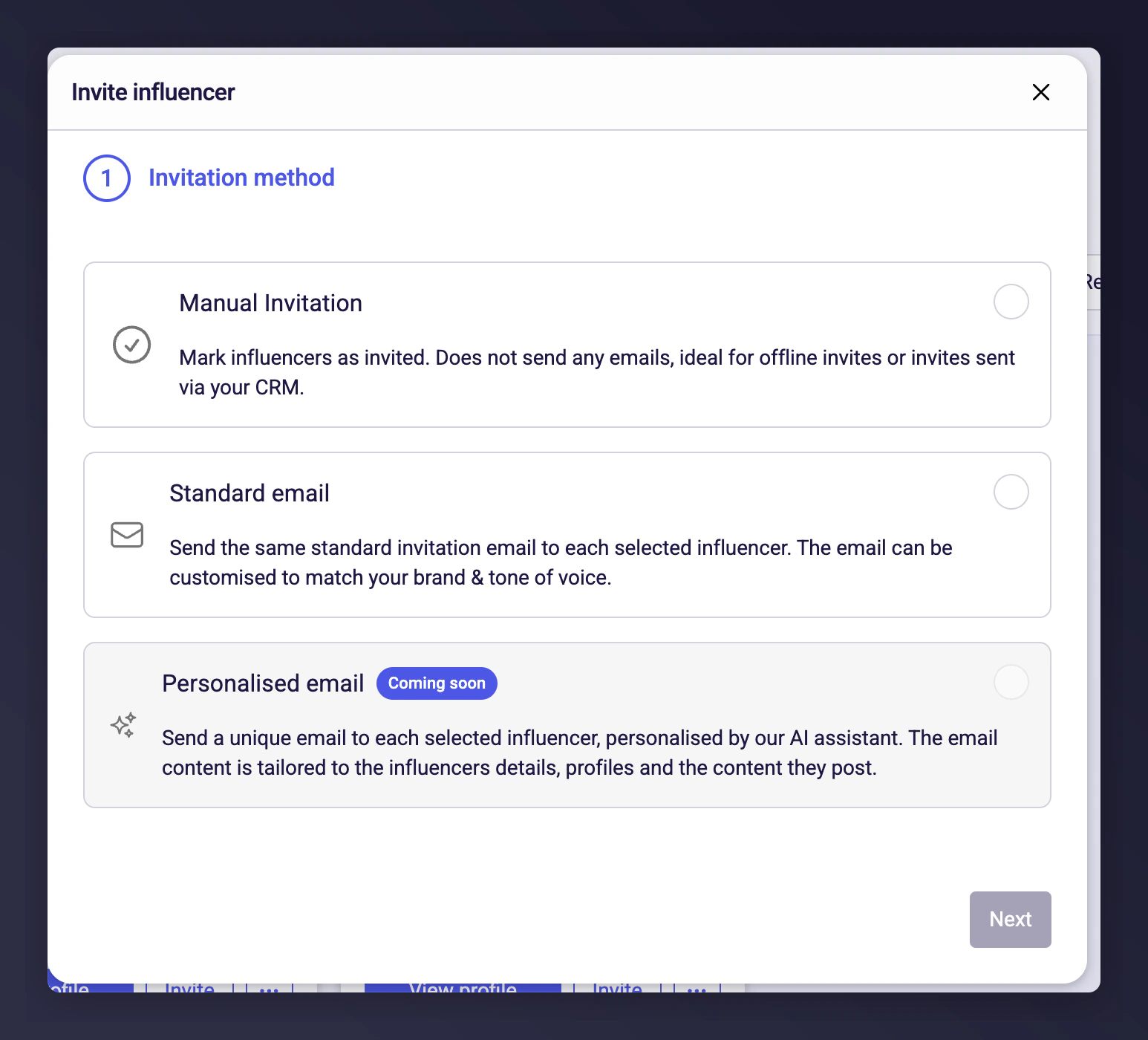
Choose your email method

When inviting, you can send via Mention Me using the invite email template (previously configured) or manually through your own CRM. Email method selection for influencer invitations For emails sent via Mention Me, after clicking Invite:
1

Select programme

Select which programme to invite the influencer into. All of your programmes are available, regardless of the influencer’s suitability scores — scores are advisory and do not restrict which programmes you can invite to. If you only have one programme, it is selected automatically.
2

Choose language

Choose the language for the email (auto-selected if only one is set up).
3

Confirm and send

Confirm to send the invitation email.

Manual invitations

Download a list of influencer emails and send invitations directly from your own CRM. Once your influencers have been invited, proceed to reviewing and onboarding them.

Directly inviting influencers by email

For influencers you’ve already vetted — from an outreach campaign, a personal introduction, or an existing relationship — you can invite them directly. No application process is required. You can invite up to 100 influencers at once.

Sending invitations

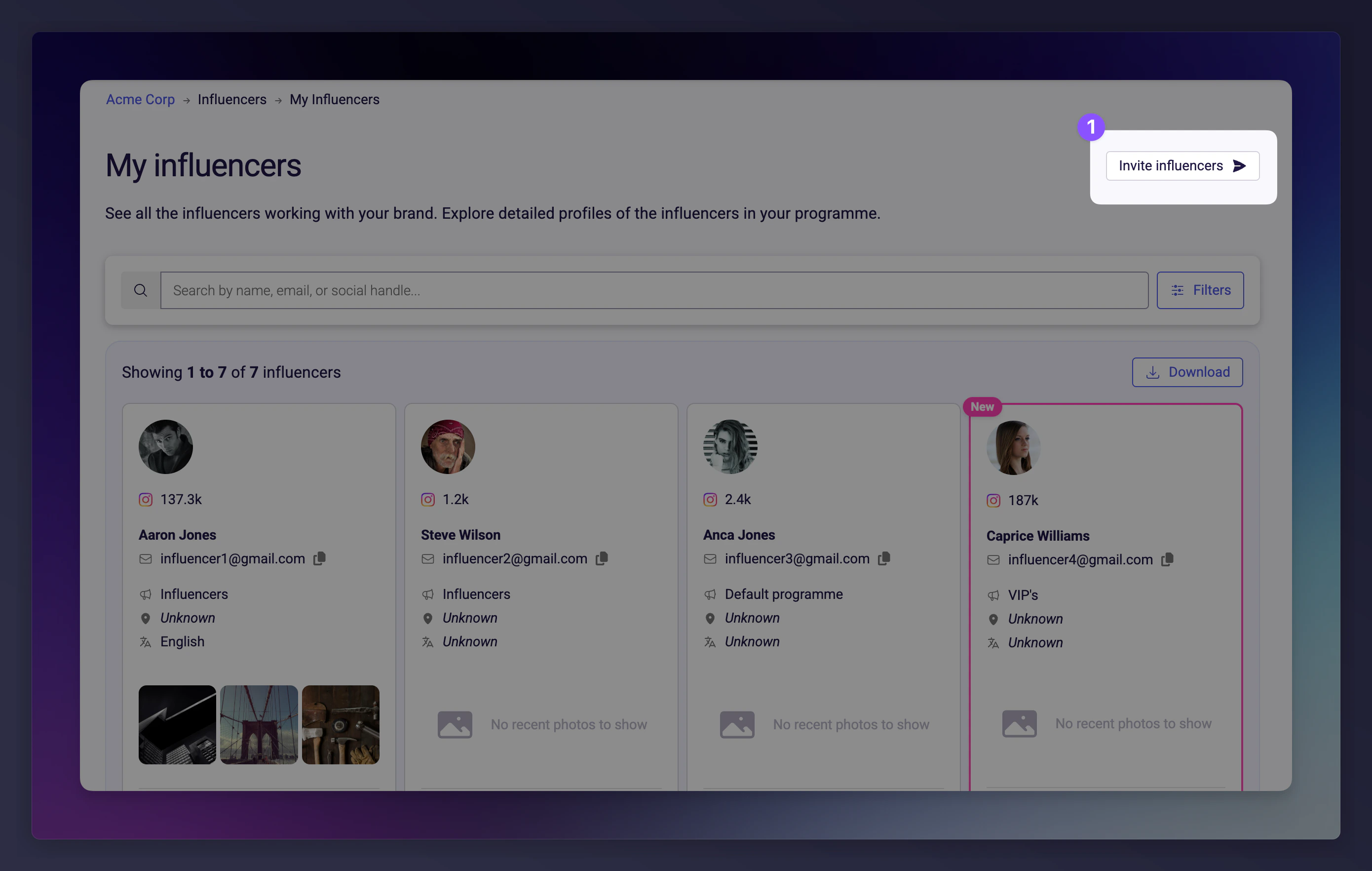
Navigate to My Influencers and click the Invite influencers button in the top-right corner. Invite influencers button on My Influencers page
1

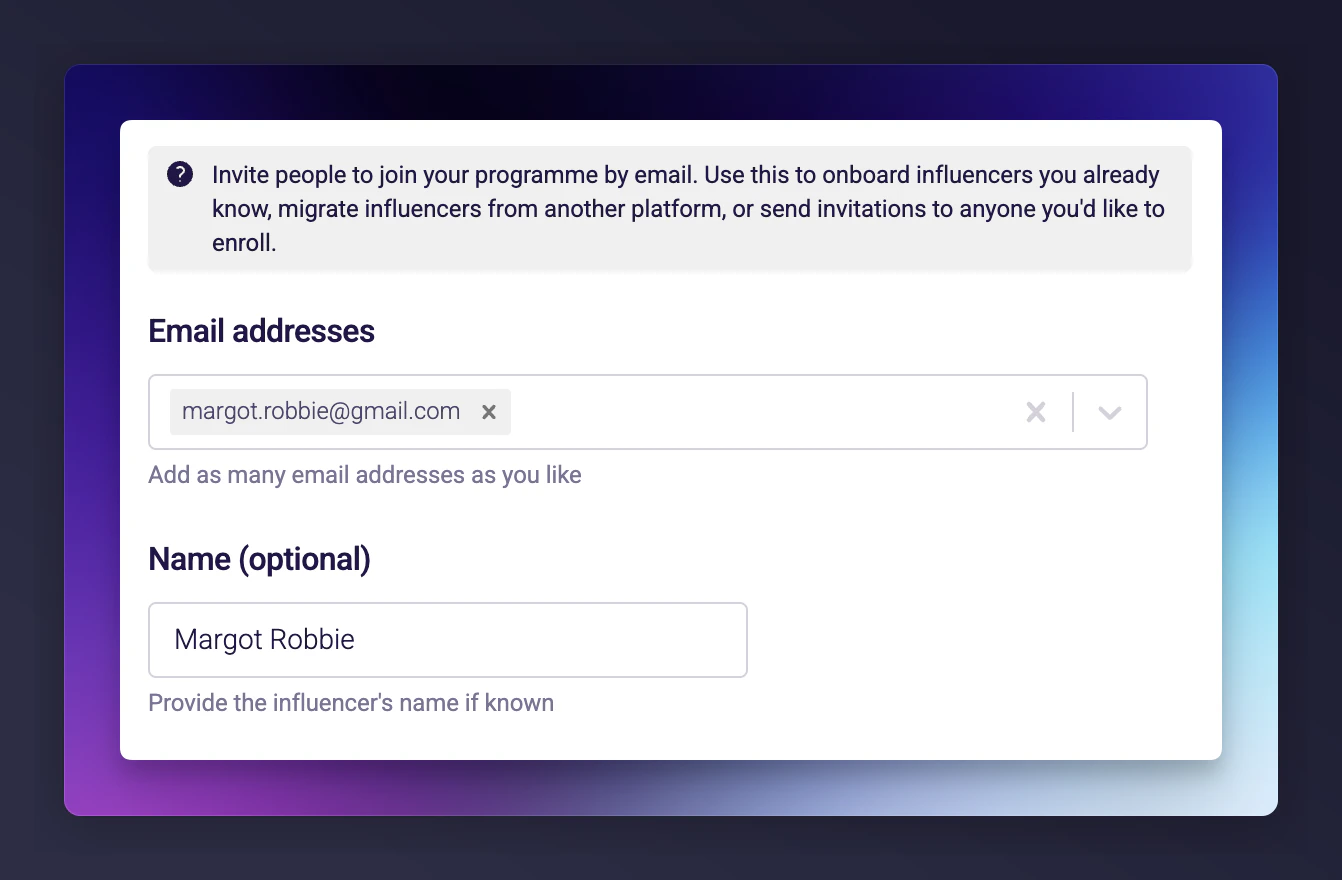
Enter email addresses

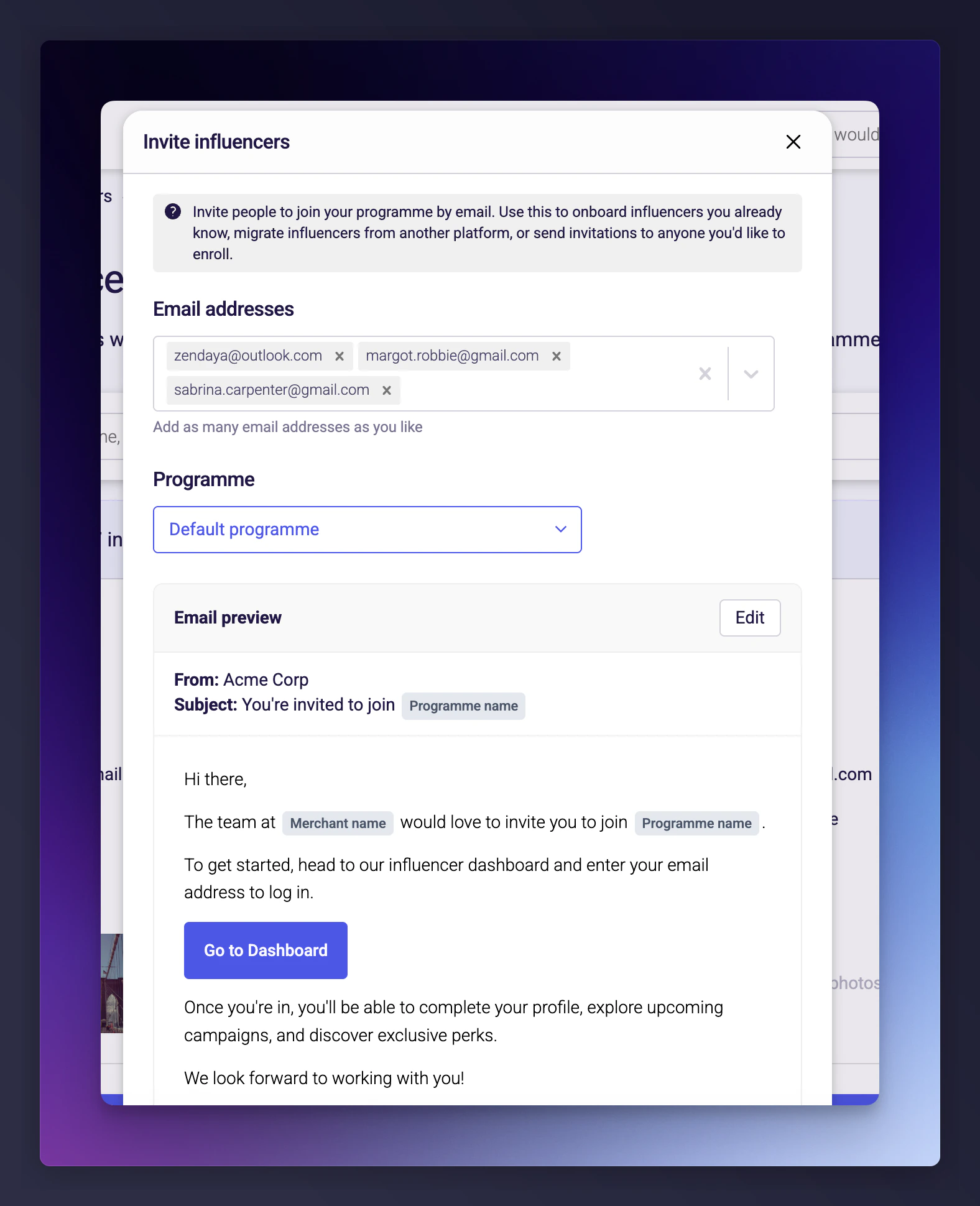
Type or paste email addresses into the input field. Press Enter or Tab after each one, or paste a comma-separated list.
  • Minimum: 1 email
  • Maximum: 100 emails per batch
  • Duplicates and invalid addresses are rejected automatically
  • Existing influencers in your programme are silently skipped Email address input field for bulk invitations
2

Select a programme

Choose which influencer programme to invite them into. If your account only has one programme, it is selected automatically.
3

Select a locale

If your programme supports multiple locales, choose which locale the influencer should receive. This determines the language of their dashboard and email.
4

Add a name (optional)

When inviting a single influencer, an optional Name field appears. If provided, this pre-populates the influencer’s first name in their profile.Single influencer invite with optional name field
5

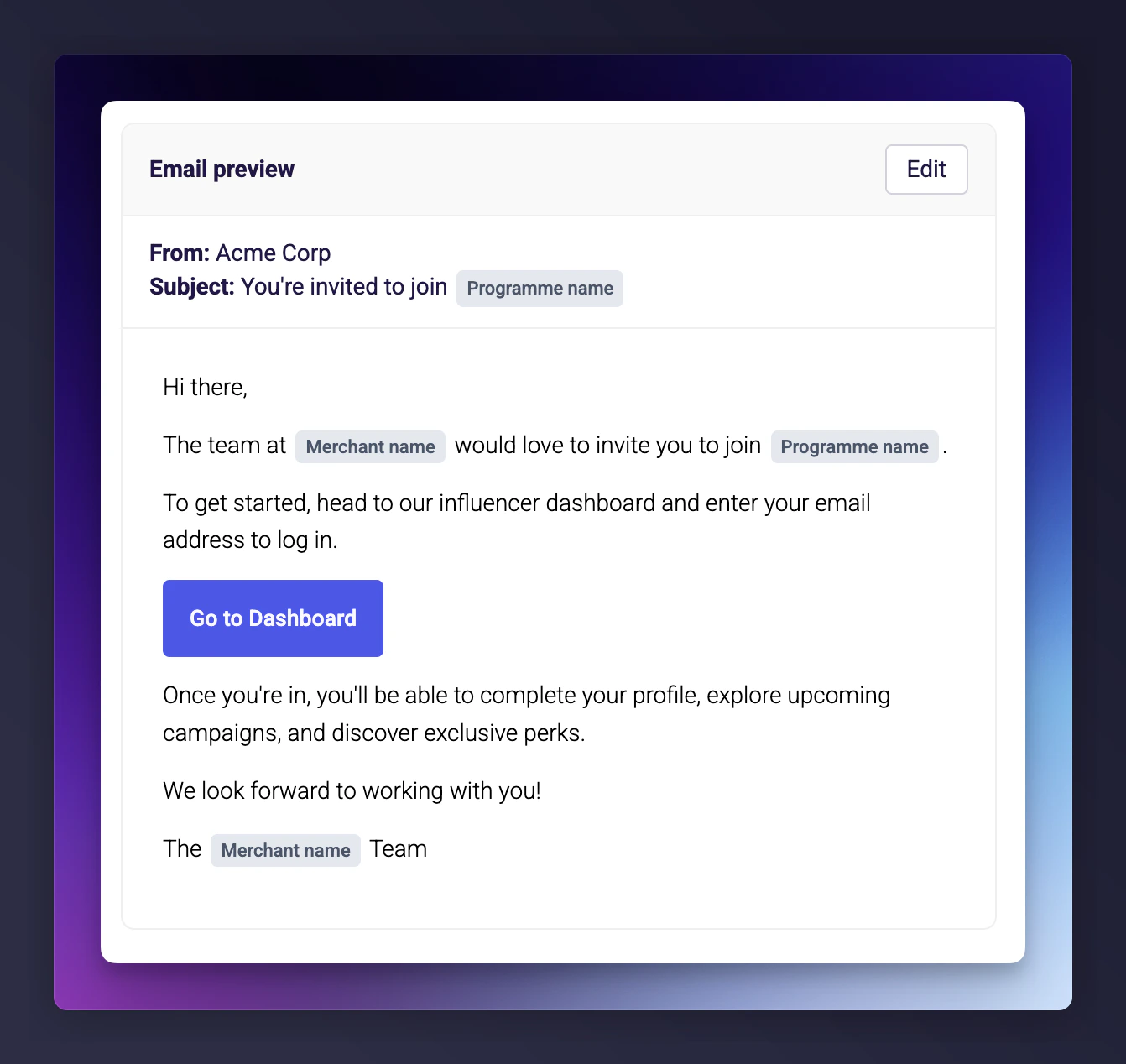
Preview and customise the email

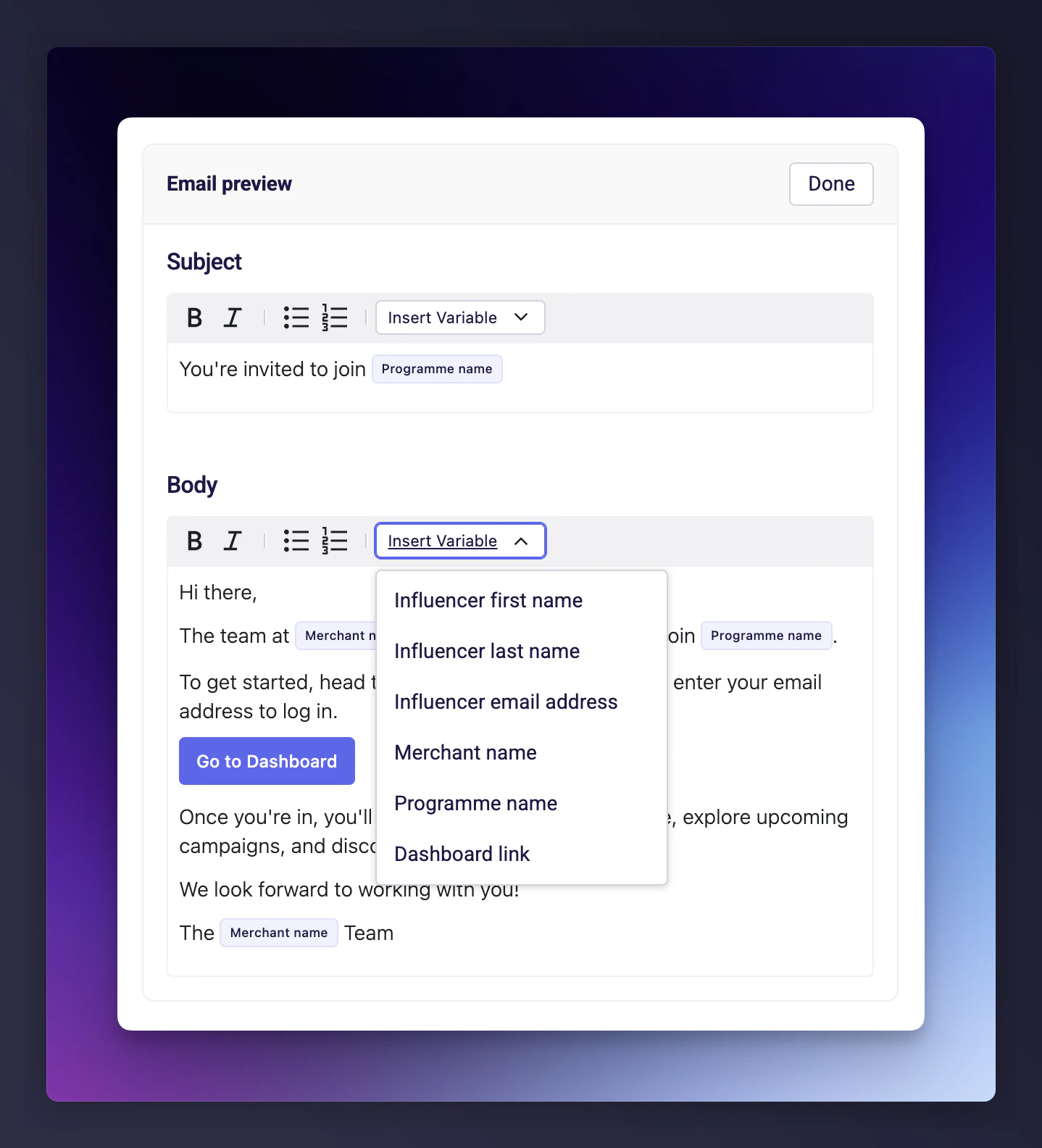
A preview of the invitation email appears below the form. Click Edit to reveal editable subject and body fields. The body supports Markdown formatting and template variables:
VariableDescription
Influencer first nameThe first name of the influencer
Influencer last nameThe last name of the influencer
Influencer email addressThe account email
Merchant NameYour brand’s display name
Programme NameThe name of the programme
Influencer dashboard linkA link to your branded login page
Invitation email preview with edit optionEmail body editor with Markdown and template variablesCustomisations only apply to the specific send. To change the default template for all future invitations, go to Programmes > Select programme > Email Setup.
6

Send

Click Send invitations to deliver the emails. A confirmation message shows how many invitations were sent successfully.

What happens behind the scenes

For each email address, Mention Me:
  1. Creates an influencer record linked to your programme and locale.
  2. Sets the influencer to Active status immediately (no approval step).
  3. Creates a user account for magic link login.
  4. Sends the invitation email with a link to the dashboard.
Invited influencers skip the standard application and approval flow entirely.

The influencer’s experience

  1. Receive the invitation email — a branded email inviting them to join.
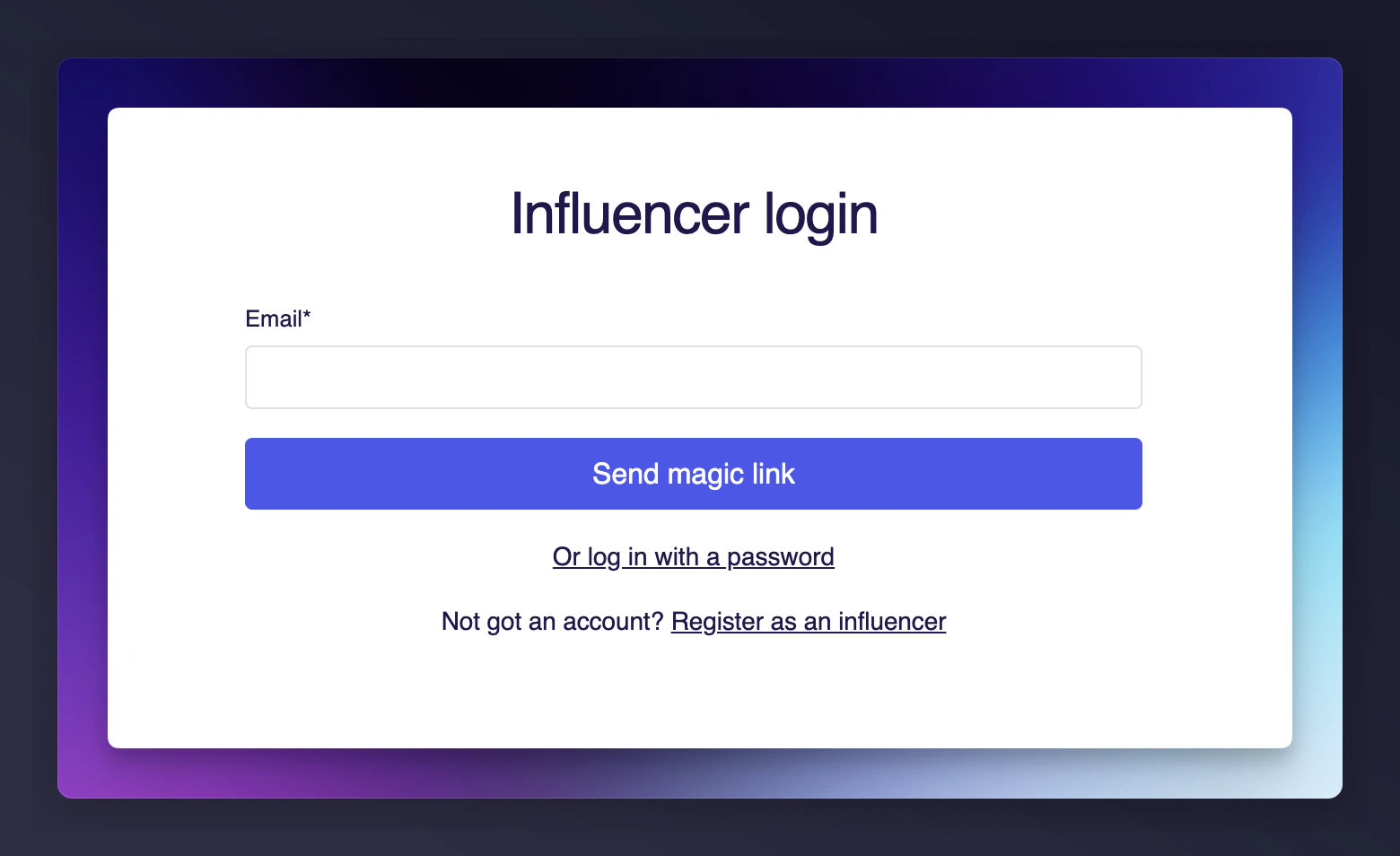
  2. Log in via magic link — they enter their email on your login page and receive a magic link (no password required).
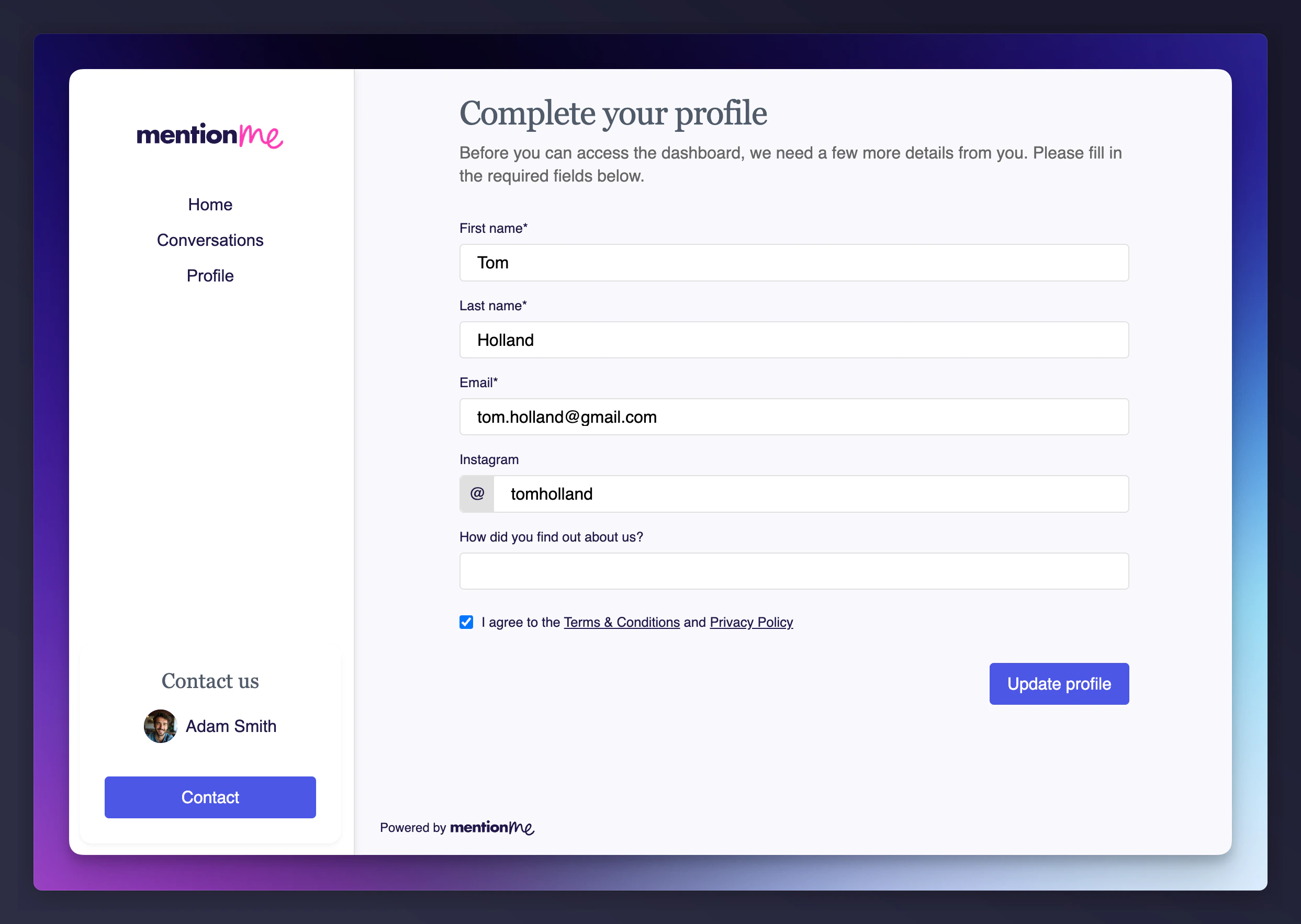
  3. Complete their profile (if required) — if your programme has required registration fields, a profile completion gate blocks dashboard access until they fill in the required fields.
  4. Access the dashboard — they can browse collaborations, view earnings, and manage their profile.
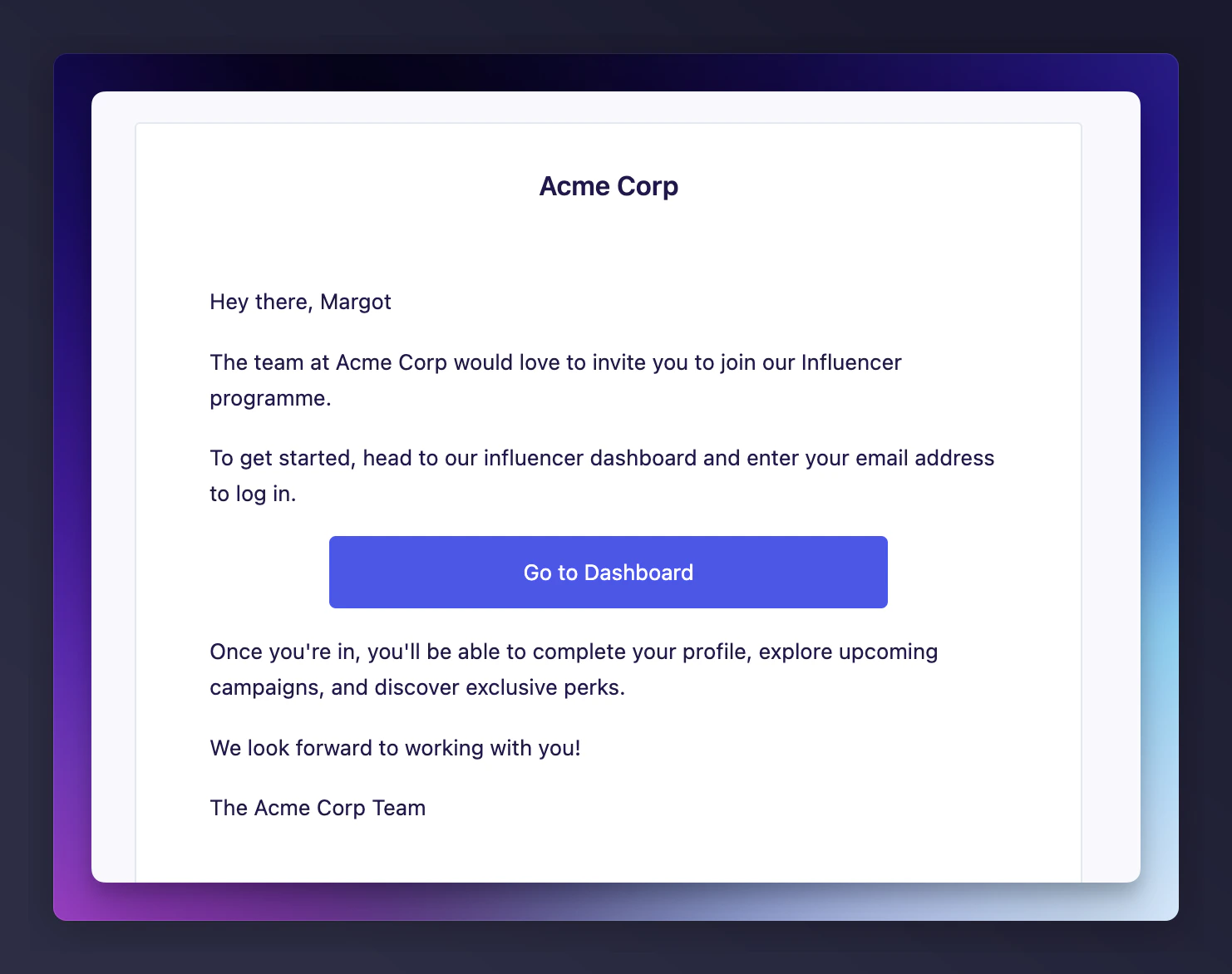
Influencer invitation email received Magic link login page for influencers Influencer dashboard after login

How invites differ from applications

Application flowInvite flow
Who initiatesInfluencer appliesMerchant sends invite
Approval requiredYesNo — instant activation
Status transitionsPending > Onboarding > ActivePending > Active (direct)
Emails sentApplication received, then Approved/RejectedInvitation email only
Profile dataCollected during applicationCollected after first login (if needed)
Email customisationPer-programme template onlyPer-send customisation available

Managing the invitation email template

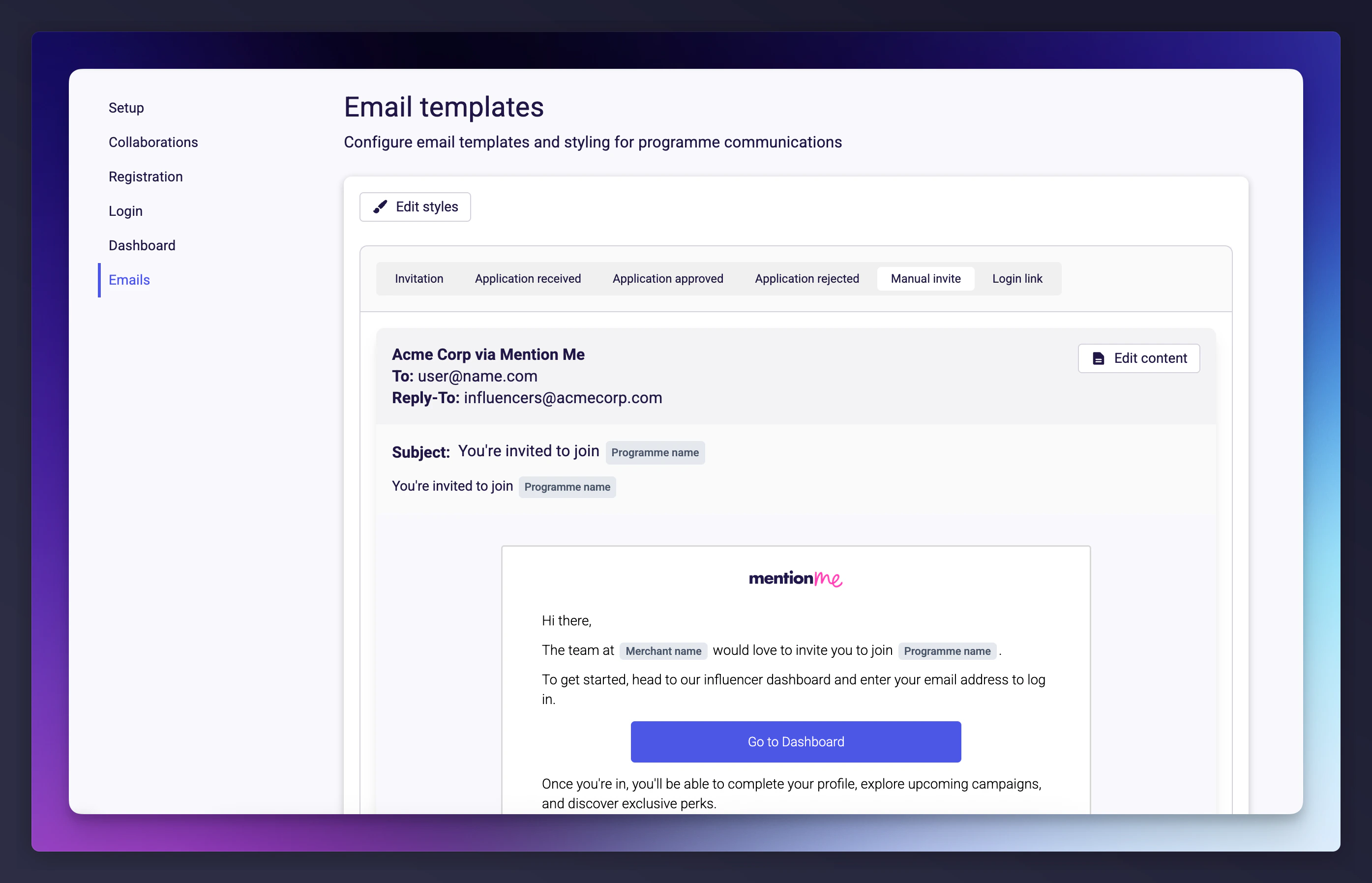
The default invitation email content is configured per programme and per locale. To update it:
1

Open your programme

Go to Programmes and select your programme.
2

Navigate to Email Setup

Find the Manual invite email template.
3

Edit the template

Edit the subject and body as needed.Manual invite email template in programme settings
Changes to the default template apply to all future invitations. Per-send customisations in the invite modal override the default for that specific send only.

Frequently asked questions

What happens if I invite someone who’s already in the system? They are silently skipped. No duplicate is created, no error is shown, and no additional email is sent. Can I invite influencers to multiple programmes? Influencers can only be assigned to a single programme at any one time. Do invited influencers need to go through approval? No. Invited influencers are activated immediately. Can I track which influencers were invited vs. applied? Yes. Influencers created through the invite flow are tagged with the source. What if the influencer doesn’t complete their profile? They remain Active but see the profile completion gate every time they log in until they fill in the required fields. Can I customise the email differently for each recipient? The per-send customisation applies to all recipients in that batch. For different messaging, send separate invitations.
Last modified on April 23, 2026