

Accessing the Email Setup
Log in to the Mention Me platform, select Manage for the programme you want to change, and navigate to the Emails section.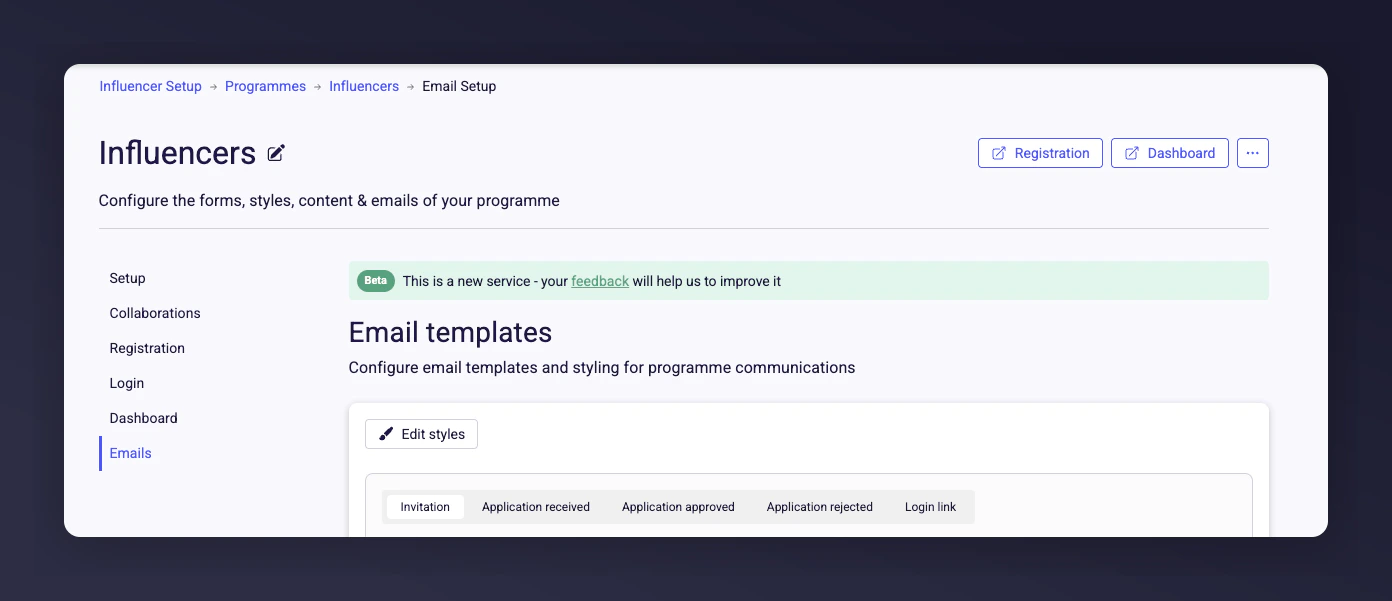
The influencer programme email settings section in the Mention Me platform.
Available Influencer Emails
Editing and Customising Emails
All emails are fully editable. You can change the subject line, preview text, and main body copy. Each email comes with a preconfigured example to make customisation easier.Styles
Email styles (text and button colours) are set under the Edit Styles button and apply across all emails.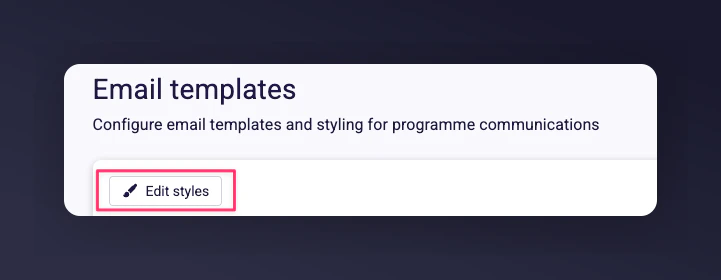
The Edit Styles button for configuring email text and button colours.

Preview of a styled influencer email.
Editable Elements
- Subject Line - set an attention-grabbing subject that matches your brand.
- Preview Text - adjust the snippet shown in the recipient’s inbox.
- Email Body - customise the message content. Built-in variables let you add personalised information such as the influencer’s email address, your merchant name, or the programme name.
- Images - upload a header image to display at the top of the email.
- Buttons - edit button colours and text for calls to action.
Customisation Options for Each Email
Invitation Email
Customise the subject, preview text, body copy, and add a header image. Pre-set variables let you include the influencer’s name, your brand, and a registration button.
The invitation email template with subject line, preview text, and body settings.
Application Received Email
Edit the subject, preview text, and body. Upload a custom header image. The email informs the applicant that their registration has been received and is under review.
The application received email template settings.
Application Approved Email
Customise the text and add an image. The email provides a link to the influencer dashboard where influencers can access their unique referral code.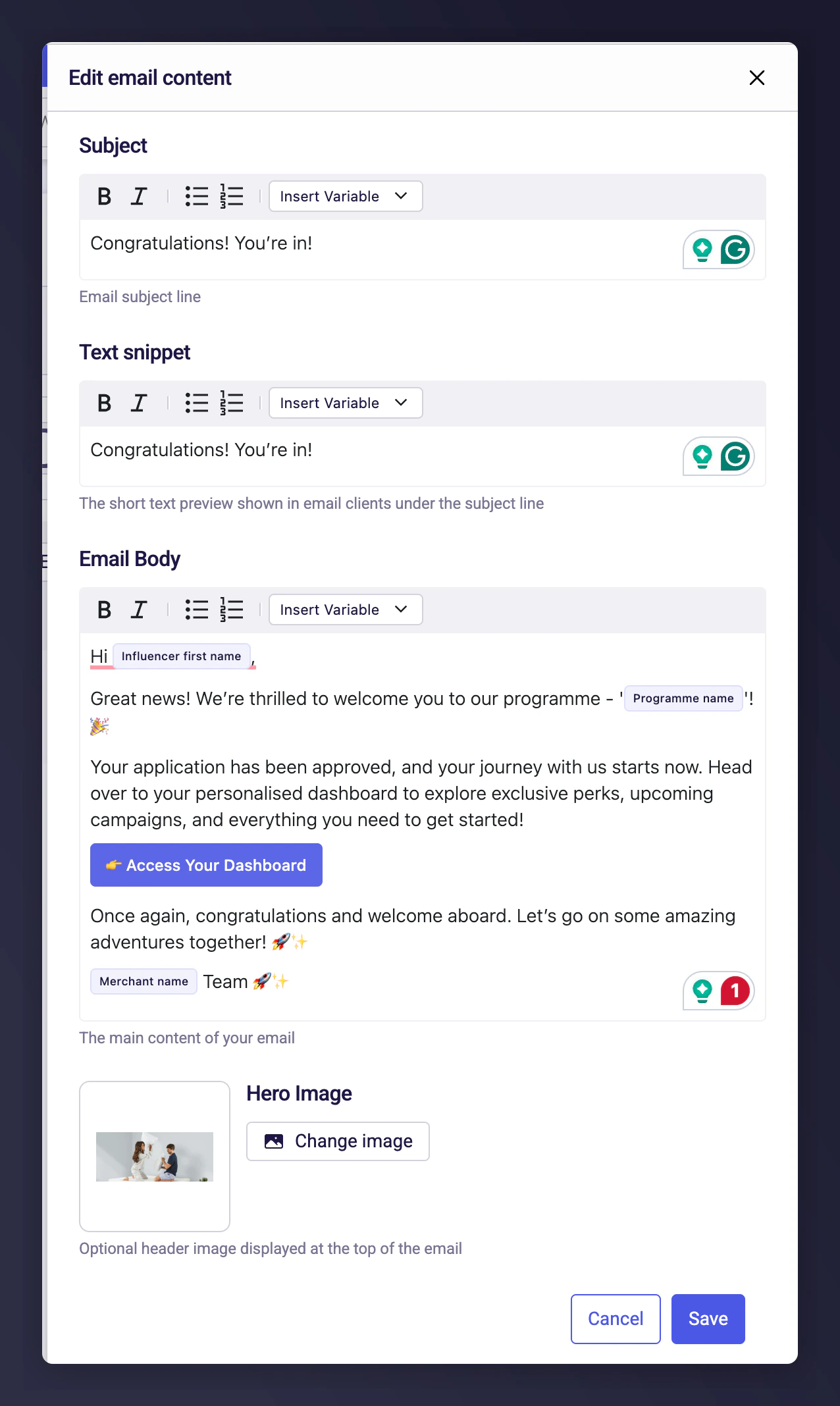
The application approved email template with dashboard link settings.
Application Rejected Email
Edit the wording to reflect your brand’s tone. Optionally include a message encouraging the influencer to reapply. A header image can be added.
The application rejected email template settings.
Login Link Email
Customise the email and add a relevant image. This email includes a secure sign-in button giving influencers easy access to their dashboard without requiring a password.
The login link email template with magic link sign-in button settings.