Documentation Index

Fetch the complete documentation index at: https://docs.mention-me.com/llms.txt

Use this file to discover all available pages before exploring further.

How to Mark a Customer as Suspected of Gaming

This only works if Gaming Controls are enabled. It won’t stop the user from seeing referral offers, but their links will not yield rewards without manual approval.
1

Find the customer

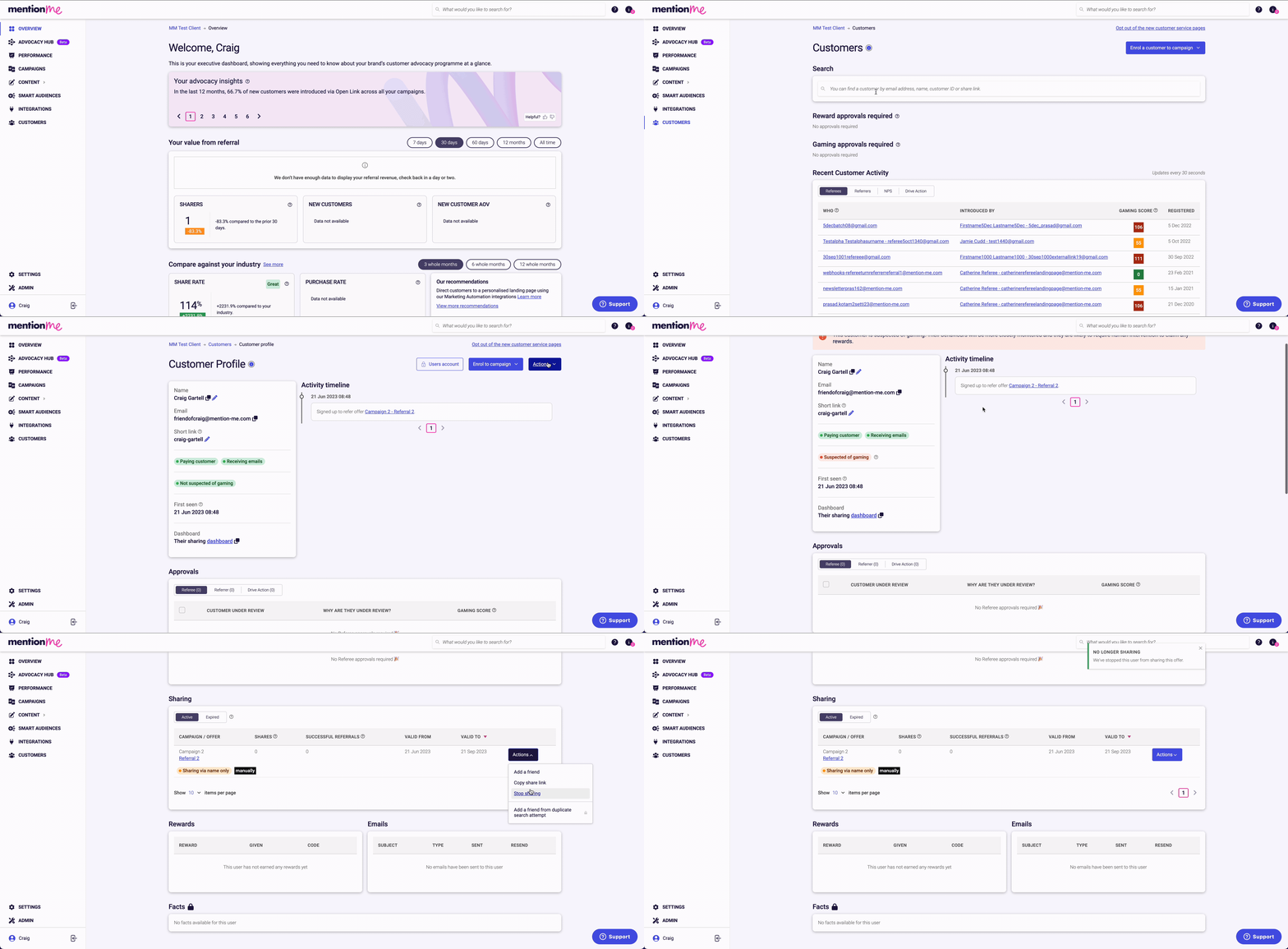
Go to the Customers section in the platform. Search by name, email, customer ID, or share link. Click to open the customer.
2

Mark as suspected

Click Actions > Mark as suspected of gaming.Actions menu showing Mark as suspected of gaming option
3

Stop sharing

Click Stop sharing to prevent the customer from further sharing.Once marked:
  • All future referrals by that customer will require manual approval
  • Their IP address and cookie will be flagged, affecting related profiles Customer marked as suspected of gaming with flagged status

How to Access the Gaming Approvals Queue

  • Access requires specific user permissions. See permission guide
  • Gaming and Velocity approvals are separate — you must manually approve both if flagged
  • Bulk actions only affect visible referrals from the past 3 months
  • Each referral attempt by the same customer must be approved individually
1

Open the Customers section

Go to the Customers section in the platform.Customers section in the platform dashboard
2

Select the gaming queue

In the Gaming approvals area, click either Referee Gaming or Referrer Gaming.Gaming approvals area with Referee and Referrer Gaming tabs
3

Choose an approval method

Choose one of three approval methods described below.

Option 1: Approve or Decline an Individual Referral

Each referral attempt must be actioned individually. You can choose:
  • Decline with no notification
  • Decline and notify both referrer and referee
Individual referral approval with decline options Decline dropdown showing notification options

Option 2: Approve or Decline All Visible Customers

Bulk action applies to all listed customers, regardless of score.

Option 3: Approve/Decline Based on Gaming Score

Set a threshold, e.g.:
  • Approve all scores ≤ 55
  • Decline all scores ≥ 70
Bulk approve or decline based on gaming score threshold Gaming score threshold filter for bulk actions

Need Help?

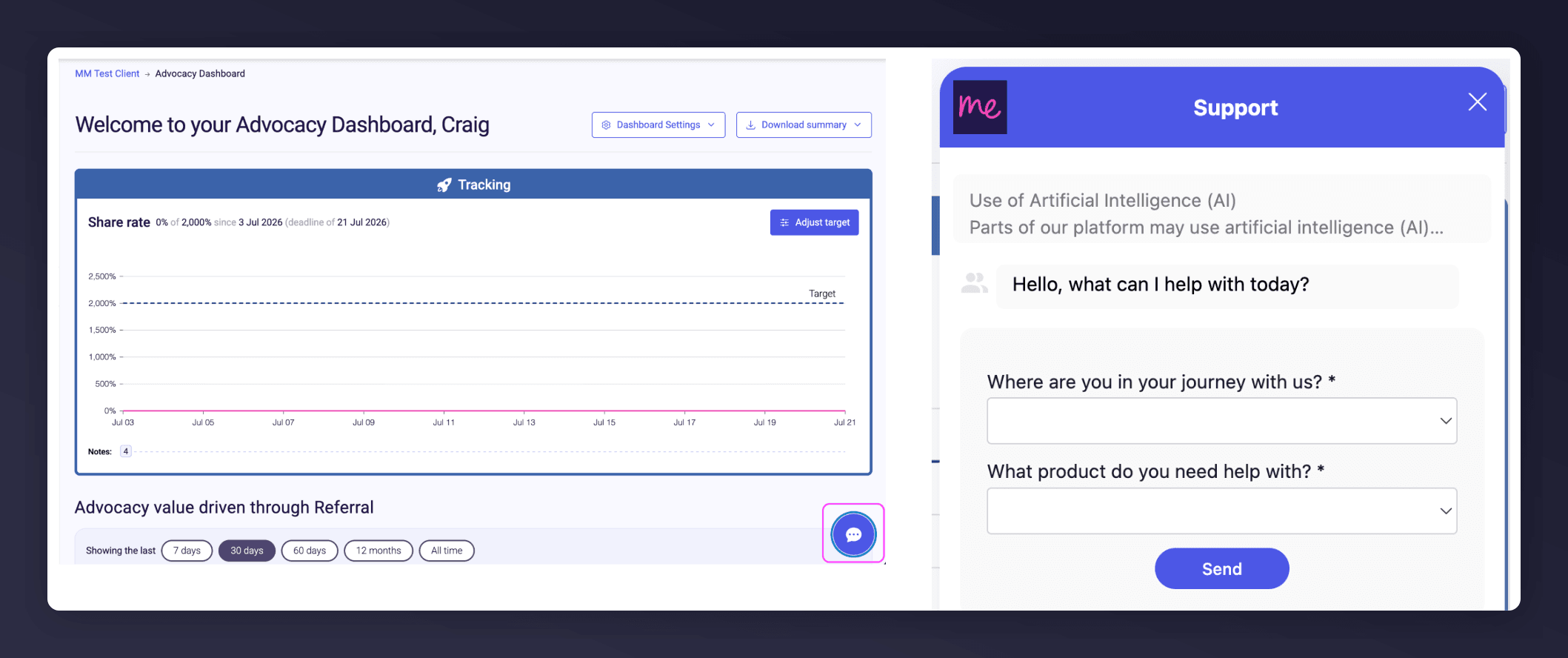
Contact Support through the Contact Form, or use the Support widget in the platform.
Last modified on March 31, 2026