Log in to the Mention Me platform, select Manage your Programme, and navigate to the Registration section. You will see four configurable areas.
The registration form setup page with four configurable sections.
1
Edit Style
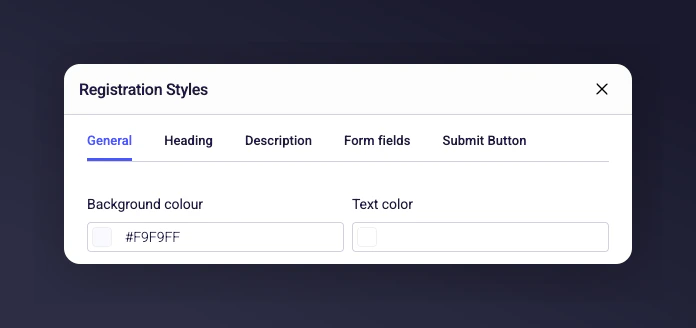
This section lets you customise the look and feel of your registration form, including colours, fonts, and button styles. Select a new colour and it changes automatically. You can also choose a different font for your headings.
The style editor with colour, font, and button customisation options.
2
Upload Image
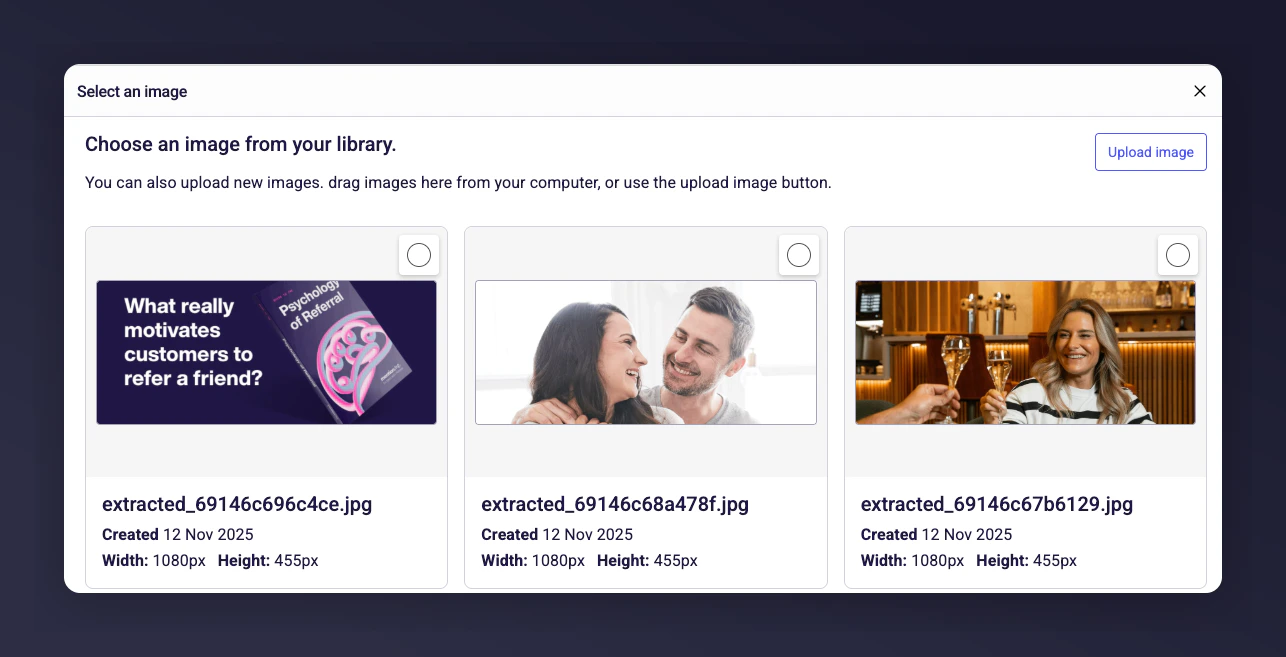
To include a banner image on the right-hand side of your form, upload a new image through the Content Library. It will automatically apply to your form.We recommend an image 1800px wide x 900px high.
The image upload section with Content Library and recommended dimensions.
3
Edit Content
Update the titles and body copy to reflect your brand’s tone of voice and perspective.
The content editor for registration form titles and body copy.
4
Edit Form (Data Capture)
Choose which fields to include on the registration form for data capture.The Email, First Name, and Last Name fields are fixed. The form also includes fields for social channels (Instagram, TikTok, and YouTube). You can:
Make any field Required or leave it as Optional.
Reorder the fields by moving them up and down.
Add new field types, such as a long text field (e.g., to ask why an influencer wants to join) or a specific information field (e.g., shoe size).
Click Save to add the new field to the form.
The data capture form builder with required and optional field toggles.
Last modified on July 10, 2026
Was this page helpful?
Assistant
Responses are generated using AI and may contain mistakes.