

About the Integration
Put advocacy data at the heart of your core CDP so you can drive more value from your base by nurturing and retaining your biggest fans.Integration Capabilities
- Grow your marketing database by sending opt-ins and contacts in real-time to mParticle
- Activate Mention Me data across downstream systems and marketing tools integrated with mParticle (email platforms, ad networks, CRM systems)
- Enhance other marketing channels by using referral data to segment and target high-value customers
Prerequisites
- mParticle - Ability to create Access Credentials. Know the name of your GDPR Consent Purposes used for email opt-ins.
- Mention Me - Access to the Mention Me platform. Contact your CSM or submit a support request if needed.
Step 1: Add Mention Me Feed Input to mParticle
Log in to mParticle
Select the main workspace
Navigate to Add Feed Input

The mParticle Setup menu navigating to Inputs and Add Feed Input.
Select Mention Me feed
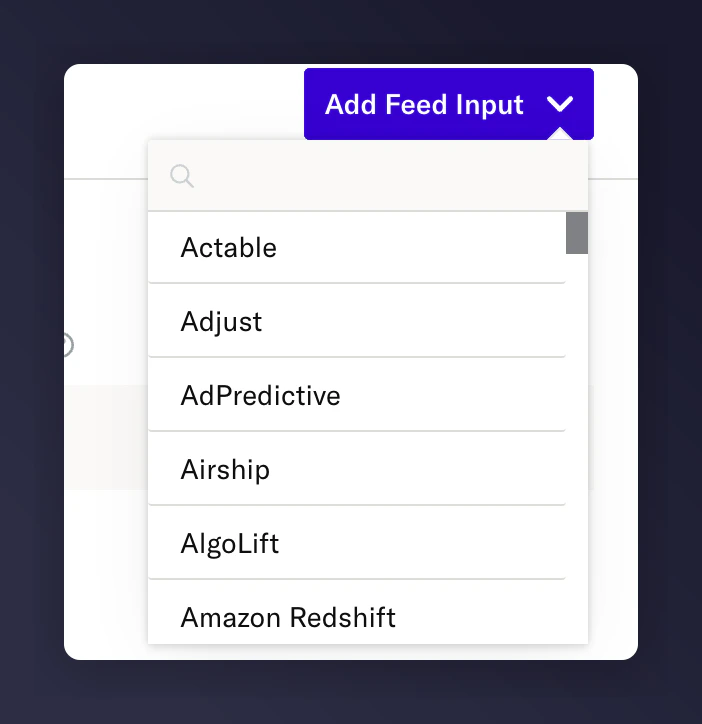
The mParticle feed input drop-down with Mention Me selected.
Configure and save the feed
- Configuration Name
- Set Feed to Active
- Set Permissions to Create & Update Profiles
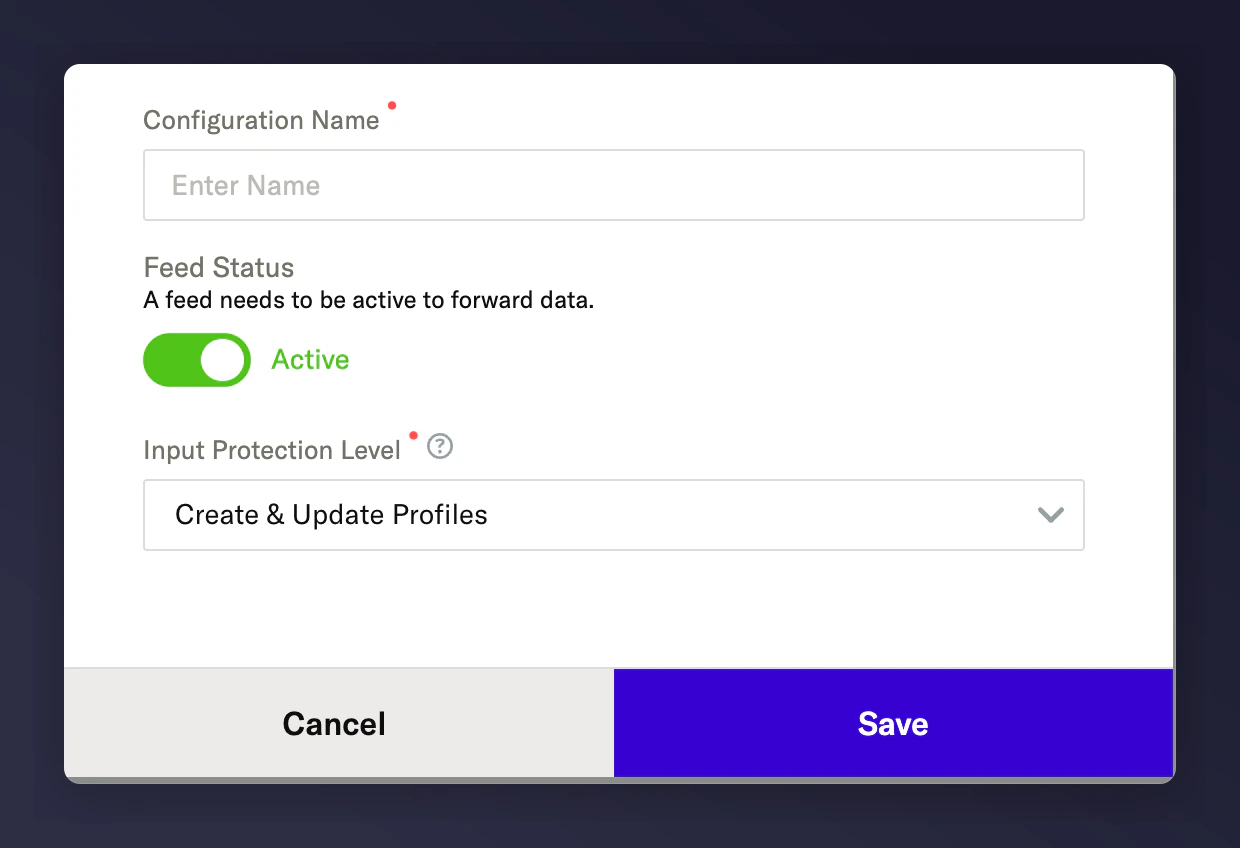
The mParticle feed configuration with name, active status, and permissions.
Copy server-to-server credentials
- Server-to-Server Key
- Server-to-Server Secret
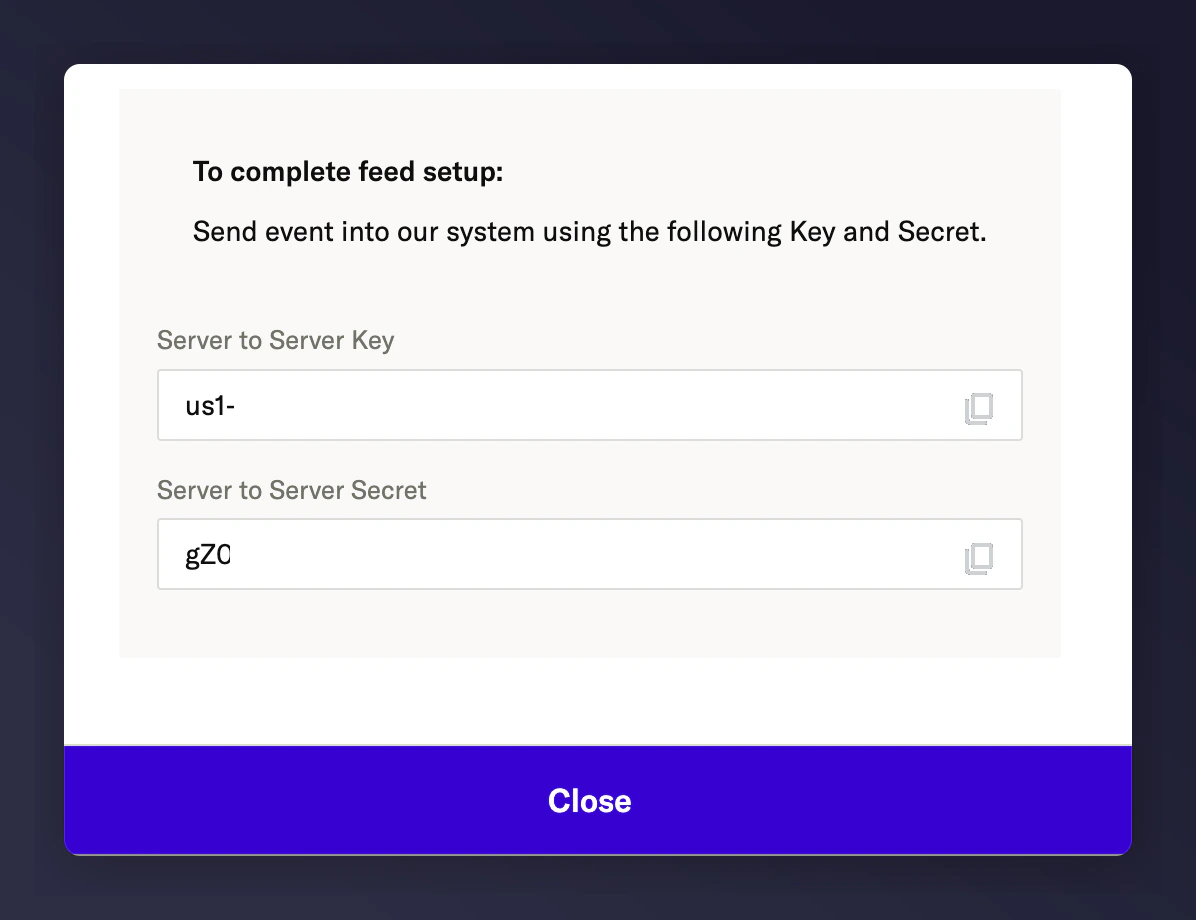
The mParticle server-to-server key and secret credentials.
Step 2: Set Up the Integration in Mention Me
Open the integration page
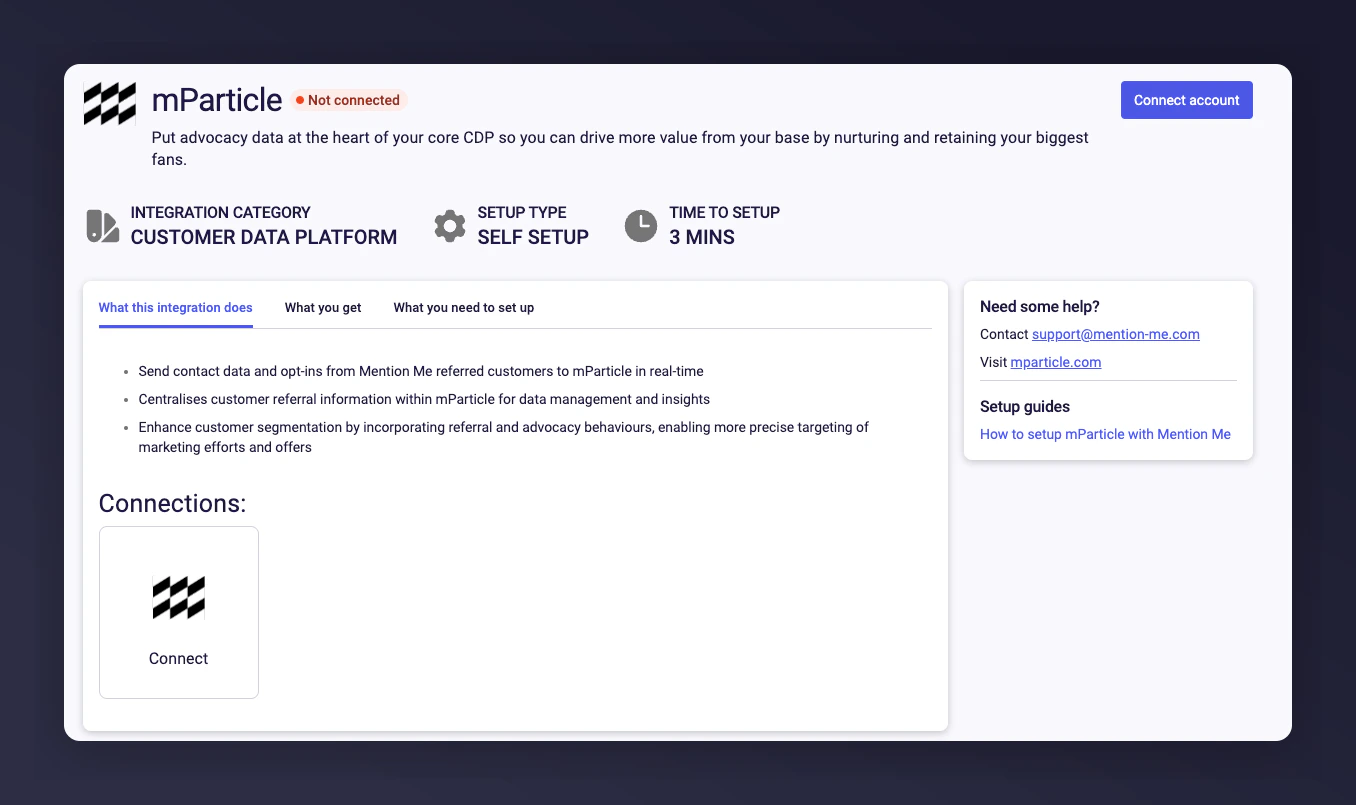
The Mention Me mParticle integration page with the Connect button.
Accept terms and conditions
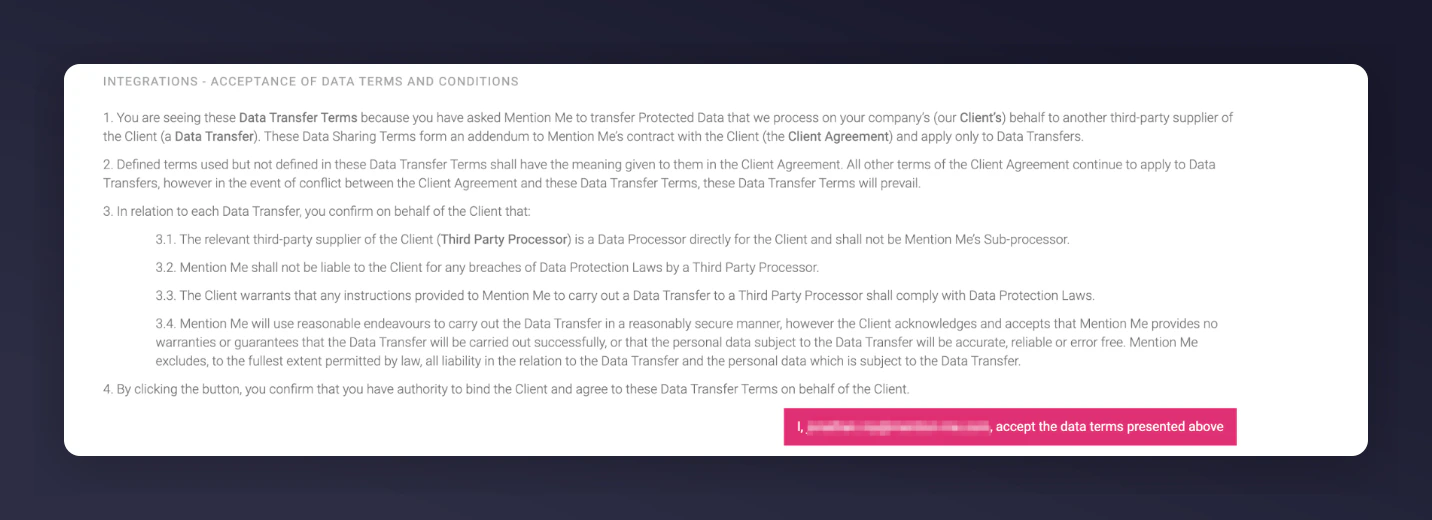
The Mention Me terms and conditions acceptance screen for the mParticle integration.
Click New Authentication
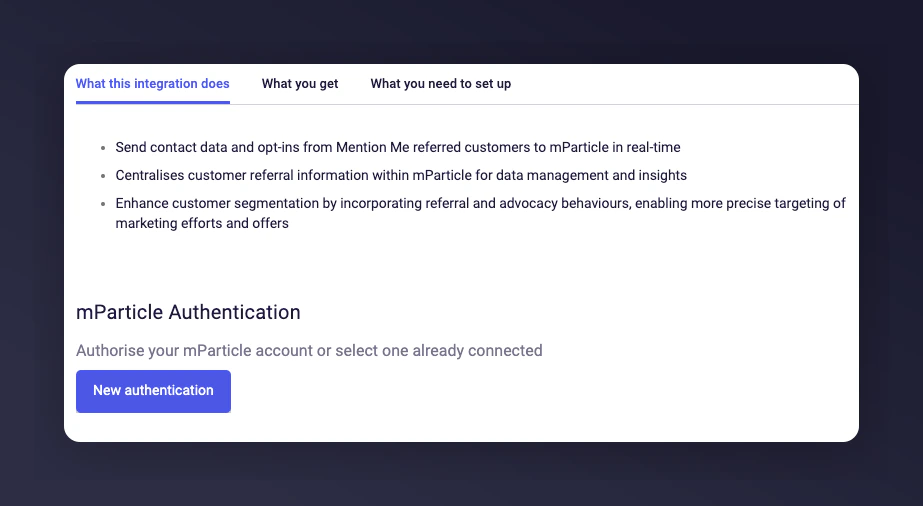
The Mention Me New Authentication button for mParticle.
Name your authentication
Enter API credentials
- API Key
- API Secret
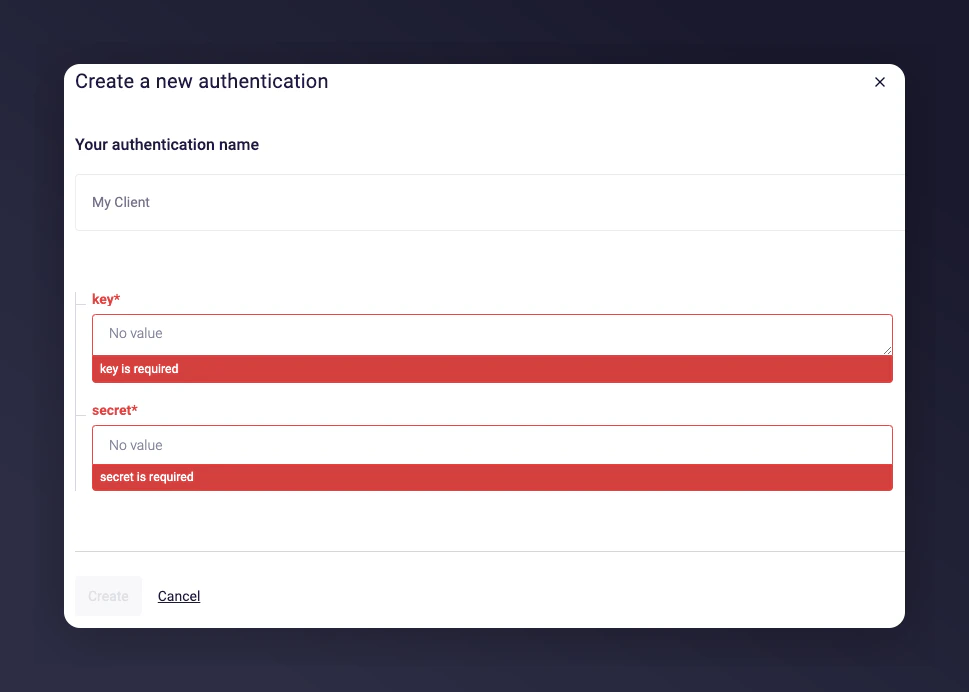
The Mention Me authentication form with API key and secret fields.
Set GDPR consent purpose
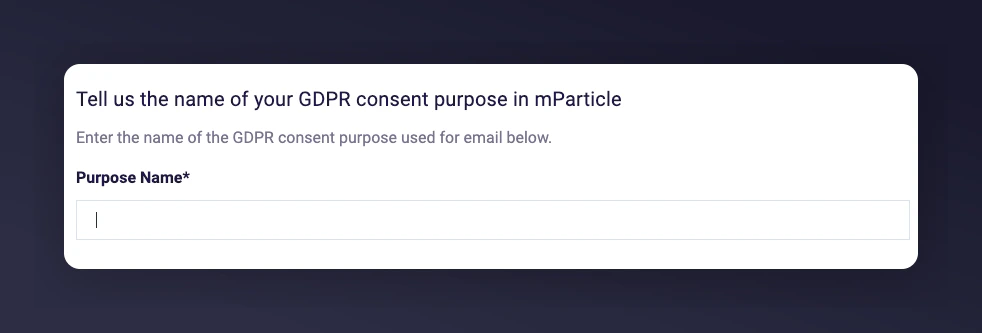
The GDPR consent purpose category field in Mention Me.
Select countries to sync
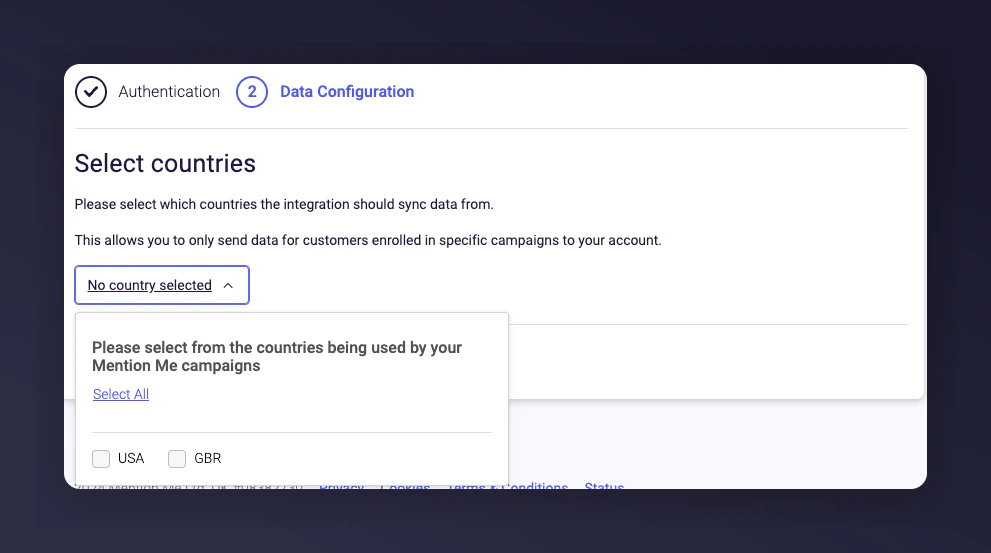
The country selection screen for mParticle data sync in Mention Me.
Complete the setup
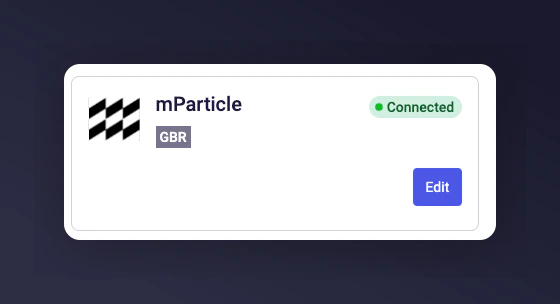
The Mention Me mParticle integration setup confirmation message.