

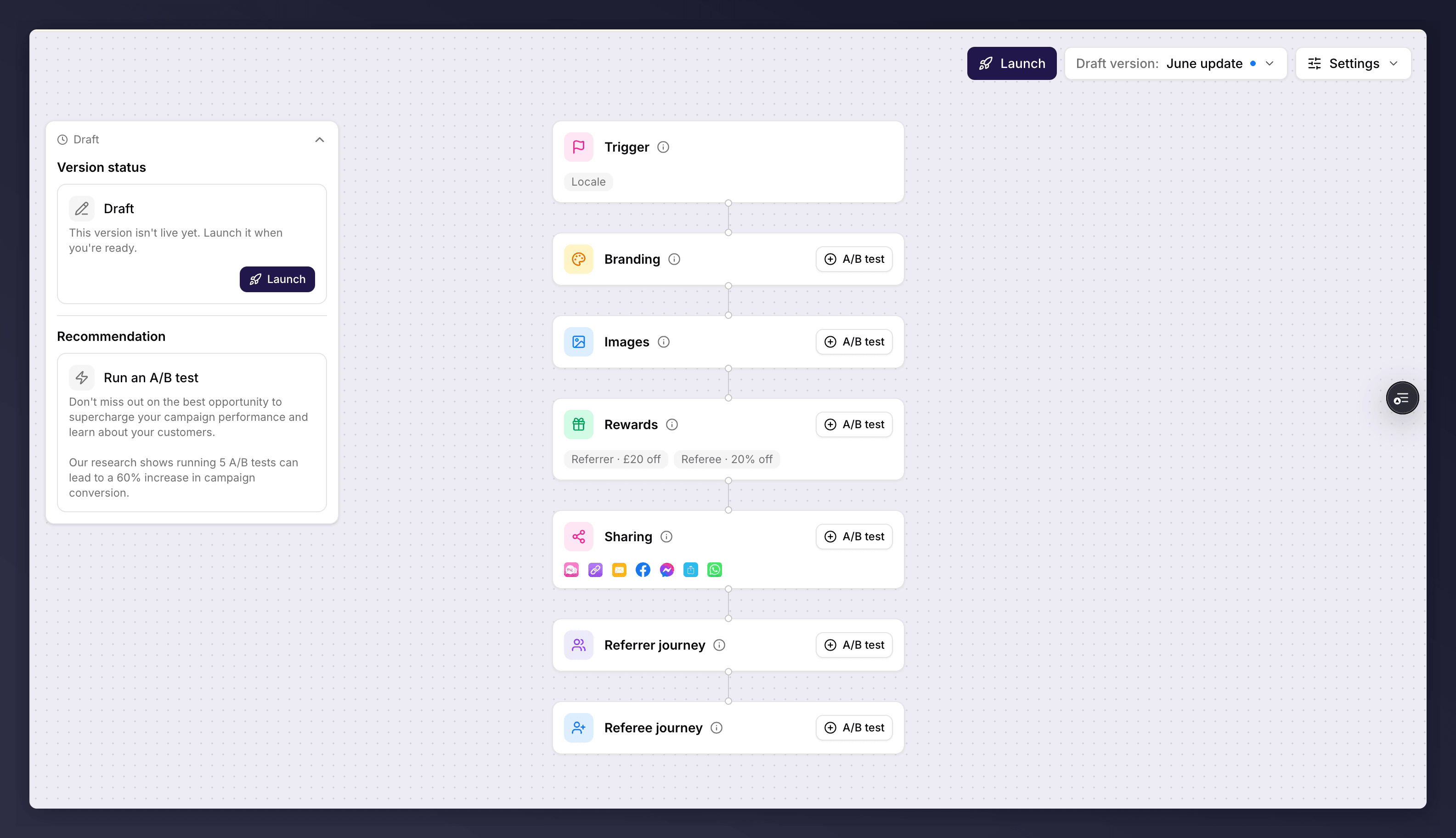
The campaign editor canvas, with the campaign and version sections stacked top to bottom.
The Canvas
The canvas reads top to bottom. The Trigger section sits at the top because it decides who enters the journey. Below it are the sections that make up the offer itself. A section showing an issue-count pill (for example 1 issue) has something to resolve: red means an error that blocks launch, amber means a warning you can launch with.The Sections
Each section has its own page under Campaign editor sections.Editing a Section
Click a section to open its editor dialog. Make your changes and click Save & close. An unsaved-changes indicator appears while you have edits in progress, and the dialog warns you before closing with unsaved work. If a section has problems, its pill tells you how many issues there are; hovering it shows “Open this step to see what needs fixing”.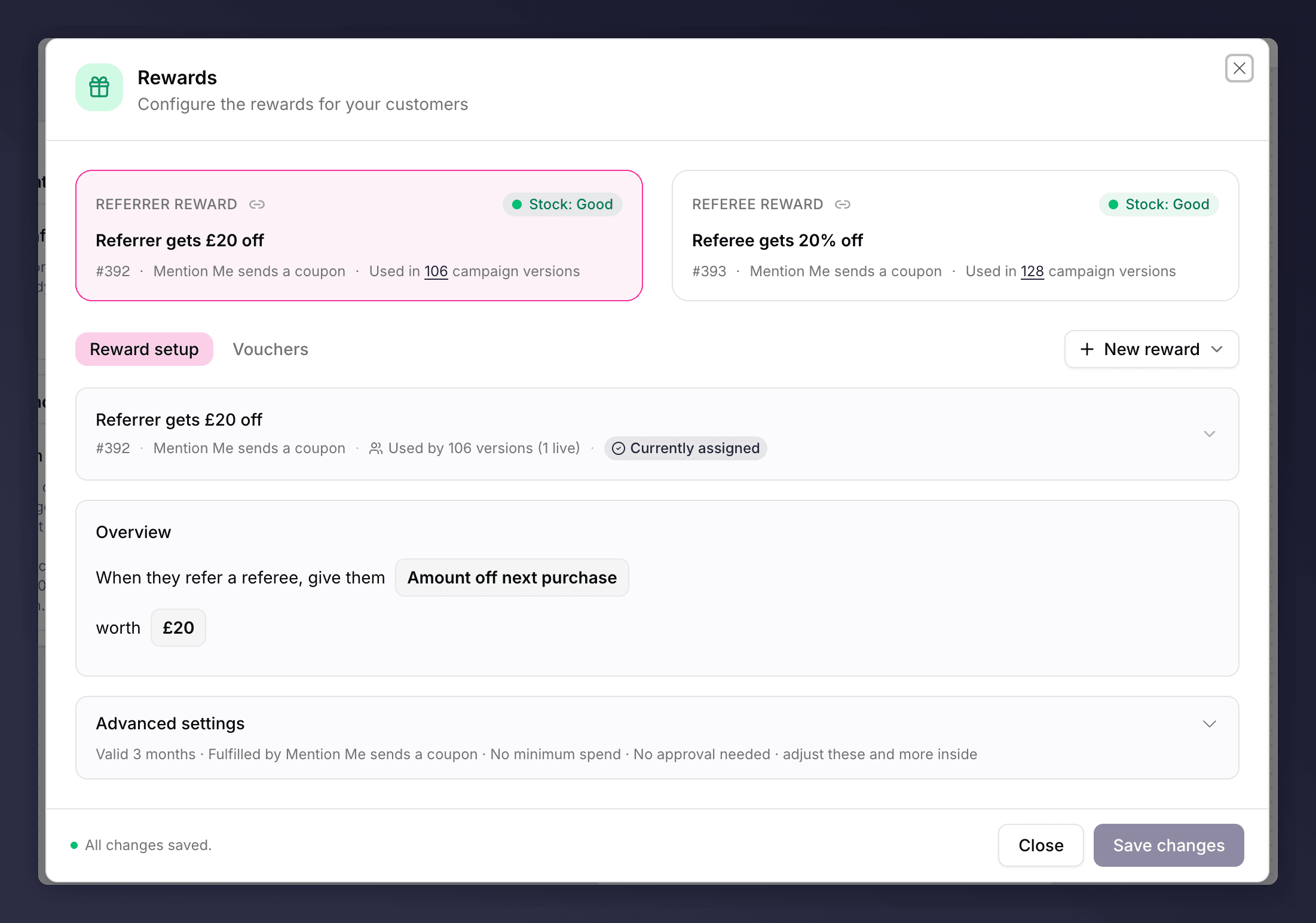
Editing the Rewards section, with referrer and referee tabs.
What You Can and Cannot Edit
A version is only fully editable while it is a draft of a campaign that has not yet launched. Once a campaign is live, versions become read-only so you can’t accidentally change what customers are seeing. The editor explains the lock in the footer of the section:- A live version. “This version is live. Create a new draft to make changes.”
- A queued version. “This version is scheduled to go live. Create a new draft to make changes.”
- A past version. “This is a past version. It shows what customers experienced at the time.”
The Control Variant Is Locked
In an A/B test, the control variant is view-only, because it is the baseline the test measures against. The editor shows: “The control variant is view-only as it’s the baseline of your test. Make changes on the other variant to avoid skewing the test results.” Edit the other variant instead.The Trigger Section Is Campaign-Scoped
The Trigger is the exception to the usual version rules, because triggering rules apply to the whole campaign, not a single version. They affect every version, live and draft alike. This changes where you edit it:- On a draft of a launched campaign, the Trigger is locked. Editing it from a draft would silently change who the live campaign enrols. The footer reads: “This campaign is live. Switch to the live version to make changes to this area.”
- On the live version, the Trigger stays editable, because that is exactly where live targeting changes belong. Saved changes take effect immediately for all customers. The footer reads: “This campaign is live. Saved changes take effect immediately.”
See Also
Campaign editor sections
The detail of each section.
Set up a version
Set up a version.
Campaign settings and gaming control
Campaign settings and gaming control.