

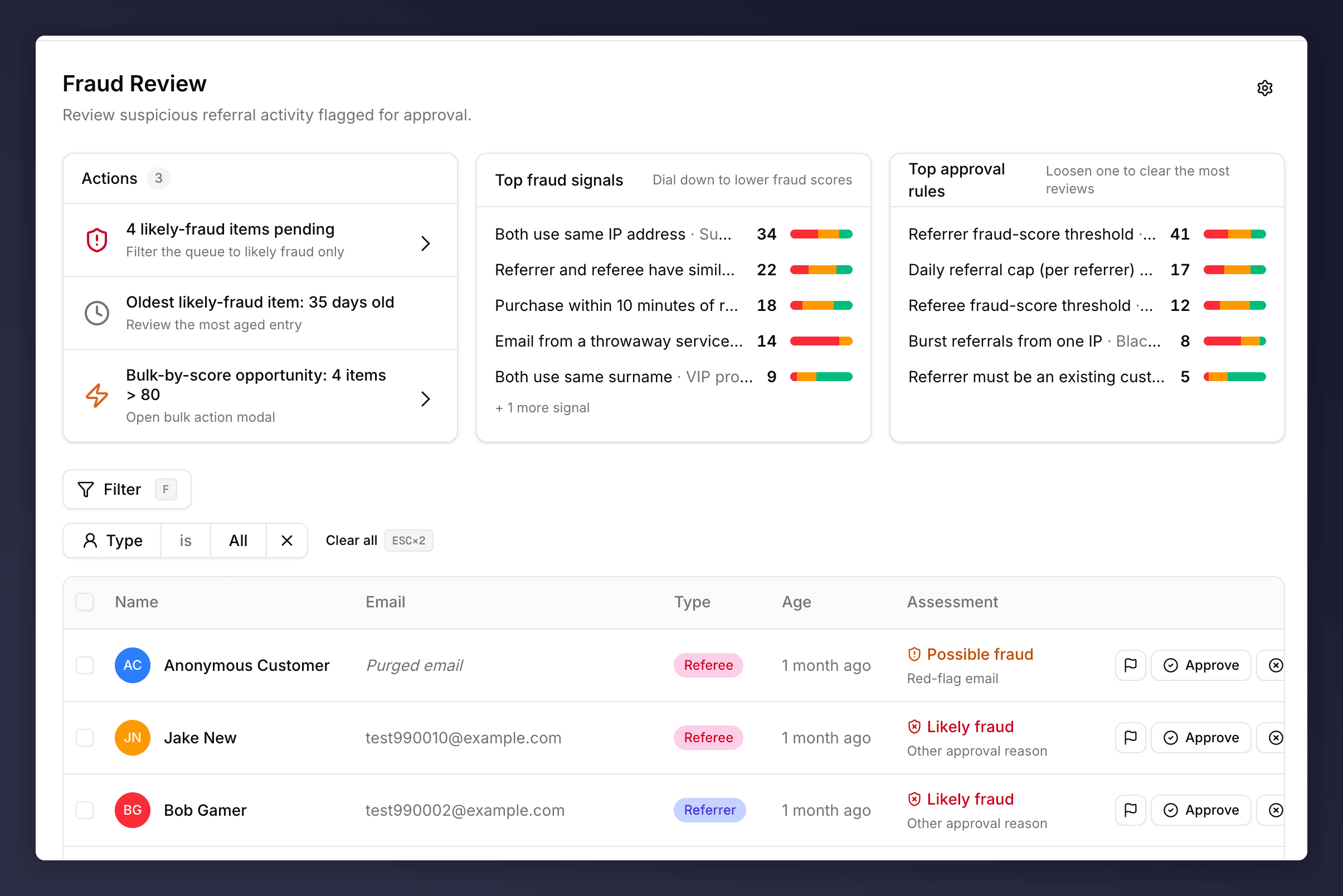
The Fraud Review queue with smart actions, top signals, top rules, and a populated table
Top-of-Page Panels
Actions
Up to three smart suggestions, generated from the state of the queue.Top fraud signals
Lists the signals contributing the most to your current fraud scores. Each row shows the signal name, the campaign it’s most active in, a count, and a coloured bar showing how strong it is right now. Use this to dial down a signal that’s catching too much legitimate activity (or up, if too little). See the fraud signals reference for the full catalogue.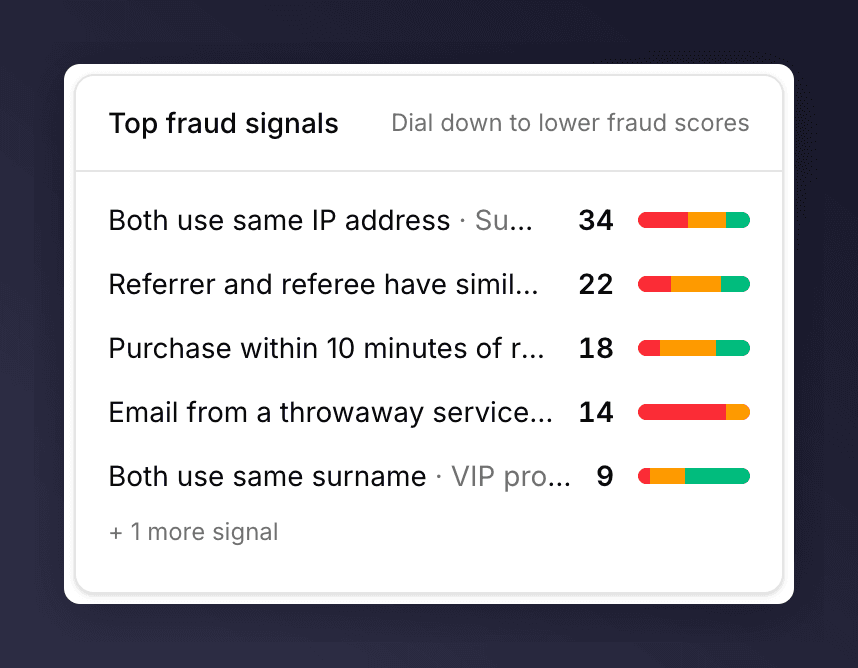
Top fraud signals card
Top approval rules
Lists the approval rules most often forcing a manual review. Use this to loosen a rule that’s creating a queue you don’t need to read. See the approval rules reference for the full catalogue.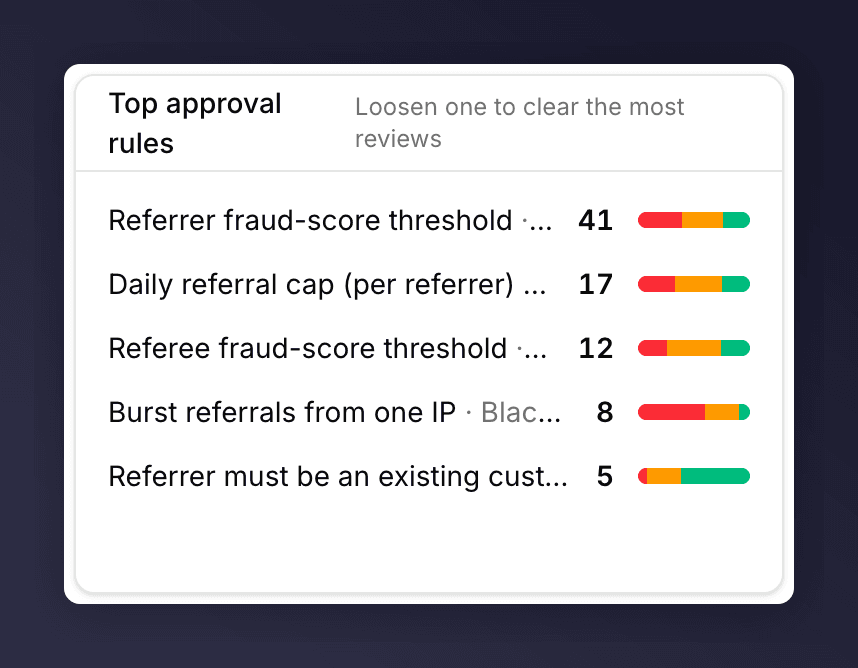
Top approval rules card
Reading the Table
The Assessment Cell
The Assessment column shows a verdict badge and the top two signal headlines that contributed to it. The verdict combines automatic fraud signals and any approval-rule reasons fired on the same referral:Hover Card
Hover the verdict badge to open a popover with the full breakdown:- The verdict label and the current fraud score (if any).
- Every fired signal, grouped by signal bucket (e.g. “Looks like the same person”, “Red-flag email”, “Suspicious timing”).
- Within each bucket, the individual signal labels with any per-signal values (counts, time windows).
- Any approval-rule reasons that don’t fit a fraud-signal bucket, listed under Other.
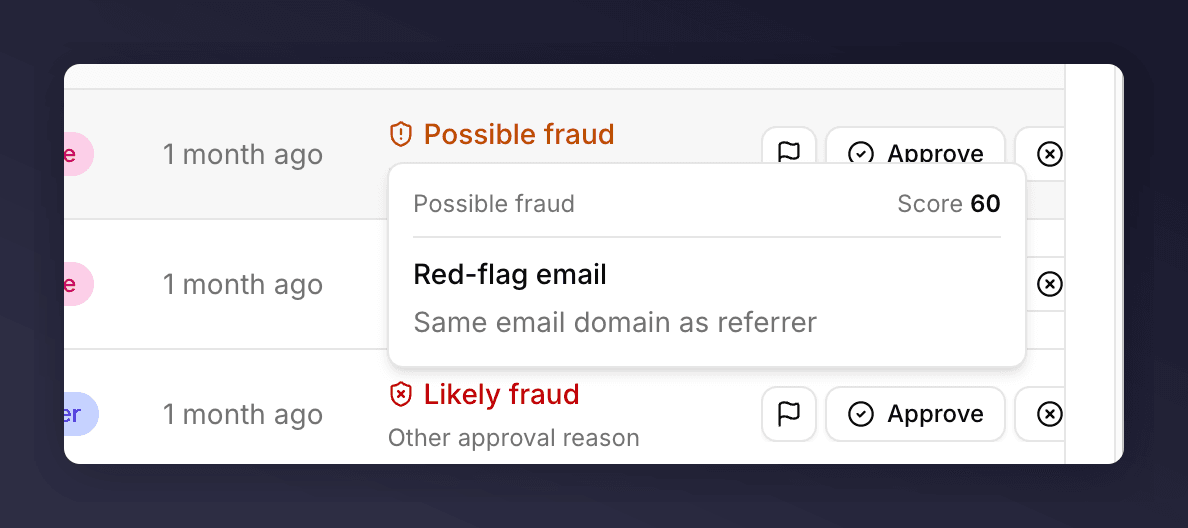
Hover card breakdown
+N more signals. The hover card always shows everything.
Approving a Suspect
1
Click the row
The approval review sheet slides in from the right with the full customer context, every fired signal, and the linked referral.
2
Investigate
Read the activity timeline in the sheet. Check the Insights bullet. Look at any other recent suspects with the same referrer.
3
Decide
Click Approve to let the referral and any pending reward go through, or Decline to reject it. See Decline a suspect for the dialog options.
Approving a suspect counts as a manual override. The platform records it on the customer’s Admin tab so you have an audit trail.
Decline a Suspect
The decline flow is identical to the one in Pending Rewards: a confirmation dialog with an optional note and a choice between Decline silently and Decline and notify.Bulk by Score
Use the Bulk-by-score action in the Actions panel to decide on many suspects at once based on their fraud score. Useful when a signal is producing obvious false positives at a known threshold.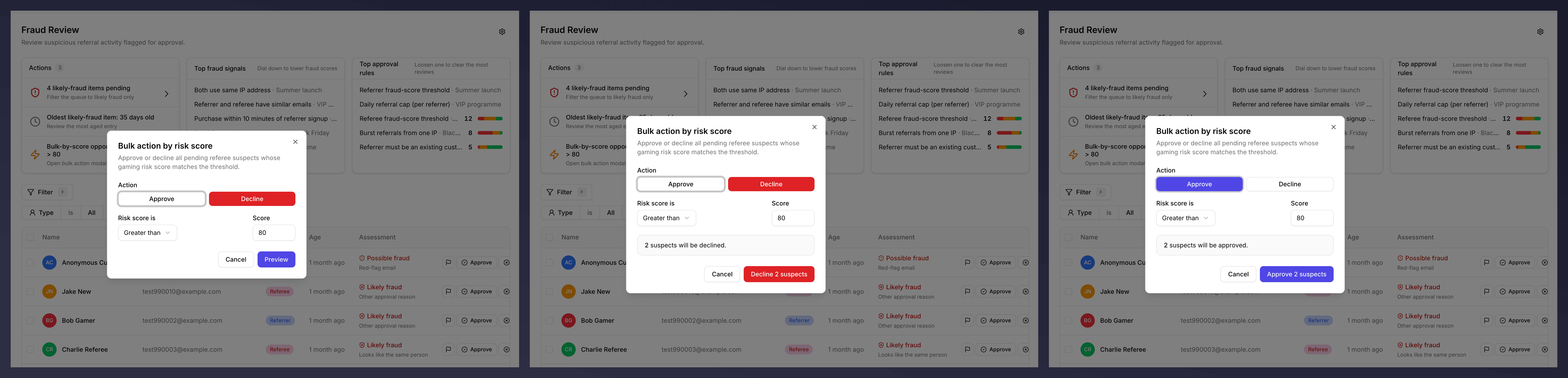
Bulk-by-score modal flow
Filter
The Filter button exposes Type (All / Referrer / Referee). Press F to focus it from anywhere.See Also
Pending Rewards
Rewards waiting on approval, not fraud.
Approval review sheet
The shared side sheet both queues use.
Fraud signals reference
The catalogue of every signal the platform can fire.
Approval rules reference
The catalogue of rules that produce queue entries.
Customer profile
Open the profile to investigate before deciding.