

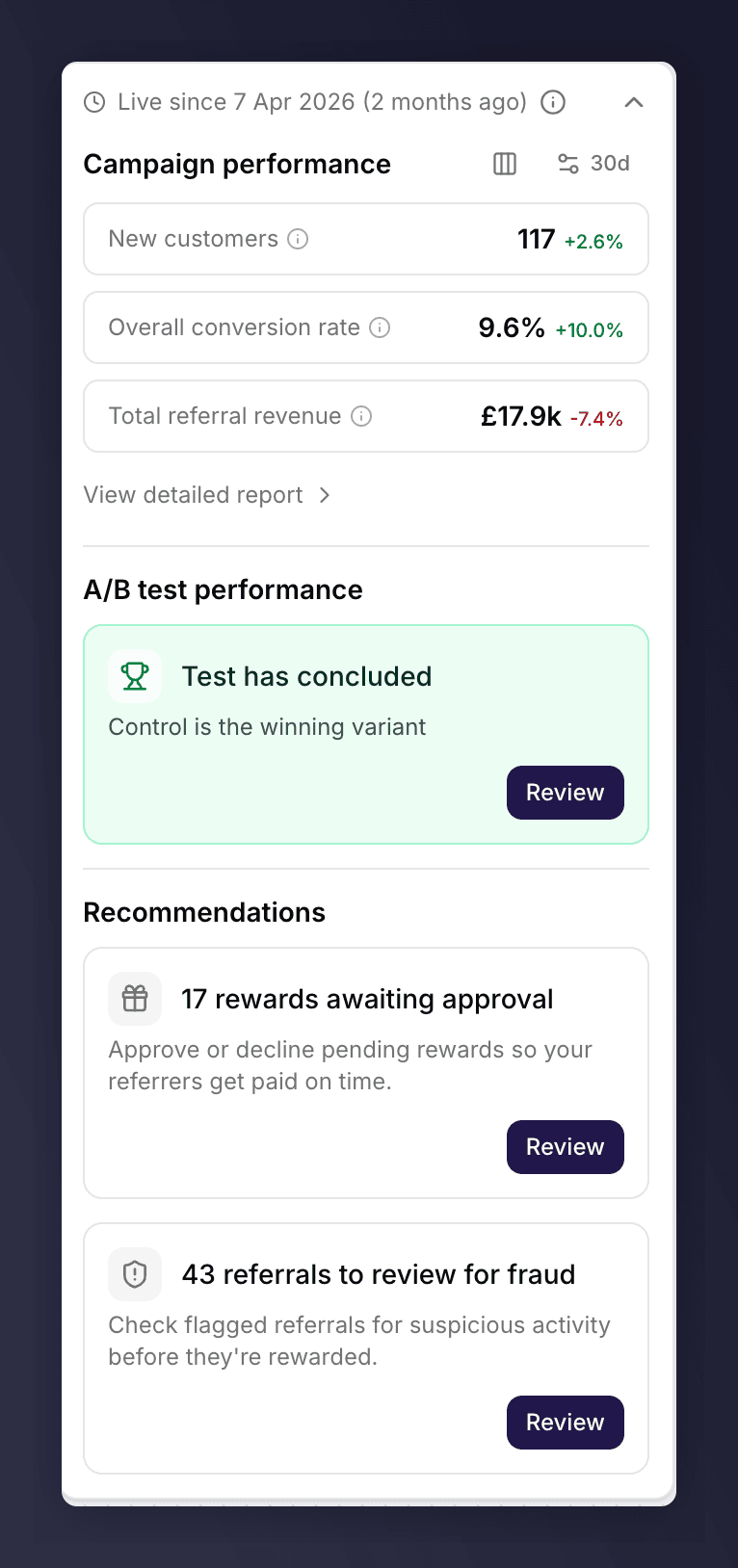
The insights panel for a live version.
Read the Status Badge
The badge at the top of the panel tells you what state the version is in:- Live since [date]. The version is serving customers.
- Paused. The campaign is paused, so no new customers see the offer.
- Scheduled. The version is queued to go live later.
- Draft. The version is still being built and shows a Launch button instead of metrics.
- Past version / Past promotion. The version has ended.
Track Performance
The Campaign performance section shows headline metrics for the version. Use the gear icon to choose which metrics appear, and the layout toggle to switch between columns and rows. Available metrics include:- Overall conversion rate. New customers as a share of enrolled customers.
- Enrolment rate. Enrolled customers as a share of offer impressions.
- Share rate. How often enrolled customers share with friends.
- Purchase rate. How often referred friends make a purchase.
- Unique impressions and Customers enrolled. Reach into the top of the funnel.
- Total referral revenue and New customer revenue. The money the version is generating.
Act on Recommendations
When a live version needs attention, a Recommendations section appears with quick links:- Rewards awaiting approval. Approve or decline pending rewards so referrers get paid on time. Click Review to open the Pending Rewards queue, filtered to this campaign.
- Referrals to review for fraud. Check flagged referrals before they are rewarded. Click Review to open the Fraud Review queue, filtered to this campaign.
- Run an A/B test to boost performance. Click Set up to start an A/B test against the live version. See set up an A/B test.
Monitor an A/B Test
If the version has an A/B test running, the panel shows its status and a View results button. See monitor an A/B test.Pause or Resume the Campaign
Pausing stops the campaign from being promoted to new customers. Open the Settings menu in the editor and choose Pause campaign, or use the Pause action on the campaign’s row in the campaigns list. When a campaign is paused, a banner appears at the top of the editor on every version: “This campaign is paused, so it is not being promoted to new customers. Existing customers’ share links keep working and their friends can still sign up to the referral offer.” Click Resume on the banner to start promoting again. For everything you can configure here, including gaming controls, see campaign settings and gaming control.View Results on a Past Version
On a past version, the panel shows the final metrics, a View detailed report link, and, if the version ran an A/B test, a View results button.See Also
Launch a campaign and version
Launch a campaign and version.
Campaign settings and gaming control
Campaign settings and gaming control.