

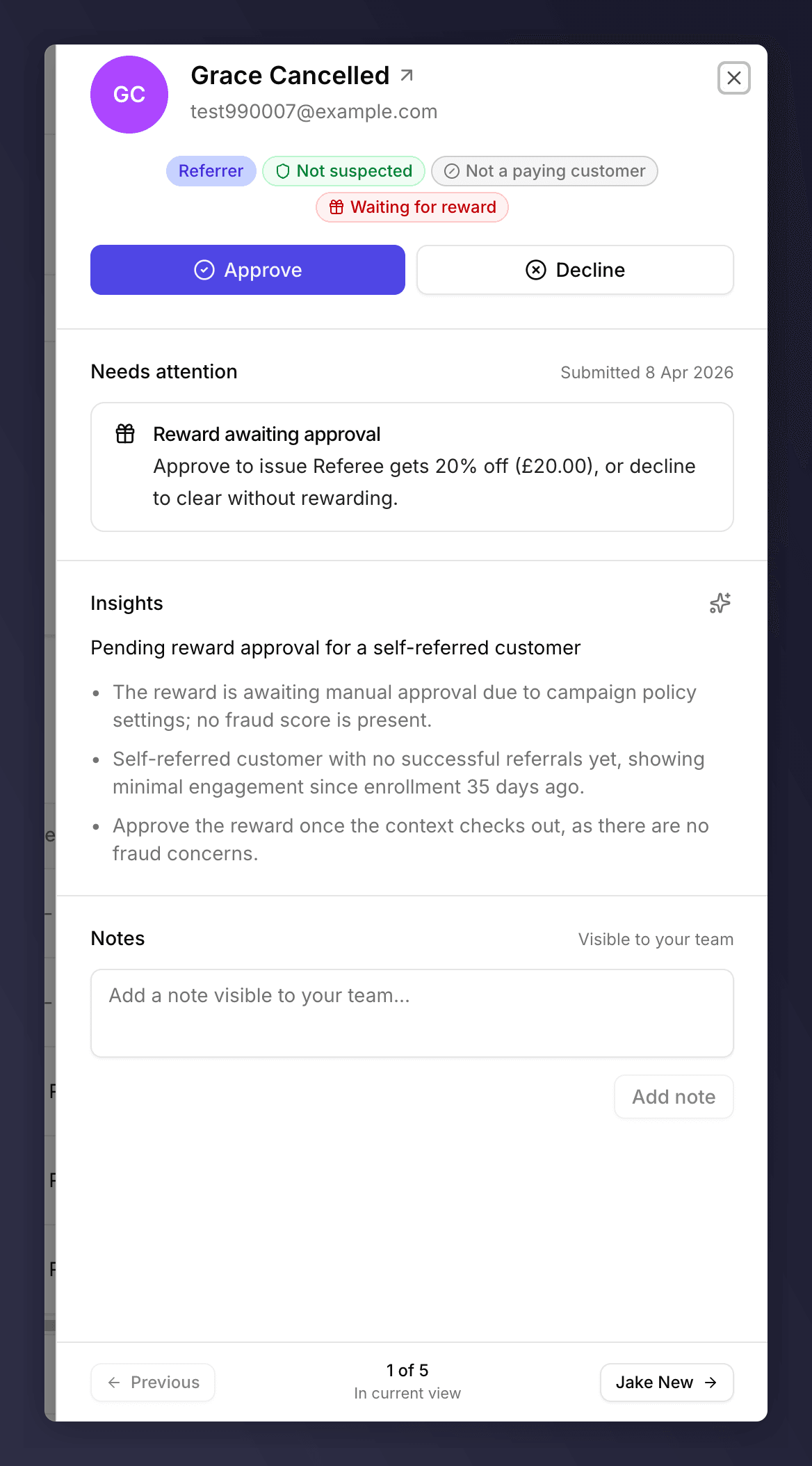
Approval review sheet open from the Fraud Review queue
What’s in the Sheet
Single-Item vs Multi-Item
If you clicked a stacked row (e.g. “2 rewards”), the sheet opens in multi-item mode: every underlying item is listed, each with its own Approve / Decline. The footer also offers Approve all and Decline all to action the whole bundle.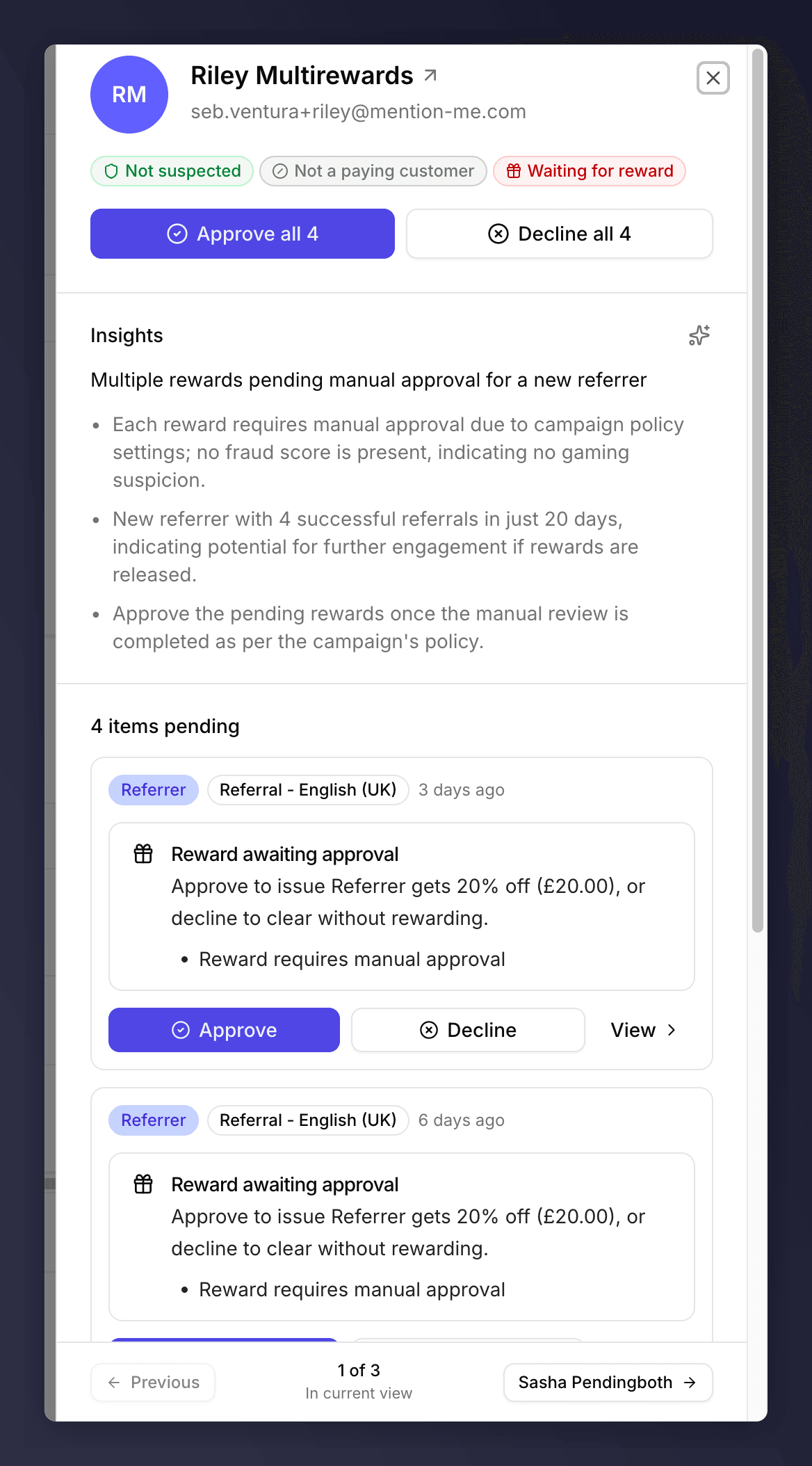
Multi-item sheet
Approve
Click Approve. For items flagged with a gaming score above the bulk-approval threshold (typically referee suspects from Fraud Review), a dialog appears with two options:- Approve and issue reward: clear them from the review queue and issue the reward now.
- Approve only: clear them from the review queue without issuing the reward. Use this if you want to confirm the customer is genuine but defer issuing the reward (or handle it separately).
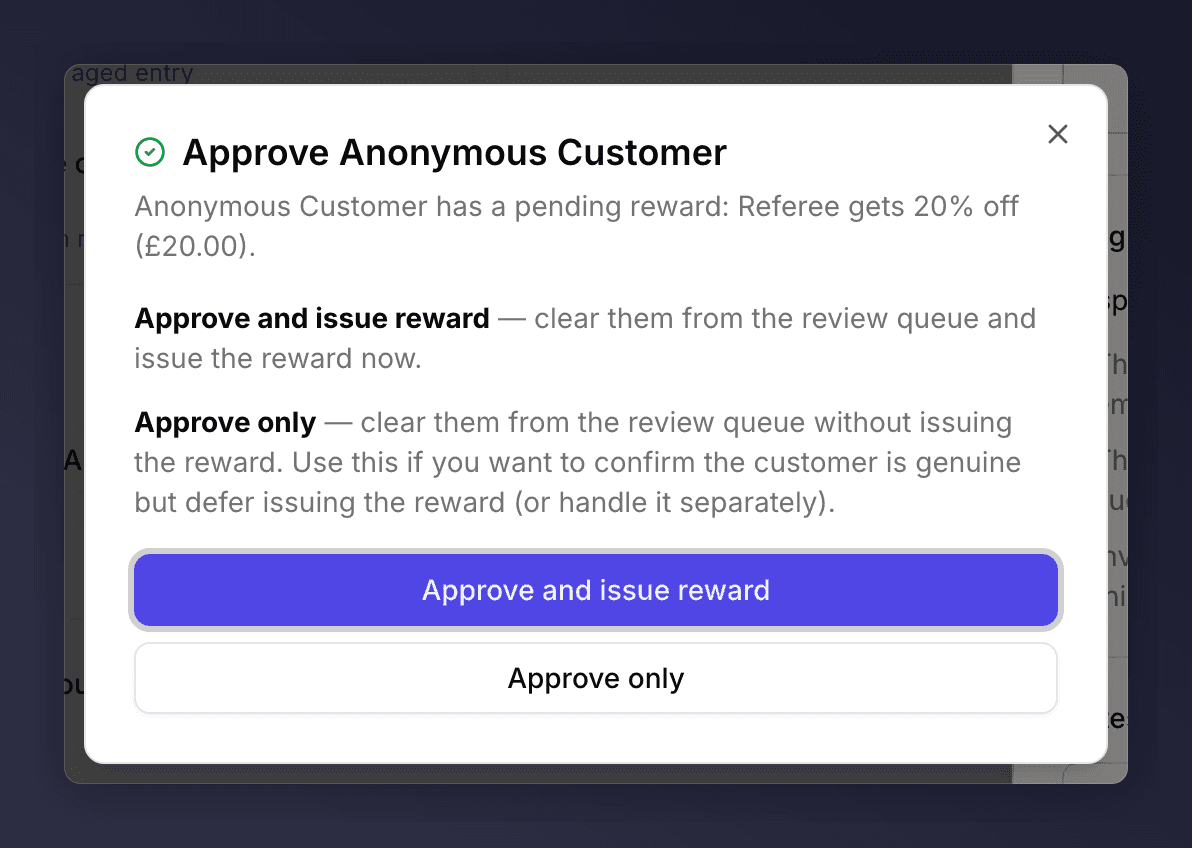
Approve dialog (gaming-flagged item with a reward)
Decline
Decline opens the standard decline dialog (note + silent / notify). See Pending Rewards > Declining a Reward for the full breakdown.Keyboard
Esccloses the sheet.- Clicking outside the sheet closes it.
See Also
Pending Rewards
One of the two queues that opens this sheet.
Fraud Review
The other queue that opens this sheet.
Customer profile
Offers deeper context than the sheet provides.