

Export a Tile to CSV
- Click the three-dot menu in the top corner of the tile.
- Click Export CSV.
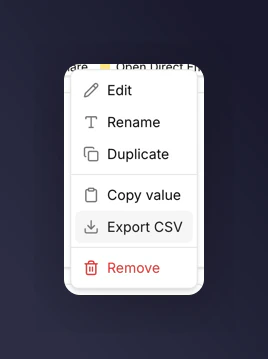
Tile menu with Export CSV visible
What’s in the CSV
Depends on the tile type.Metric Tile
A single row with the metric name, value, and the comparison value if one is set.Chart Tile
One row per data point. Columns cover each metric plotted. If the chart has a breakdown, one row per combination of time bucket and breakdown value.Table Tile
Exactly what you see on screen. One row per table row, one column per metric. If the table has a breakdown, the breakdown value is the first column.Markdown Tile
Markdown tiles cannot be exported. There’s no data behind them, so the menu hides the Export CSV option.Copy a Single Value
For metric tiles specifically, there’s a shortcut that skips the CSV step:- Open the tile menu.
- Click Copy value.
Filters and Comparisons Carry Over
The CSV reflects the tile as you see it:- The dashboard’s time period and market filter are applied.
- If the tile has a comparison, the comparison values are included as extra columns.
- If the tile has a breakdown, each breakdown value appears as its own row or group of rows.
What You Cannot Export
There is no “export the whole dashboard” action. Export each tile separately.Next
Report to stakeholders
See patterns around packaging these exports.
Breakdowns
Shape what ends up in the CSV before you export.