Set up and launch a time-limited promotion, with an optional follow-on so the campaign keeps promoting after it ends.
A promotion is a version that runs only between set dates, for example a seasonal or limited-run offer. For how promotions fit the model, see campaigns, versions and promotions.
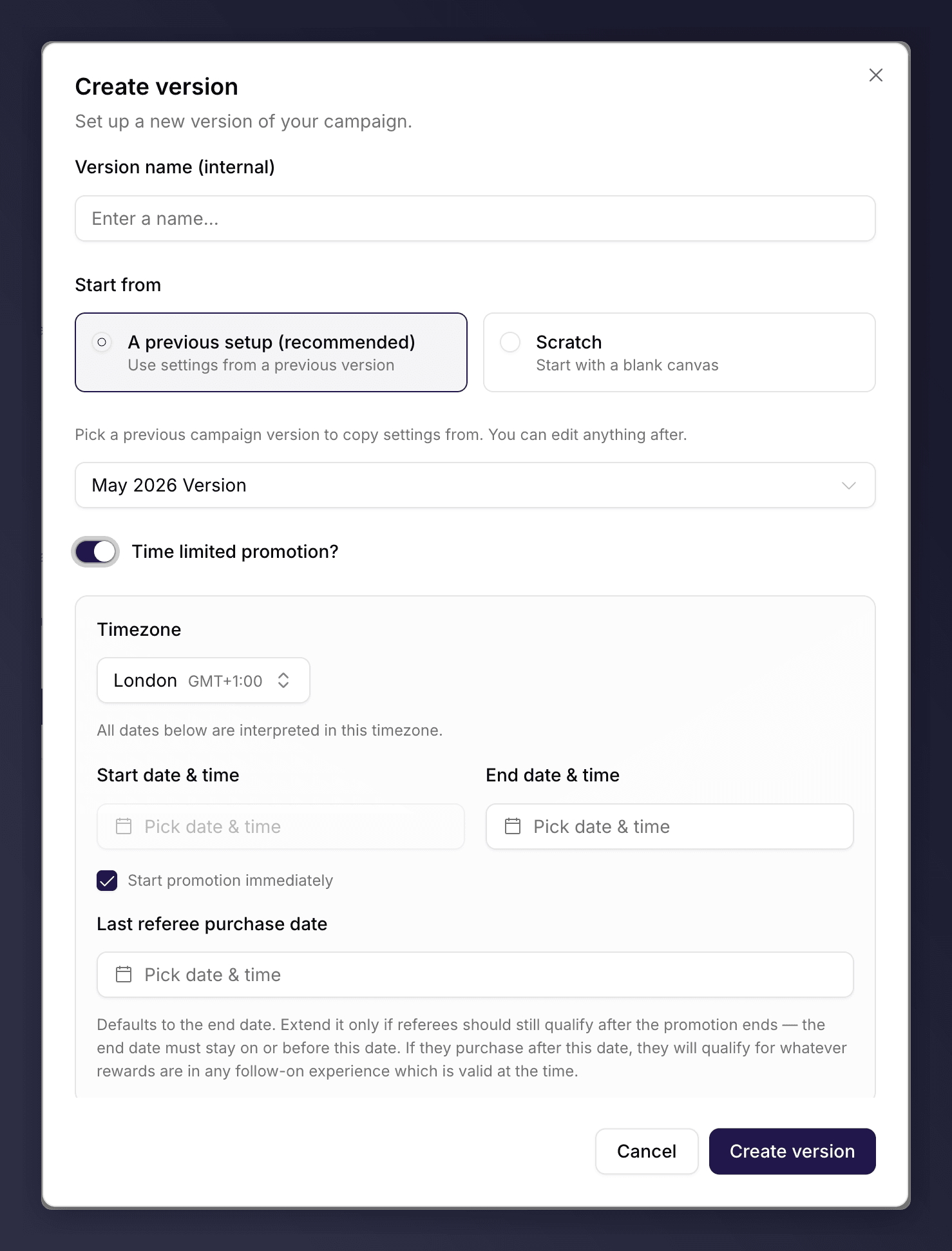
In the campaign’s version picker, click New version, then turn on Time limited promotion.
Turning a new version into a time-limited promotion.
2
Set the Dates
Choose a Timezone, then set the end date and the Last referee purchase date (the cut-off for friends to qualify). Leave Start promotion immediately ticked to begin the moment you launch, or untick it to schedule a start date.
You can also turn a standard version into a promotion at launch: the launch wizard’s Schedule step offers Time-limited promotion. A promotion cannot run an A/B test.
Click Launch, work through the steps, and choose Schedule launch for a future start, or launch now.
2
Keep Promoting Afterwards (Optional)
Tick Continue with “[live version]” after this ends so Mention Me queues a copy of the current live version to resume automatically when the promotion finishes. Without a follow-on, the campaign stops promoting when the promotion ends.