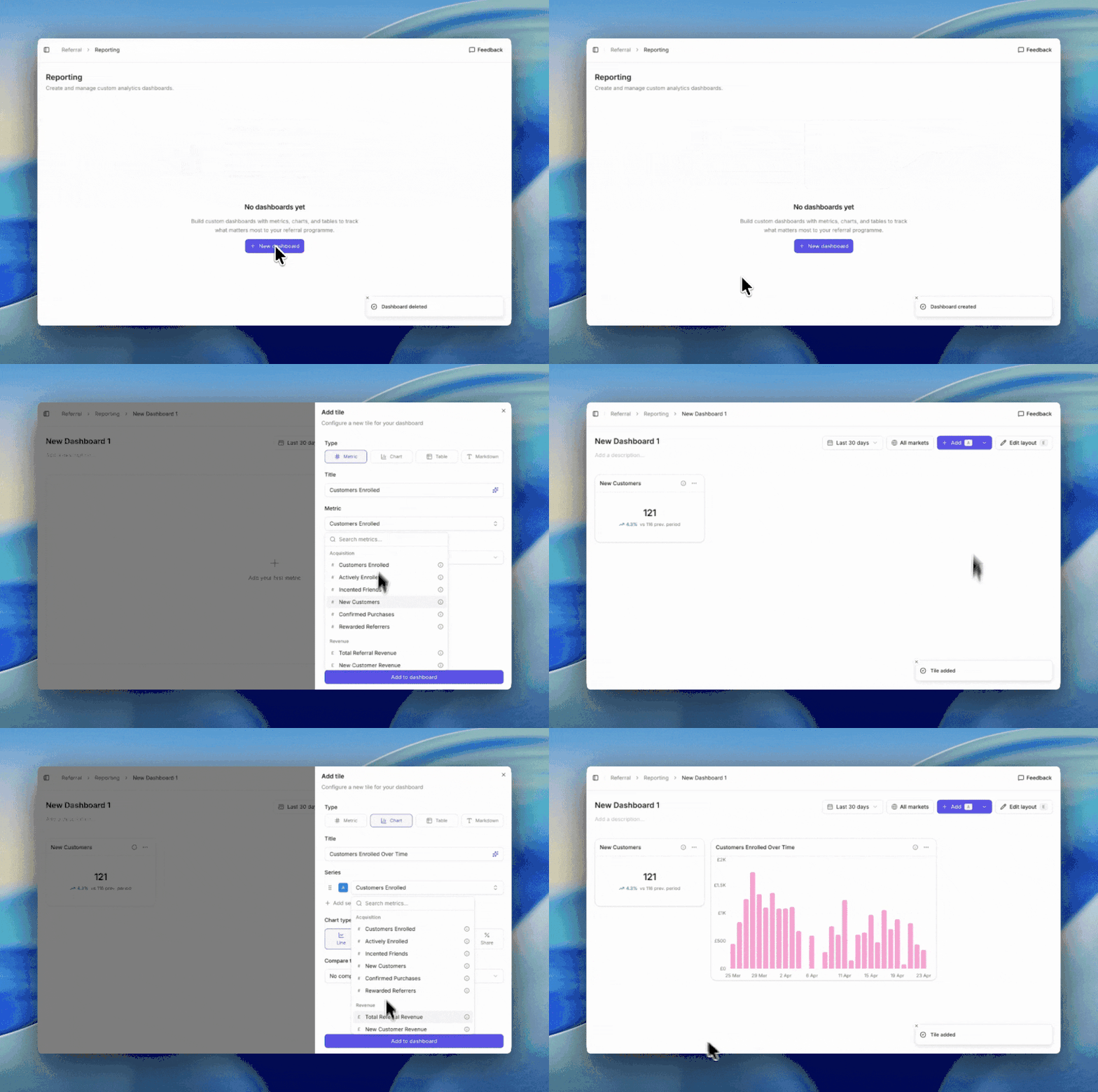
This tutorial walks you from an empty dashboard to a working one with two metric tiles and a chart. It assumes you have Reporting access.If you want the fastest possible path, start from a template instead. To let AI assemble the dashboard for you, see build with AI.
Building a blank dashboard from scratch.
1
Open Reporting
Go to Referral > Reporting. You land on the dashboards list, which shows every dashboard your team has created.
2
Create a Blank Dashboard
Click New dashboard. A dialog opens with three paths. Click Blank dashboard underneath the AI prompt box.You now have an empty dashboard with a filter bar along the top.
3
Add Your First Metric Tile
Click Add tile (or press A). In the tile editor:
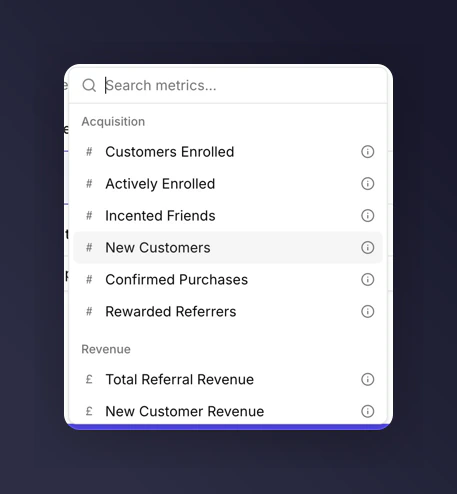
Metric picker showing the six metric categories.
Pick Metric as the tile type.
Search or scroll for New Customers in the metric picker.
Leave the title blank (the tile will autogenerate one) or give it your own.
Click Save. The tile lands on the grid.
4
Add a Chart
Click Add tile again. In the tile editor:
Pick Chart as the tile type.
Keep the chart subtype as Line.
Add Total Referral Revenue as the metric.
Click Save.
You should now see a line chart next to your New Customers metric.
5
Change the Time Period
In the dashboard filter bar at the top, open the time period dropdown. Switch from Last 30 days (the default) to Last 90 days. Both tiles update in place.Every tile on the dashboard now follows this time period. See filters and time periods.
A dashboard answering “how is the programme doing in the last 90 days?”. Add a comparison and you’ll be able to answer “is it getting better?”. Add a campaign breakdown and you’ll be able to answer “which campaigns are pulling their weight?”.