

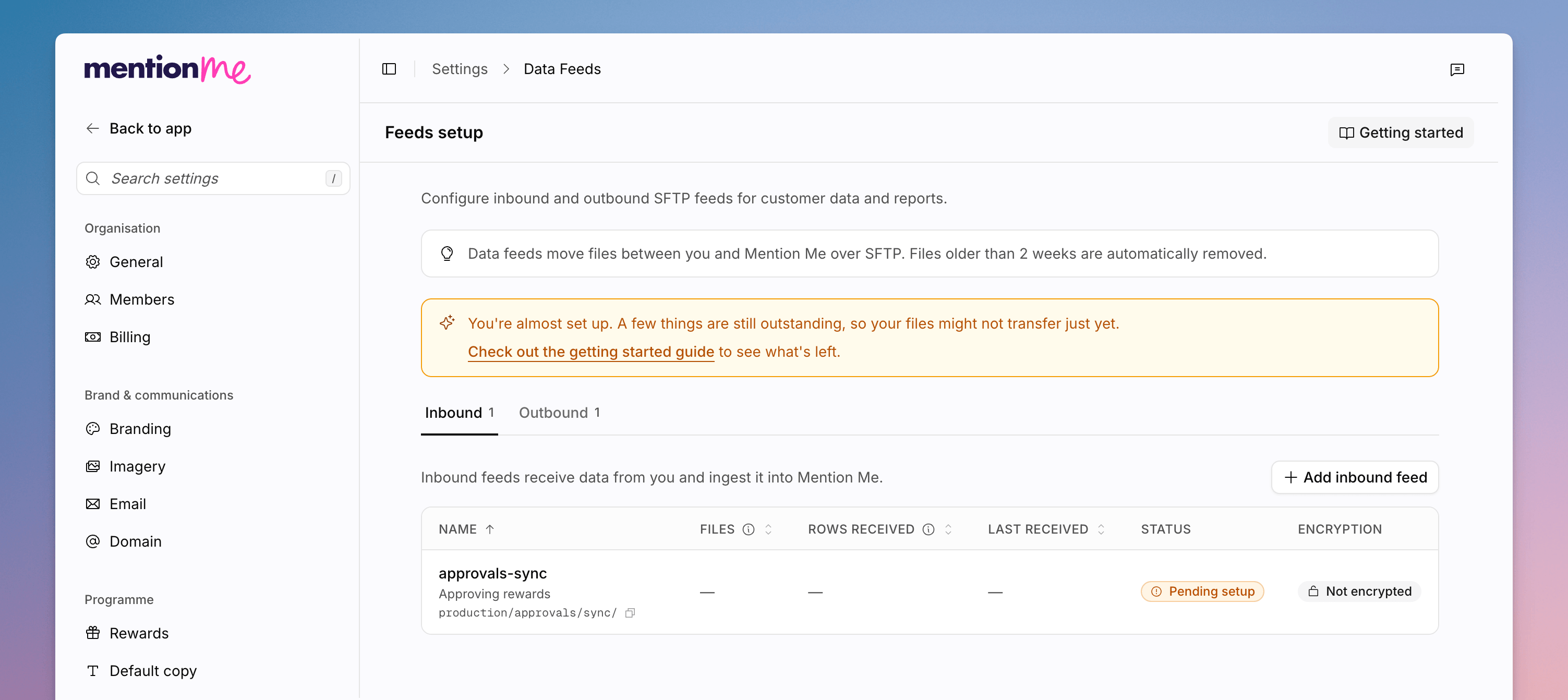
The Feeds setup page, with Inbound and Outbound tabs and an Add feed action.
Add a Feed
1
Open Feeds Setup
Go to Settings > Data feeds.
2
Choose a Direction
Inbound feeds receive data from you and ingest it into Mention Me.
Outbound feeds send data from Mention Me into your own systems. Each tab
shows a count.
3
Add the Feed
Click Add inbound feed or Add outbound feed. Enter a Name (for
example
customer_orders) and a Description. Turn on encryption if the
files should be PGP-encrypted.4
Fix SSH if Prompted
If you do not yet have keys or allowed IPs, follow Manage SSH keys &
IPs. New keys and IPs can take up to two working days to be approved.
Related Settings
How to Manage SSH Keys and Allowed IPs
Control who can connect to sftp.mention-me.com.
How to Manage Encryption Keys
Generate and rotate PGP keys for encrypted feeds.
SFTP Setup
Classic SFTP connection and folder setup.
How to Upload a CSV
A one-off alternative to a recurring feed.