

Early access. Webhooks is rolling out gradually. If you do not see
Settings > Webhooks, it is not enabled for your workspace yet.
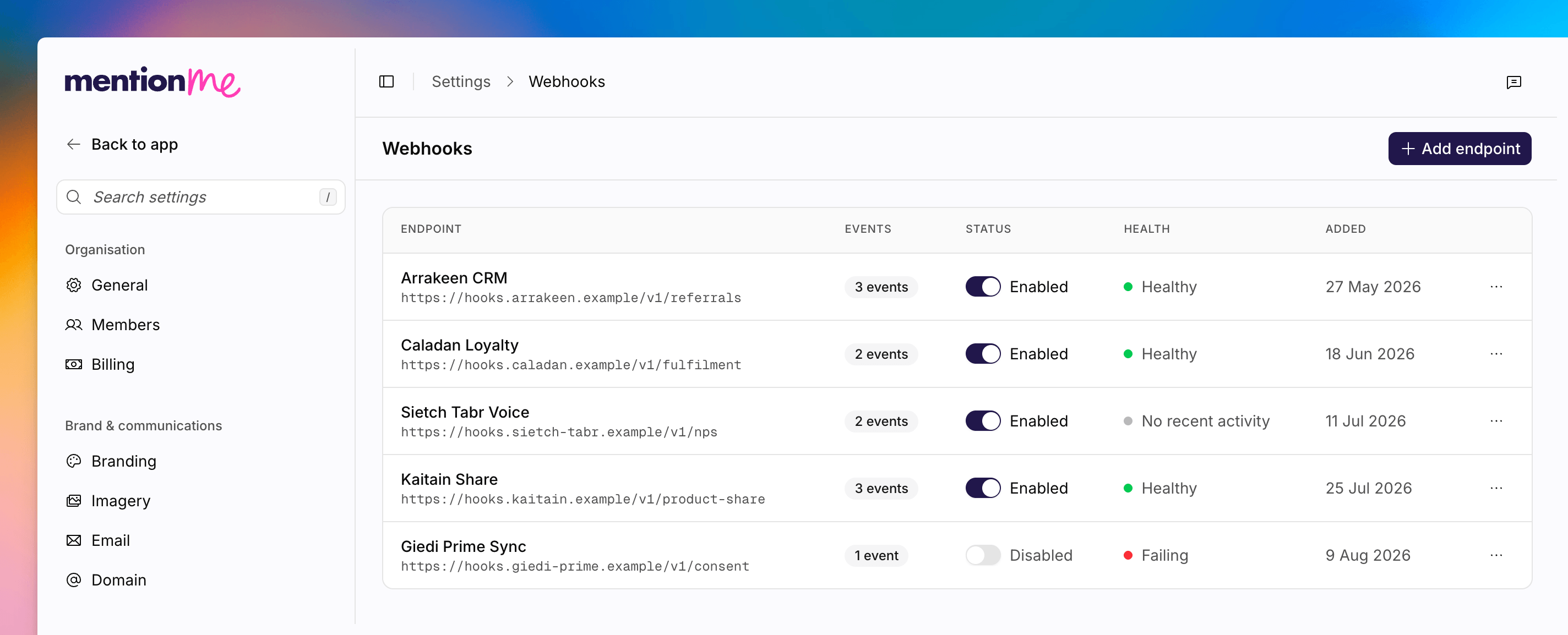
The Webhooks page, with a list of endpoints and an add action.
Add an Endpoint
If none exist yet, you will see No endpoints configured. Click Add your first endpoint.1
Open Webhooks
Go to Settings > Webhooks.
2
Add an Endpoint
Click the add endpoint action. Enter an Endpoint URL. It must use HTTPS.
3
Name It and Pick Events
Add an optional Name. Tick the Events to send. They are grouped as
Registration, Fulfilment, NPS, and Other.
4
Set a Signing Secret
Optionally add a Signing secret so you can verify that requests came
from Mention Me. On edit, use Replace to rotate it. The stored value is
never shown in full.
5
Save
Save the destination. Use the table’s test delivery action to confirm your
endpoint receives events.
Event Groups
See Also
Webhooks Overview
Event payloads, security, and how to verify signatures.
How to Use the Integration Logs
Inspect inbound tracking events if a webhook is not what you expected.