

Using the Classic dashboard? Follow the Classic landing page guide instead.
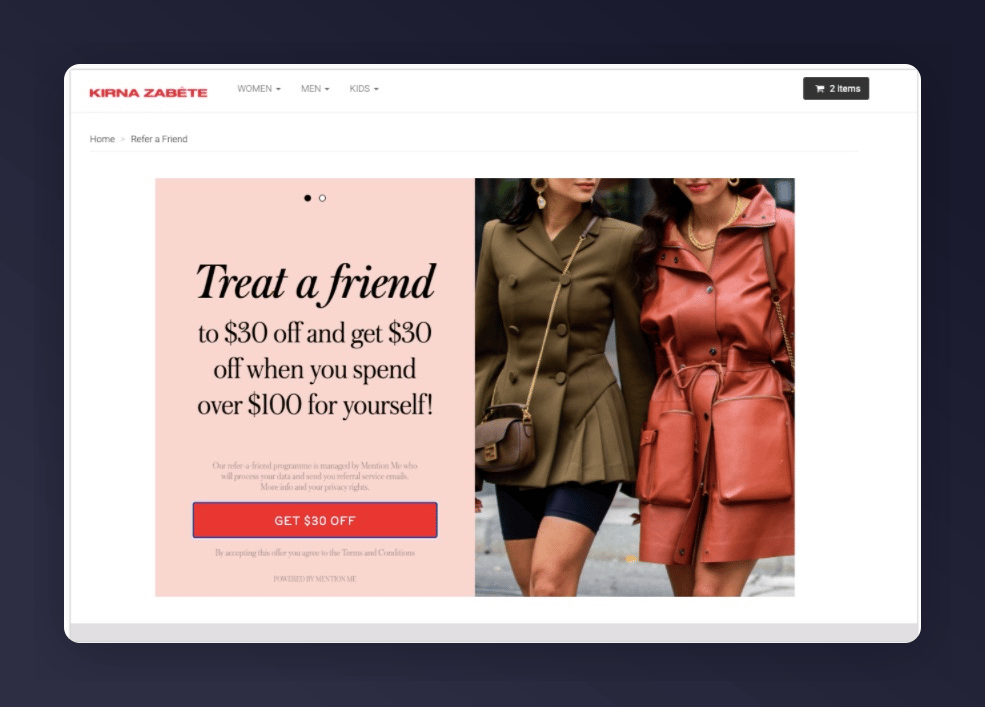
Referral landing page example
Creating a Landing Page
Use a Liquid page template rather than pasting code into the Shopify Pages HTML editor. This keeps the script intact and gives you full control over the markup. Build and check the page with the Demo tag while it is hidden, then switch to the Live tag and launch your programme before you make the page visible.1
Create a hidden page
In Shopify Admin, go to Online Store > Pages > Add page and title it (e.g., Referral Landing Page). Set Visibility to Hidden so customers can’t find the page while you set it up. Leave the content area blank. The template supplies it.
2
Create a page template
Go to Online Store > Themes > Edit code. Under Templates, create page.referral-landing.liquid.
3
Add the template code with the Demo tag
Start with the Demo tag. Use the tabs to compare the Demo and Live versions. The only difference is the tag host: Replace
tag-demo.mention-me.com for Demo and tag.mention-me.com for Live.INSERT_PARTNERCODE with your actual partner code. To customise how locale is determined, see Shopify: Locales.4
Assign the template
Go back to the page, under Theme Template select referral-landing, then click Save. Keep the page Hidden.
5
Preview the page with the Demo tag
Preview the hidden page from Shopify Admin. Check the referral offer is embedded on the page and looks visually correct.
6
Switch to the Live tag
In page.referral-landing.liquid, change only
tag-demo.mention-me.com to tag.mention-me.com in the saved code, keeping your partner code and any custom locale changes, then save. See How to Enable Live Tracking for the rest of your integration.7
Launch your programme
In Mention Me, open your campaign and click Launch on the version you want to go live. Follow How to Launch a Campaign and Version for the full launch wizard. The Live tag only shows an offer once your programme is live.
8
Preview the page again
Preview the hidden page again and check the live referral offer is embedded and looks visually correct.
9
Make the page visible
Set the page’s Visibility to Visible and click Save. Link to it from your navigation, emails or social posts so customers can find it.