The Mention Me app includes a Brand referral setup page that lists every block to add and tracks which ones are live. You add the blocks in Shopify, not in the Mention Me app.To open it, go to Apps > Mention Me > Brand referral setup in your Shopify admin. Each item has a button that opens the right place in Shopify.
Cart (Most Plans)
Checkout (Shopify Plus)
The How to set up checklist on the Brand referral setup page.
The How to set up checklist on the Brand referral setup page for Shopify Plus.
Block
Where it appears
Required
Checkout block (Shopify Plus)
Order summary in checkout, so referred customers can claim their offer
Yes, on Shopify Plus
Cart block
Cart page, so referred customers can claim their offer
Yes on most plans. Recommended on Shopify Plus
Cart drawer referral
Cart drawer, for themes that open the cart in a drawer
Yes on most plans, if your theme uses a cart drawer. Recommended on Shopify Plus
Thank you block
Main content of the thank you page
Yes
Order status block
Main content of the order status page
Yes
Announcement banners
Announcement bar on the thank you and order status pages
Where this block goes depends on your Shopify plan. If your plan doesn’t allow blocks in checkout, the setup page tells you, and you add it to the cart instead.On Shopify Plus, add the checkout block. We also recommend adding the cart block and cart drawer, so referred customers can claim their offer before they reach checkout.
Cart (Most Plans)
Checkout (Shopify Plus)
1
Add the Cart Block
On the Brand referral setup page, click Open theme editor next to Add the cart block.In the theme editor, add the Referred by a friend block to the cart page, then click Save.
Adding the Referred by a friend block to the cart page in the theme editor.
2
Turn On the Cart Drawer
Most themes open the cart in a drawer, and a block on the cart page can’t be placed there.Click Open app embeds next to Turn on the cart drawer. In the theme editor, turn on Cart drawer referral, then click Save.
Turning on the Cart drawer referral app embed.
1
Open the Checkout Editor
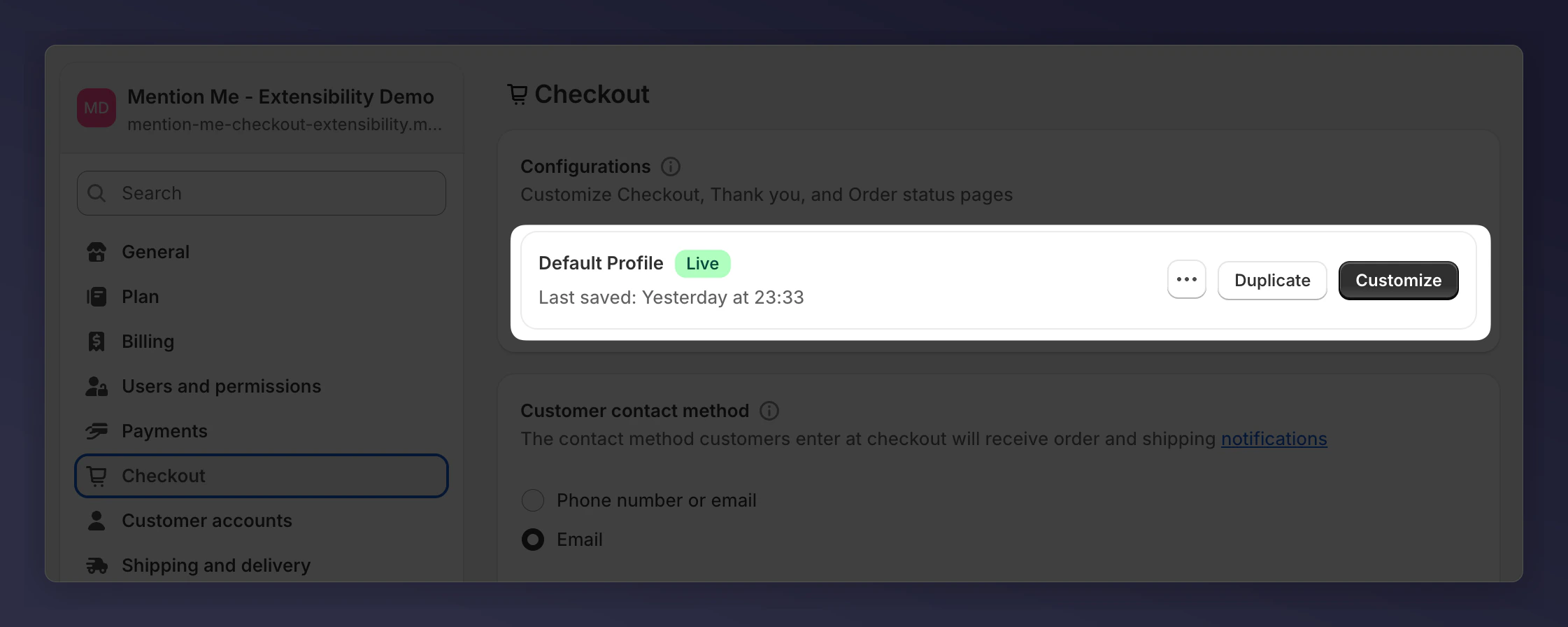
In Shopify Admin, go to Settings > Checkout and click Customise.
The Checkout page with the Customise button.
2
Add the Checkout Block
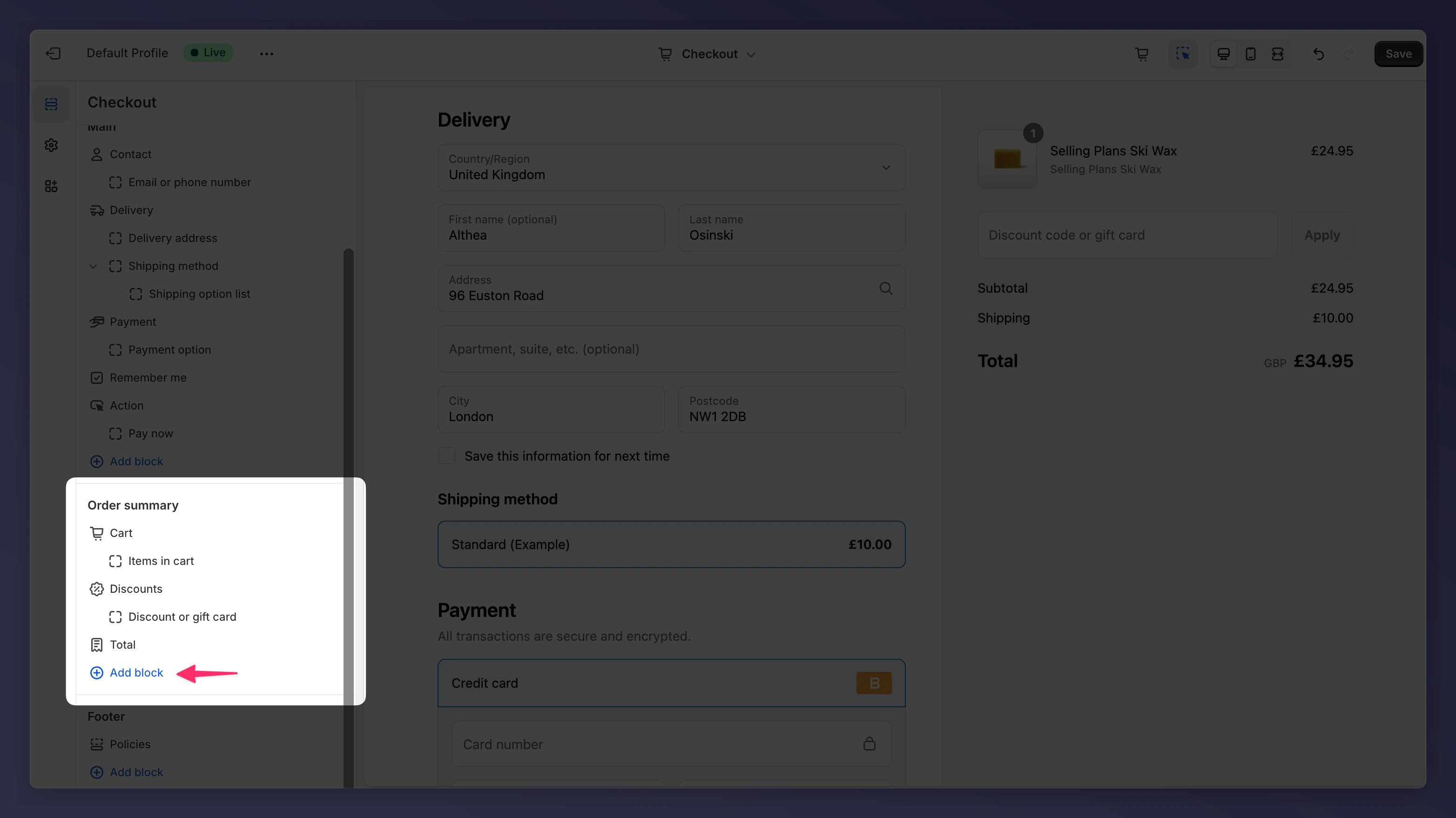
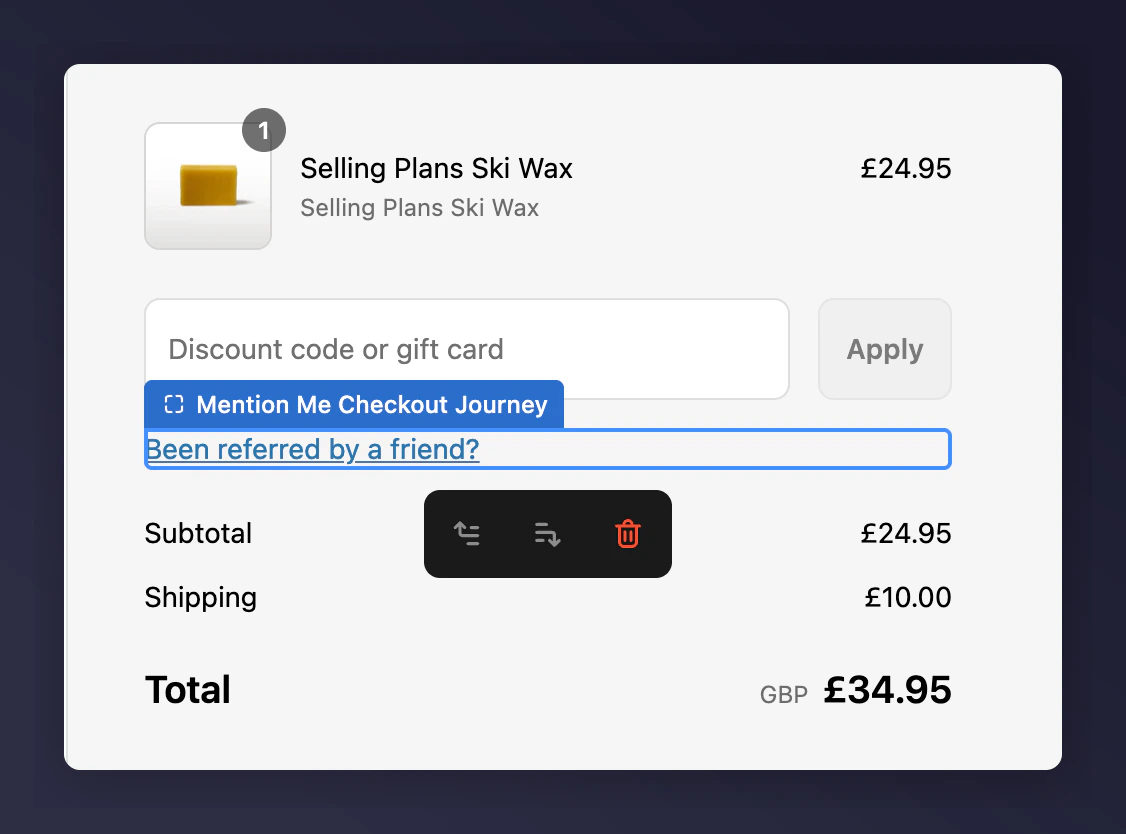
In the Order Summary section, click Add block and choose Mention Me Checkout Journey.
Adding the Mention Me Checkout Journey block to the Order Summary section.
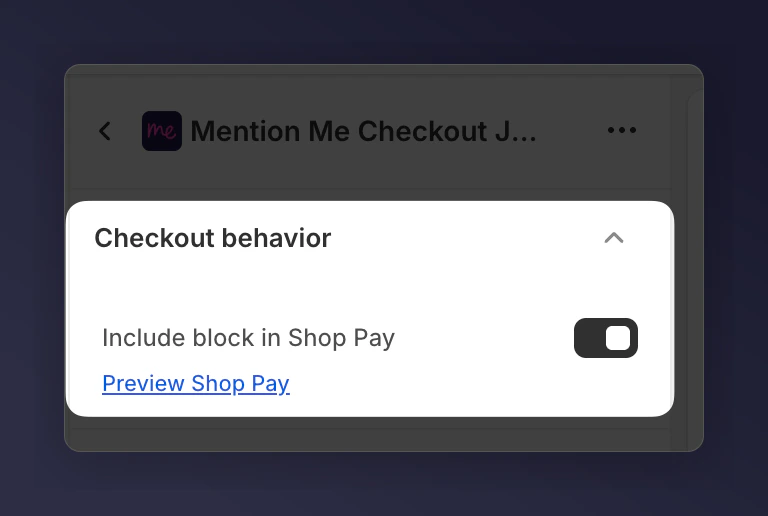
Then tick Include block in Shop Pay so the block also shows for Shop Pay customers:
The Include block in Shop Pay checkbox.
3
Save Your Changes
Click Save. The Mention Me link now appears under your discount box.
The Mention Me field appearing under the discount box in checkout.
4
Add the Cart Block and Cart Drawer (Recommended)
Follow the steps in the Cart (Most Plans) tab to add the Referred by a friend block and turn on Cart drawer referral.
Add these blocks to the thank you and order status pages so customers can refer a friend after they buy.
The thank you, order status, announcement banner, and dashboard items on the setup page.
1
Add the Thank You Block
Click Open thank you page on the setup page. In the Main content of the thank you page, click Add block and select Mention Me Refer a Friend Journey, then click Save.
Adding the Mention Me Refer a Friend Journey block to the Main section.
Place the block high up and in the left-hand column. Blocks in the right-hand column don’t show on mobile.
2
Add the Order Status Block
Click Open order status page on the setup page. In the Main content, add Mention Me Refer a Friend Journey and click Save.
The checkout editor page selector showing the Order Status page.
3
Add the Announcement Banners (Recommended)
On both the thank you and order status pages, click Add block in the Announcement bar and select Mention Me Refer a Friend Journey. Click Save. The banner uses your checkout colours. For the full steps, see the announcement banner guide.
Adding the Mention Me Refer a Friend Journey block to the Announcement bar.
Return to the Brand referral setup page and click Refresh. The Extension Status panel shows a tick next to each block that’s live.
The Extension Status panel showing which blocks are configured.
If a block doesn’t show as configured, check that you clicked Save in the Shopify editor, then click Refresh again. If blocks don’t appear on your store, check that the app is active and visibility is set in the Mention Me platform.