

Open the Wizard
Three entry points all open the same modal:- Enrol customer card on the Customers landing page.
- A row’s … menu, then Enrol in campaign.
- A customer profile’s Enrol in campaign button (top right).
1
Pick a Campaign
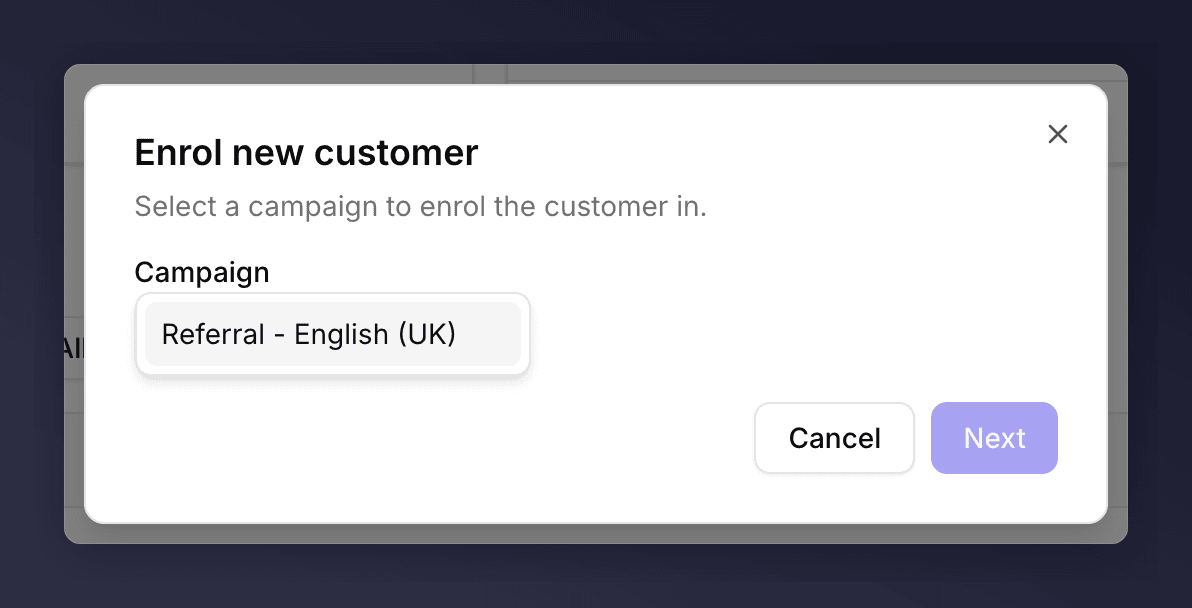
Campaign picker
2
Enter Their Details
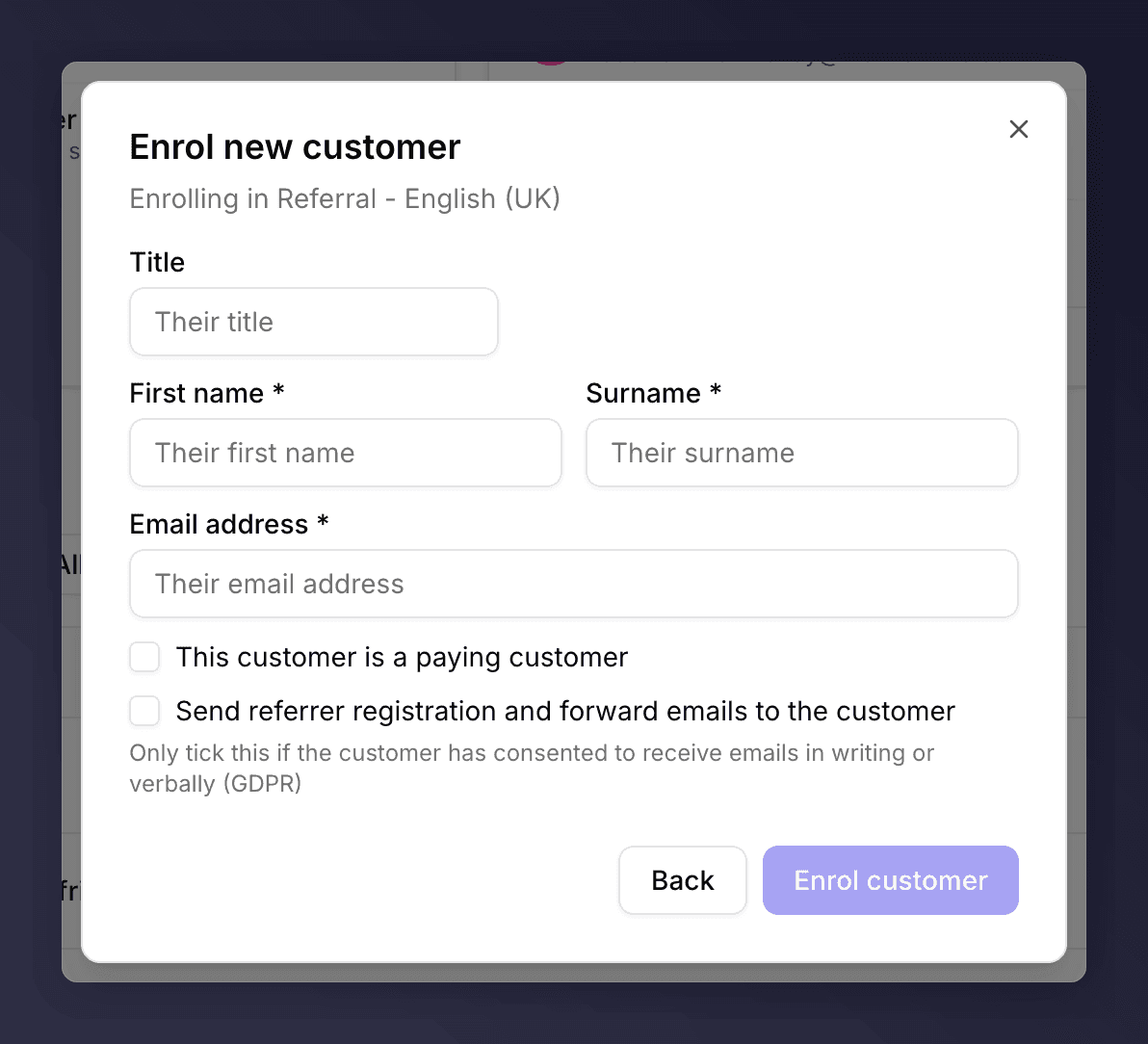
Customer details form
Click Enrol customer to submit.
What Happens Next
- The customer appears at the top of the list, with Last activity set to today.
- If you ticked the emails box, the registration email goes out immediately.
- The customer is enrolled in the selected campaign only. To enrol the same person in a second campaign, open the profile and click Enrol in campaign again.
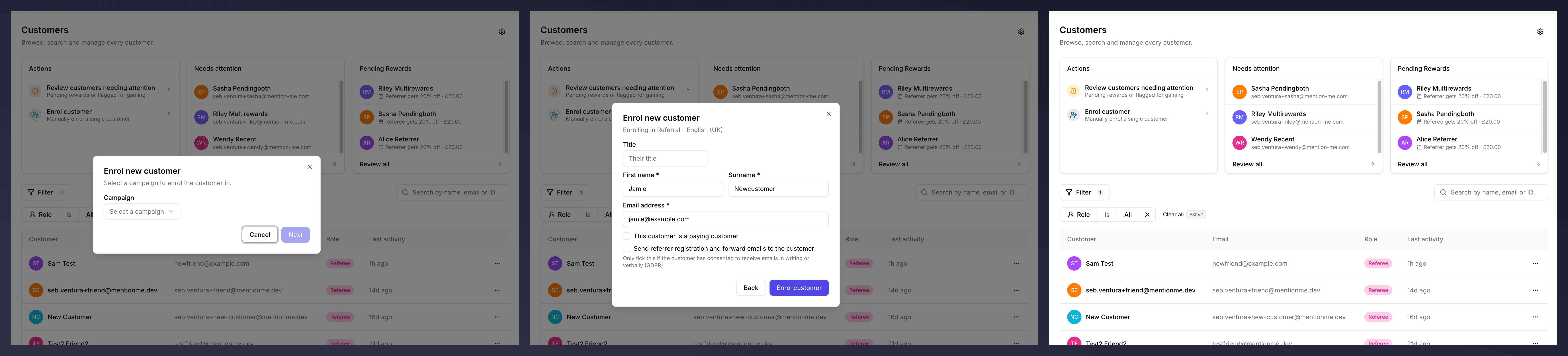
Full enrolment flow
Common Issues
Campaign dropdown is empty
Campaign dropdown is empty
No active campaigns in your account. Create one in Campaigns first.
Email address rejected
Email address rejected
Make sure there are no trailing spaces and the domain is reachable. Mention Me validates the format only, so it won’t catch mistyped addresses. Check carefully.
The customer is already enrolled
The customer is already enrolled
The wizard creates a fresh record. If the customer already exists, find them via search and use Enrol in campaign from their profile to add them to a different campaign without duplicating.
I can't tick the email-consent box
I can't tick the email-consent box
The box enables once an email address is filled in. Only tick it if you have GDPR consent on file.
See Also
Understanding Automatic Enrolment at Post-Purchase
Why most customers don’t need to be enrolled manually at all.
Upload a CSV
Bulk enrolment for a list of customers.
Link a friend
Enrol a friend under an existing referrer.