

- A campaign has ended and you want existing referrers in the next one.
- The customer’s locale, segment, or status no longer matches the campaign they’re in.
- A customer was enrolled in the wrong campaign by accident.
Move to a Different Campaign
1
Open the profile and stop the current campaign
Find the customer, open the profile, scroll to the Campaigns table. Open the … menu on the current campaign and choose Stop sharing.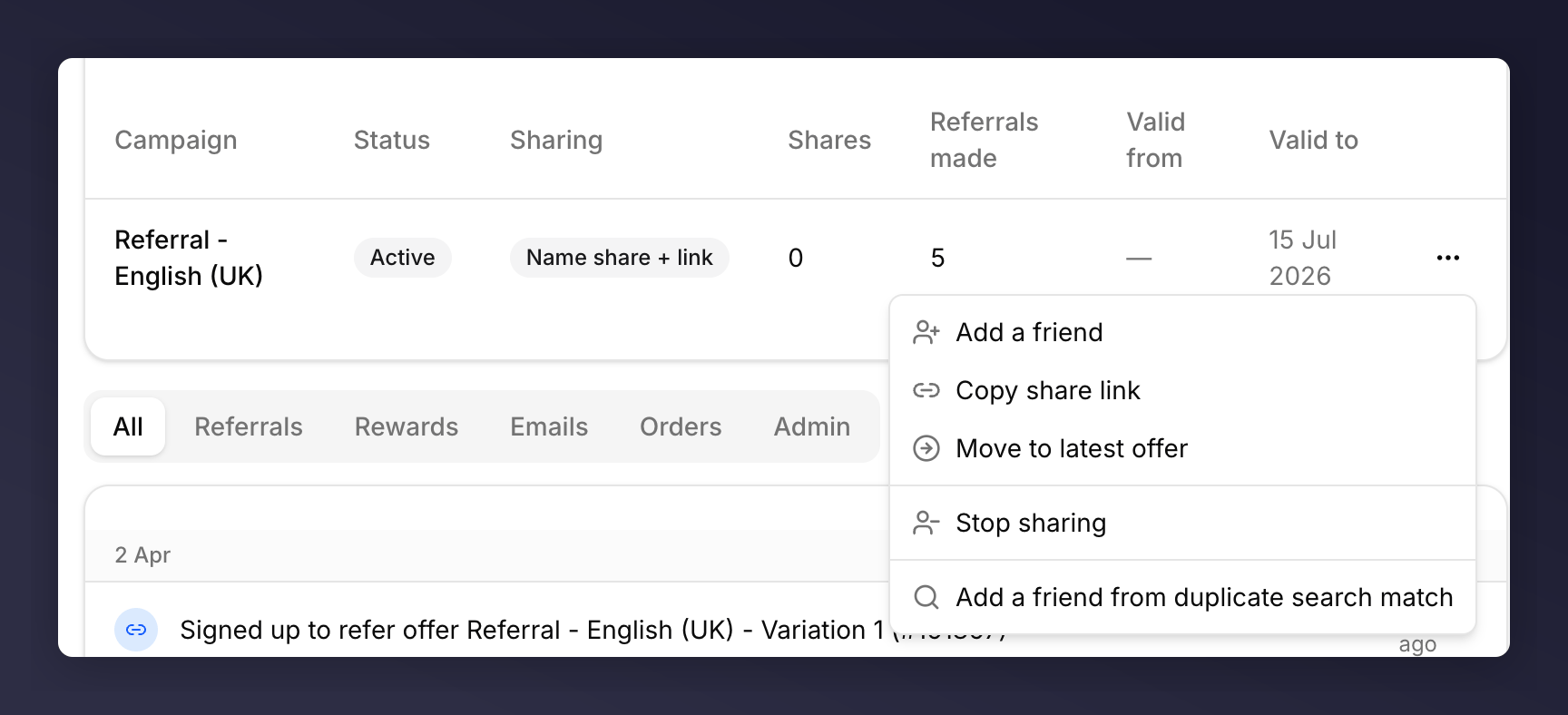
Campaign row menu
2
Enrol in the new campaign
Click Enrol in campaign at the top of the profile. Pick the destination campaign and continue.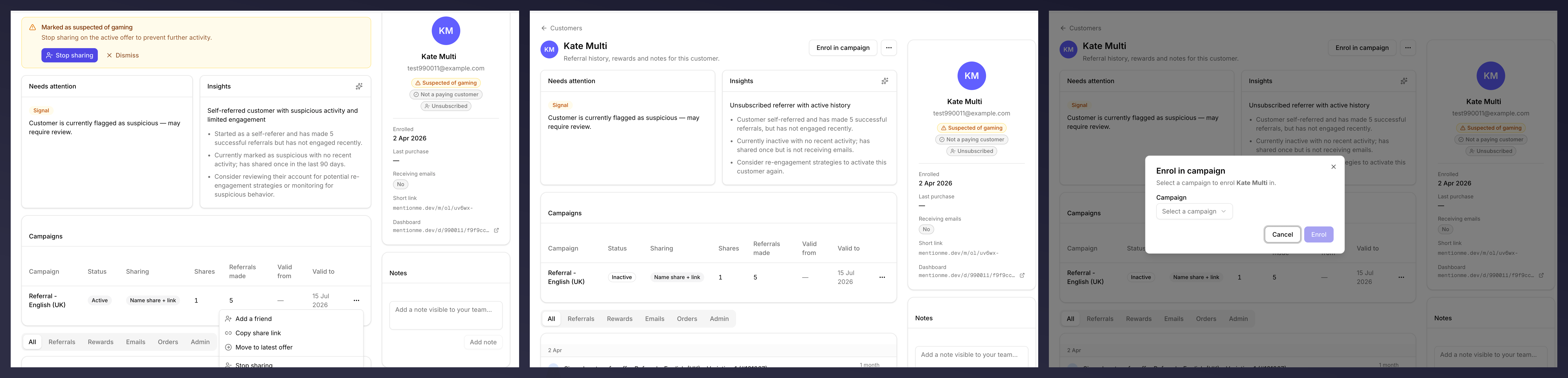
Stopping sharing, then enrolling in a new campaign
Roll Forward to the Latest Offer
If you only want to bump the customer to the newest version of the same programme, the campaign row menu has a shortcut.1
Open the campaign menu
On the Campaigns table on the profile, open the … menu on the current campaign.
2
Choose Move to latest offer
A toast confirms they’ve been rolled forward.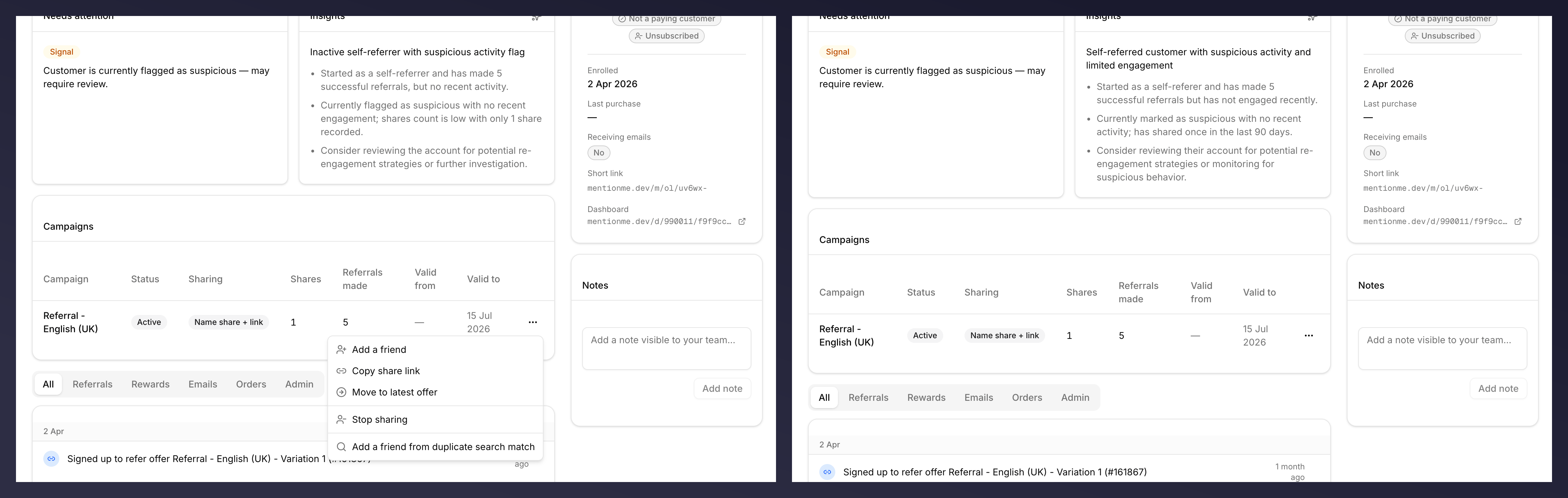
Move to latest offer
What Changes for the Customer
- Their existing referrals stay attached to the customer record. They aren’t re-attributed to the new campaign.
- New shares from this point use the new campaign’s offer, reward, and rules.
- Their Short link stays the same.
See Also
Link a friend
Same menu, different action.
Customer profile
Anatomy of the Campaigns table.