

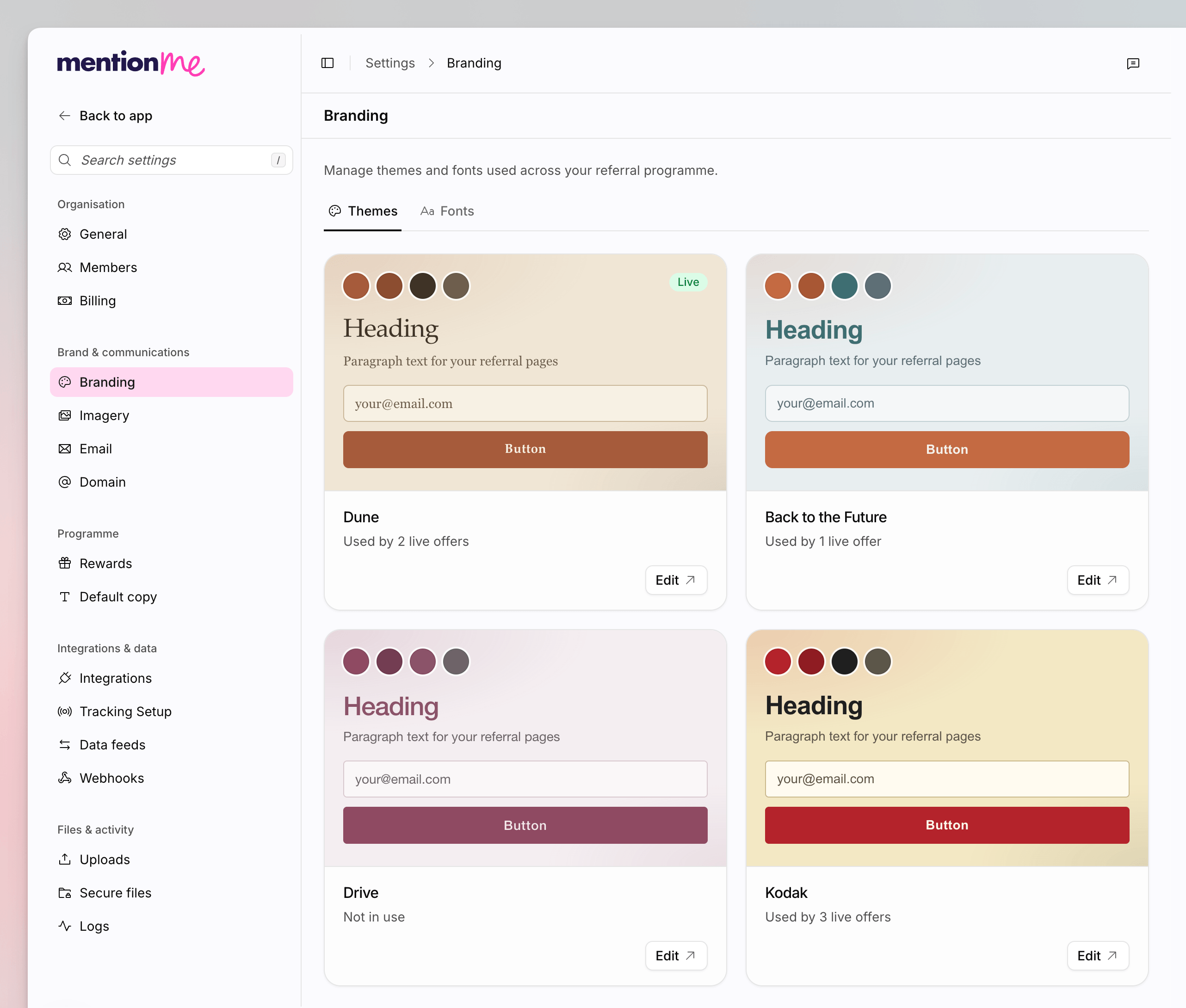
The Branding page on the Themes tab, with theme cards and an Edit action.
Themes
The Themes tab lists themes created for your referral pages. Badges include Live and Generating. Each card previews heading, paragraph, email, and button styles. The Themes tab is hidden unless you have design permission and Classic links are enabled for the workspace.Fonts
The Fonts tab is available to everyone in the organisation. A font pack is one or more fonts you upload together as a ZIP. Pages use one pack at a time. To use different fonts for headings and body, put both in the same pack. New packs take a few minutes to process after uploading.1
Open Fonts
Go to Settings > Branding, then open the Fonts tab.
2
Upload a Pack
Drop a ZIP of your font files onto Upload a font pack, or click to
browse.
3
Confirm
In Use this font pack?, confirm. Selecting a pack switches to it across
every campaign.
See Also
How to Manage Imagery
Set the logo, social sharing image, and Image Library.
How to Configure Branding
First-time colours, fonts, tone, and button style in the Onboarding Hub.
Custom Fonts
Classic documentation for uploading and applying fonts.
Design Themes
Classic documentation for editing themes.