

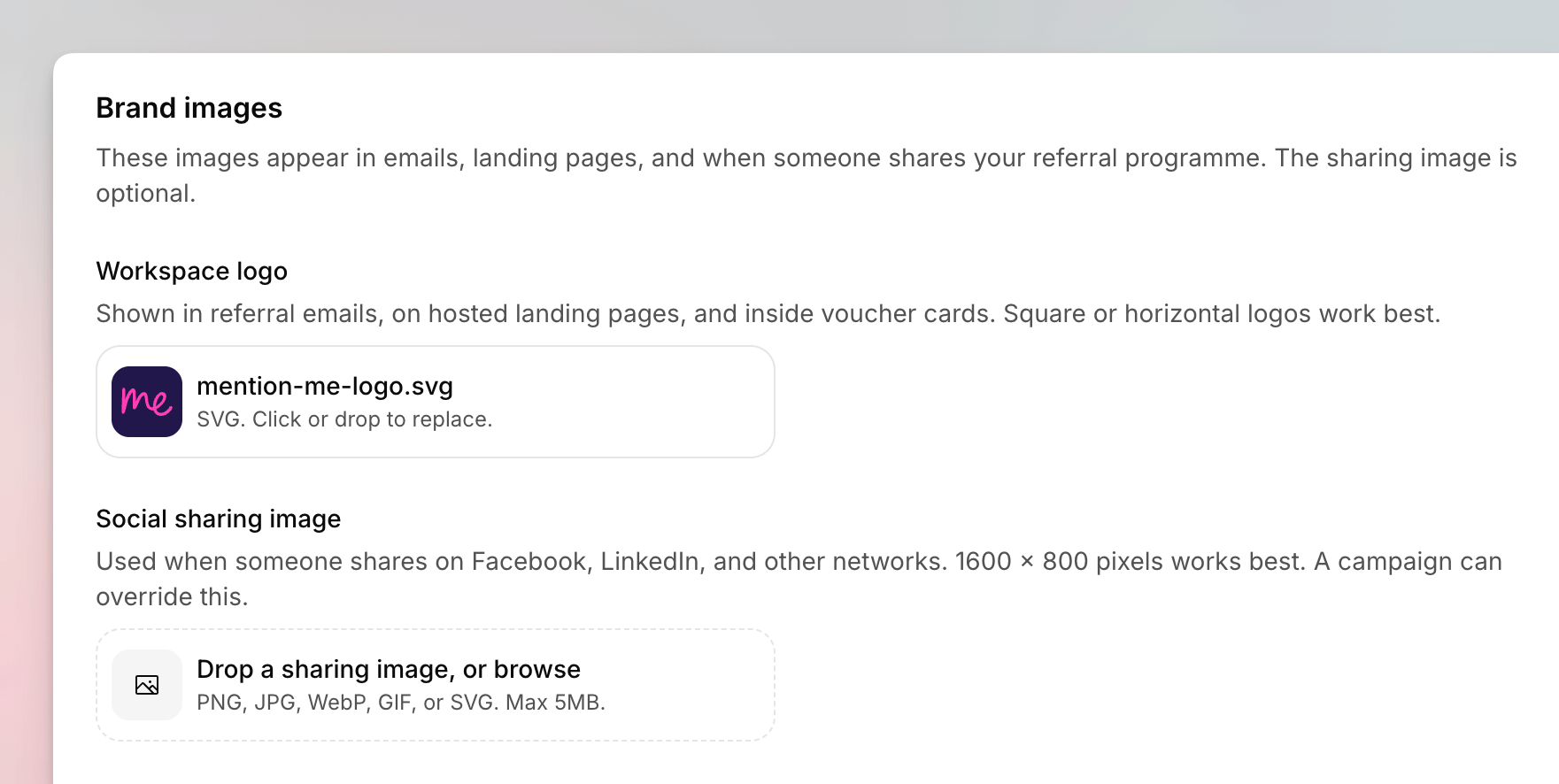
The Imagery page on the Brand Imagery tab, with logo and social sharing slots.
Brand Imagery
These images appear in emails, landing pages, and when someone shares your referral programme. The sharing image is optional. If Mention Me is already pulling a logo from your store, you will see a Heads up banner. Upload only if you want a different one.1
Open Brand Imagery
Go to Settings > Imagery. Stay on Brand Imagery.
2
Upload a Logo
Drop a file onto Drop a logo, or browse, then crop in Crop your
logo.
3
Upload a Sharing Image
Drop a file onto Drop a sharing image, or browse, then crop in Crop
your sharing image.
Image Library
The Image Library tab is for brand images you reuse on referral pages. It is available if you have design permission.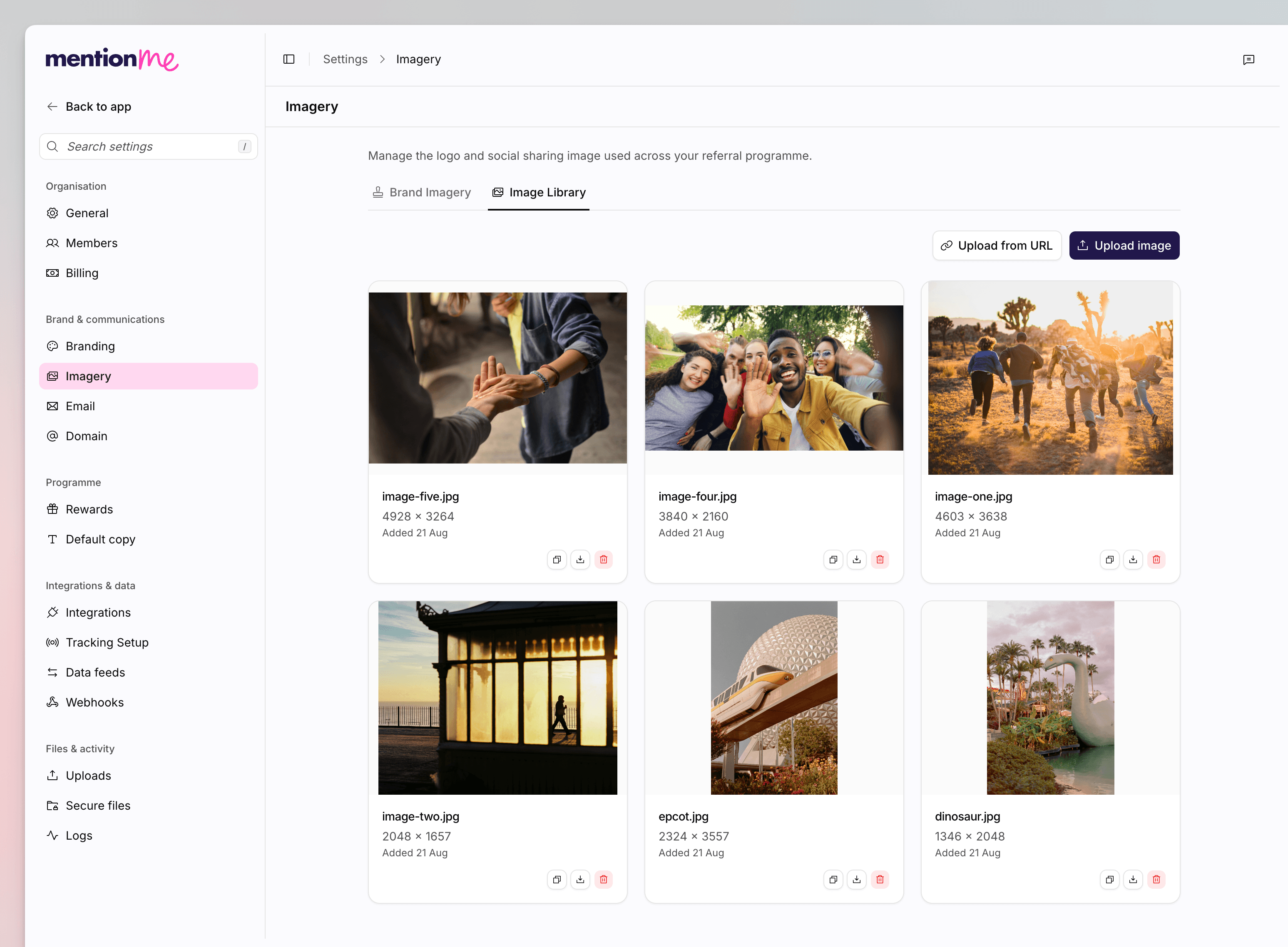
The Image Library tab, with uploaded images and Upload actions.
1
Open the Library
Go to Settings > Imagery, then open Image Library.
2
Add Images
Click Upload image to browse from your computer, or Upload from URL
to pull an image from a link. Use JPEG, PNG, SVG, or GIF.
3
Copy a URL
On an image, click Copy image URL. You will see Image URL copied.
4
Remove an Image
Remove an image you no longer need. Offers that already use it keep the
file. Confirm in Remove this image from your library?
See Also
How to Manage Branding
Themes and font packs for the same programme.
Images
Override imagery on a single campaign version.