

Brand referral has a node called Sharing too, but it is a different editor: the
sharing options on your referral pages. See brand referral
sharing.
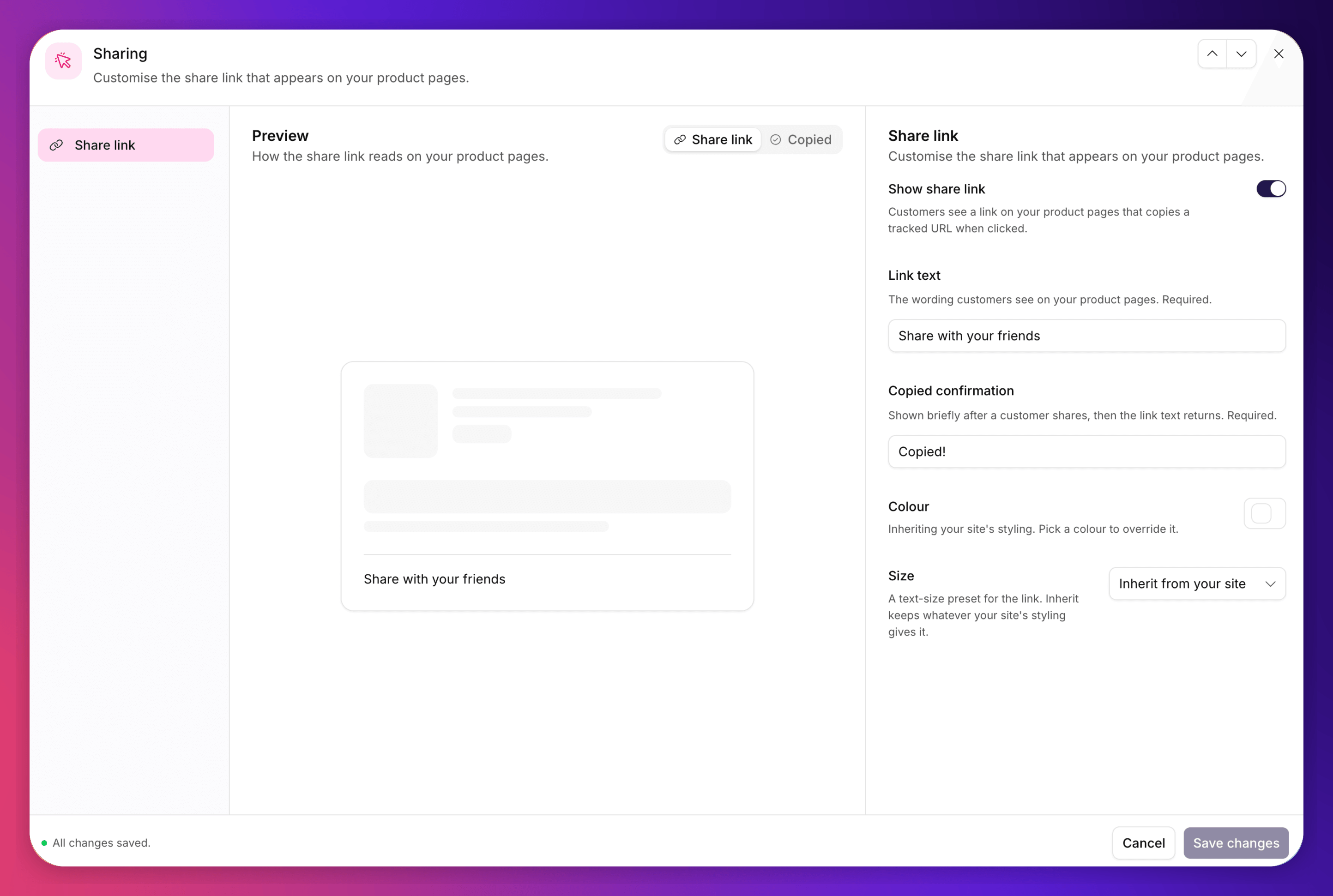
The Sharing node: element nav, preview and fields.
The Settings
The other fields are hidden while Show share link is off, since none of them apply.
The Editor
The node opens as three columns: an element nav on the left, the preview in the middle, and the fields on the right. The nav selects an element, not a device: the link is one anchor on your own page, so there is no desktop and mobile split to preview. What varies is whether you are looking at the resting Share link or the Copied confirmation. Focusing the Link text field switches the preview to the link state; focusing Copied confirmation switches it to the confirmation state, so you are always looking at what you are typing. The centre column is a mock rather than a real preview. The link is injected into your own storefront, which Mention Me cannot render, so the grey blocks stand in for your product content and only the link itself carries live configuration. The canvas node summarises the current styling as pills, for example Colour · Inherit and Size · Inherit, when the link is enabled, and reads Disabled when it is off.Colour and Size Inheritance
Colour and size both default to inheriting your site’s styling. The link is injected into your own page, so by default it picks up whatever CSS is already there. Set a colour or size only where you want to override that. To go back to inheriting, clear the colour or set the size to Inherit from your site. The three size presets map to fixed pixel sizes, so a preset renders the same in the preview and on your page.Where the Settings Are Stored
Share link settings belong to the offer, which means each variant of a version can have its own. There is no merchant-level default to keep in sync. In practice a single Save writes the change across every variant of the version you are editing, so you do not have to repeat yourself. As with every other node, only drafts are editable. Live and past versions are read-only.Copy and styling save as two separate requests. If one fails, you can end up with saved wording against the old styling. Nothing breaks, the link still renders, but re-save if the result isn’t what you expected.
When the Tag Actually Shows It
Turning the setting on is necessary but not sufficient. The tag decides whether to inject the share link at the point a product page loads, and it will not do so unless there is a live product referral campaign for that language with a servable version. Concretely:
Page views and visitor registration continue in every case, so launching a campaign later does not leave you with a cohort of unregistered sharers.
The requirement exists to prevent a referral that looks like it worked and can never pay out: with no campaign to resolve against, a link a customer shares would refuse every friend who followed it.
On Shopify
If you use the Mention Me Shopify app, the share link is rendered by the Share Product theme app block rather than by the tag, and the same requirement applies: no live campaign for that language means no share link. The block controls where the link sits on your product page. Its wording and styling come from the Sharing node above, the same as any other integration. Installing the block and choosing its placement are covered in how to set up product referral sharing.See Also
Tracking settings
URL hash tracking and UTM parameters.
Troubleshooting
When the share link doesn’t appear.
Product referral tag
Installing the tag on your product pages.
Shopify share link
Installing the Share Product theme app block and choosing its placement.