

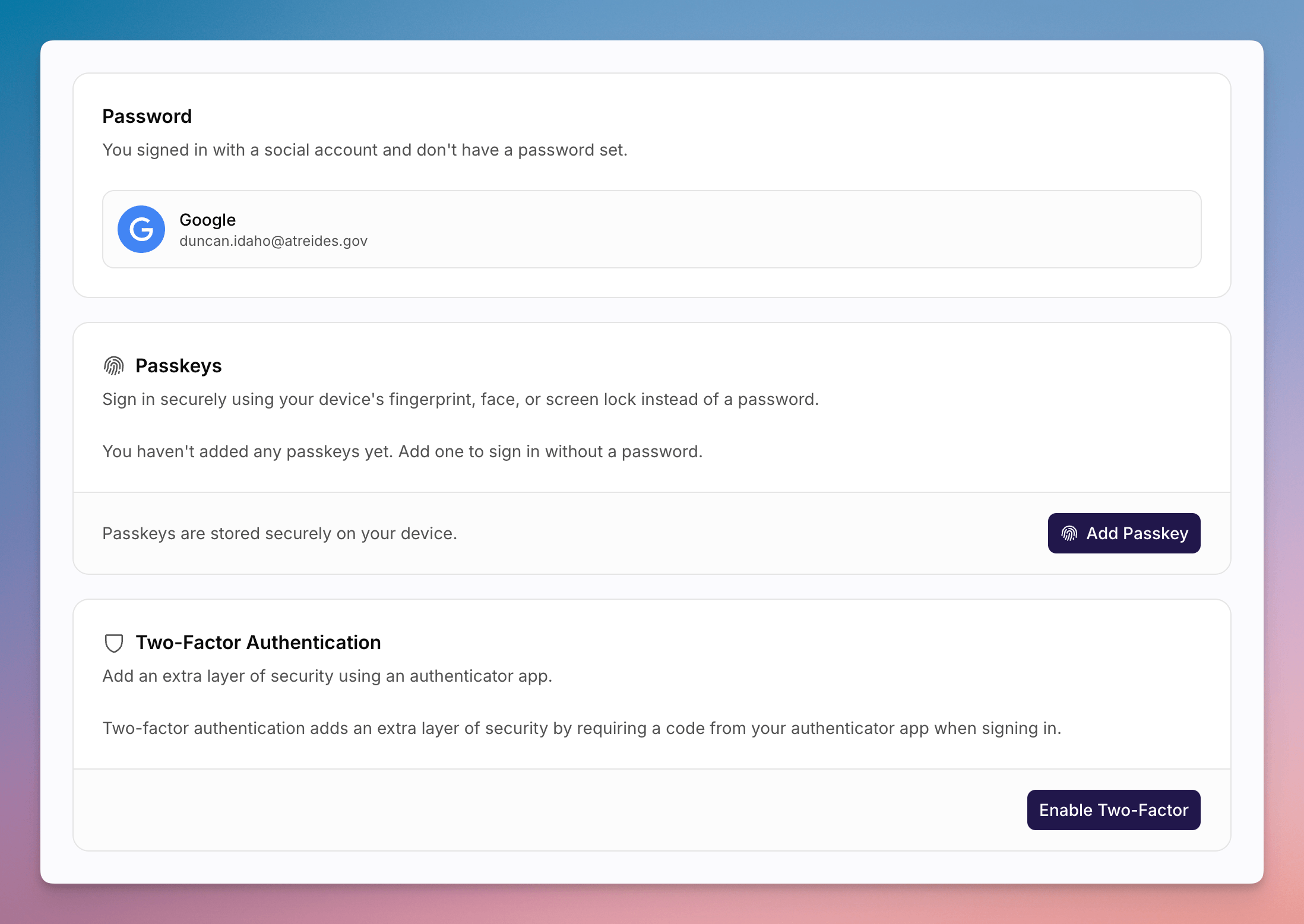
Account Security settings, with password and two-factor authentication cards.
Change Your Password
This card appears if your account uses password sign-in.1
Open Security
Click your avatar, then Account settings > Security.
2
Enter Passwords
Fill in Current password, New password, and Confirm password.
3
Save
Click Save Changes. You will be signed out of other devices.
Passkeys
If your organisation does not use enterprise SSO, you can add a passkey from the Passkey card.Two-Factor Authentication
1
Enable
On Two-Factor Authentication, click Enable Two-Factor. The disabled
description is Add an extra layer of security using an authenticator
app.
2
Scan or Enter the Secret
Scan the QR code with your authenticator app, or enter the manual secret.
Then type the 6-digit code (placeholder
000000) and click Verify.3
Disable Later
When two-factor is on, the description is Your account is protected with
an authenticator app. Click Disable Two-Factor and confirm. You will
only need your password to sign in after that.
See Also
How to Update Your Account
Display name and time zone.
Two-Factor Authentication
Classic documentation for authenticator-app setup.