

The Hierarchy
- Campaign. The top-level container for a referral programme in a single locale (language and region). A campaign holds many versions, but only one is live at any time.
- Version. A single iteration of the campaign that you build on the canvas. You create versions, edit them as drafts, and roll them out over time. Each version contains the offers, rewards, sharing and journey for that iteration.
- Promotion. A version that runs only between set dates. It is still a version; it just carries a start date, an end date, and a last date for friends to qualify.
Campaign Status
A campaign itself has three statuses, shown as a pill on the campaigns list:
You pause and resume a campaign from the Settings control at the top of the campaign page. See pause or resume a campaign.
Version Status
A version moves through its own statuses as you roll it out. These appear in the version picker with a coloured dot:Standard Versions versus Promotions
A promotion’s last referee purchase date is the cut-off for friends to complete a qualifying action and still count towards the promotion. While a promotion is live you can push its dates out with Extend promotion.
Switching Between Versions
The version picker at the top of the editor is how you move around a campaign’s versions. Open it to see them grouped by status.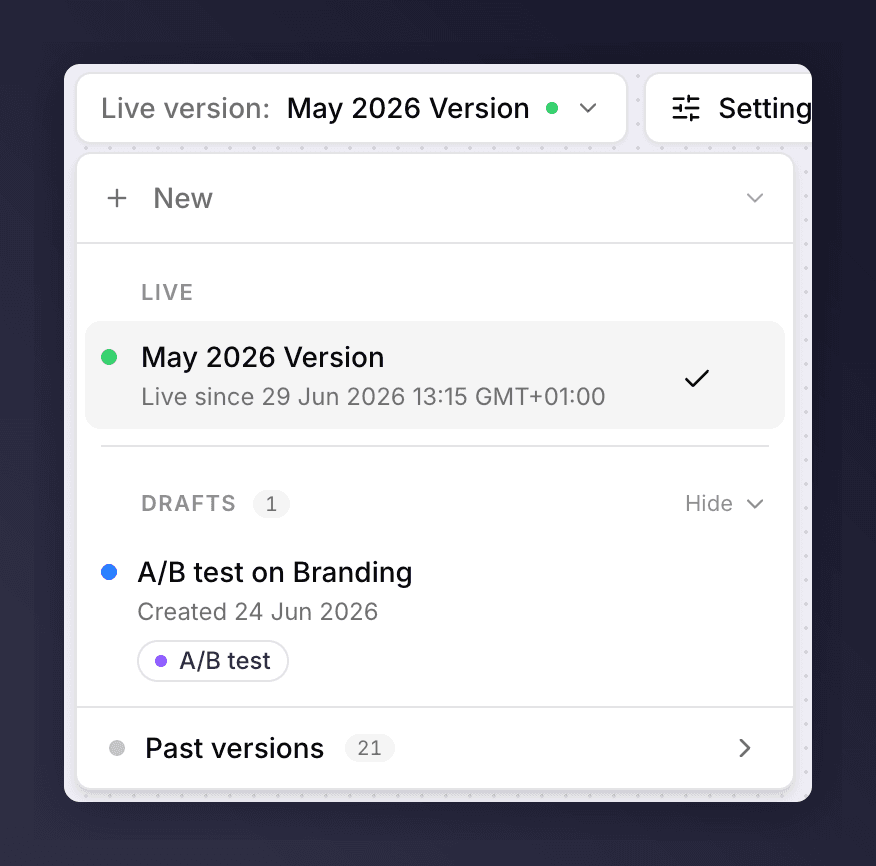
The version picker, grouped by status with the launch order shown.
- Open a version. Click any version in the picker to open it in the editor.
- Live and Up next are shown as a timeline, so you can see what is running now and what follows.
- Create a new version. Click New version. On a brand referral campaign with a live version, choose Standard version or A/B test; on a product referral campaign, choose Incentivised or Non-incentivised in the dialog.
- Rename or duplicate. Use the actions menu on a version row.
- Cancel a scheduled launch. Use Cancel schedule on a queued version to take it out of the launch order.
- Delete a draft. Use Delete on a draft you no longer need.
Why Some Versions Can’t Be Edited
Only a draft of a campaign that has not yet launched is fully editable. Live, queued, paused and past versions are read-only, so the canvas shows what customers experienced without risk of accidental change. The Trigger node behaves differently again, because it is shared across the whole campaign. For the full rules, see what you can and can’t edit.See Also
The campaign editor
The campaign editor.
Set up a version
Set up a version.