

Overview
Mention Me supports OpenPGP encryption for files transferred via SFTP, in both directions:- Inbound (you to Mention Me) - you encrypt files with a public key before uploading them, and Mention Me decrypts them on receipt.
- Outbound (Mention Me to you) - Mention Me encrypts reports and data feeds with your public key before delivering them to your SFTP folder.
Managing your keys in the platform
Dedicated keys are managed from the Encryption keys settings. Keys are split into an Inbound keys table and an Outbound keys table, with one row per scope (a folder, or Default (all folders)). Each row shows:- Public key - a Copy key button for the scope’s current public key.
- Status - Active, Grace period with its end date while an inbound rotation is running, or No active key.
- Created - when the current key was created, and by whom.
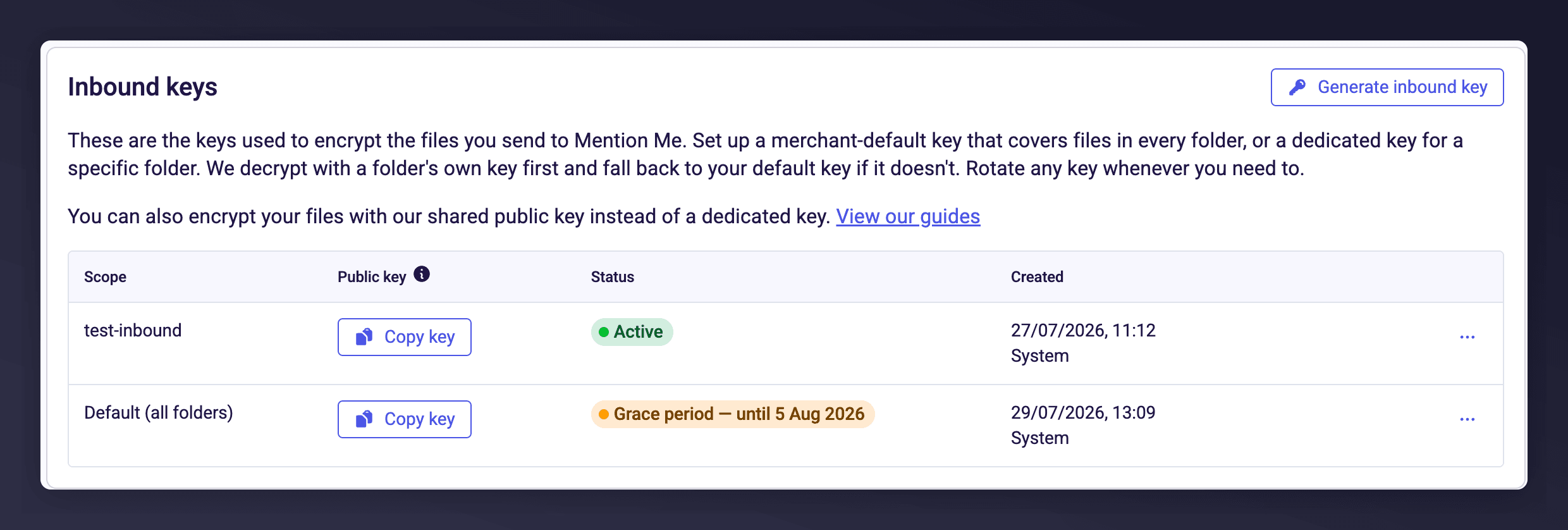
The Inbound keys table, with one folder-scoped key active and the default key inside a rotation grace period.
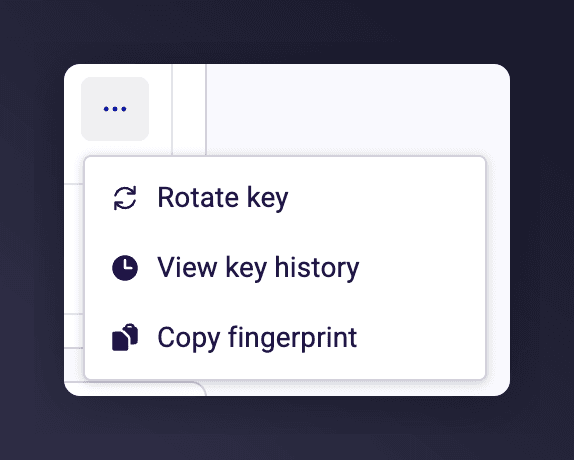
The actions available on a key's row.
- A default key covers every inbound (or outbound) folder that does not have its own key.
- A dedicated key applies to a single folder, so different data feeds can use different keys.
Generate an inbound key
For files you send to Mention Me, generate a dedicated inbound key:Open Generate inbound key
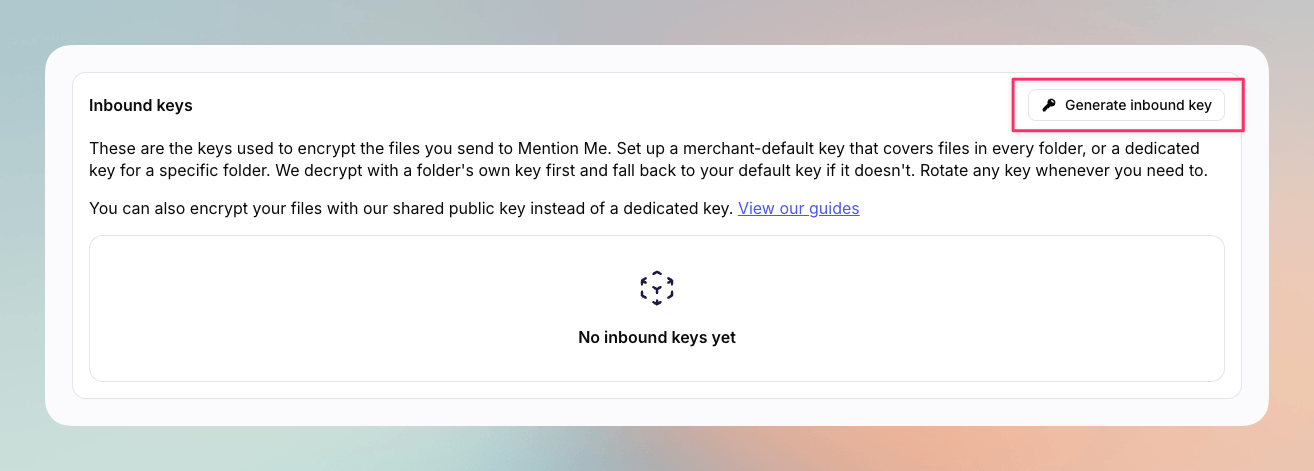
The Inbound keys section, before any keys have been generated.
Choose the key's scope
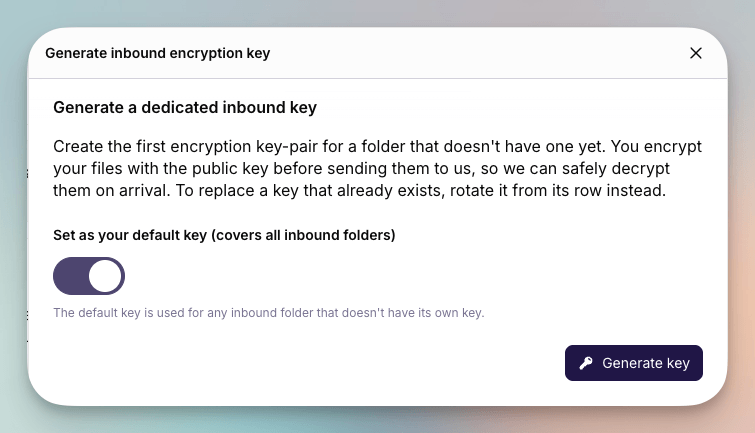
Generating a default inbound key.
Copy or download the public key
.asc file.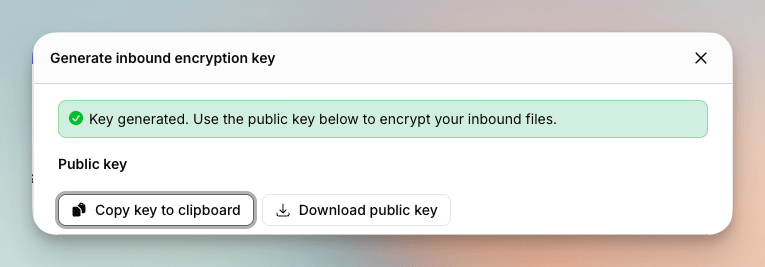
The generated key, ready to copy or download.
Import an outbound key
For files Mention Me sends to you, import your own public key:Open Import outbound key
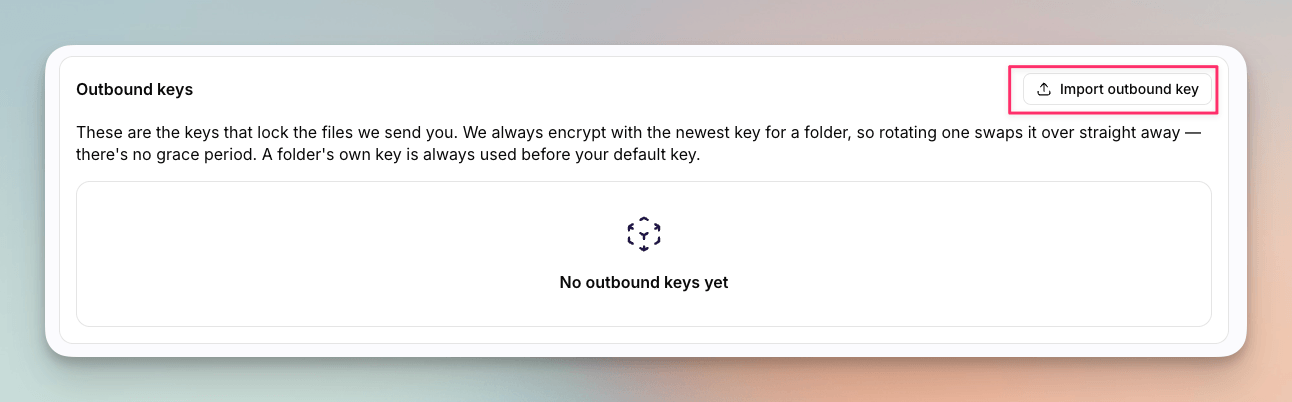
The Outbound keys section, before any keys have been imported.
Choose the key's scope
Paste your public key
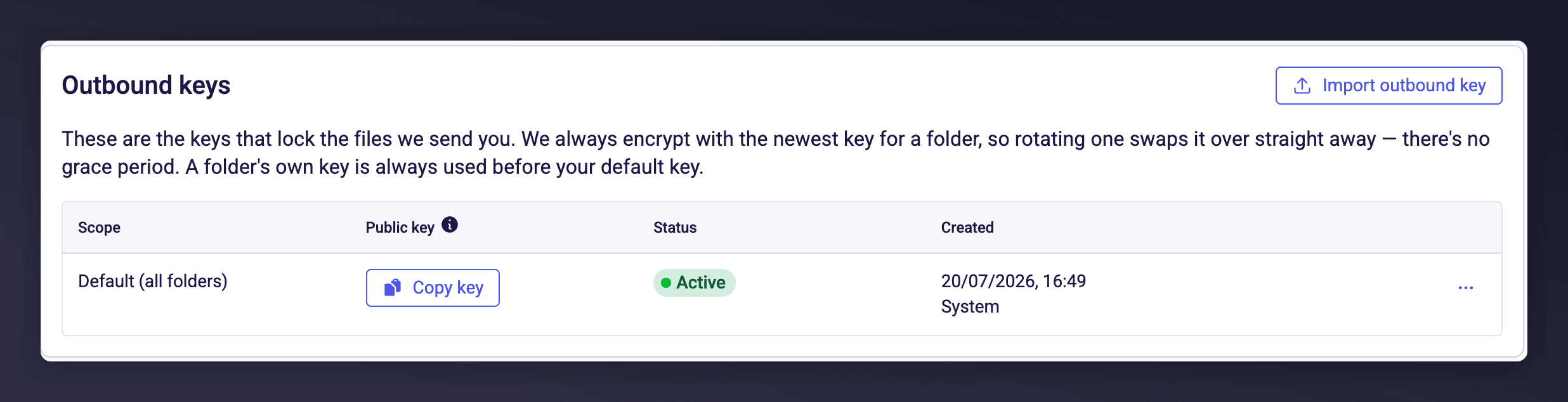
The Outbound keys table. Outbound keys never show a grace period, because delivery always uses the newest key.
Key history
Every key a scope has ever had is kept. Use View key history on the scope’s row to see them, newest first, with the status of each: Active for the live key, Active until [date] for one inside a grace period, and Expired [date] or Inactive for a retired one. Each key also shows when it was created and last modified. Keys are never deleted, so the history stays a complete record of which key was valid when.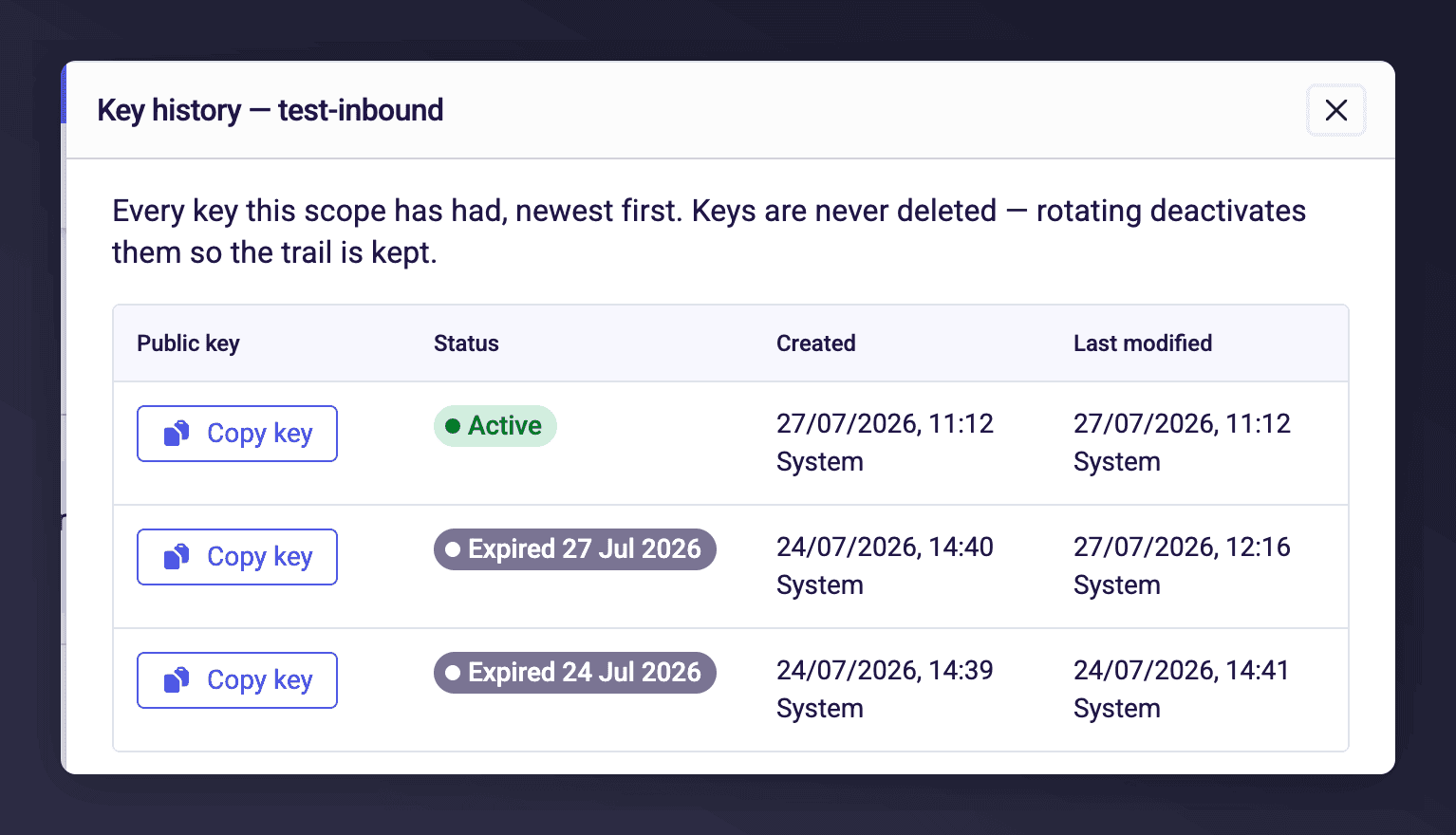
Key history for a folder-scoped key, showing the live key above two retired ones.
Inbound encryption (you to Mention Me)
When you upload files to Mention Me via SFTP, you can encrypt them with PGP first. Mention Me decrypts them automatically on receipt. Generate an inbound key for the folder from Settings > Integrations & data > Data feeds > Encryption keys, then encrypt your files with the public key shown when you generated it.Encrypting a file before you upload it
You encrypt files on your own systems, before uploading them, with any OpenPGP tool. These steps use GnuPG (gpg) on the command line.
Import the public key (one-time setup)
mm-inbound-public-key-<fingerprint>.asc.Encrypt each file
Orders-20260715.csv.asc next to the original file.Upload the encrypted file
Orders-20260715.csv.asc to the folder’s data/ directory via SFTP. Don’t upload the original .csv, because an encrypted folder rejects unencrypted files (see Strict mode).Strict mode
When a folder is marked as encrypted, plaintext (unencrypted) files uploaded to it are rejected rather than processed. If a file is rejected:- The file is not ingested.
- A rejection notice is written to the folder’s
log/directory, alongside thedata/directory you upload to (see Folder Structure). - The rejection is final for that file, and it is not retried. Encrypt the file and re-upload it under a new filename, because the pipeline treats each filename as processed once.
Outbound encryption (Mention Me to you)
When outbound encryption is enabled for a folder, Mention Me encrypts reports and data feeds with your public key before delivering them.- Import your outbound key for the folder from Settings > Integrations & data > Data feeds > Encryption keys.
- Once imported, all outbound files for that folder are encrypted automatically.
- Files are ASCII-armoured, with an encryption extension appended to the filename. For example, a report normally delivered as
Fulfilment_20260715.csvis delivered asFulfilment_20260715.csv.asc. - Decrypt the file with your private key.
.asc. If your tooling requires .pgp or .gpg instead, ask the Support Team to configure it. The file content is always ASCII-armoured regardless of the extension.
Rotating keys
Keys are rotated from Settings > Integrations & data > Data feeds > Encryption keys using the Rotate key action on a key’s row. Generate and import only create a scope’s first key; after that, use Rotate key to replace it.Inbound rotation
Rotating generates a new key pair and asks whether to keep the current key active as a grace key, so files encrypted with either the old or the new public key are accepted during the changeover. Under Keep the current key active during a grace period?, choose one of:- No, replace it immediately. All current keys stop being accepted at once. Any file still encrypted with an old key fails to decrypt.
- Yes, for 7, 14, 30, 60 or 90 days. The current key stays active alongside the new one for that period. Mention Me decrypts with the latest active key, falling back to the previous one, so files still encrypted with the old key are decrypted successfully.
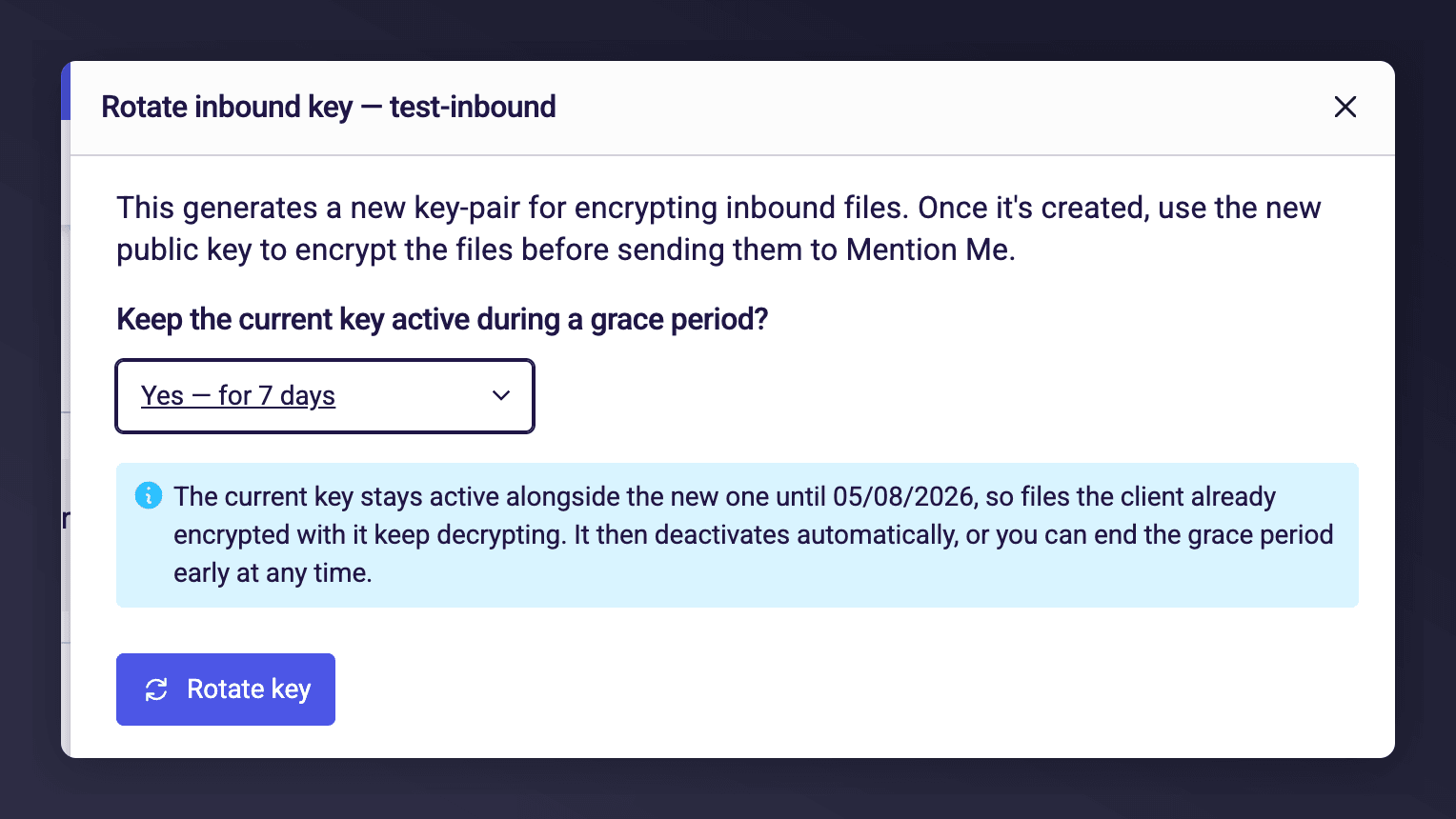
Choosing a grace period when rotating an inbound key. The dialog confirms the date the old key retires.
Outbound rotation
Rotating imports a new public key, and Mention Me encrypts new files with it straight away. There is no grace period for outbound keys, because Mention Me always encrypts with the newest key: the new key takes over immediately and previous keys stop being used. Keep your old private key until you have decrypted any files already delivered. Your chosen file extension carries over.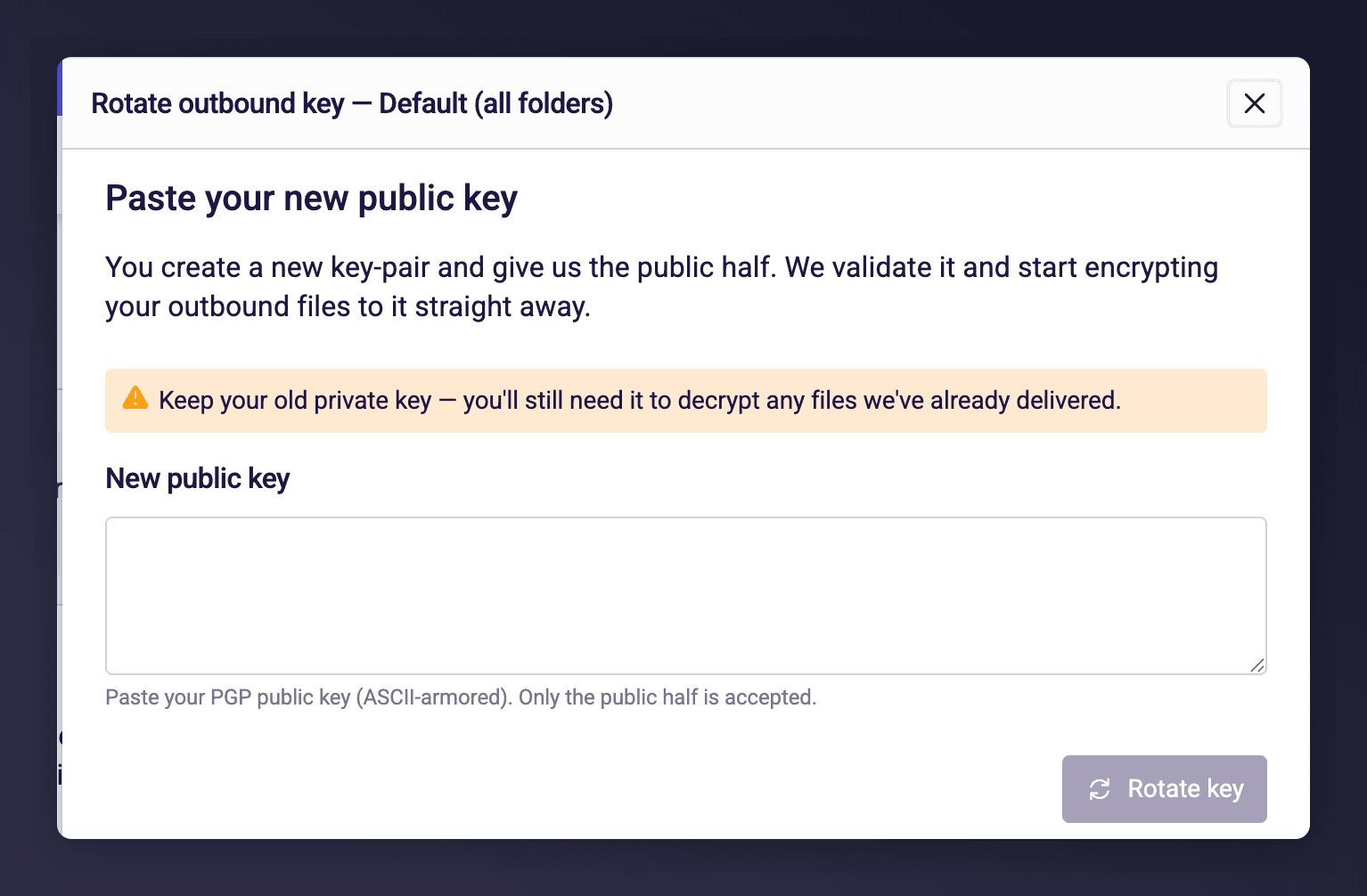
Rotating an outbound key. You supply the new public key, and delivery switches to it immediately.
Generating a PGP key pair
To import an outbound key, you first need your own PGP key pair. We recommend RSA-4096. Example using GPG:my-public-key.asc via Import outbound key. Keep the private key safe and never share it.