

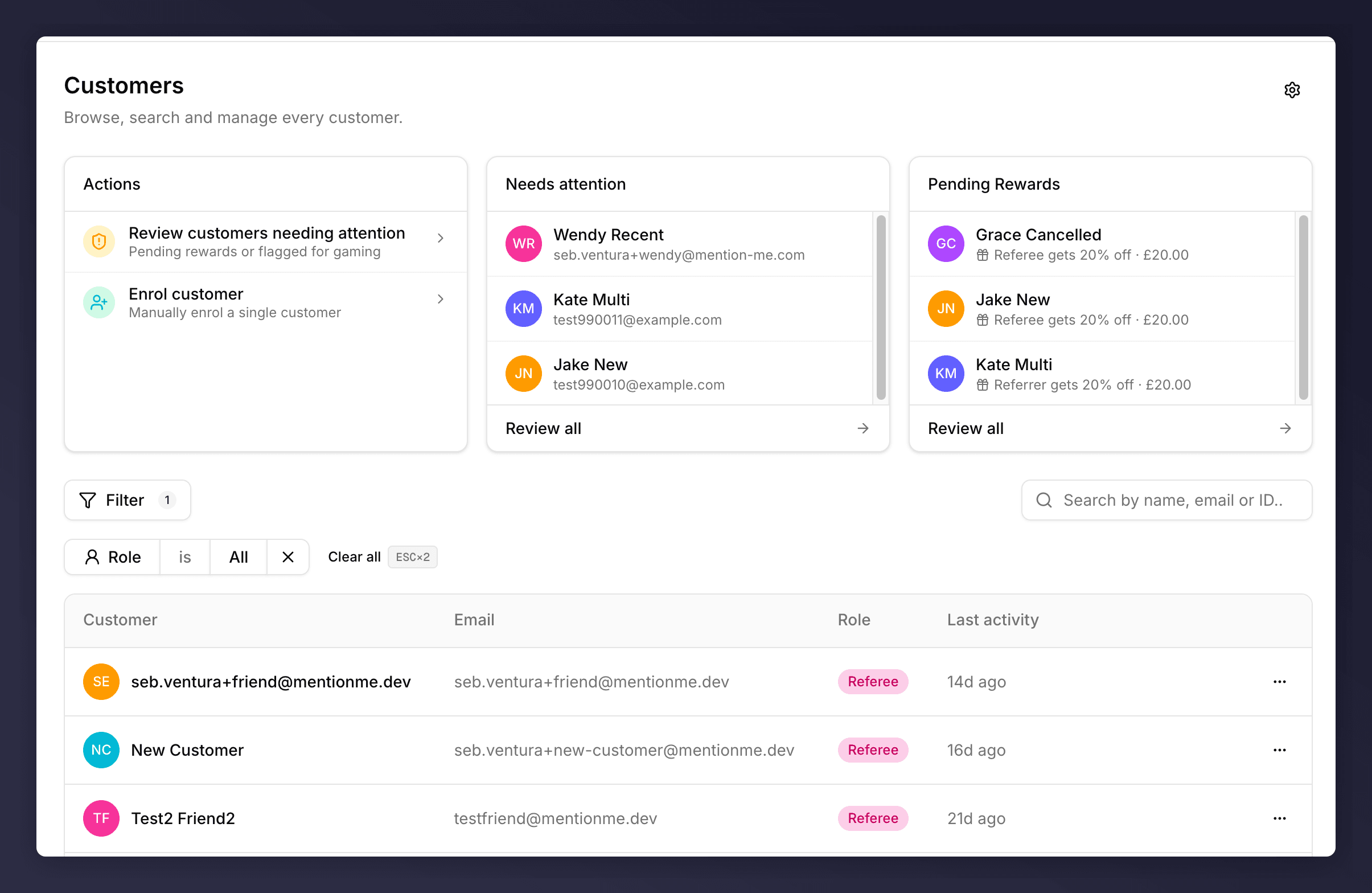
The Customers landing page with a Role filter applied
Top-of-Page Panels
Three cards sit above the table.- Actions. Three shortcuts: review attention, upload customers, enrol customer. The shortcuts mirror entries elsewhere in the app so you don’t have to remember where they live.
- Needs attention. The first three customers with an open signal. Click any name to jump straight to their profile, or Review all to open the filtered list.
- Pending Rewards or Performance. If you have rewards waiting on a manual decision, this card lists the first three with a link to Review all (Pending Rewards queue). If your queue is empty and you have reporting access, the card flips to a Performance view summarising your selected metrics so the space stays useful.
Search
The search box (top right) matches against name, email, customer ID, and share link. It’s a prefix-and-substring match, sowendy, wend, or endy will all surface Wendy Recent.
Filter
Click Filter to open the filter picker.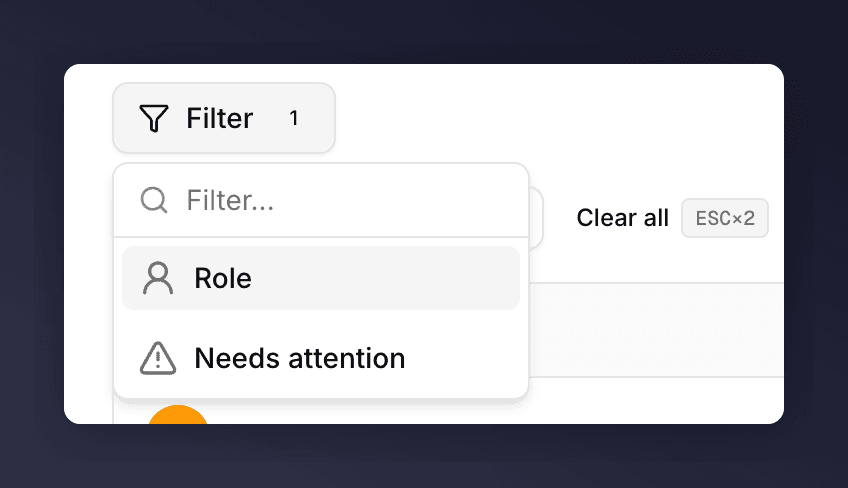
Filter picker with Role and Needs attention options
Active filters appear as chips below the Filter button. Click the chip’s value to change it, or the × to remove it. Clear all removes every filter at once; pressing Esc twice does the same.
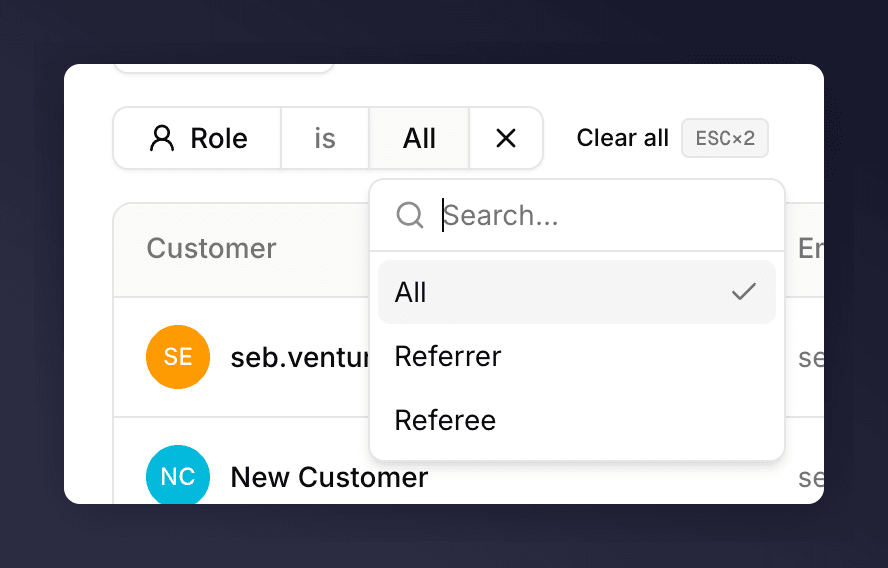
Role filter chip expanded showing the three values
The Table

Row with a Needs attention pill
Row Actions
The … menu at the right of each row exposes the three actions you can do without opening the profile.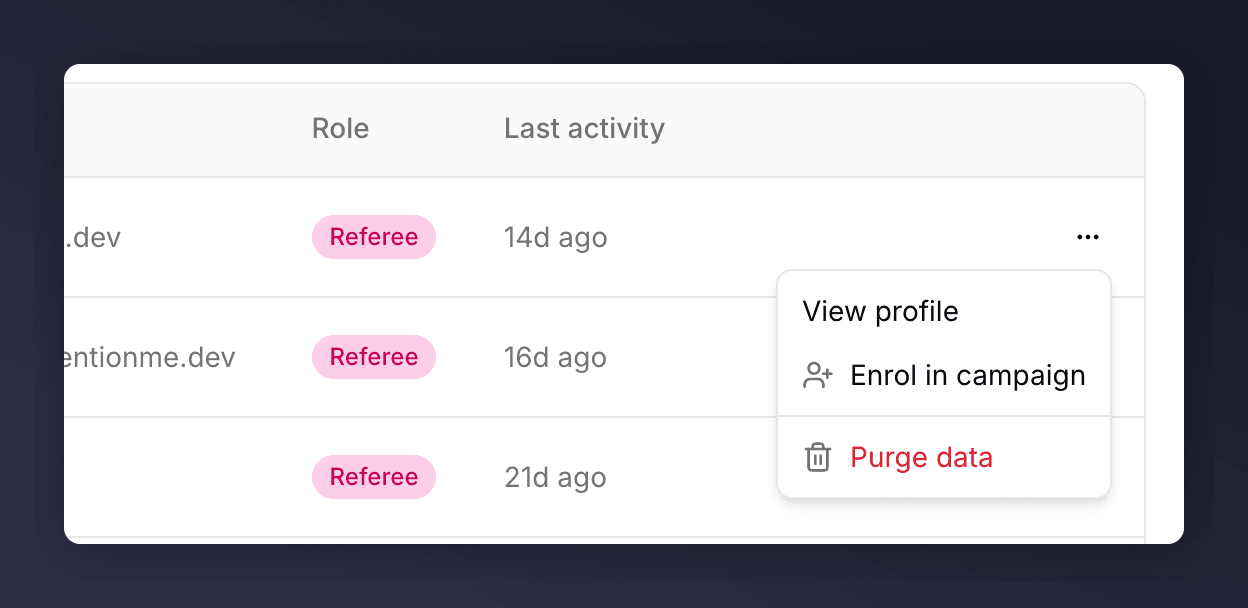
Row overflow menu
- View profile. Same as clicking the row. Opens the customer profile.
- Enrol in campaign. Opens the enrolment flow pre-filled with this customer.
- Purge data. GDPR delete. See Delete customer data for what this removes and when to use it.
Customer Settings
The gear icon in the top right opens Customer settings. Those rules control data retention and when dormant customers can claim a fresh referee reward.Pagination
Ten rows per page. The footer shows “Viewing 1-10 of N customers” with Previous / Next buttons. If you’re looking for someone specific, search before you paginate.The total in the footer is always the total number of customers in your account, not the number that match the current filters. The visible rows do reflect filters, the count doesn’t.