

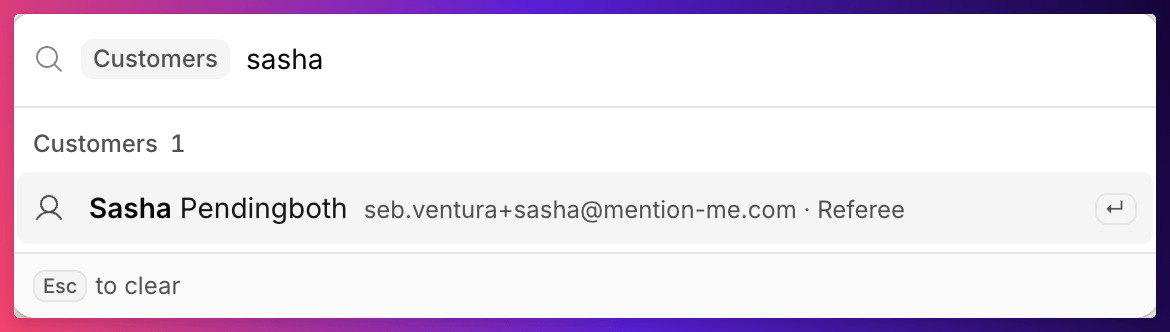
Searching for a customer with ⌘K
Steps
1
Open search
Press ⌘K (Ctrl+K on Windows) from any page, or click Search or jump to… at the top of the sidebar.
2
Type what you know
Search by name, email, customer ID, referral code or order ID. Customers appear once you’ve typed two characters. Each result shows the customer’s name, email, and whether they’re a referrer or referee.To search customers only, choose Find customer, or open search from a profile (see below).
3
Open the customer
If your search is an exact match, such as a complete email address or customer ID, that customer is shown first and already selected. Press Enter to open their profile.Otherwise, use the arrow keys or click a result. Press ⌘ Enter to open it in a new tab. If there are more results than fit, See all in Customers opens the full list with your search applied.
From a Customer’s Profile
On a profile, click Find another customer at the top right, or press /, to go straight to customer search. It’s the quickest way to move from one customer to the next.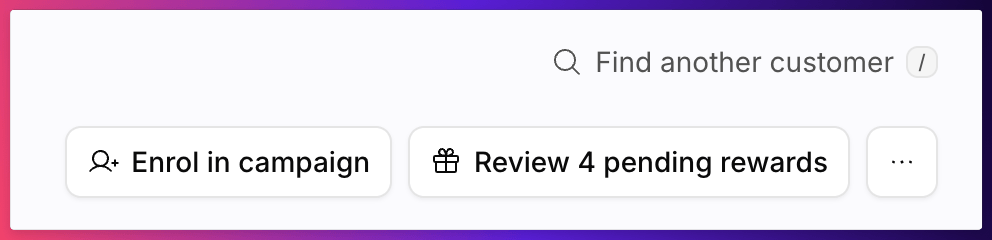
Find another customer on a profile
When You Can’t Find Someone
- Purged customers can’t be found by their old email.
- A different email. The email on file may not be the one you’re searching with. Try their name, customer ID, or an order ID.
See Also
Customer list
Browse and filter every customer.
Customer profile
What you see once you open a customer.