> ## Documentation Index
> Fetch the complete documentation index at: https://docs.mention-me.com/llms.txt
> Use this file to discover all available pages before exploring further.
# Product Referral
> How to install the Mention Me theme app extension to add a Share button on your Shopify product pages.
This guide walks through installing the Mention Me theme app extension to add a Share button on your Shopify product pages so customers can recommend products to each other.
## Installing the App
Visit [the Mention Me App in Shopify](https://apps.shopify.com/mention-me) and click **Install**.
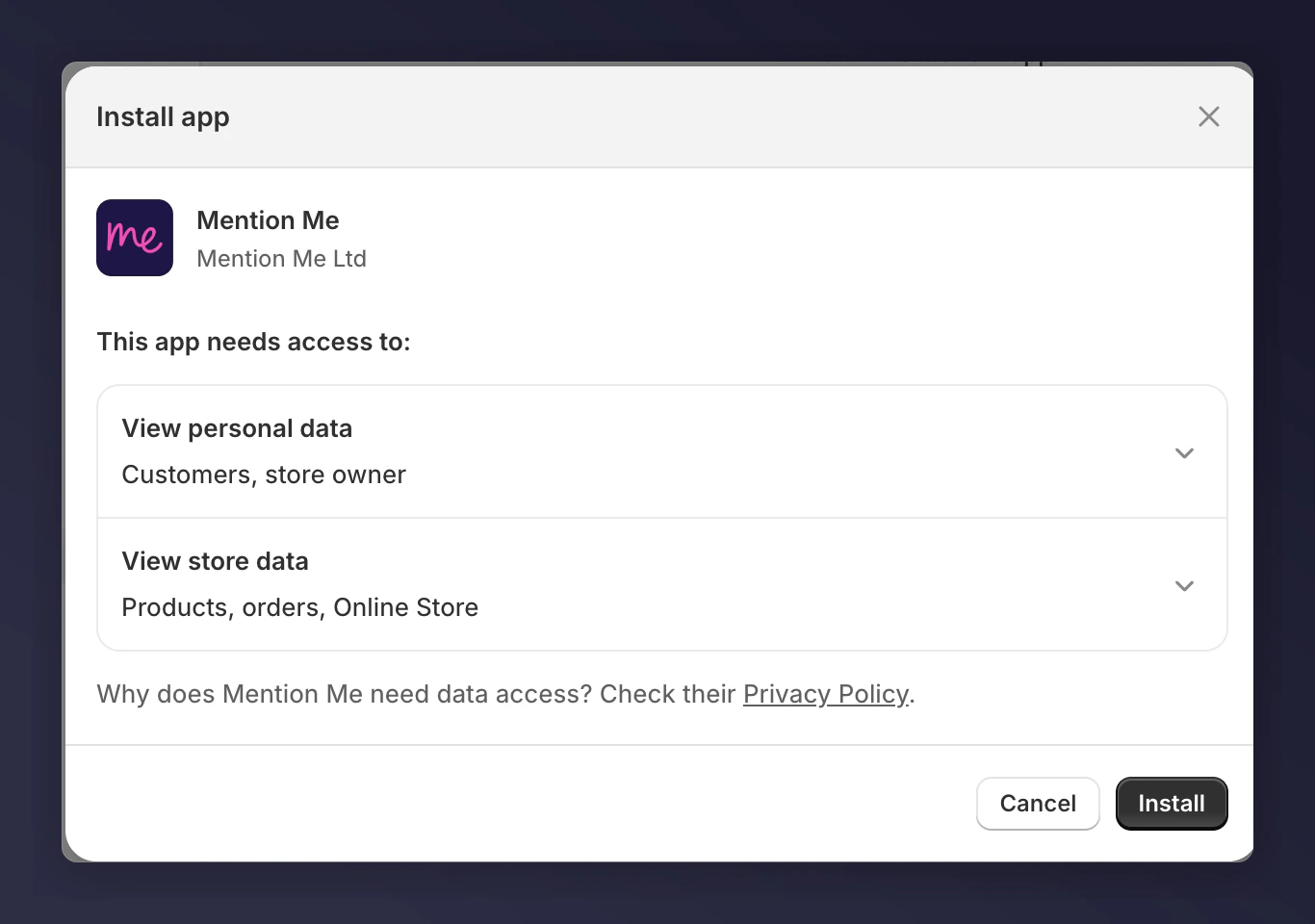 Follow the instructions to install the Product sharing link.
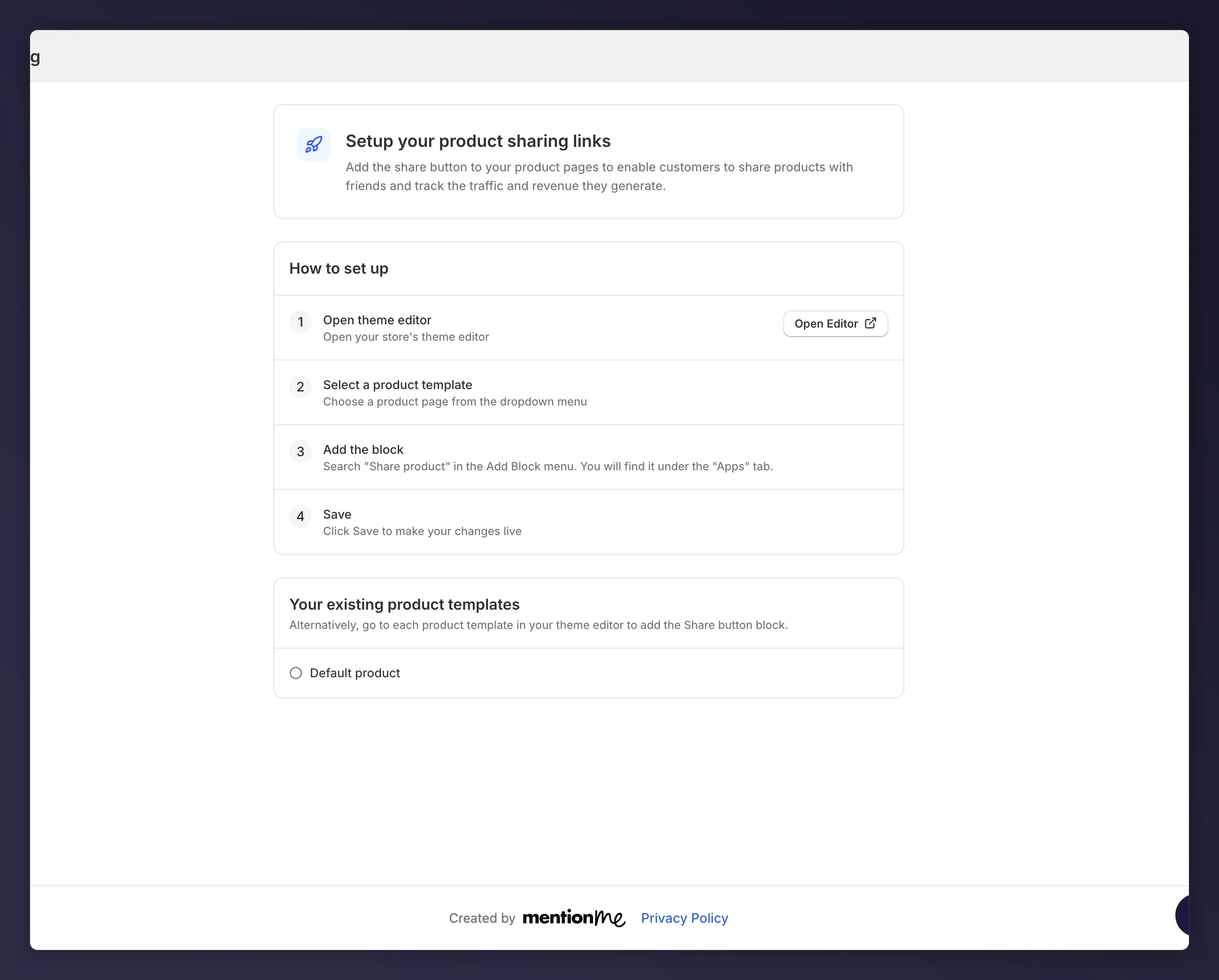 This takes you to your product page editor. Select the placement for the sharing link and click **+**.
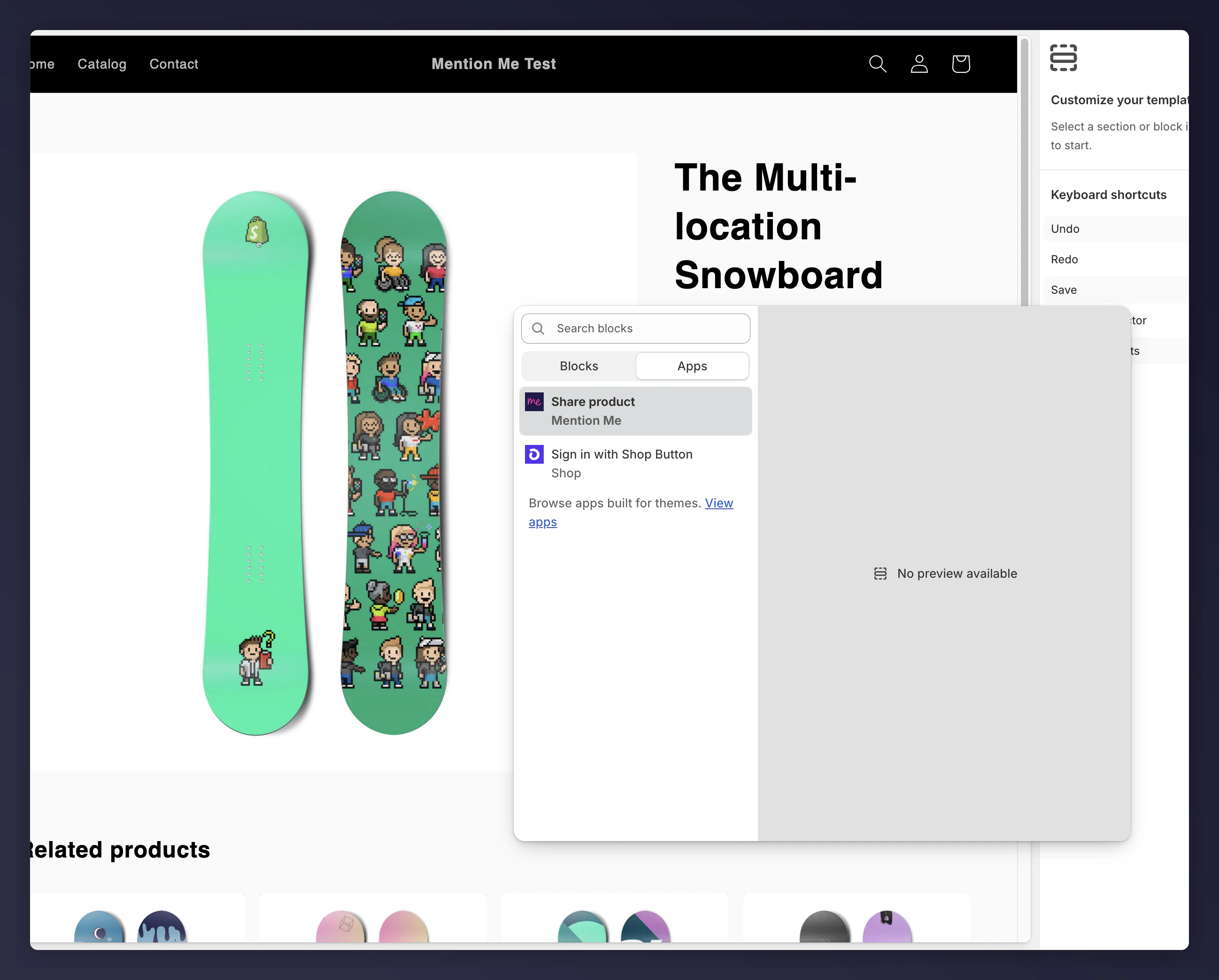
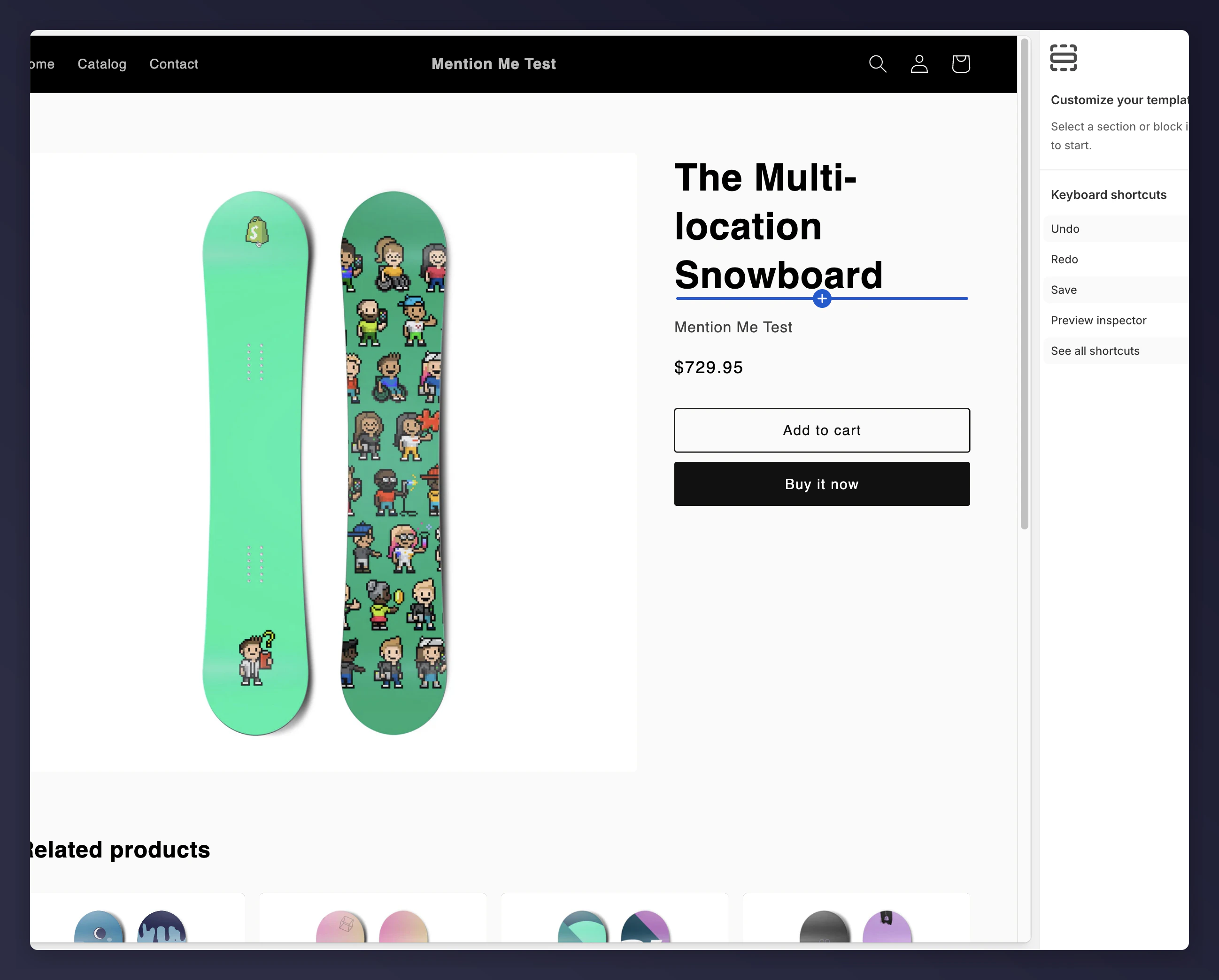 Select **Share Product** from the App section of the block selector.
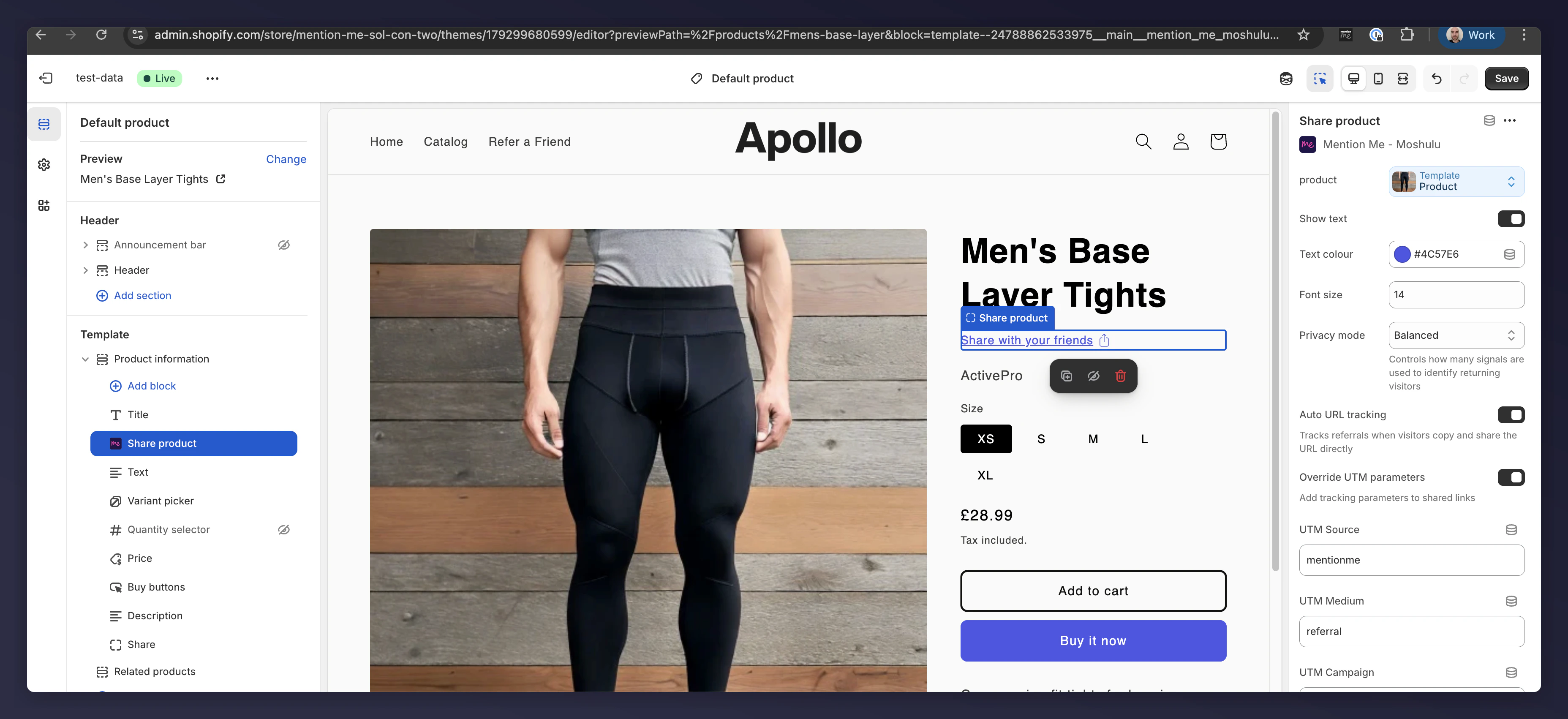
 Configure options on the right hand sidebar if needed.
 ## Options
* **Product**: The current product on the page (autofilled)
* **Show text**: Choose whether to display just an icon or include text
* **Text**: The text that appears on the Share link
* **Colour**: Set the colour of the text and icon
* **Font size**: Set the size of the text
## You Are All Set
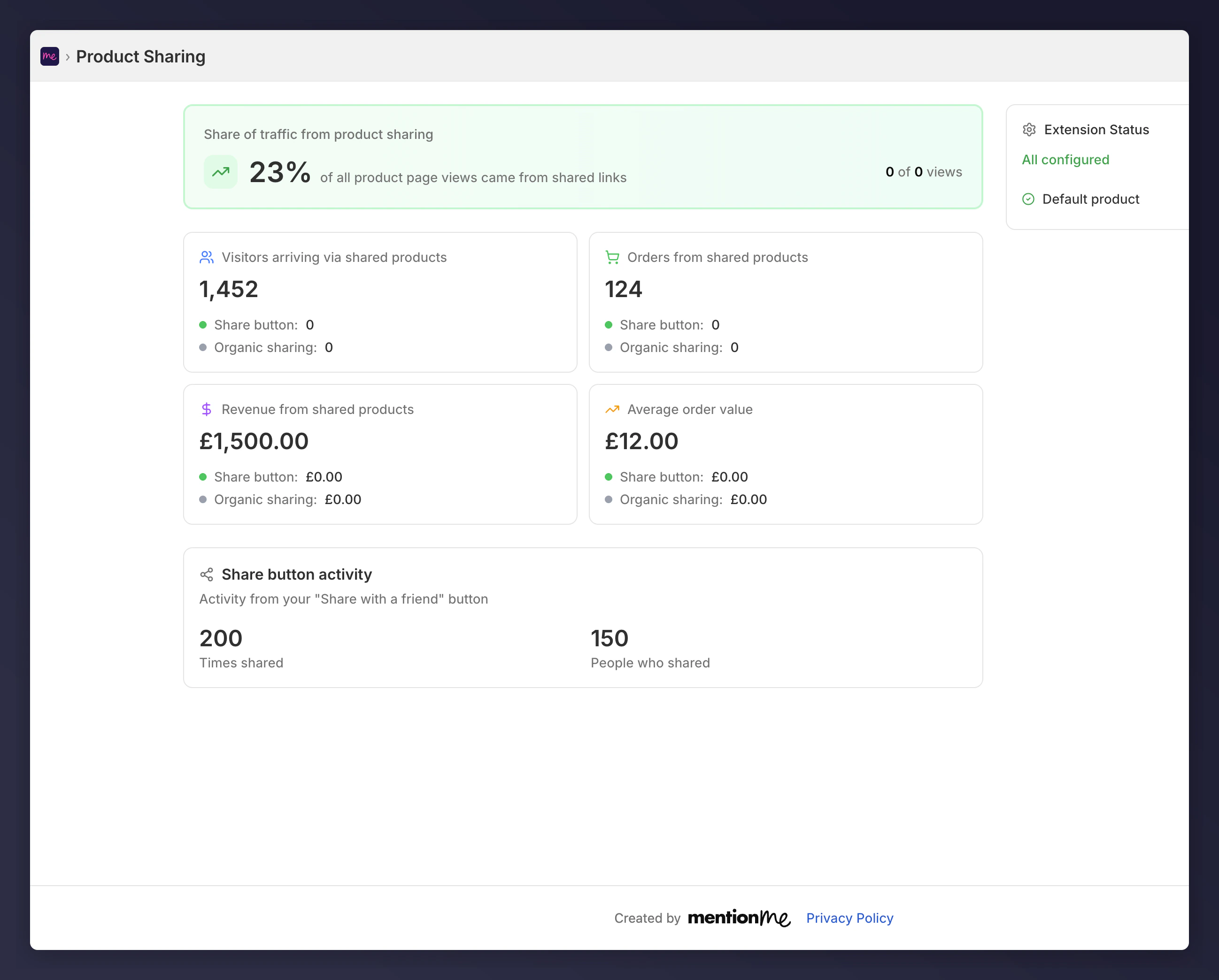
Once configured, the Share Link will be live and Mention Me will start tracking product shares. View collected data on the dashboard.
## Options
* **Product**: The current product on the page (autofilled)
* **Show text**: Choose whether to display just an icon or include text
* **Text**: The text that appears on the Share link
* **Colour**: Set the colour of the text and icon
* **Font size**: Set the size of the text
## You Are All Set
Once configured, the Share Link will be live and Mention Me will start tracking product shares. View collected data on the dashboard.
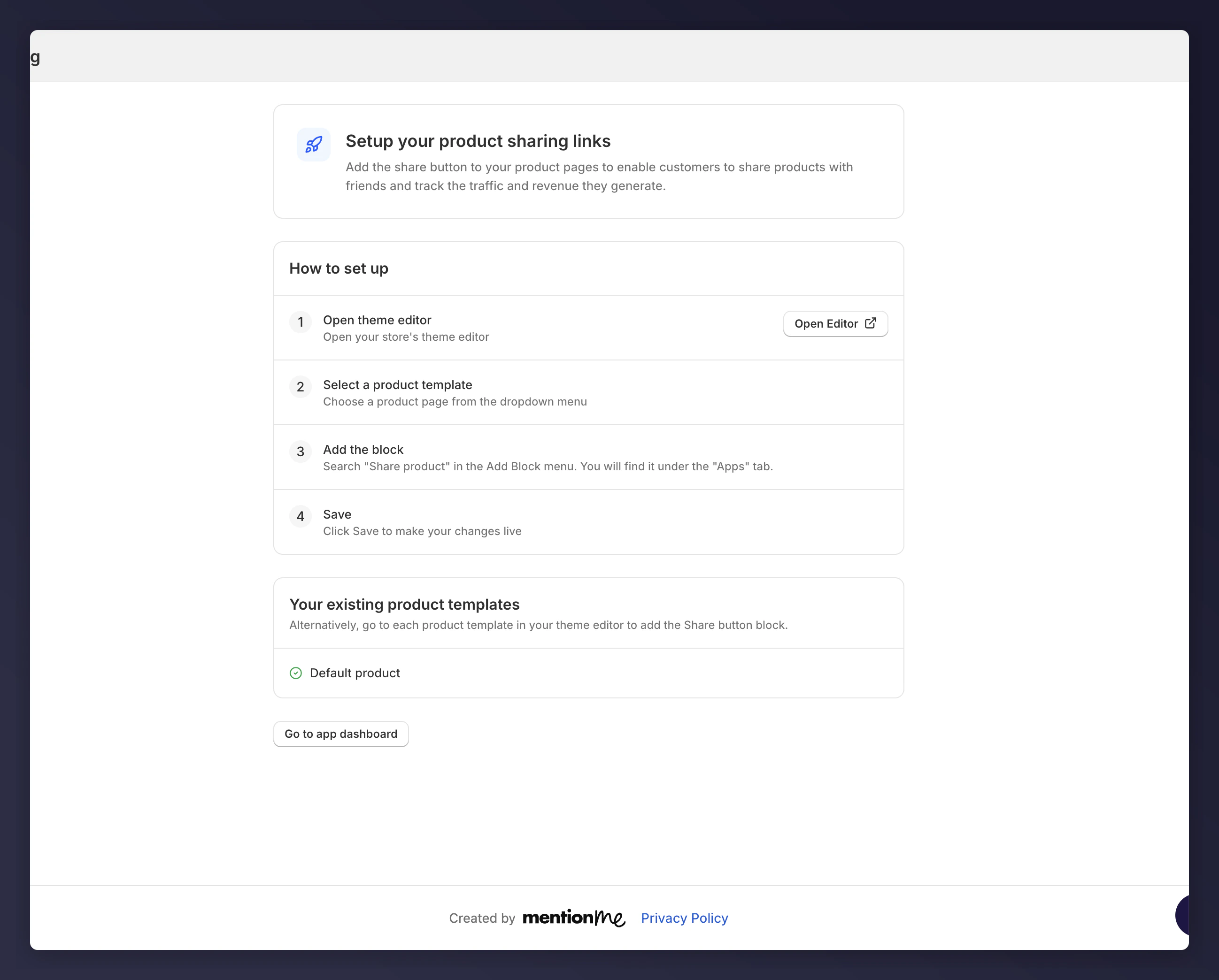 Click **Go to app dashboard** at the bottom of the page to see your data.