> ## Documentation Index
> Fetch the complete documentation index at: https://docs.mention-me.com/llms.txt
> Use this file to discover all available pages before exploring further.
# Imagery
> How to manage images for referee and referrer journeys when using Mention Me with Shopify.
The following instructions are for **Brand Referral**, which is **not currently available** on the free Tier of the Shopify App. [Contact us to know more](https://help.mention-me.com/hc/en-gb/requests/new?ticket_form_id=20114637802909).
When using Mention Me with Shopify, image configuration differs slightly from standard setups. This guide covers managing images for both Referee and Referrer journeys.
## Referee Journey Image (Checkout Modal)
This image appears when a new customer clicks "Been referred by a friend?" during checkout.
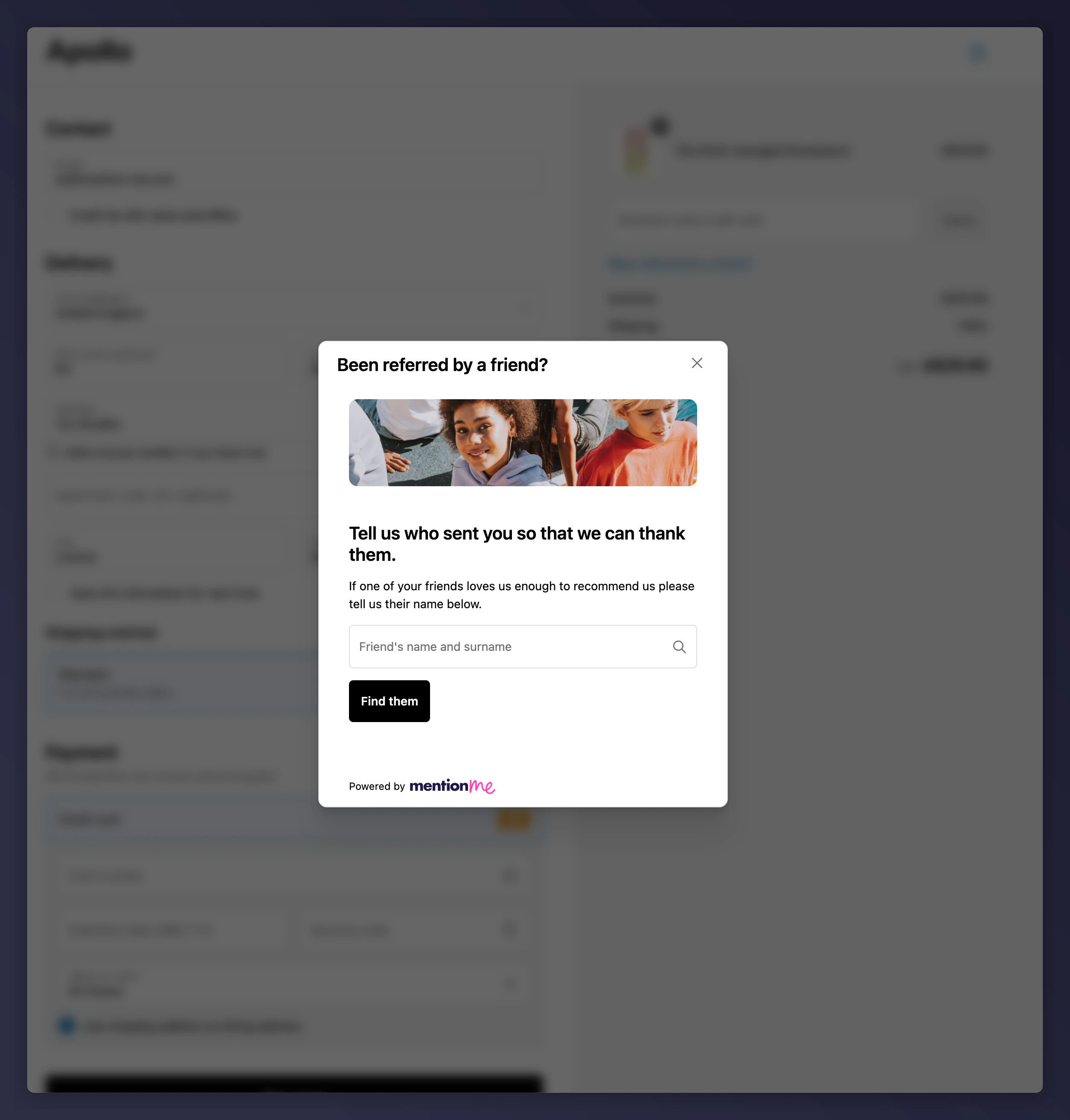 ### Key Points
* Set directly in the Mention Me Shopify App
* Shared across all languages/locales for a single Shopify store
* Different images can be set for multiple Shopify stores
* Recommended dimensions: **1200px x 300px** (automatically responsive)
### How to Update
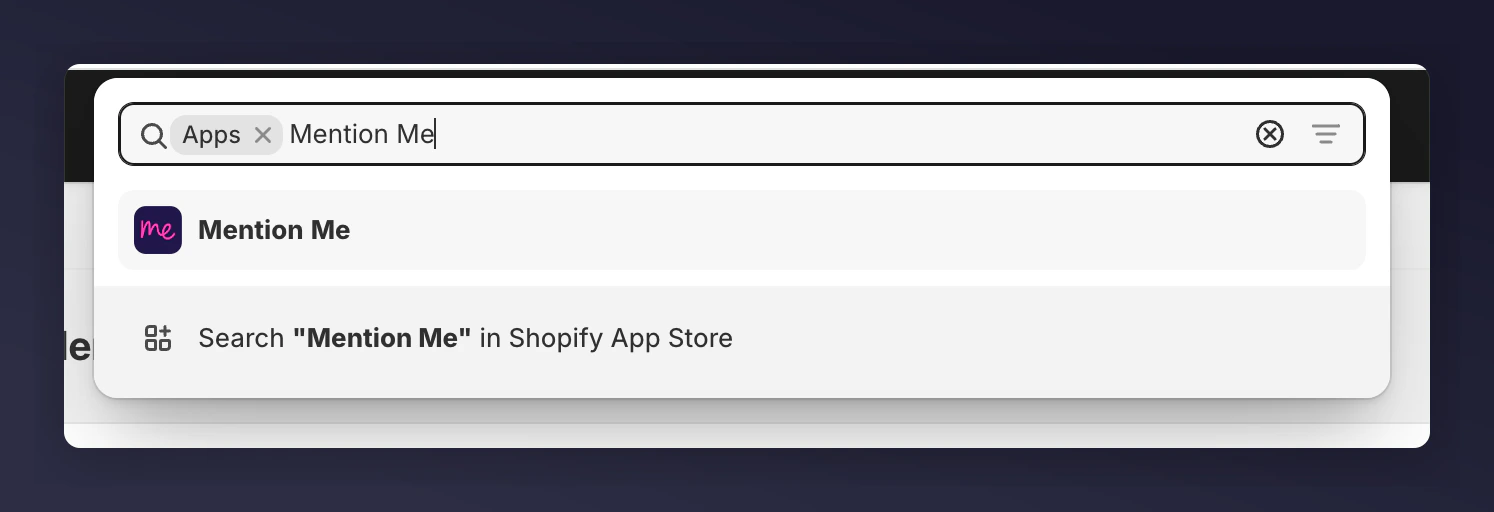
Open the Mention Me app in your Shopify admin.
### Key Points
* Set directly in the Mention Me Shopify App
* Shared across all languages/locales for a single Shopify store
* Different images can be set for multiple Shopify stores
* Recommended dimensions: **1200px x 300px** (automatically responsive)
### How to Update
Open the Mention Me app in your Shopify admin.
 Scroll to the **Referee Experience** section.
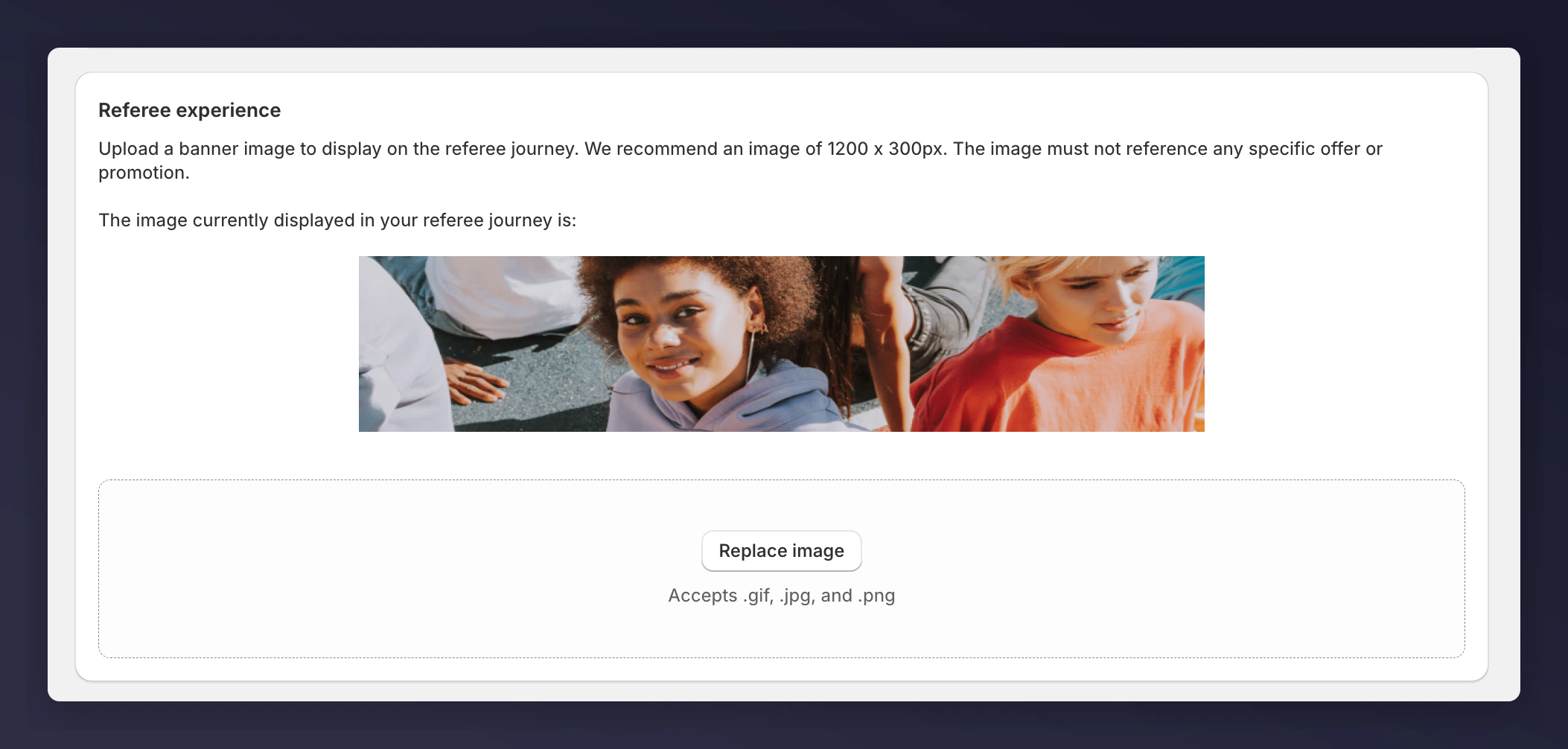 Add or replace the image as needed, then click **Save** at the top of the page.
## Referrer Journey Image (Thank You and Order Status Pages)
This image is part of the post-purchase referral experience.
Add or replace the image as needed, then click **Save** at the top of the page.
## Referrer Journey Image (Thank You and Order Status Pages)
This image is part of the post-purchase referral experience.
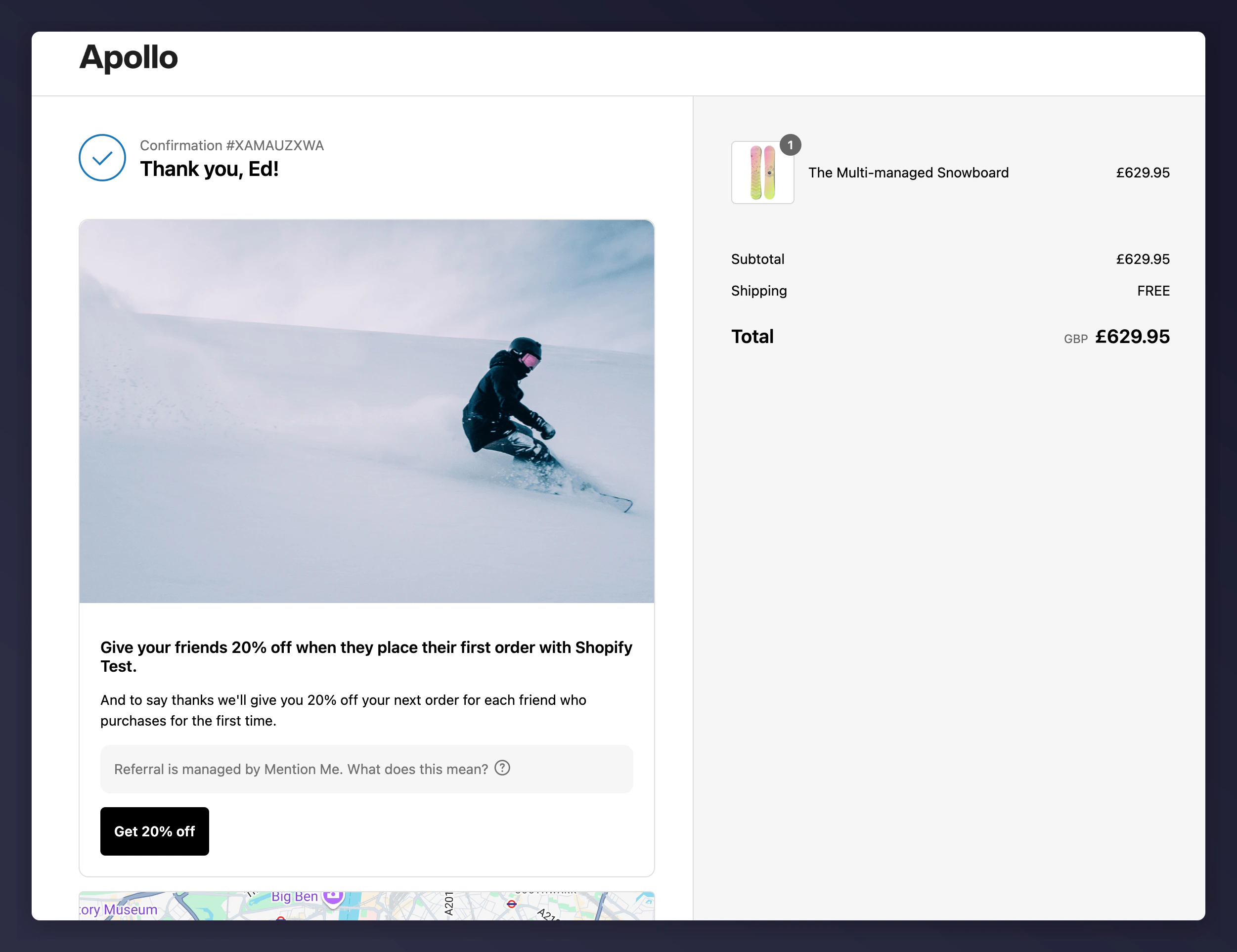 ### Key Points
* Linked to each referral offer
* Customisable per offer and A/B test variations
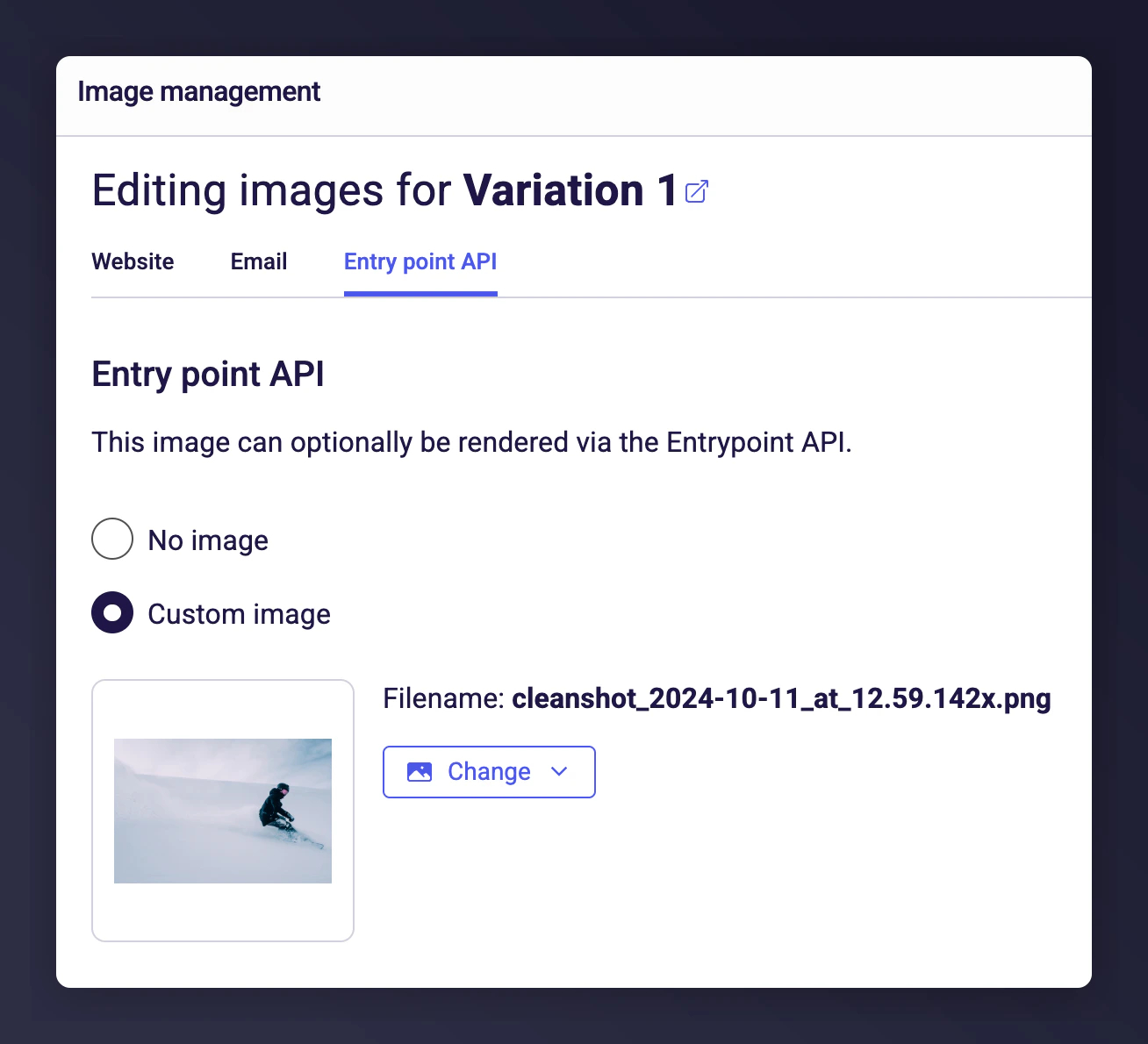
* Rendered using Mention Me's EntryPoint API
* Ensure changes are consistent across all platforms using EntryPoint (e.g., in-app, email)
**Recommended dimensions:** 1500px x 1000px (3:2 aspect ratio)
### How to Change the Position
The image can be placed in one of four positions:
* Above the content
* Above the information notice
* Above the CTA (below the information notice)
* Below the CTA
Visit your Shopify Checkout and navigate to the Thank You page.
Select the **Mention Me Refer a Friend** block.
### Key Points
* Linked to each referral offer
* Customisable per offer and A/B test variations
* Rendered using Mention Me's EntryPoint API
* Ensure changes are consistent across all platforms using EntryPoint (e.g., in-app, email)
**Recommended dimensions:** 1500px x 1000px (3:2 aspect ratio)
### How to Change the Position
The image can be placed in one of four positions:
* Above the content
* Above the information notice
* Above the CTA (below the information notice)
* Below the CTA
Visit your Shopify Checkout and navigate to the Thank You page.
Select the **Mention Me Refer a Friend** block.
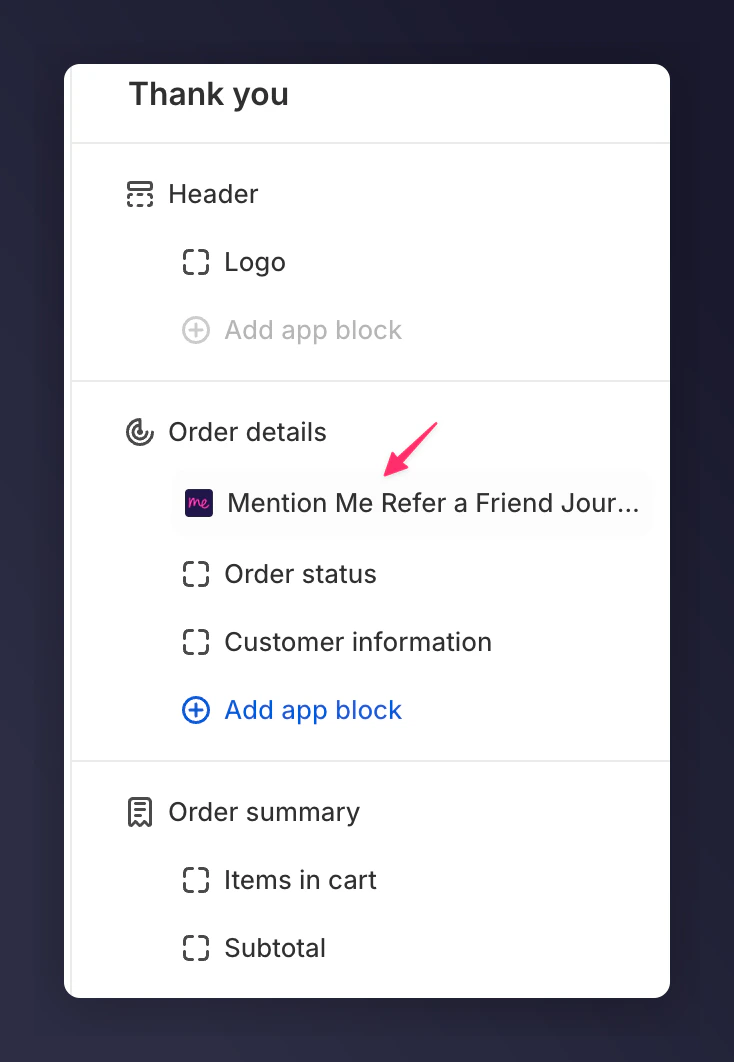 Select the desired image position.
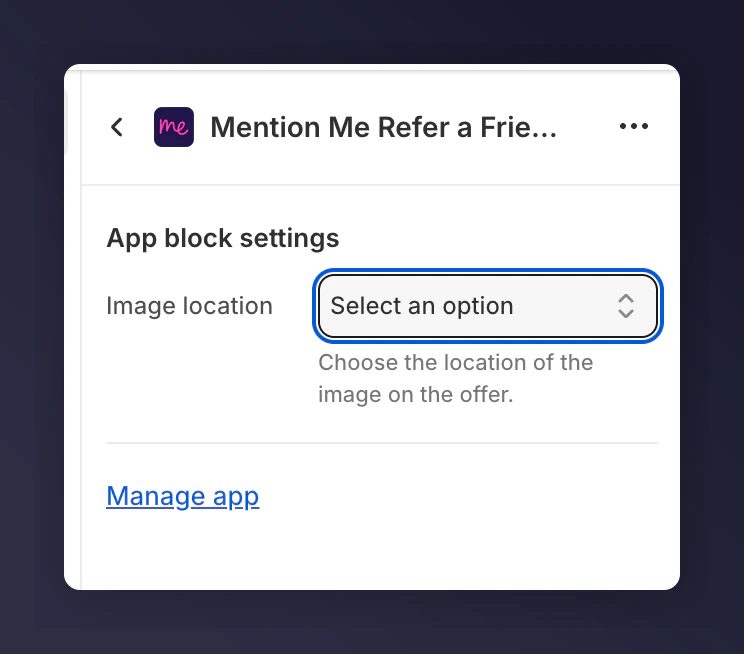 Repeat for the Order Status page.
### How to Update the Referrer Image
Go to **Mention Me > Campaigns > Select the relevant Offer**.
In Offer Preview, scroll to find the "Shopify Offer" section and click **Manage Images**.
Repeat for the Order Status page.
### How to Update the Referrer Image
Go to **Mention Me > Campaigns > Select the relevant Offer**.
In Offer Preview, scroll to find the "Shopify Offer" section and click **Manage Images**.
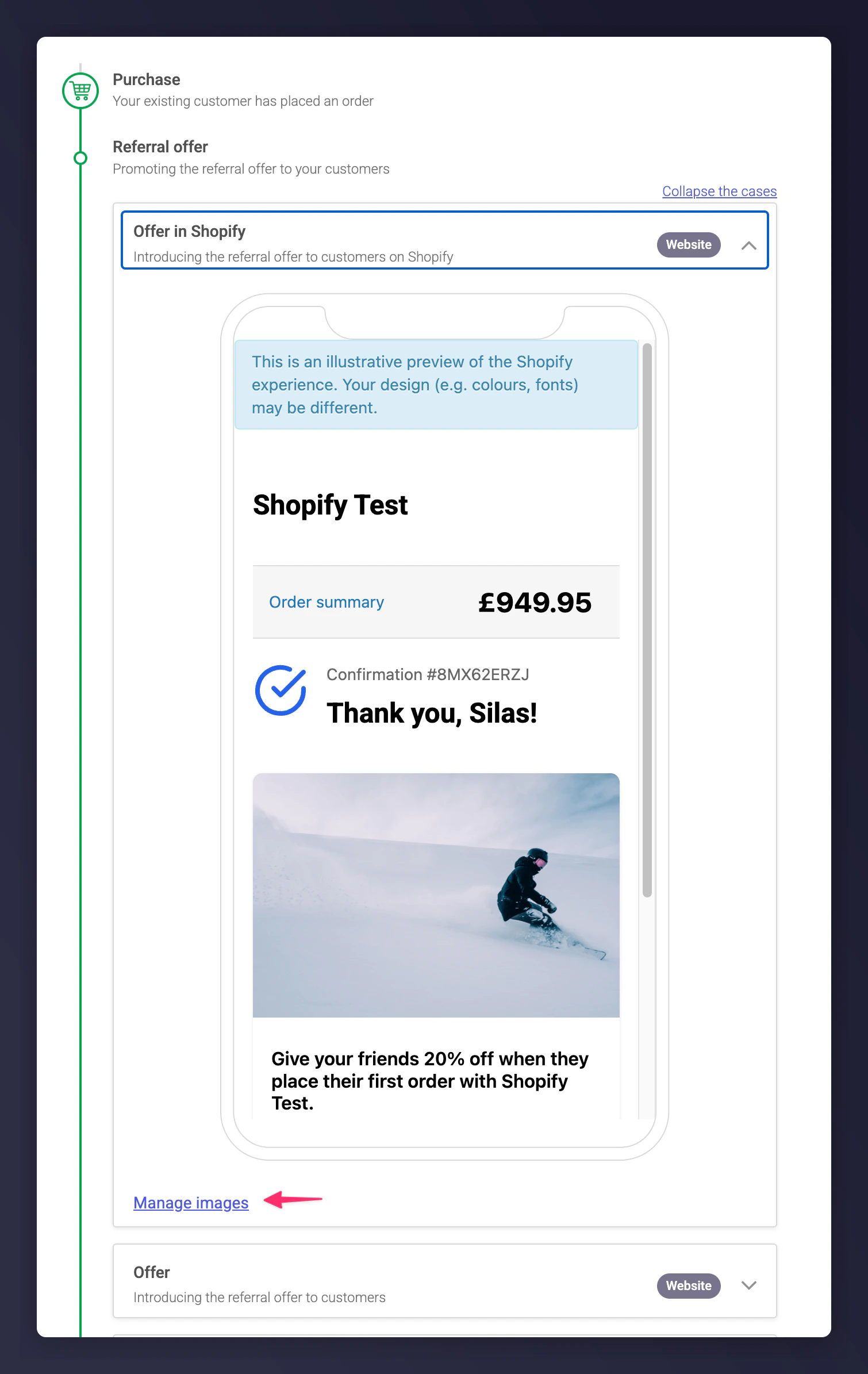 Use the Image Manager to upload or replace images served via the EntryPoint API.
 Not familiar with Mention Me's image management system? Review the [general image management](/knowledge/referral/design/managing-images) guide first.
## Need Help?
If you're unsure whether you're using EntryPoint in other locations, [contact the Mention Me Support Team](https://help.mention-me.com/hc/en-gb/requests/new).
Not familiar with Mention Me's image management system? Review the [general image management](/knowledge/referral/design/managing-images) guide first.
## Need Help?
If you're unsure whether you're using EntryPoint in other locations, [contact the Mention Me Support Team](https://help.mention-me.com/hc/en-gb/requests/new).