> ## Documentation Index
> Fetch the complete documentation index at: https://docs.mention-me.com/llms.txt
> Use this file to discover all available pages before exploring further.
# Customer Journey Changes
> How to customise the Mention Me experience in Shopify, including checkout overlays, thank you pages, and colour settings.
The following instructions are for **Brand Referral**, which is **not currently available** on the free Tier of the Shopify App. [Contact us to know more](https://help.mention-me.com/hc/en-gb/requests/new?ticket_form_id=20114637802909).
The Mention Me Shopify App uses Checkout Extensibility features. Some screens are configured in Shopify, others in the Mention Me platform. This guide walks through editing the experience across both.
Not sure if you're using Checkout Extensibility? See the [Shopify App Installation guide](/knowledge/shopify/app-installation) or [contact our team](https://help.mention-me.com/hc/en-gb/requests/new?ticket_form_id=20114637802909).
## Checkout ("Been referred by a friend?" Link)
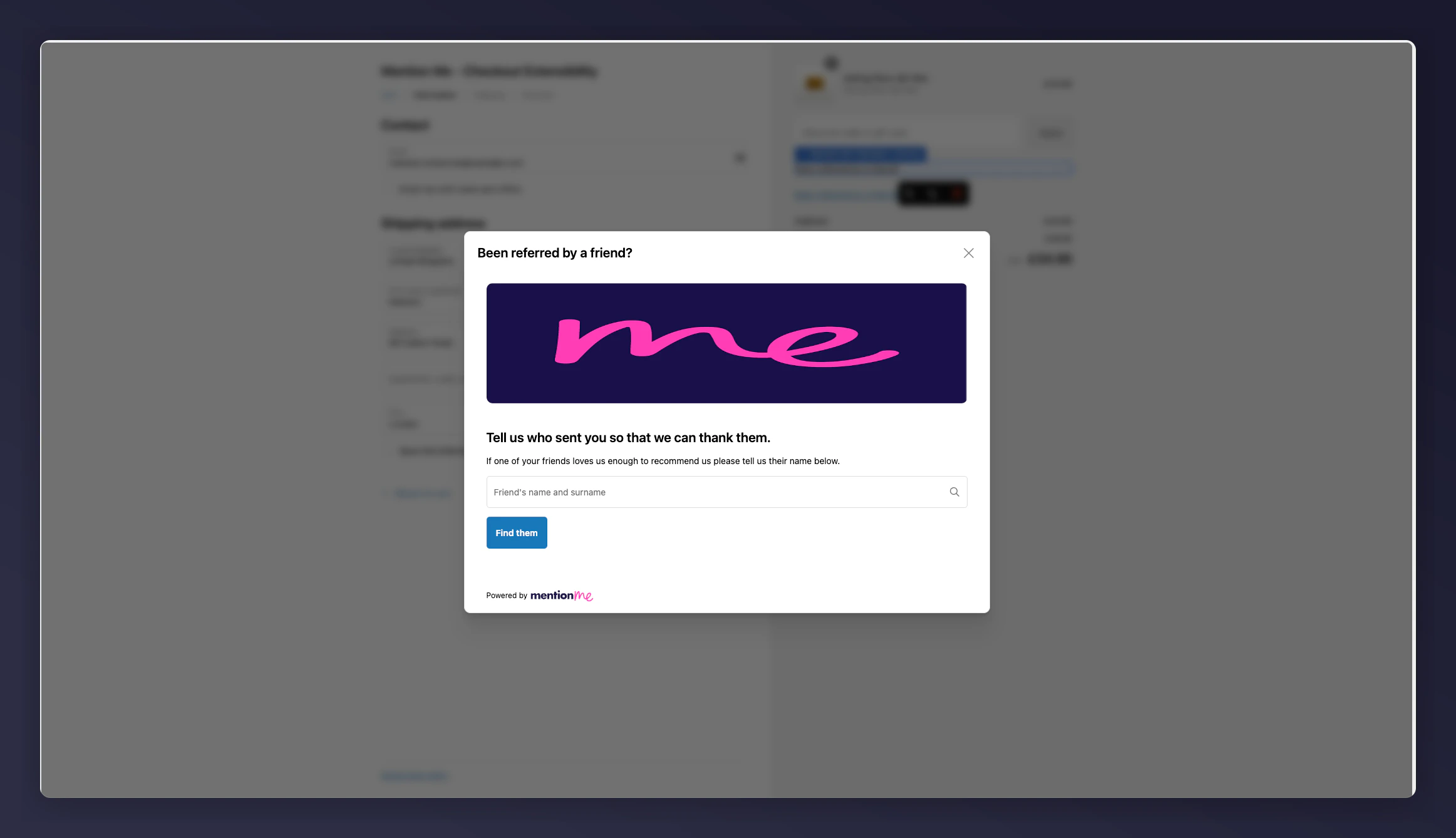
When a customer clicks the "Been referred by a friend?" link, they're prompted to enter who referred them.
 ### To Change the Image
Log into the [Shopify Admin Console](https://admin.shopify.com/store/).
Search for **"Mention Me"** and open the app.
Update the image in the **Referee experience** section.
### To Change the Image
Log into the [Shopify Admin Console](https://admin.shopify.com/store/).
Search for **"Mention Me"** and open the app.
Update the image in the **Referee experience** section.
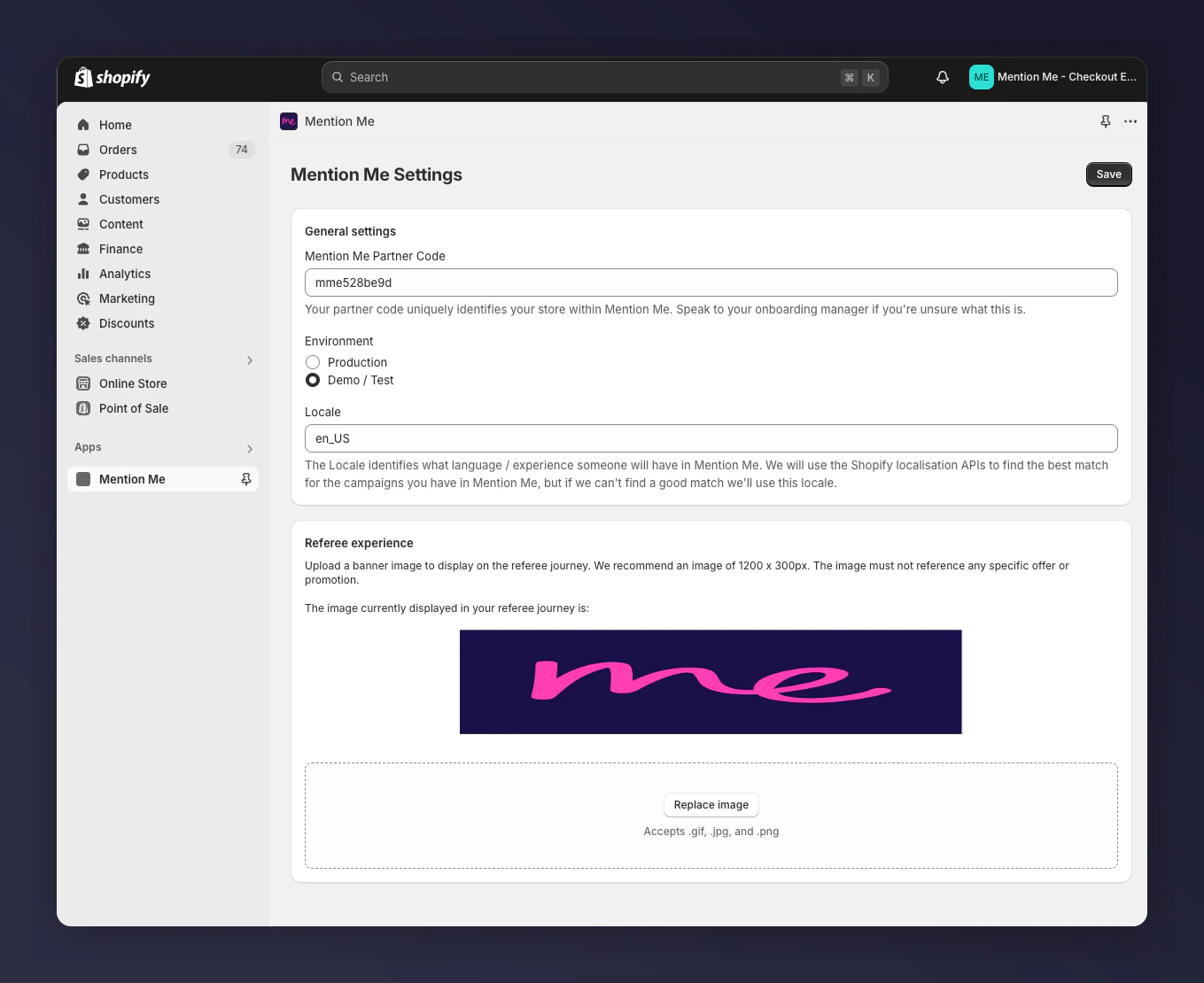 * Recommended dimensions: 1200 x 300 px
* Do not reference specific offers, as this is shown to all referees
* All styling for this modal is inherited from Shopify's theme
### To Change the Copy
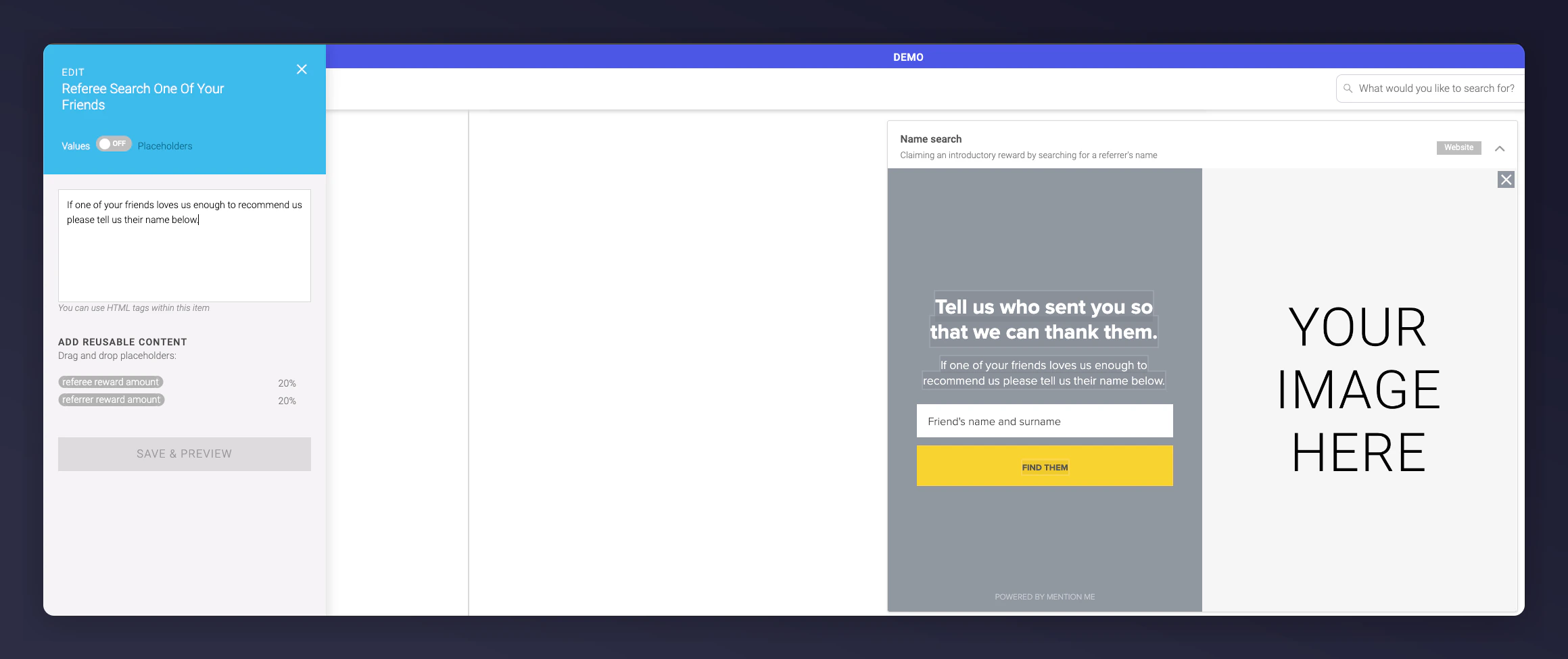
* Controlled via the [Mention Me platform](https://mention-me.com/login)
* Located in the **Name search** offer preview
* Recommended dimensions: 1200 x 300 px
* Do not reference specific offers, as this is shown to all referees
* All styling for this modal is inherited from Shopify's theme
### To Change the Copy
* Controlled via the [Mention Me platform](https://mention-me.com/login)
* Located in the **Name search** offer preview
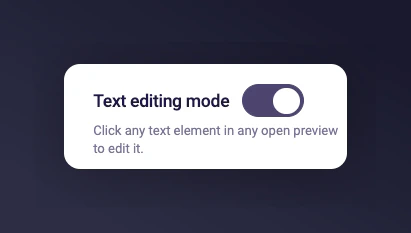
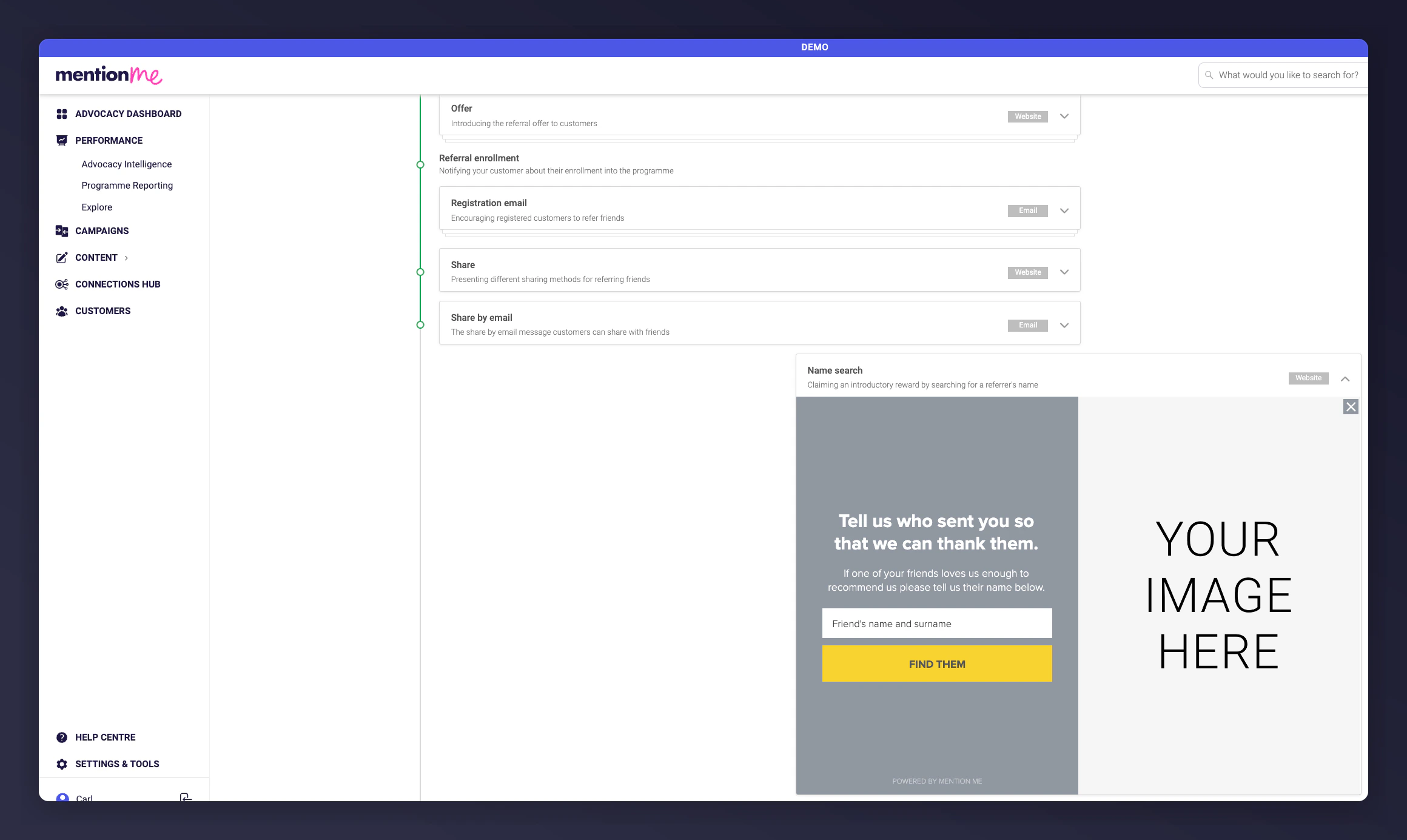 * Toggle "Text editing mode" and edit the highlighted content
* Click **Save & Preview** to apply changes
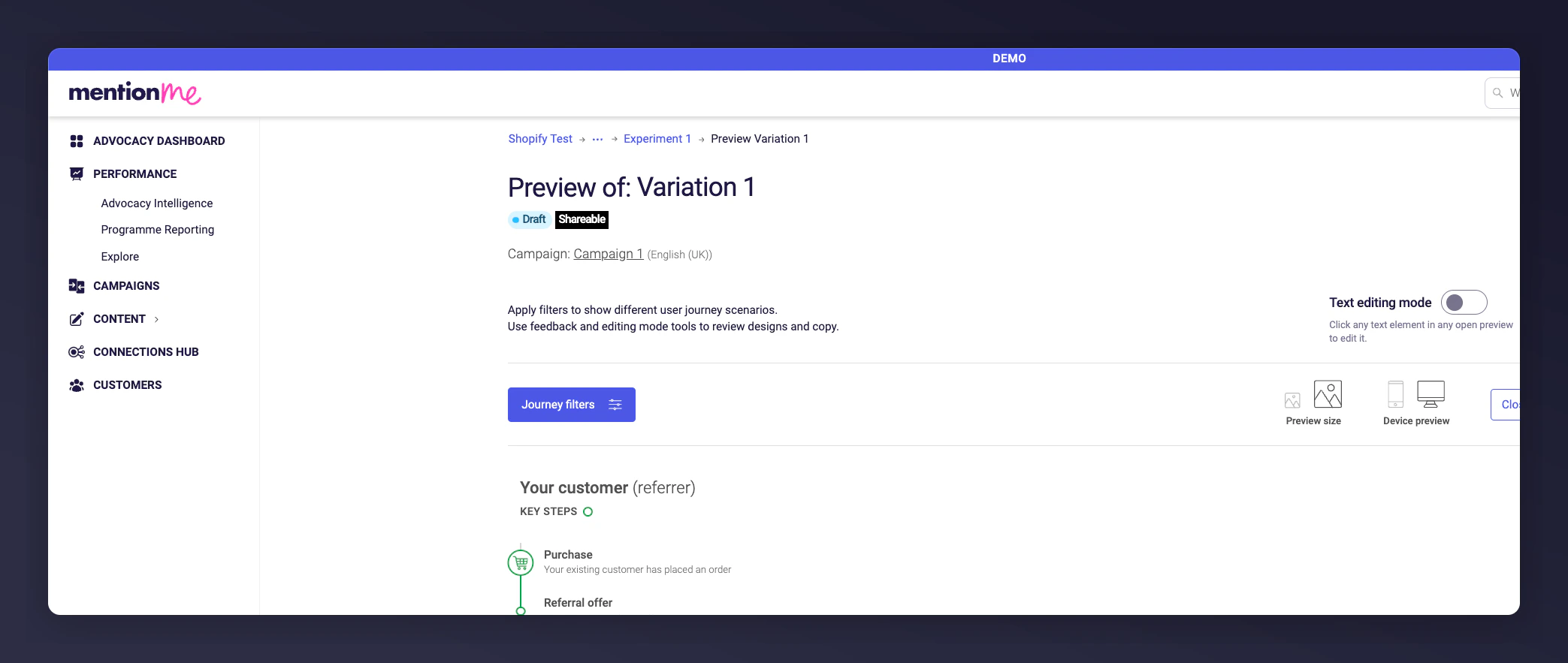
* Toggle "Text editing mode" and edit the highlighted content
* Click **Save & Preview** to apply changes
 ## Thank You and Order Status Pages
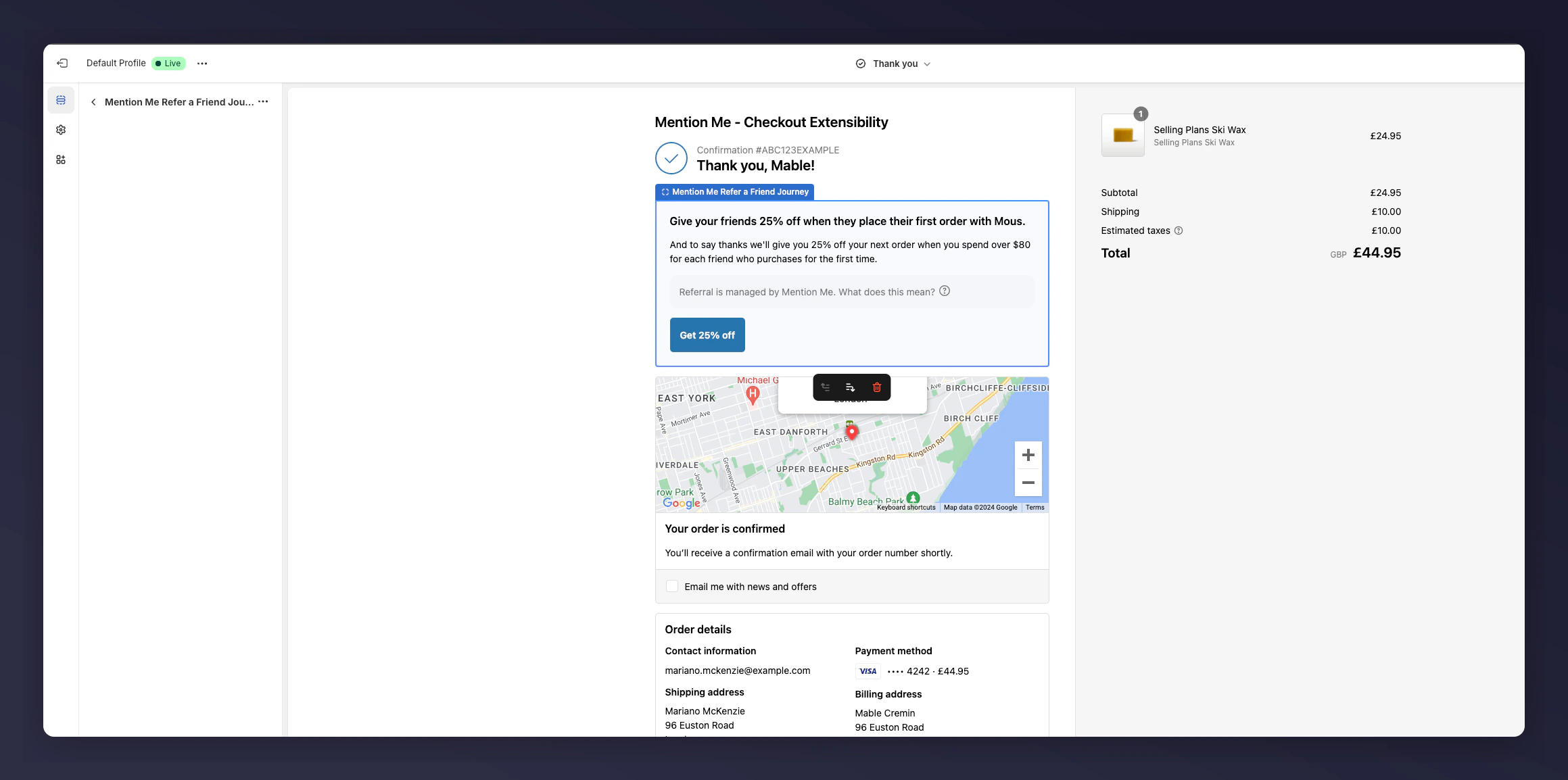
The post-purchase Mention Me "Refer a Friend" journey displays on the Thank You and Order Status pages.
Do not place this block within the right-hand Order Summary sidebar — it will be hidden on mobile.
## Thank You and Order Status Pages
The post-purchase Mention Me "Refer a Friend" journey displays on the Thank You and Order Status pages.
Do not place this block within the right-hand Order Summary sidebar — it will be hidden on mobile.
 ### To Change Banner Copy and Imagery
* Copy is controlled in the [Mention Me platform](https://mention-me.com/login)
* Edit copy in the offer preview within **Entrypoint API content**
### To Change Banner Copy and Imagery
* Copy is controlled in the [Mention Me platform](https://mention-me.com/login)
* Edit copy in the offer preview within **Entrypoint API content**
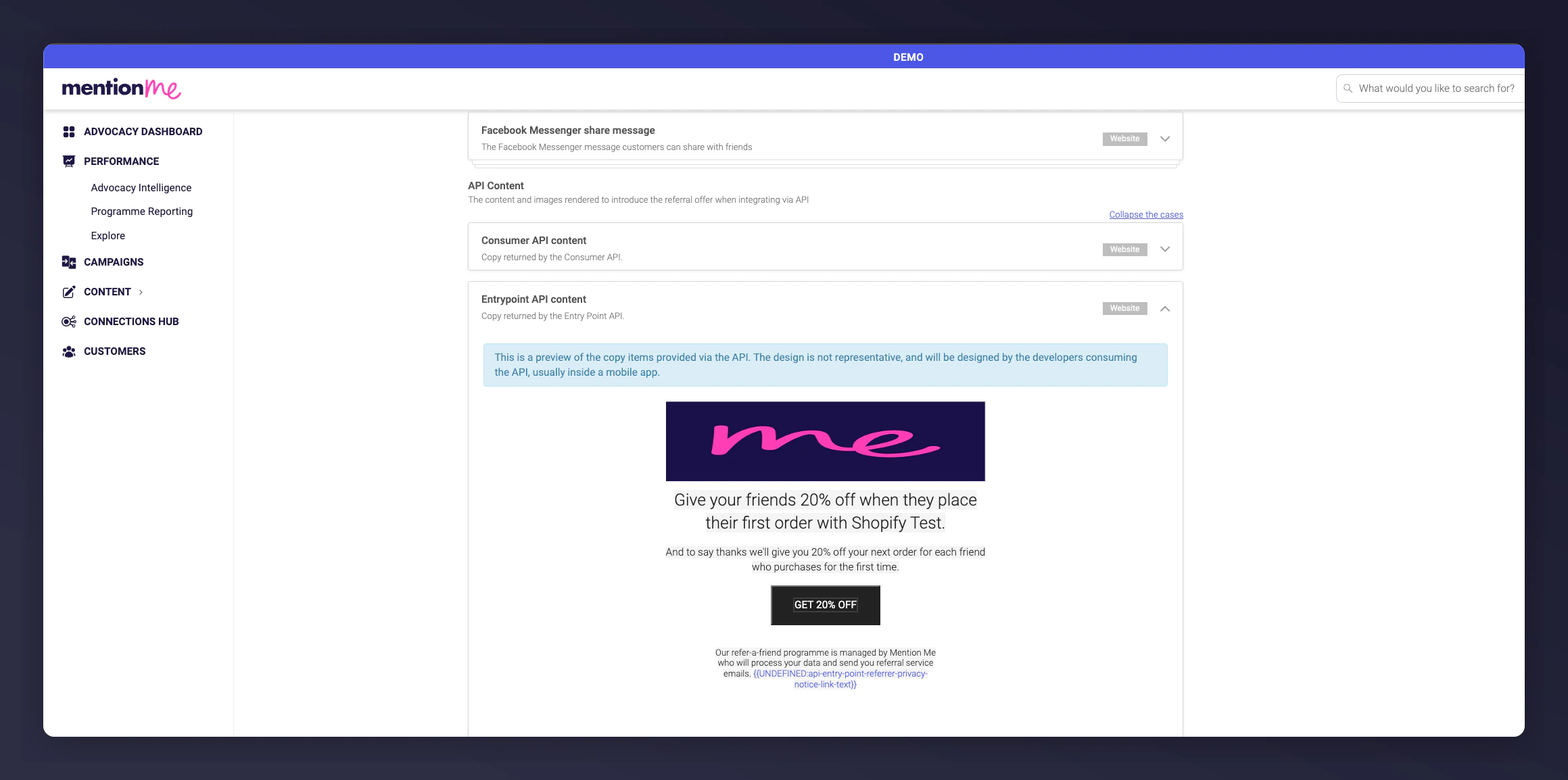 * Use "Text editing mode" to update content
* Edit both the **Personalised** and **Generic** tabs
* To add an image, click **"Add an image for this step"** — the image will auto-scale
Shopify does not allow changing the default grey background color of the banner.
Once a customer engages with the initial CTA, all subsequent pages are handled within the Mention Me platform.
Any modifications in the EntryPoint API preview will also affect mobile app implementations powered by EntryPoint.
## Customise Checkout Colours in Shopify
* Use "Text editing mode" to update content
* Edit both the **Personalised** and **Generic** tabs
* To add an image, click **"Add an image for this step"** — the image will auto-scale
Shopify does not allow changing the default grey background color of the banner.
Once a customer engages with the initial CTA, all subsequent pages are handled within the Mention Me platform.
Any modifications in the EntryPoint API preview will also affect mobile app implementations powered by EntryPoint.
## Customise Checkout Colours in Shopify
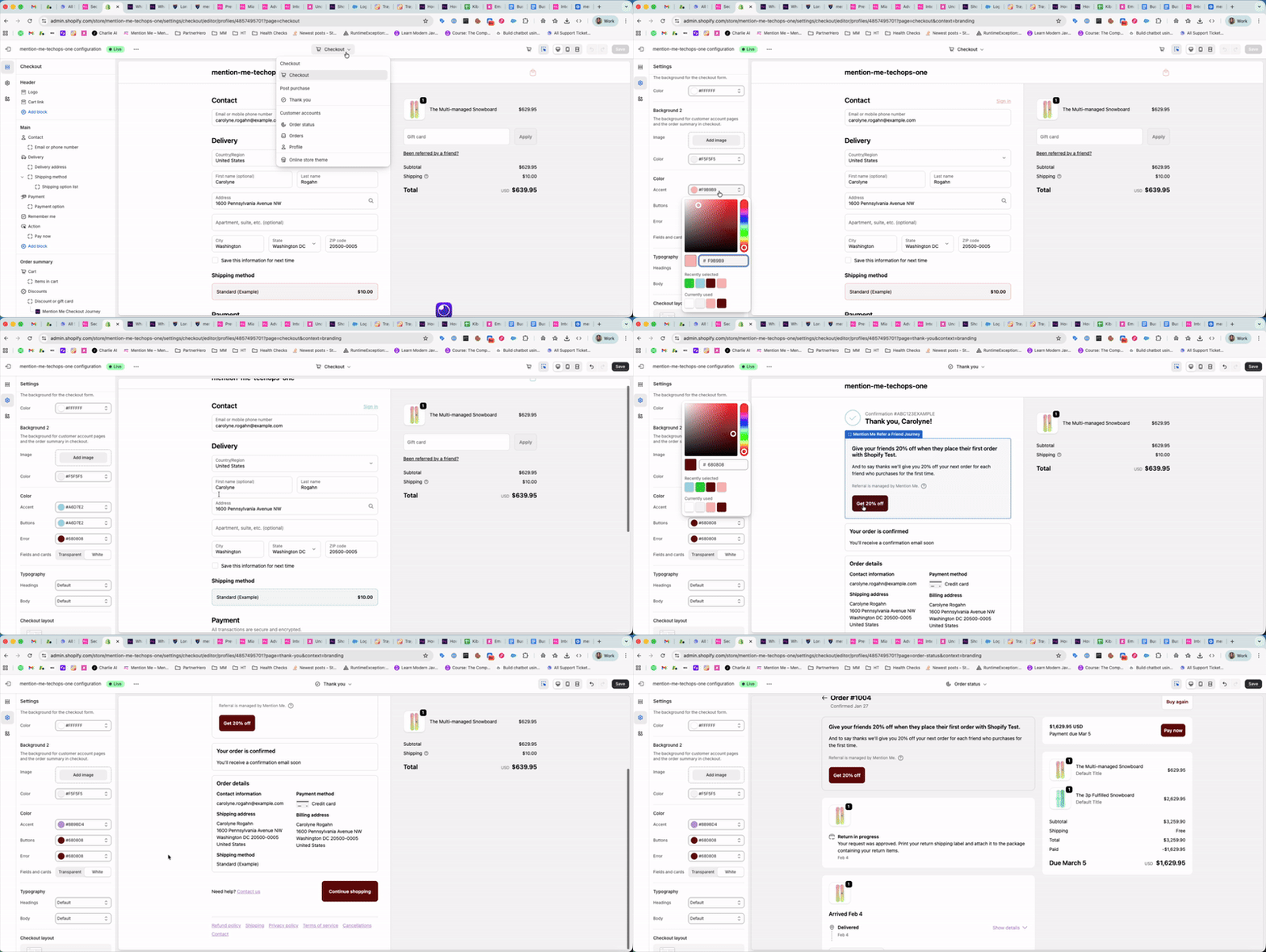 In your Shopify admin, go to **Settings > Checkout > Configurations > Customise**.
In the Checkout Editor, click the settings cog icon on the left-hand side menu.
Scroll to the **Colour** section. Use the colour picker or enter a HEX code to change:
* Accent
* Buttons
* Error colours
These changes apply to your entire checkout flow, not just Mention Me elements.
In your Shopify admin, go to **Settings > Checkout > Configurations > Customise**.
In the Checkout Editor, click the settings cog icon on the left-hand side menu.
Scroll to the **Colour** section. Use the colour picker or enter a HEX code to change:
* Accent
* Buttons
* Error colours
These changes apply to your entire checkout flow, not just Mention Me elements.