> ## Documentation Index
> Fetch the complete documentation index at: https://docs.mention-me.com/llms.txt
> Use this file to discover all available pages before exploring further.
# Send Data Securely
> How to use the Secure Document Transfer feature to share sensitive files with Mention Me.
When sharing sensitive information such as personally identifiable information (PII) or protected data, use the **Secure Document Transfer** feature within the Mention Me platform instead of email or unsecured attachments.
## Access Secure Document Transfer
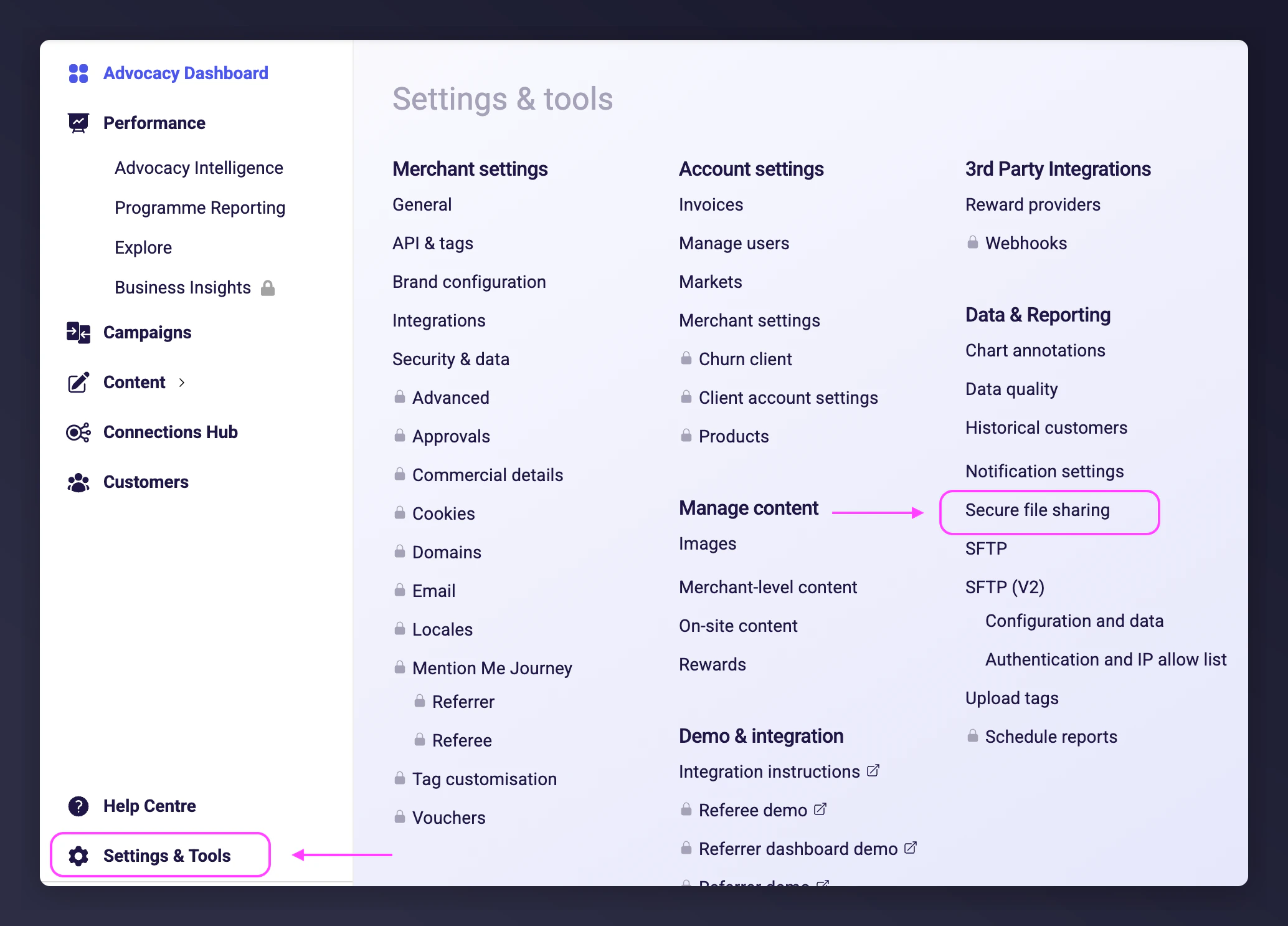
Once logged in, go to **Settings & Tools > Data & Reporting > Secure file sharing**.
 ## Upload files
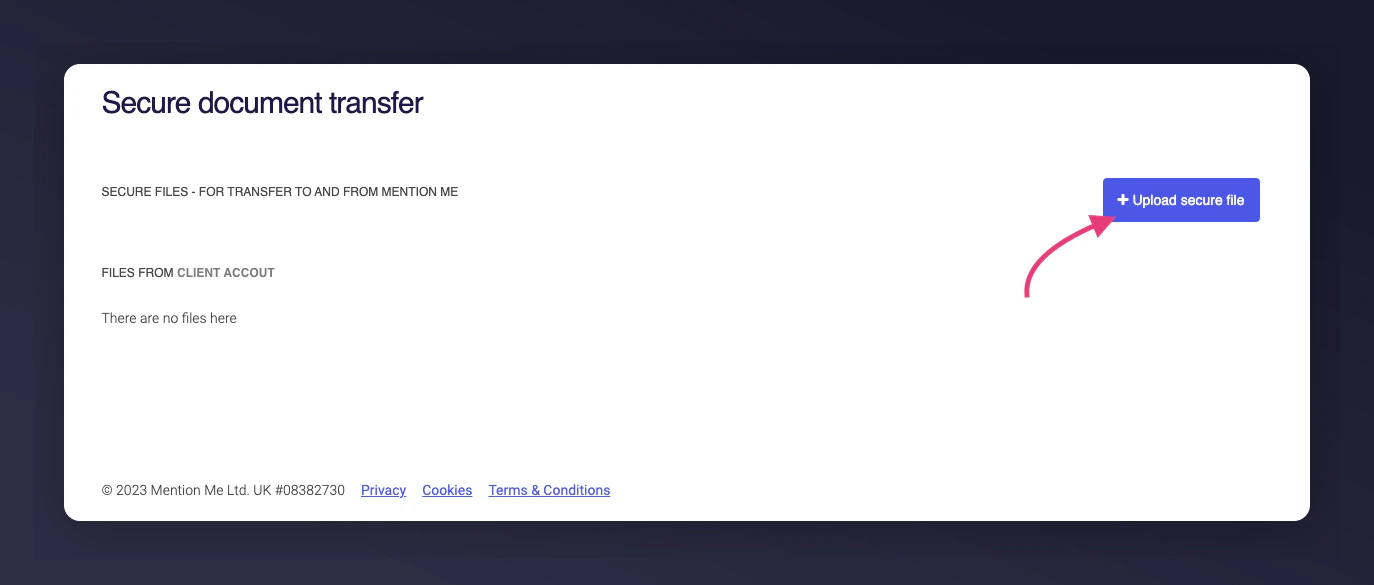
On the Secure Document Transfer page, click **+ Upload secure file**.
## Upload files
On the Secure Document Transfer page, click **+ Upload secure file**.
 Click **Choose file** to select the file you want to share. Enter a description to help Mention Me identify and process the file.
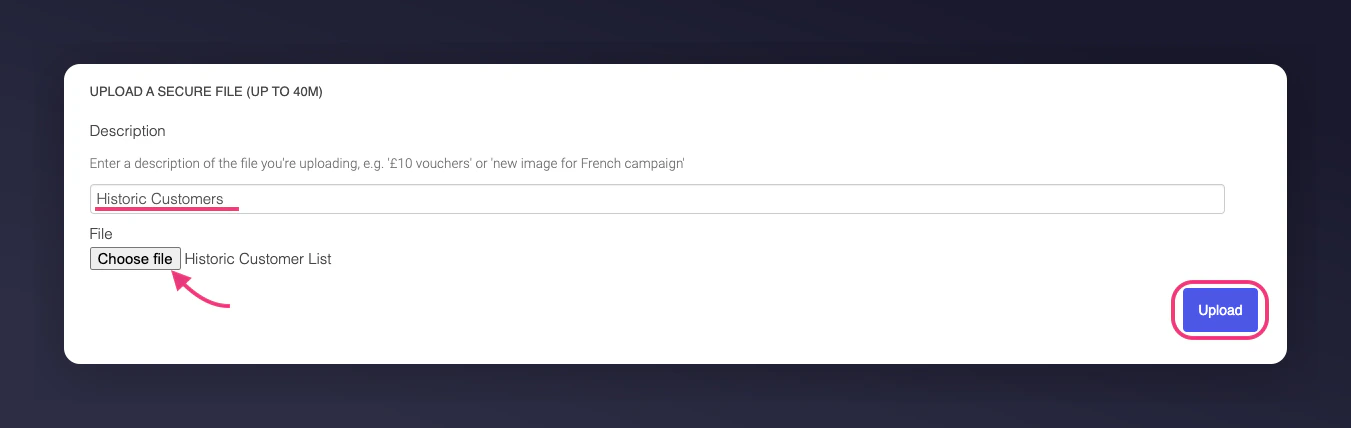 Click **Upload**. You are redirected back to the Secure Document Transfer page where the file shows as it is processed.
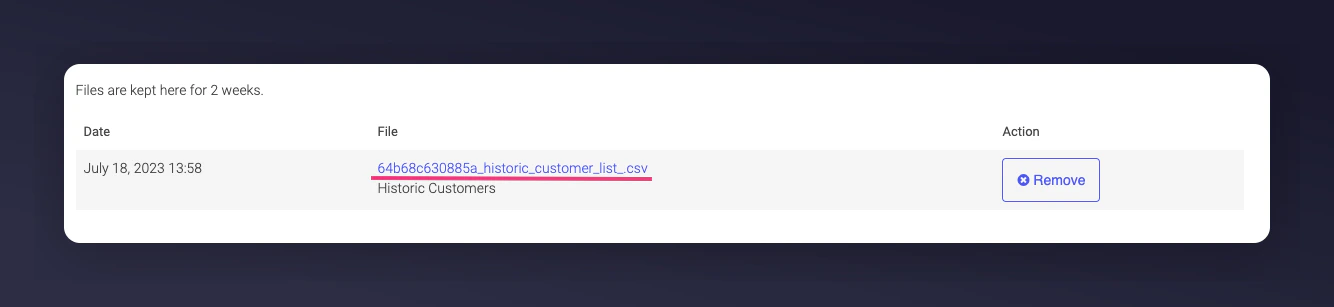
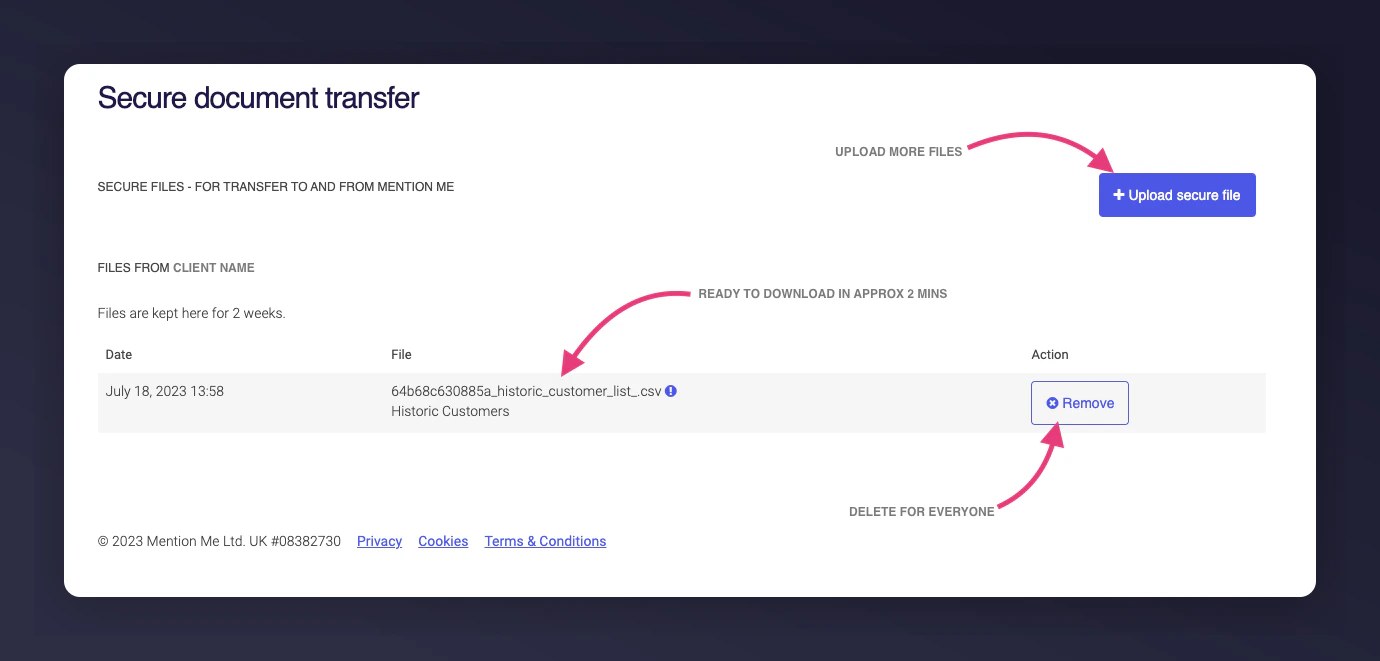 Once processed, the file becomes a downloadable link. You can also download files added by your team or by Mention Me.
 ## File retention
Files added to this area are only available for **2 weeks** before being automatically removed.
## File retention
Files added to this area are only available for **2 weeks** before being automatically removed.