> ## Documentation Index
> Fetch the complete documentation index at: https://docs.mention-me.com/llms.txt
> Use this file to discover all available pages before exploring further.
# Hash Historical Customer Emails
> How to hash customer email addresses before sending historical customer records to Mention Me.
If you are concerned about sharing historical customer data for data protection purposes, you can provide the list "pre-hashed". By performing a one-way hash on historical customer email addresses, we can tell if a particular email address is in the list, but we cannot see or discover the original addresses.
We also provide a [Secure Document Transfer](/knowledge/security/data-management/send-data-securely) feature for safely sending and receiving sensitive information.
## Setting up the hashes
You will need a shared secret key from Mention Me. Contact your onboarding manager to obtain the secret before continuing.
For each email address:
Lowercase the email address.
Append the secret key provided by Mention Me.
Hash the combined email address and key using **SHA-256**.
Ensure the output hash is lowercase.
## Testing the hashes
Hash a known email address (e.g. your own), then use the **Test Hashing** feature in the platform to compare.
Go to **Settings & Tools > Test Hashing**.
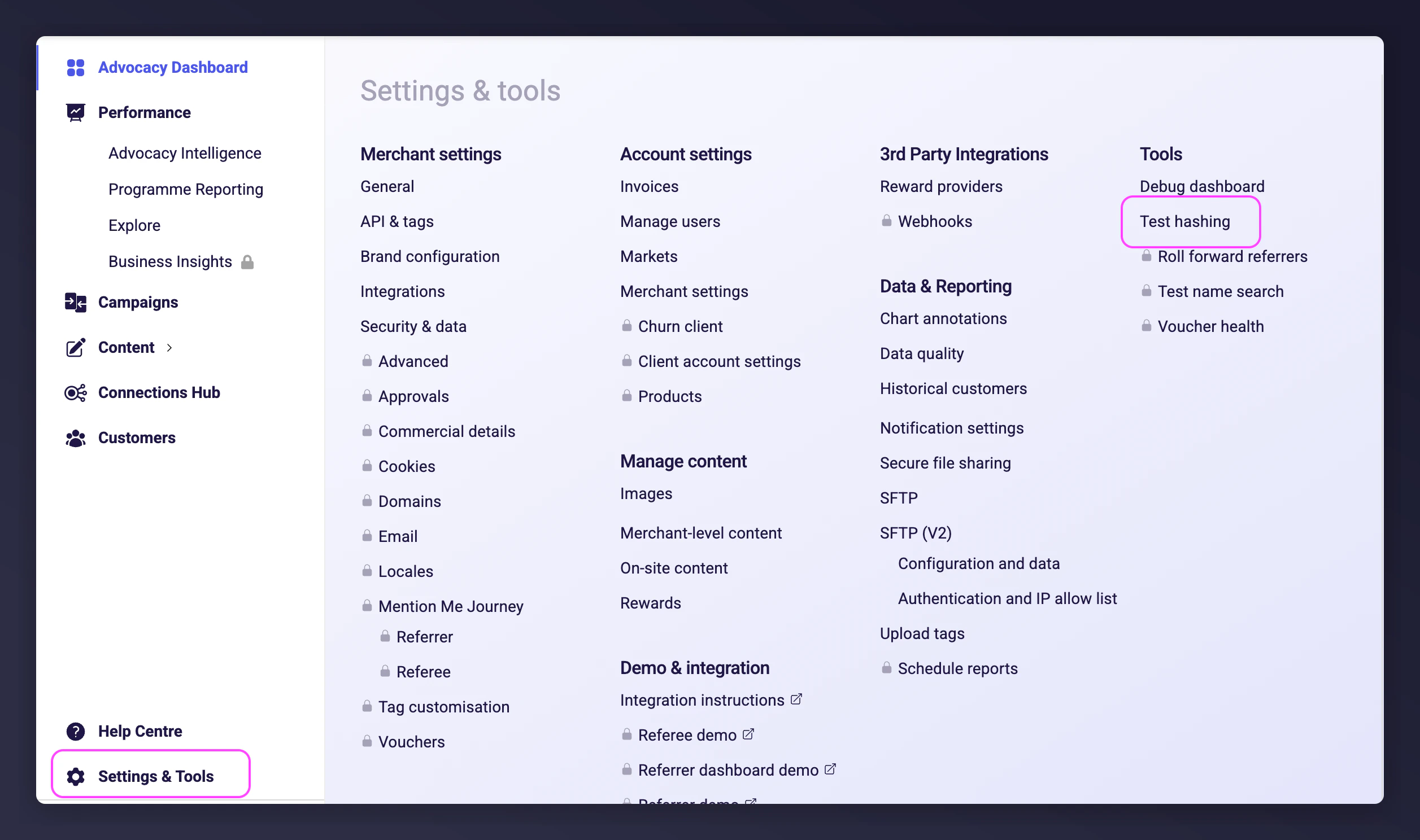 Enter the email address and the hash value you created. The platform confirms if the hash matches. If it does not match, the platform shows the expected value.
 ## Code examples
### Pseudo-code
```
HashedEmail = LowerCase(SHA256Hash(Concatenate(LowerCase([EMAIL]), [KEY])))
```
### MySQL
```sql theme={null}
SELECT SHA2(CONCAT(LOWER(u.email), SECRET), 256)
FROM user u;
```
### T-SQL (MS SQL Server)
```sql theme={null}
SELECT LOWER(
CONVERT(
VARCHAR(200),
HASHBYTES(
'SHA2_256',
CONCAT(
LOWER(CAST(u.email AS VARCHAR(256))),
SECRET
)
),
2)
)
FROM user u;
```
### JavaScript
```javascript theme={null}
var crypto = require("crypto");
var input = email.toLowerCase() + secret;
var output = crypto.createHash("sha256").update(input).digest("hex");
console.log(output);
```
## Code examples
### Pseudo-code
```
HashedEmail = LowerCase(SHA256Hash(Concatenate(LowerCase([EMAIL]), [KEY])))
```
### MySQL
```sql theme={null}
SELECT SHA2(CONCAT(LOWER(u.email), SECRET), 256)
FROM user u;
```
### T-SQL (MS SQL Server)
```sql theme={null}
SELECT LOWER(
CONVERT(
VARCHAR(200),
HASHBYTES(
'SHA2_256',
CONCAT(
LOWER(CAST(u.email AS VARCHAR(256))),
SECRET
)
),
2)
)
FROM user u;
```
### JavaScript
```javascript theme={null}
var crypto = require("crypto");
var input = email.toLowerCase() + secret;
var output = crypto.createHash("sha256").update(input).digest("hex");
console.log(output);
```