> ## Documentation Index
> Fetch the complete documentation index at: https://docs.mention-me.com/llms.txt
> Use this file to discover all available pages before exploring further.
# User Management
> How to add, unlock, and manage user accounts and permissions in the Mention Me platform.
## Who can add or unlock users?
Only users with full **Administrator** access can add or unlock user accounts.
## How to add users
Click **Settings & tools**, then **Manage users**.
Click **Add User** and enter the new user's email address, then click **Add user**.
Enter the user's first name and last name and select the appropriate role.
Set a Contact Type to determine whether the user receives communications such as Voucher Alerts. To add users across multiple accounts (e.g. locales or brand names), type the name of additional merchant accounts under **Add user to merchant**.
Click **Save**.
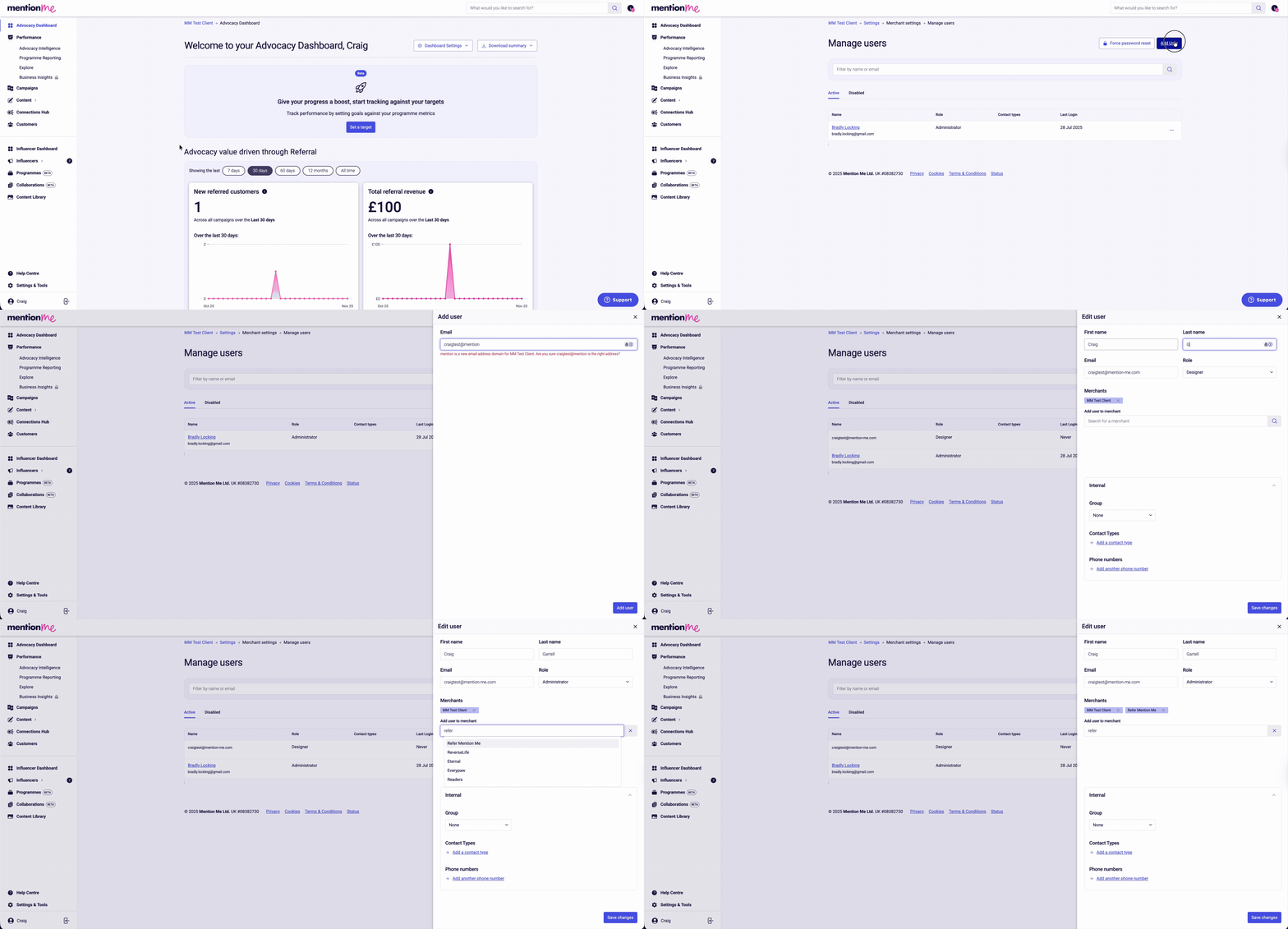 Once added, the user receives a welcome email prompting them to create their login.
## Permission levels
Mention Me has a hierarchy of roles granting access to different parts of the platform.
Once added, the user receives a welcome email prompting them to create their login.
## Permission levels
Mention Me has a hierarchy of roles granting access to different parts of the platform.
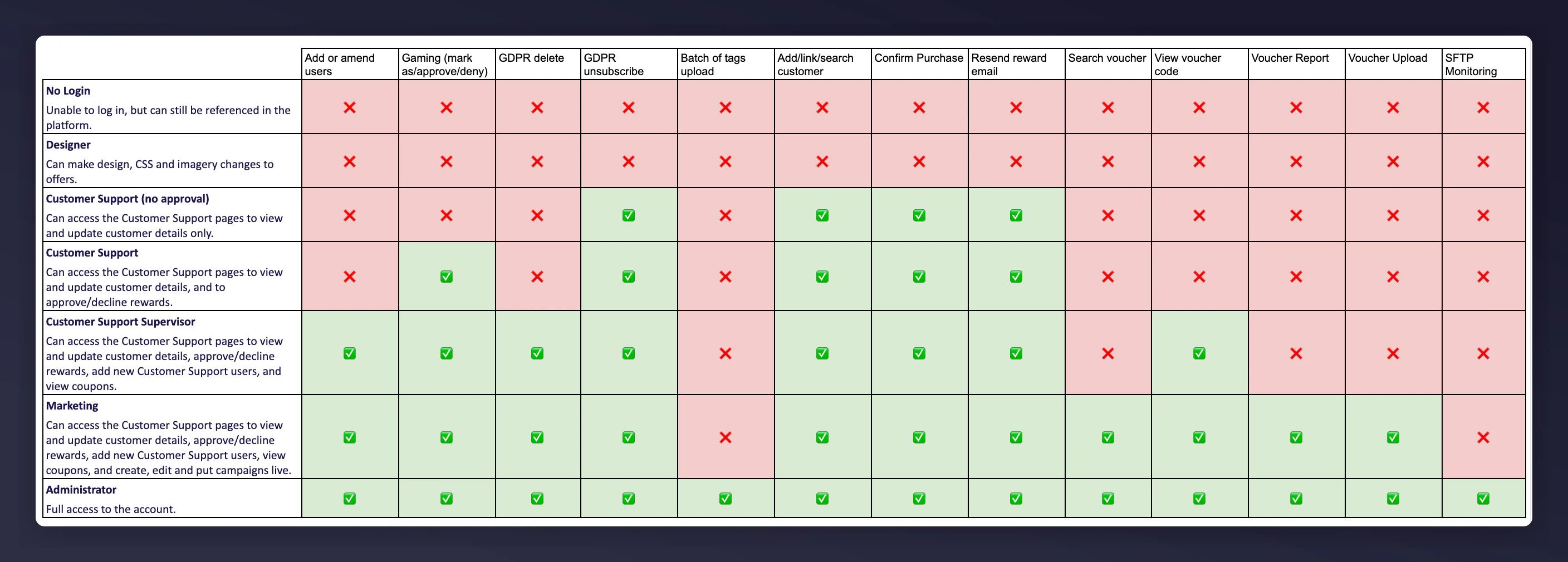 Users can only amend the permissions of people with a permission level equal to or below their own. For example, Customer Support Supervisors can add or amend other Customer Support staff, but they cannot add Marketing or Administrator users.
If you need your permissions upgraded, speak to the owner of the Mention Me account in your company. The Mention Me team cannot provide access without authorisation from someone in your account with sufficient permissions.
## How to unlock users
All user accounts are locked automatically after 90 days of inactivity.
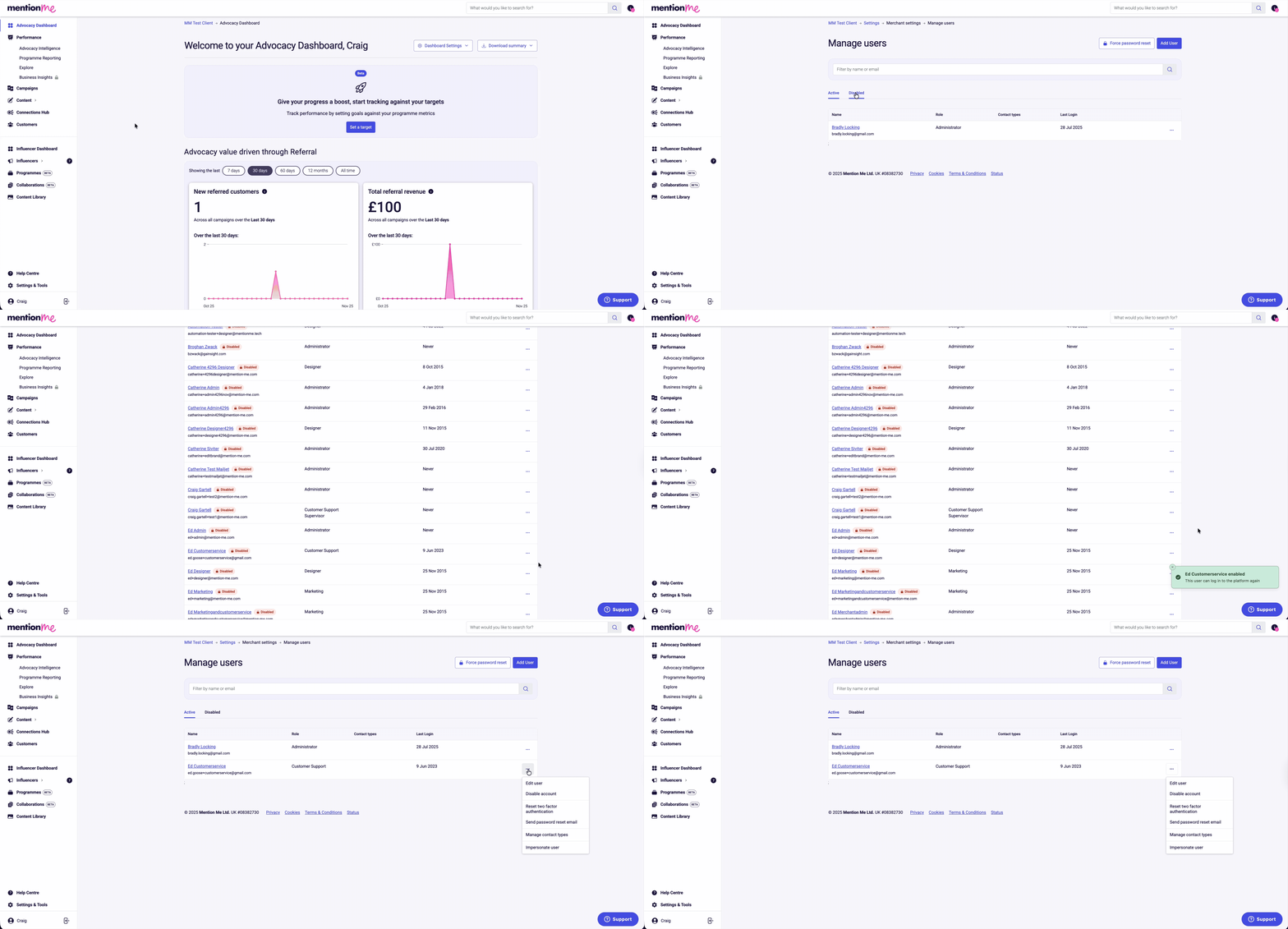
Click **Settings & tools**, then **Manage users**.
Click the **Disabled** tab and locate the disabled account.
Click the user settings menu (3 dots) and click **Enable account**. A notification will confirm: "This user can log in to the platform again".
If you use **SSO**, the unlocked account can sign in again without resetting their password. Otherwise, send a password reset email:
Click the **Active** tab and locate the enabled account.
Click the user settings menu (3 dots) and click **Send password reset email**.
Users can only amend the permissions of people with a permission level equal to or below their own. For example, Customer Support Supervisors can add or amend other Customer Support staff, but they cannot add Marketing or Administrator users.
If you need your permissions upgraded, speak to the owner of the Mention Me account in your company. The Mention Me team cannot provide access without authorisation from someone in your account with sufficient permissions.
## How to unlock users
All user accounts are locked automatically after 90 days of inactivity.
Click **Settings & tools**, then **Manage users**.
Click the **Disabled** tab and locate the disabled account.
Click the user settings menu (3 dots) and click **Enable account**. A notification will confirm: "This user can log in to the platform again".
If you use **SSO**, the unlocked account can sign in again without resetting their password. Otherwise, send a password reset email:
Click the **Active** tab and locate the enabled account.
Click the user settings menu (3 dots) and click **Send password reset email**.
 ## Why accounts get locked
Accounts are locked to prevent unauthorised access to sensitive data. Reasons include:
* A user was manually locked by editing their profile and ticking **Account is locked**.
* A user was given the **No Login** role.
* Inactivity-based deactivation:
* The user has logged in before but not within the last 6 months.
* The user has never logged in and it has been over 1 month since account creation.
* The user is attached to a churned Merchant (processed at 4:47am on Saturdays).
Both password-based and SSO users can be locked. Only password-based users need a password reset email to regain access.
## Why accounts get locked
Accounts are locked to prevent unauthorised access to sensitive data. Reasons include:
* A user was manually locked by editing their profile and ticking **Account is locked**.
* A user was given the **No Login** role.
* Inactivity-based deactivation:
* The user has logged in before but not within the last 6 months.
* The user has never logged in and it has been over 1 month since account creation.
* The user is attached to a churned Merchant (processed at 4:47am on Saturdays).
Both password-based and SSO users can be locked. Only password-based users need a password reset email to regain access.