> ## Documentation Index
> Fetch the complete documentation index at: https://docs.mention-me.com/llms.txt
> Use this file to discover all available pages before exploring further.
# Exporting Data
> How to extract, generate, and export data from the Mention Me platform, including manual downloads, automated reports, and order/transaction exports.
This guide covers all the ways to get data out of Mention Me, whether you need a quick one-time export, a recurring automated report, or a transaction-level data extract for reconciliation.
## Manually Downloading Reports
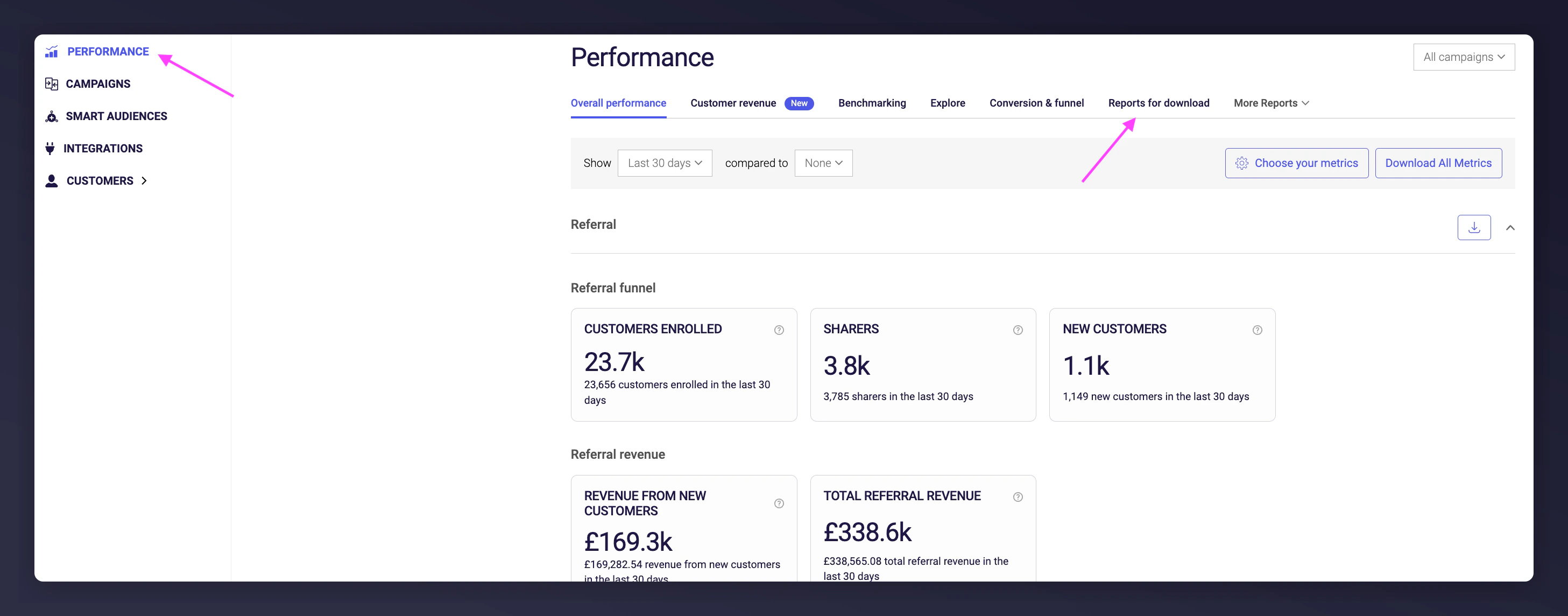
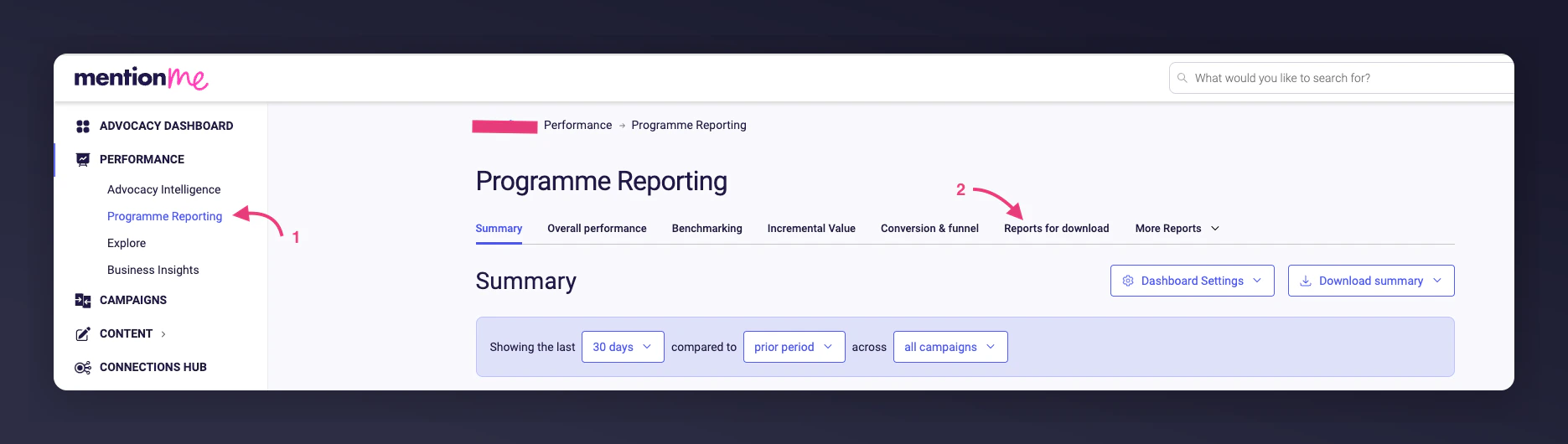
Log in to your dashboard and navigate to **Performance -> Programme Reporting -> Reports for Download**.
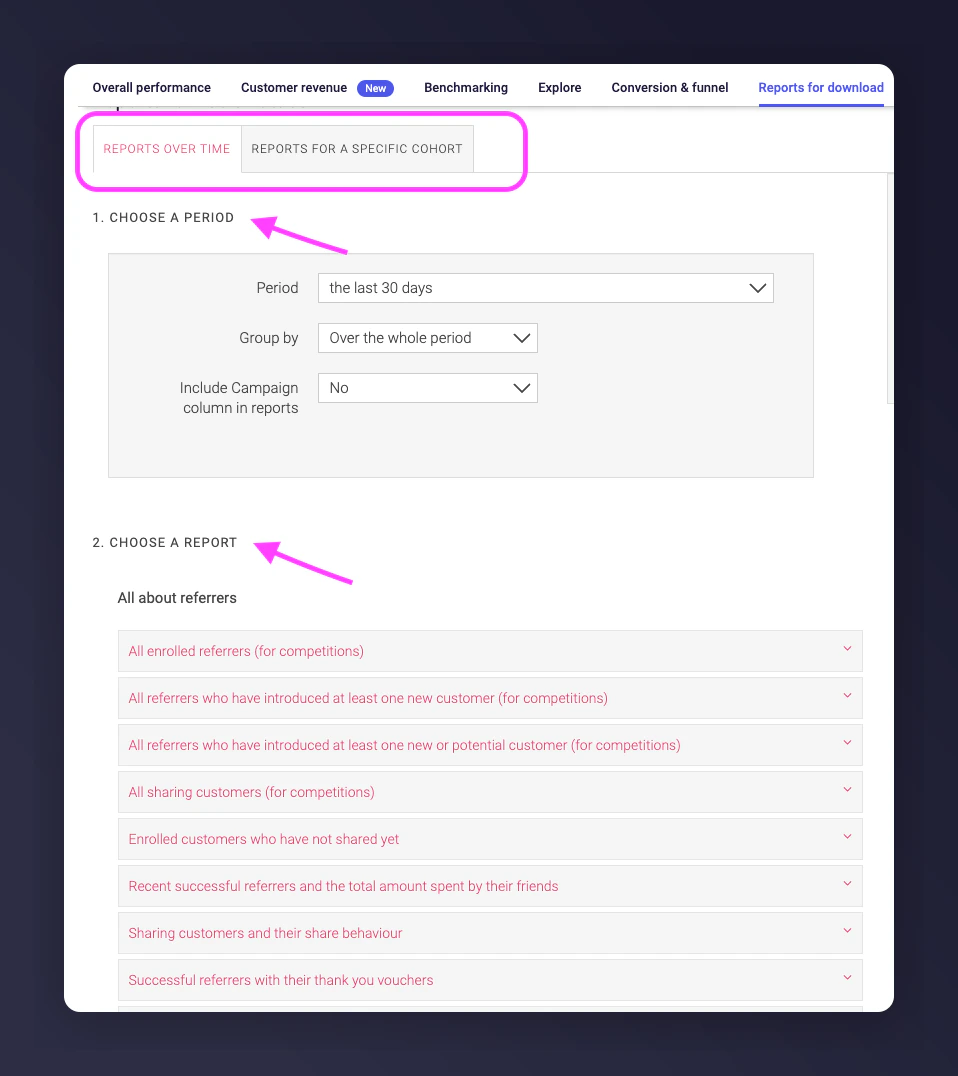
 Choose between **reports over time** or **reports for a specific cohort per campaign**, then specify the period you want the report to cover.
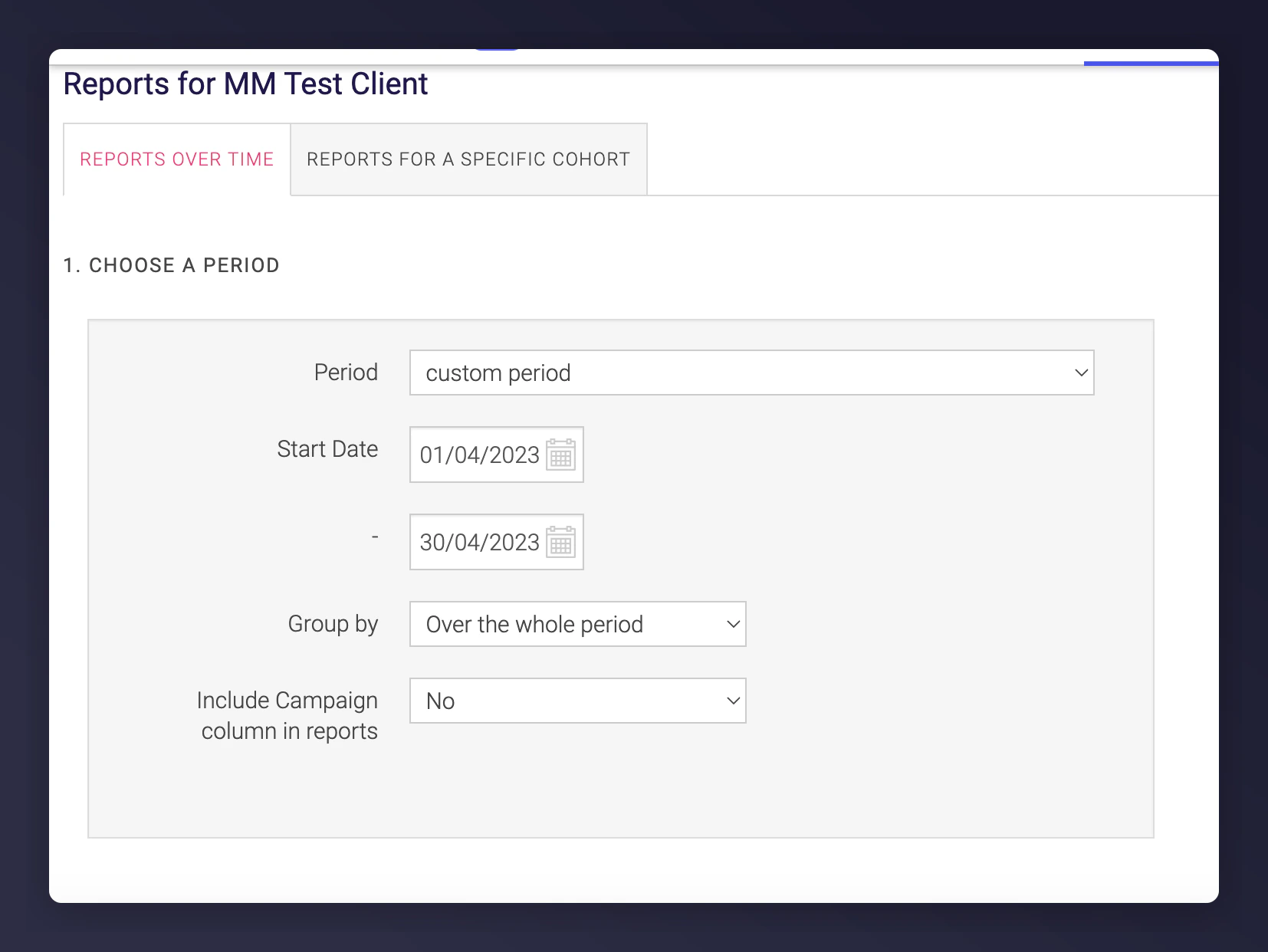
 Choose from preset ranges (e.g. last 7 days, last 30 days) or define custom start and end dates.
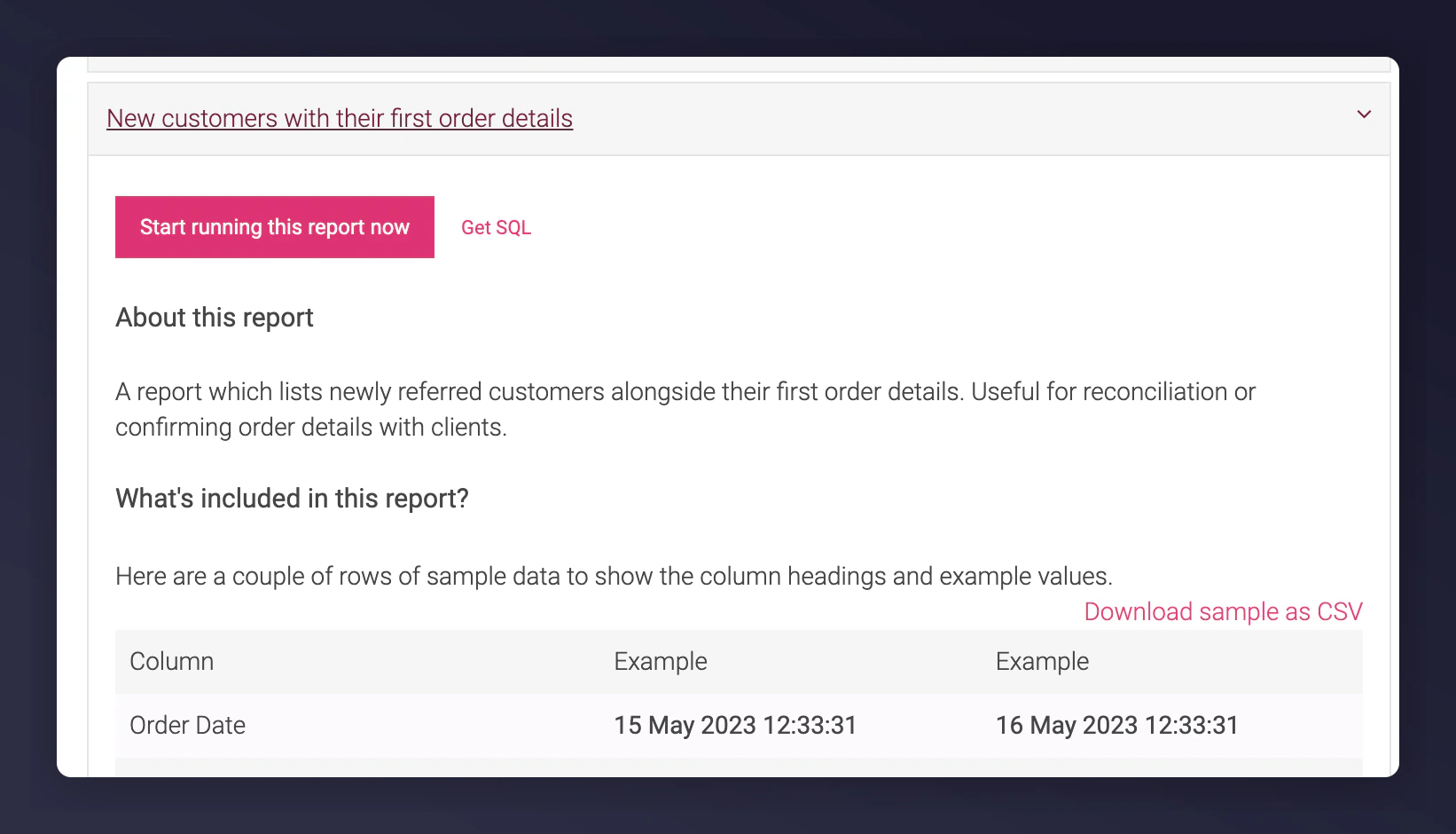
 Browse the list of available reports, click to expand report details, and click **Start running this report now**.
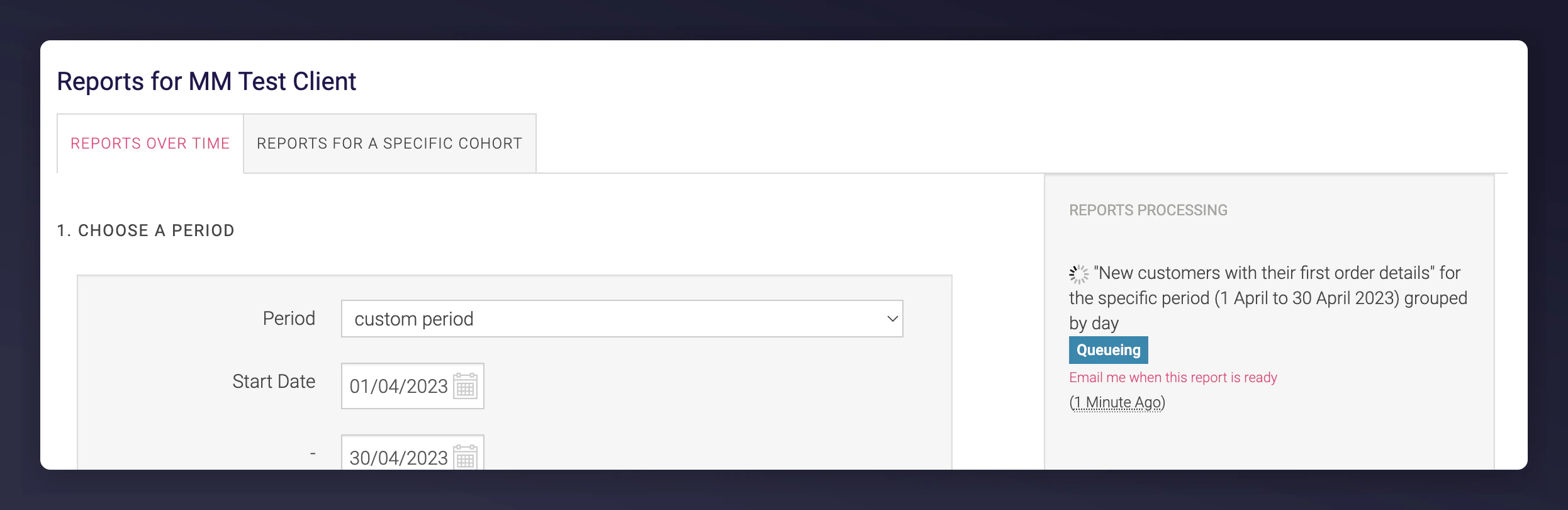
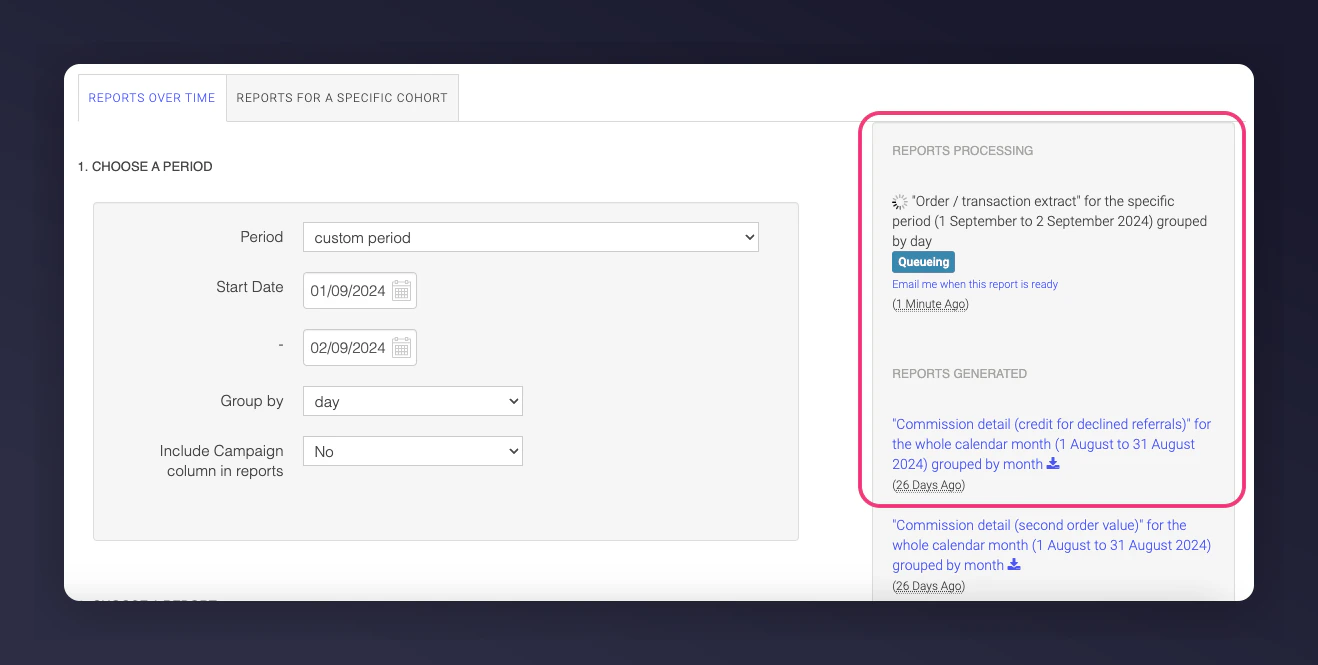
 Your report appears in the queue panel on the right-hand side with status updates as it's processed. Once ready, click the report to download it.
 ## Automatically Generated Reports
Many of the reports under Reports for Download can be automatically generated and delivered, along with others not listed in that section.
These reports can be sent to:
* The **Secure File Transfer** area of the Mention Me platform
* Via **email** to nominated team members (sending customer data via email is not recommended)
* Via **SFTP** to your own systems
You can choose how often data is delivered (e.g. daily, weekly, monthly).
To arrange automatically generated reports, contact your Client Success Manager.
## Order/Transaction Data Exports
Order/Transaction Exports give you visibility into the transactions Mention Me has received and recorded. Use them alongside your own database to identify:
* Differences in transaction volume
* Order value discrepancies
* Missed orders
* Integration issues where Mention Me may not be receiving expected data
### Data Sources
Order/transaction data can be provided to Mention Me through:
* JavaScript tags
* SFTP order imports
* Order API
Regardless of the source, all orders are processed uniformly and stored as a single type.
### Creating an Order Data Export
Go to **Performance -> Programme Reporting -> Reports for Download**.
## Automatically Generated Reports
Many of the reports under Reports for Download can be automatically generated and delivered, along with others not listed in that section.
These reports can be sent to:
* The **Secure File Transfer** area of the Mention Me platform
* Via **email** to nominated team members (sending customer data via email is not recommended)
* Via **SFTP** to your own systems
You can choose how often data is delivered (e.g. daily, weekly, monthly).
To arrange automatically generated reports, contact your Client Success Manager.
## Order/Transaction Data Exports
Order/Transaction Exports give you visibility into the transactions Mention Me has received and recorded. Use them alongside your own database to identify:
* Differences in transaction volume
* Order value discrepancies
* Missed orders
* Integration issues where Mention Me may not be receiving expected data
### Data Sources
Order/transaction data can be provided to Mention Me through:
* JavaScript tags
* SFTP order imports
* Order API
Regardless of the source, all orders are processed uniformly and stored as a single type.
### Creating an Order Data Export
Go to **Performance -> Programme Reporting -> Reports for Download**.
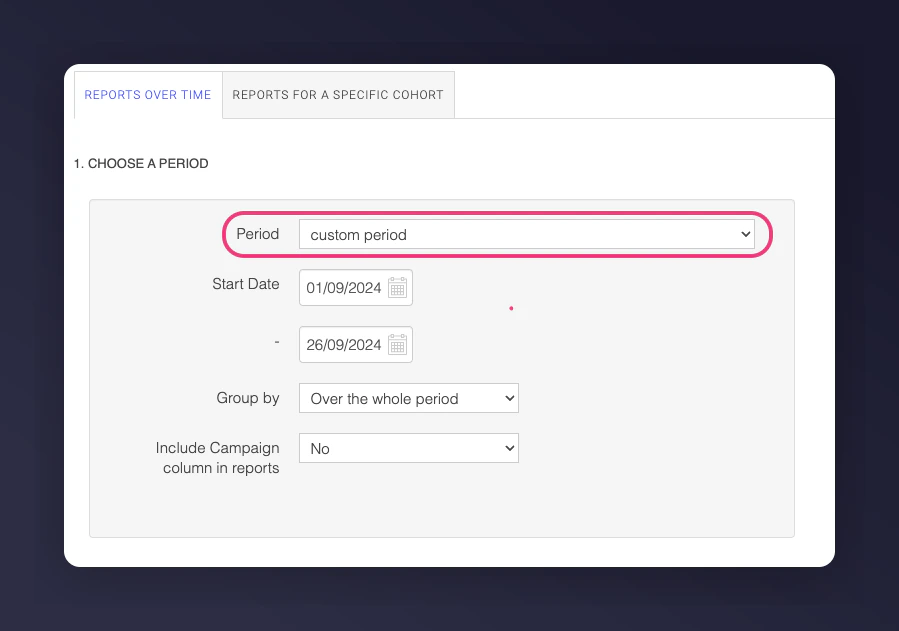
 Use the **Period selector** to choose a time frame (e.g. last 7 days, last whole x months, or a specific range). Ensure dates reflect when orders were placed for accurate alignment with your data.
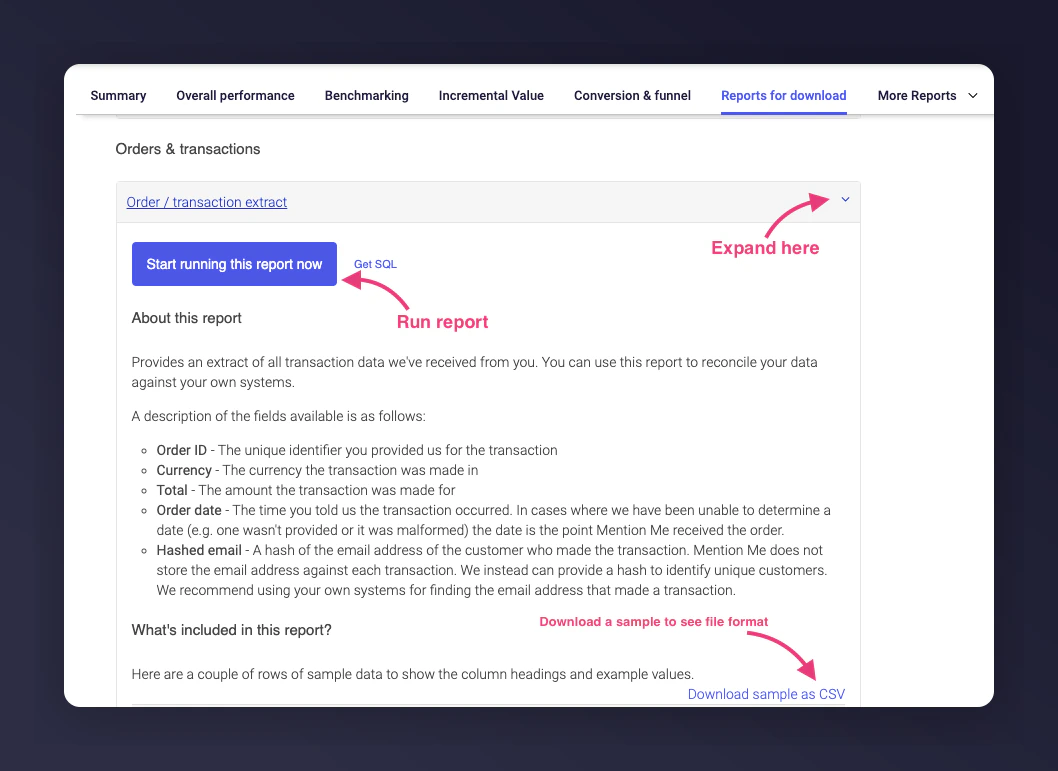
 Scroll to **Orders & transactions**, expand to view available fields. Choose your period or download a sample file to check formatting.
 Once started, the report appears under **REPORTS PROCESSING**. On completion, it moves to **REPORTS GENERATED** for download.
 ### Important Notes
* **Email Addresses**: Exported emails are [hashed](/knowledge/security/data-management/hashing), as stored in the database.
* **Order ID**: Use the order ID for investigations; it matches your identifier provided to Mention Me.
* **Support**: For questions about your data, contact the Technical Operations team using the [Help Form](https://help.mention-me.com/hc/en-gb/requests/new?ticket_form_id=8840645829405).
### Important Notes
* **Email Addresses**: Exported emails are [hashed](/knowledge/security/data-management/hashing), as stored in the database.
* **Order ID**: Use the order ID for investigations; it matches your identifier provided to Mention Me.
* **Support**: For questions about your data, contact the Technical Operations team using the [Help Form](https://help.mention-me.com/hc/en-gb/requests/new?ticket_form_id=8840645829405).